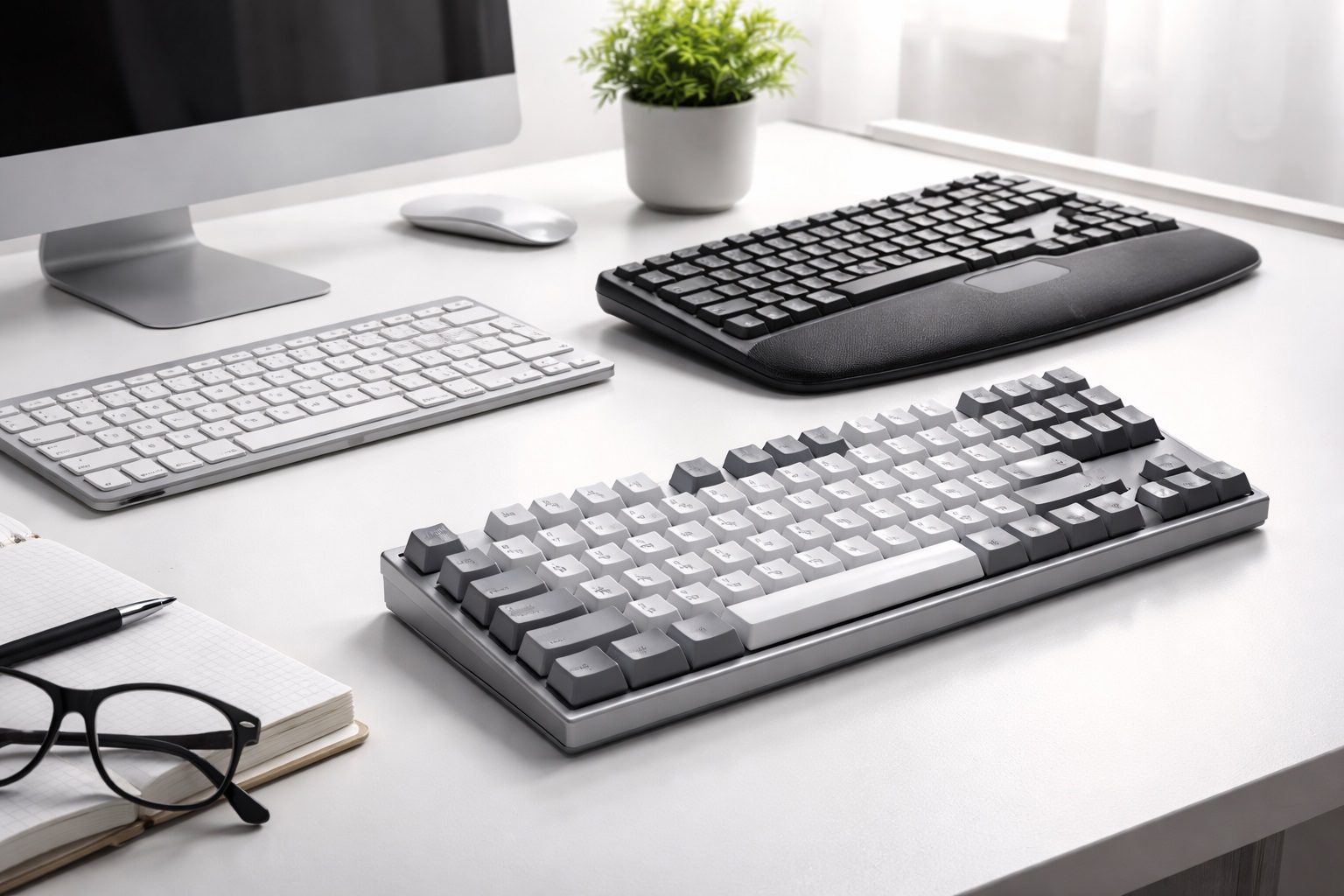
Best Office Keyboards: Comfortable Typing for Long Workdays
If your hands are on a keyboard for six or eight hours a day, the model sitting on your desk matters more than most people realize. A keyboard that feels fine for an hour of casual browsing can quickly become a source of wrist strain, missed keystrokes, or fatigue once you're drafting emails, writing reports, or coding for an entire shift. Office typing has its own set of demands: quiet enough not to bother a shared workspace, reliable enough to survive years of daily use, and comfortable enough that you stop thinking about it altogether.
This guide is built around that reality. Rather than chasing the flashiest gaming keyboard or the cheapest bundle deal, it looks at the categories of keyboards that actually solve office-specific problems: full-size wireless boards for people who want a clean desk, compact layouts for tight spaces, split ergonomic designs for wrist health, quiet membrane boards for shared rooms, mechanical switches for typists who want tactile feedback, and budget options for straightforward, no-fuss use.
Every category below comes with an honest look at what it does well and where it compromises, so you can match the keyboard to how you actually work rather than to a marketing headline. Whether you're outfitting a single desk or making a recommendation for an entire office, the goal is the same: fewer typos, less fatigue, and a keyboard you stop noticing because it simply works.
It's also worth separating office keyboards from gaming keyboards, since the two categories are often marketed side by side but solve different problems. Gaming boards tend to emphasize rapid key response, programmable macros for specific games, and lighting effects, none of which do much for someone writing reports or answering emails all day. Office-focused designs, by contrast, prioritize quiet operation, ergonomic comfort, wireless convenience, and long-term reliability under sustained, repetitive use. Keeping that distinction in mind helps avoid overpaying for gaming-oriented features that add little value at a desk.
Top Office Keyboards (Detailed Reviews)
1. Full-Size Wireless Keyboard – Best Overall
A full-size wireless keyboard keeps the complete key set intact, including the numpad and a full row of function keys, while cutting the cable clutter that builds up on a busy desk. For office workers who move between a laptop dock, a monitor, and the occasional conference room, going wireless also means the keyboard travels easily without a trailing cord getting caught on drawers or dock connectors. This is the layout most people already know from years of desktop use, so there's effectively no learning curve.
- Pros:
- Full key set including numpad, useful for data entry and spreadsheet work
- No cable management needed at the desk
- Familiar layout that requires no adjustment period
- Works well as a shared or hot-desk peripheral
- Cons:
- Takes up more desk space than compact designs
- Relies on battery life and a stable wireless connection
- Not ideal for anyone who mainly needs mouse space directly to the right of the keyboard
Best For: Office workers who want the complete key layout, including a numpad, without any cables on the desk.
Why We Recommend It: It offers the most conventional, no-compromise typing experience for anyone doing general office work, from email to spreadsheets, and the wireless connection removes one more cable from an already crowded desk setup.
2. Compact TKL Office Keyboard – Best for Small Desks
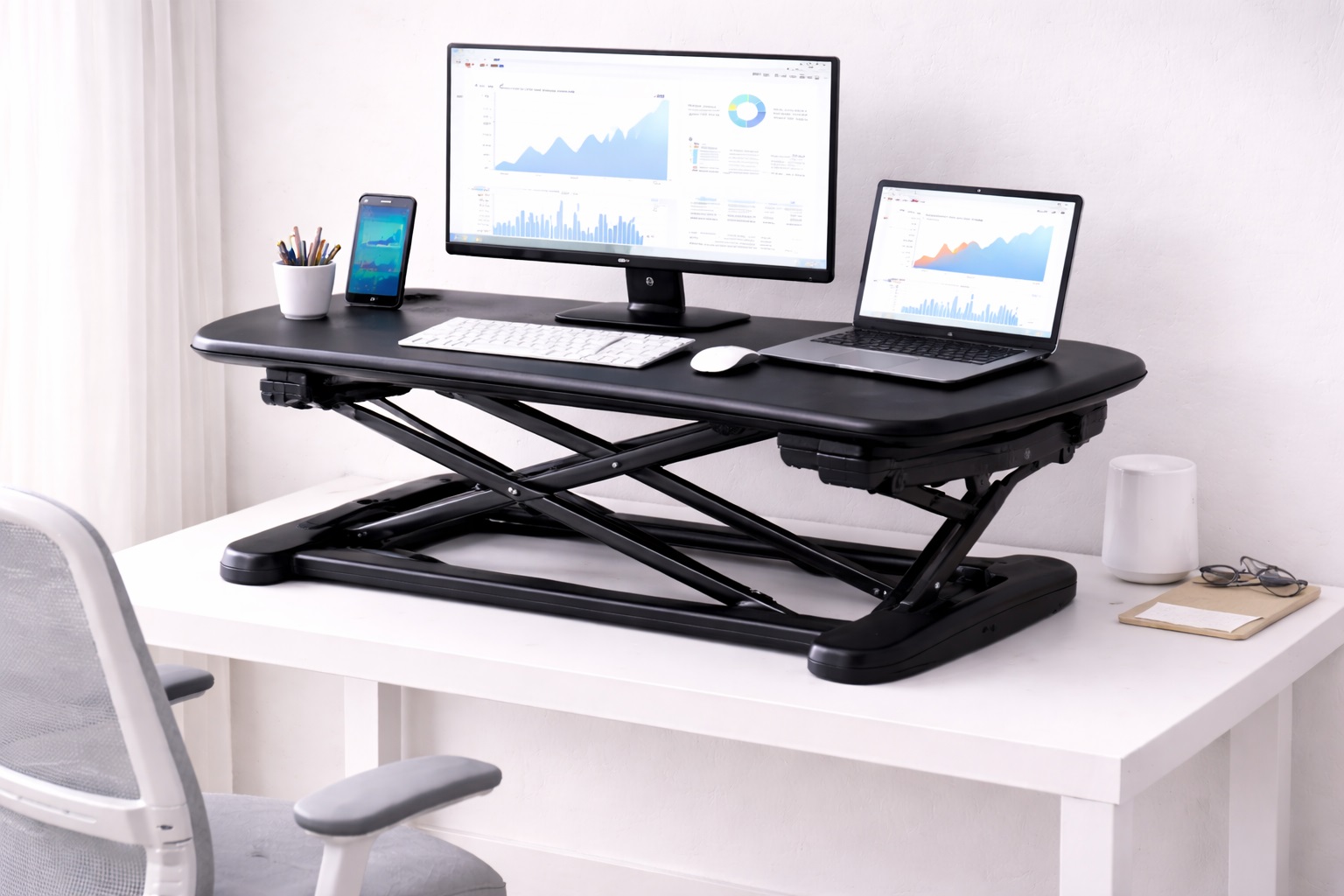
Tenkeyless, or TKL, designs drop the numpad entirely, shortening the keyboard by several inches while keeping the main alphanumeric block and function row intact. That extra space matters more than it sounds like on a small desk, a standing desk with limited surface area, or any setup where the mouse needs to sit closer to the body to avoid shoulder strain. It's a small change in dimensions with a real effect on posture over a full workday.
- Pros:
- Frees up desk space for a mouse, notebook, or second monitor stand
- Encourages a more centered, shoulder-neutral mouse position
- Easier to fit into a bag for hybrid or hot-desk workers
- Cons:
- No dedicated numpad, which can slow down heavy numeric data entry
- Some users need a short adjustment period after years on a full-size board
Best For: Anyone working at a small desk or standing desk who wants a shorter reach to the mouse.
Why We Recommend It: Losing the numpad is a worthwhile trade for most office tasks, and the space it frees up can meaningfully improve arm and shoulder posture across a long day.
3. Ergonomic Split Keyboard – Best for Wrist Comfort
Split and curved ergonomic keyboards separate the key clusters, angling them so the wrists and forearms sit in a more natural position instead of turning inward toward a single flat plane. Some models split fully in two, others use a fixed curved chassis; both aim at the same problem, which is reducing the ulnar deviation that builds up over years of conventional keyboard use. This category tends to appeal most to people who already notice wrist or forearm discomfort by the end of the day.
- Pros:
- Reduces wrist strain during long, continuous typing sessions
- Encourages a more natural shoulder-width hand position
- Often paired with a built-in wrist rest for additional support
- Cons:
- Requires an adjustment period, sometimes a week or more, before typing speed returns to normal
- Larger footprint than a standard keyboard due to the split or curved design
- Not every model is fully adjustable to individual hand width
Best For: Office workers who already experience wrist or forearm discomfort, or anyone typing more than five or six hours a day.
Why We Recommend It: Of all the categories here, this is the one most directly aimed at long-term comfort and injury prevention rather than raw typing speed, which makes it worth the short adjustment period for heavy typists.
4. Quiet Membrane Keyboard – Best for Shared Offices
Membrane keyboards use a rubber dome layer under each key instead of individual mechanical switches, which naturally produces a softer, quieter keystroke. In an open-plan office, a shared meeting room, or a home office next to a sleeping household, that noise difference is not a minor detail. It's the reason many workplaces still standardize on membrane boards rather than the louder, click-heavy mechanical alternatives.
- Pros:
- Noticeably quieter keystrokes than mechanical switches
- Generally lighter and less expensive than mechanical alternatives
- Low-profile feel that suits people who prefer a soft touch
- Cons:
- Less tactile feedback, which can mean more typos for fast typists
- Key feel tends to degrade faster than mechanical switches over years of heavy use
Best For: Shared offices, open-plan workspaces, and anyone whose typing noise could disturb people nearby.
Why We Recommend It: When noise is the deciding factor, nothing beats a quiet membrane board, and the lower price point makes it an easy default choice for outfitting multiple desks at once.
5. Mechanical Office Keyboard – Best for Typing Feel
Mechanical keyboards use individual physical switches under each key, giving a distinct, consistent tactile response that many fast typists prefer once they've made the switch. Depending on the switch type, this can range from a soft tactile bump to an audible click, and the resulting feedback often helps typists recognize a completed keystroke without pressing all the way down, which can reduce finger fatigue during long writing sessions.
- Pros:
- Consistent, tactile keystroke feedback that many typists find reduces errors
- Individual switches generally hold up to heavy daily use over the long term
- Often available with quieter tactile or linear switches for office-appropriate use
- Cons:
- Louder than membrane boards, even with quieter switch options
- Usually costs more than a comparable membrane keyboard
- Heavier and bulkier, which matters if the keyboard needs to travel
Best For: Typists who write or code for hours at a time and want consistent tactile feedback over speed alone.
Why We Recommend It: For anyone who spends most of the workday typing rather than doing occasional data entry, the tactile consistency of a mechanical board tends to pay off in fewer errors and less finger fatigue, provided a quieter switch type is chosen for office use.
6. Budget Office Keyboard – Best Budget Pick
Not every desk needs a premium keyboard, and a straightforward budget membrane or basic wireless model covers the essentials well: reliable typing, a full key layout, and a low price that makes it easy to standardize across multiple workstations. This category won't impress anyone with extra features, but it also won't leave a typical office worker wanting for much in day-to-day use.
- Pros:
- Low upfront cost, making it practical to buy in bulk for an office
- Covers core typing needs without unnecessary extras
- Simple to set up with no software or pairing complications
- Cons:
- Build quality and key feel typically fall short of pricier options
- Shorter expected lifespan under heavy daily use
- Fewer comfort or ergonomic features included
Best For: Occasional typists, secondary workstations, or offices outfitting several desks on a limited budget.
Why We Recommend It: It gets the basics right at a price that makes sense when a keyboard doesn't need to do more than support everyday typing, email, and general office tasks.
Buying Guide: How to Choose the Best Office Keyboard
1. Typing feel and feedback
The way a key responds under your finger, whether it's a soft membrane dome, a tactile mechanical bump, or a linear mechanical switch, shapes your typing accuracy and comfort more than almost any other spec. If you type constantly throughout the day, spend time with a demo unit if possible, since typing feel is genuinely personal and hard to judge from a spec sheet alone.
2. Noise level for your environment
A loud, clicky keyboard that feels great to you can be genuinely disruptive to colleagues in an open office or to family members in a home office. Quiet mechanical switches and membrane designs both address this, but it's worth checking noise ratings or reviews specifically before choosing a louder mechanical board for a shared space.
3. Ergonomics and wrist support
If you already notice wrist, hand, or forearm discomfort after a workday, a split or curved ergonomic layout, ideally paired with a wrist rest, is worth prioritizing over other features. This is one area where comfort compounds over months and years, so it deserves more weight than it might initially seem to warrant.
4. Wireless versus wired connections
Wireless keyboards reduce desk clutter and make it easier to reposition your setup, but they depend on battery life and a stable connection. Wired keyboards remove that variable entirely and are often preferred for shared or public workstations where battery management becomes a hassle. Choose based on how much you value a clean desk versus zero connectivity concerns.
5. Multi-device pairing
If you regularly switch between a work laptop, a personal computer, or a tablet, look for a keyboard that supports pairing with multiple devices and switching between them with a dedicated key. This small feature can save real time for anyone who works across more than one machine during the day.
6. Full-size versus compact layout
A numpad is genuinely useful for anyone doing regular data entry or spreadsheet work, but it adds width that many desks simply don't have room for. Decide honestly how often you use the numpad before ruling out a more compact, space-saving layout.
7. Build quality and expected lifespan
Keyboards that see daily office use for years benefit from sturdier keycaps, a solid chassis, and switches rated for a high number of keystrokes. Cheaper boards can still perform well for lighter use, but if the keyboard is a primary daily tool, investing a bit more in build quality tends to pay off over time.
8. Compatibility with your operating system
Some keyboards are designed with dedicated media keys, shortcuts, or layouts optimized for a specific operating system. Before buying, confirm the keyboard works cleanly with your setup, particularly if your office standardizes on a specific platform across most workstations.
9. Battery life and charging
For wireless keyboards, battery life varies widely between models, and some rely on replaceable batteries while others use rechargeable ones. If a keyboard sees eight hours of use a day, consider how often you're willing to swap batteries or plug it in to recharge before making a decision.
10. Price relative to how you'll actually use it
The most expensive keyboard on the market isn't automatically the right choice for a typical office task list. Match the price point to how demanding your actual typing needs are, and resist the pull of premium features that sound appealing but rarely get used in day-to-day office work.
11. Warranty and manufacturer support
A keyboard used daily for years is a long-term investment even at a modest price point. Checking the warranty length and the manufacturer's reputation for support gives a reasonable sense of how the product will be backed if something goes wrong after the return window closes.
12. Keycap material and profile
Keycaps made from denser plastics tend to resist shine and wear better over years of use, and their profile, meaning the height and curve of each row, affects how natural the reach feels across the keyboard. This is a small detail that rarely appears in marketing copy but becomes noticeable after months of daily typing, particularly on keyboards used for eight or more hours a day.
13. Function row and media controls
Dedicated media keys, volume controls, and shortcut buttons for things like muting a microphone during video calls can save small amounts of friction many times a day. If your work involves frequent video conferencing or media control, a keyboard with these extras built into the function row is worth a closer look rather than an afterthought.
14. A short trial period before fully committing
Comfort issues, especially with ergonomic or mechanical designs, often don't show up until after a few full workdays of real use rather than a five-minute test in a store. Where possible, buy from a retailer with a reasonable return window so you have time to confirm the keyboard actually suits your hands and your routine before the decision becomes final.
Frequently Asked Questions
Do I need a mechanical keyboard for office work, or is membrane good enough?
Membrane keyboards are perfectly adequate for most office tasks and are quieter and less expensive. Mechanical keyboards make more sense if you type for hours at a stretch and want more consistent tactile feedback, but they aren't strictly necessary for typical office use.
Will an ergonomic split keyboard slow down my typing at first?
Most people experience a short adjustment period, often a few days to two weeks, before their typing speed returns to normal or improves. The initial learning curve is generally worth it for anyone already dealing with wrist or forearm discomfort.
Is a wireless keyboard reliable enough for daily office use?
Modern wireless keyboards are generally reliable for office use, though connection stability and battery management are ongoing considerations that a wired keyboard simply avoids. For most desk setups, the convenience of going wireless outweighs the minor maintenance involved.
Do I really need a numpad?
If your work involves regular spreadsheet entry, accounting, or other numeric-heavy tasks, a numpad genuinely speeds things up. If most of your work is writing, email, or web-based tasks, a compact keyboard without one is unlikely to be missed.
How loud is a mechanical keyboard compared to a membrane one?
It depends heavily on the switch type. Clicky mechanical switches are noticeably louder than membrane keys, while quieter tactile or linear mechanical switches can approach membrane-level quietness. If noise matters, check the specific switch type rather than assuming all mechanical keyboards sound the same.
Can one keyboard work well for both a laptop and a desktop monitor setup?
Yes, as long as it supports the connection types and, if wireless, the multi-device pairing you need. Many office keyboards are designed specifically to switch between a laptop and a docked monitor setup without needing to unplug or re-pair anything.
How often should I replace an office keyboard?
This varies by build quality and usage intensity, but many office keyboards remain fully functional for several years of daily use. Watch for inconsistent key response or sticking keys as early signs that a replacement may be worth considering.
Are budget keyboards a false economy for daily office use?
Not necessarily. A budget keyboard can perform reliably for years of moderate use, especially for secondary workstations or occasional typists. The trade-off tends to show up in build quality and comfort features rather than basic reliability.
What's the biggest mistake people make when choosing an office keyboard?
Buying based on appearance or a single standout feature rather than how the keyboard fits daily habits, like typing volume, desk space, and noise sensitivity. The best keyboard for office work is the one matched to your actual routine, not the one with the most impressive spec sheet.
Should I buy an office keyboard online or try one in a store first?
If typing feel is a top priority, trying a keyboard in person before buying can help, particularly for mechanical switches or ergonomic layouts. For more standard membrane or wireless boards, buying online based on reviews is usually a safe and convenient approach.
Does keyboard choice really make a measurable difference for office work?
For anyone typing several hours a day, yes. The right layout, switch type, and ergonomic fit can meaningfully reduce fatigue and typos over a full workday, even if the difference isn't obvious after just a few minutes of use.
Do office keyboards need remapping software?
Not necessarily, but keyboards that include remapping or macro software give you more control over shortcuts, media keys, and function layouts. This matters more for power users and less for anyone who just wants standard keys to work as expected out of the box.
Is RGB lighting worth paying extra for on an office keyboard?
For most office use, lighting is a cosmetic extra rather than a functional benefit, and it can add unnecessary cost. It's more relevant for gaming keyboards or dim environments where key visibility genuinely helps, but it's rarely a deciding factor for daily office typing.
How do I keep an office keyboard clean over years of daily use?
Regularly turning the keyboard upside down and gently shaking out debris, along with wiping keycaps with a slightly damp cloth, keeps most office keyboards in good condition. Compressed air can help clear dust from between keys, especially around a numpad or function row where crumbs and dust tend to collect.
What does hot-swappable mean on a mechanical keyboard, and does it matter for office use?
Hot-swappable mechanical keyboards let you change individual switches without soldering, which is useful if you want to experiment with quieter or more tactile switches later without buying an entirely new keyboard. For office use, this mainly matters if you're not sure yet which switch feel and noise level will suit your workspace long-term.
Can switching keyboards actually improve typing speed, not just comfort?
Sometimes, though comfort tends to be the bigger and more consistent benefit. A layout or switch type that reduces missed keystrokes and finger strain often lets you type at a steadier pace over a full day, even if your peak burst speed doesn't change dramatically.
Why do office keyboards often cost less than gaming keyboards with similar switches?
Gaming keyboards frequently include extras like per-key lighting, additional macro keys, and gaming-specific software that add to the price without benefiting office tasks. An office-focused keyboard with the same underlying switch type can cost less simply because it skips those extras.
Does keyboard size affect how well it works with a monitor arm or laptop stand setup?
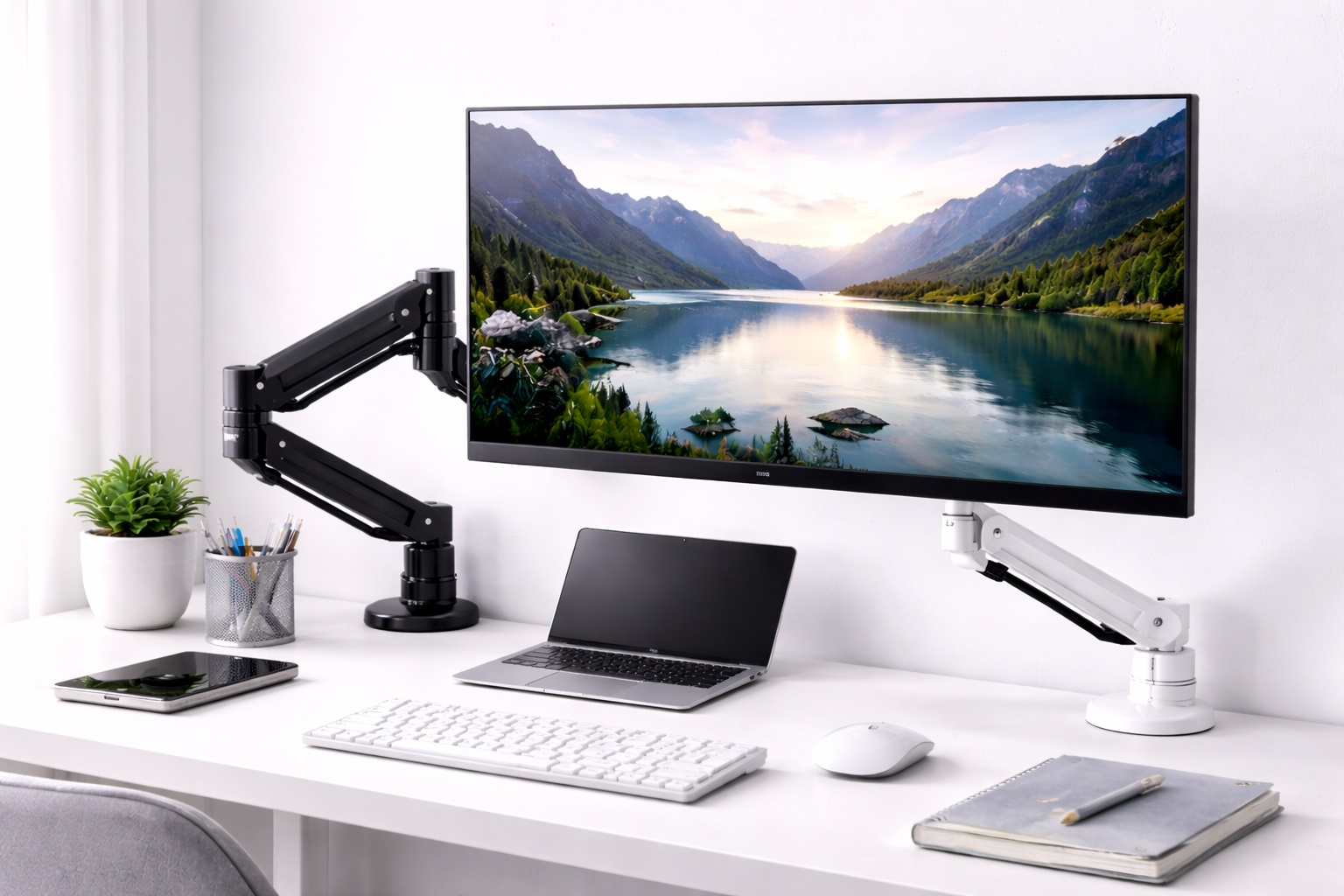
Indirectly, yes. A full-size keyboard combined with a raised laptop stand or monitor arm can push the mouse further to the side than a compact layout would, which matters over a long typing session. If your desk already uses a monitor arm or stand to raise screen height, a shorter keyboard often keeps the whole setup more compact and comfortable.
Final Verdict
- Best Overall: The full-size wireless keyboard, for its familiar layout and complete key set without desk clutter.
- Best for Wrist Comfort: The ergonomic split keyboard, for anyone already dealing with typing-related discomfort.
- Best Budget Pick: The budget office keyboard, for straightforward typing needs at the lowest cost.
- Best for Shared Spaces: The quiet membrane keyboard, for offices and homes where noise matters.
There isn't a single best keyboard for every office, only the one that fits how you actually type, where you sit, and how much that comfort is worth to you over years of daily use. Start with the factor that matters most in your specific situation, whether that's noise, wrist comfort, desk space, or budget, and let that guide the decision rather than chasing the most feature-packed option on the shelf.
It's also worth remembering that a keyboard is one of the few pieces of office equipment your hands touch continuously for hours at a stretch, far more than a monitor, a chair, or a desk surface itself. Small, seemingly minor differences in switch feel, key travel, or hand position add up across weeks and months of use in ways that are easy to underestimate when comparing spec sheets side by side. Taking the time to think through your actual daily routine, rather than defaulting to whichever keyboard happens to be on sale, tends to pay off in fewer aches, fewer typos, and a desk setup that genuinely supports the work you're doing rather than working against it.