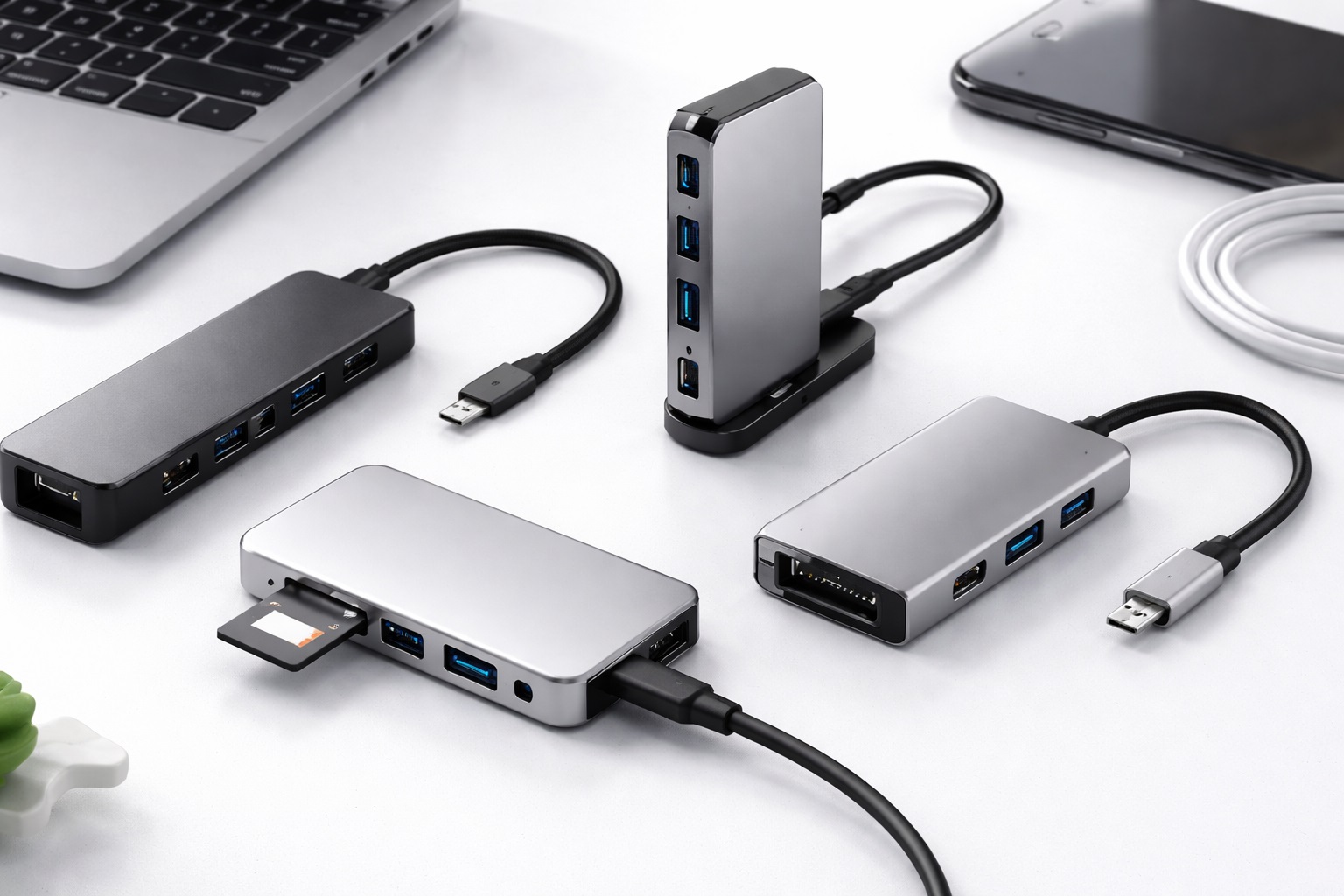
Best USB Hubs for Laptops: More Ports, Less Clutter
Modern laptops keep getting thinner, and ports are usually the first casualty. A machine with two or three USB-C connections and nothing else can leave you juggling adapters just to plug in a mouse, an external drive, and a monitor at the same time. A USB hub solves that problem directly, but the category is broader than it looks, and the right hub depends heavily on what you're actually trying to connect.
This guide breaks down six distinct hub styles, from simple USB-C multiport adapters built for travel to powered desktop hubs designed for a permanent, multi-device workstation setup. Rather than treating every hub as interchangeable, each entry explains who it suits, what it handles well, and where its limitations show up in daily use.
Connectivity needs vary enormously between a student who mostly needs one extra USB-A port for a flash drive and a video editor connecting an external monitor, an SD card reader, and a wired network connection simultaneously. The comparison below is organized around those different situations rather than assuming a single hub design fits every laptop user equally well.
It's also worth understanding a bit about your laptop's own port capabilities before choosing a hub, since not every USB-C port supports the same data speeds, video output, or power delivery. A hub that requires a specific feature your laptop's port doesn't support won't perform as expected, regardless of how capable the hub itself is on paper.
The sections that follow cover six hub categories in detail, a buying guide addressing the technical factors that actually affect real-world performance, and answers to the questions laptop users ask most often before buying an expansion hub.
Top USB Hub Types Reviewed
1. USB-C Multiport Hub – Best Overall for Modern Laptops
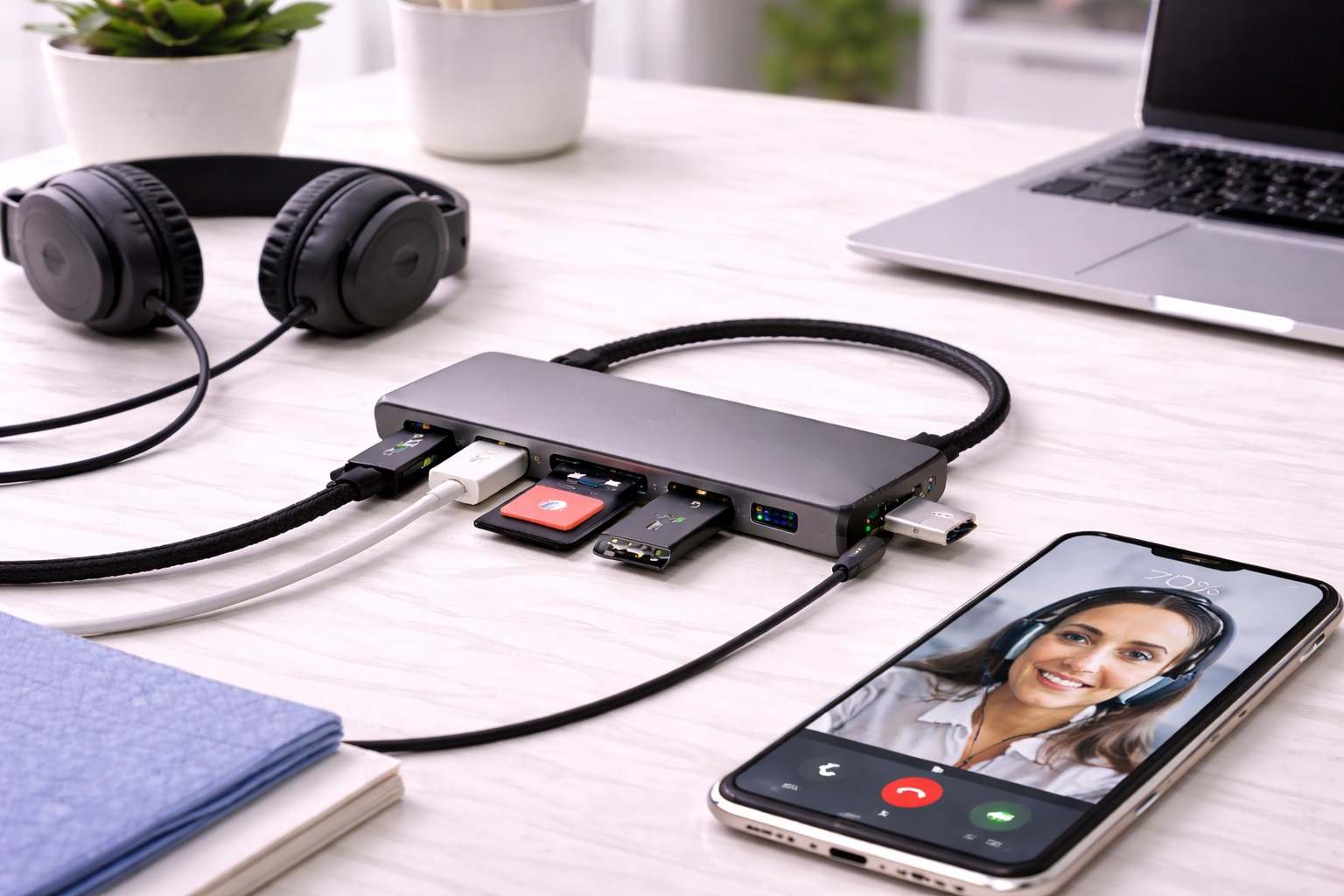
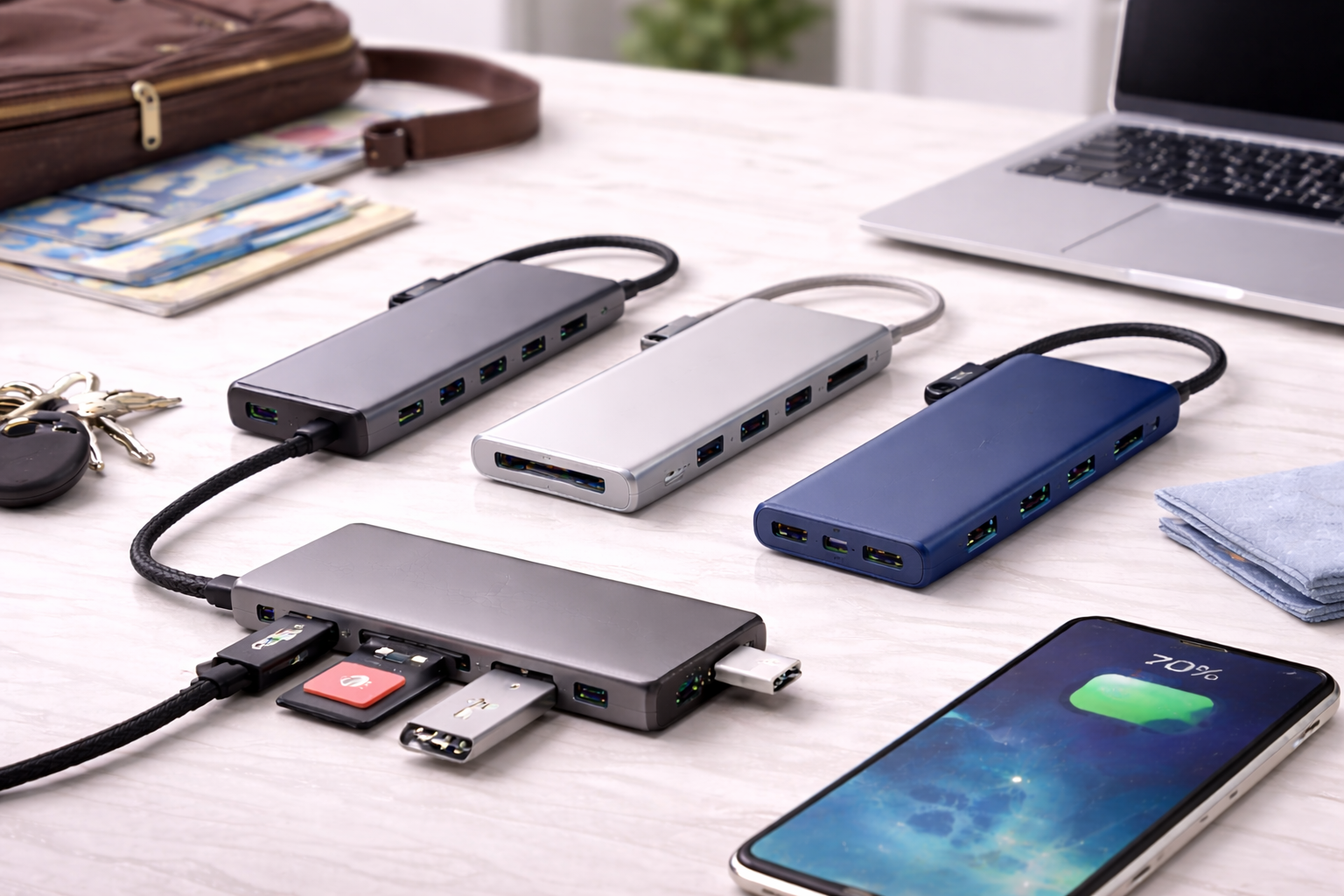
Built around the USB-C port that has become standard on most modern laptops, a multiport hub typically combines several connection types — USB-A, HDMI, sometimes an SD card slot — into a single compact adapter that plugs into one port. This addresses the most common frustration with slim modern laptops: needing several different connector types at once from a machine that only offers one or two USB-C ports total.
Because these hubs route everything through a single USB-C connection, overall bandwidth is shared across every connected device, which can create bottlenecks if you're pushing high-resolution video output and fast data transfer simultaneously. For typical everyday use — a monitor, a mouse, and a flash drive — this rarely becomes a noticeable issue.
- Pros:
- Combines multiple connector types into one compact adapter
- Matches the single USB-C port most modern laptops rely on
- Portable enough to carry between home, office, and travel
- Cons:
- Shared bandwidth can bottleneck under heavy simultaneous use
- Relies entirely on your laptop's single USB-C port functioning correctly
Best For: Laptop users who need a versatile, portable way to add several connector types through a single modern USB-C port.
Why We Recommend It: Its broad connector coverage in a compact form factor makes it the most practical starting point for most modern laptop users.
Many models in this category also include a microSD or SD card slot, which is a genuine convenience for anyone regularly offloading photos or video from a camera without carrying a separate reader. The trade-off is that adding more connector types into one small housing generally means a higher price than a single-purpose hub, so it pays to double-check that you'll actually use each connector before paying extra for it.
2. USB-A Hub – Best for Older Peripherals and Legacy Devices
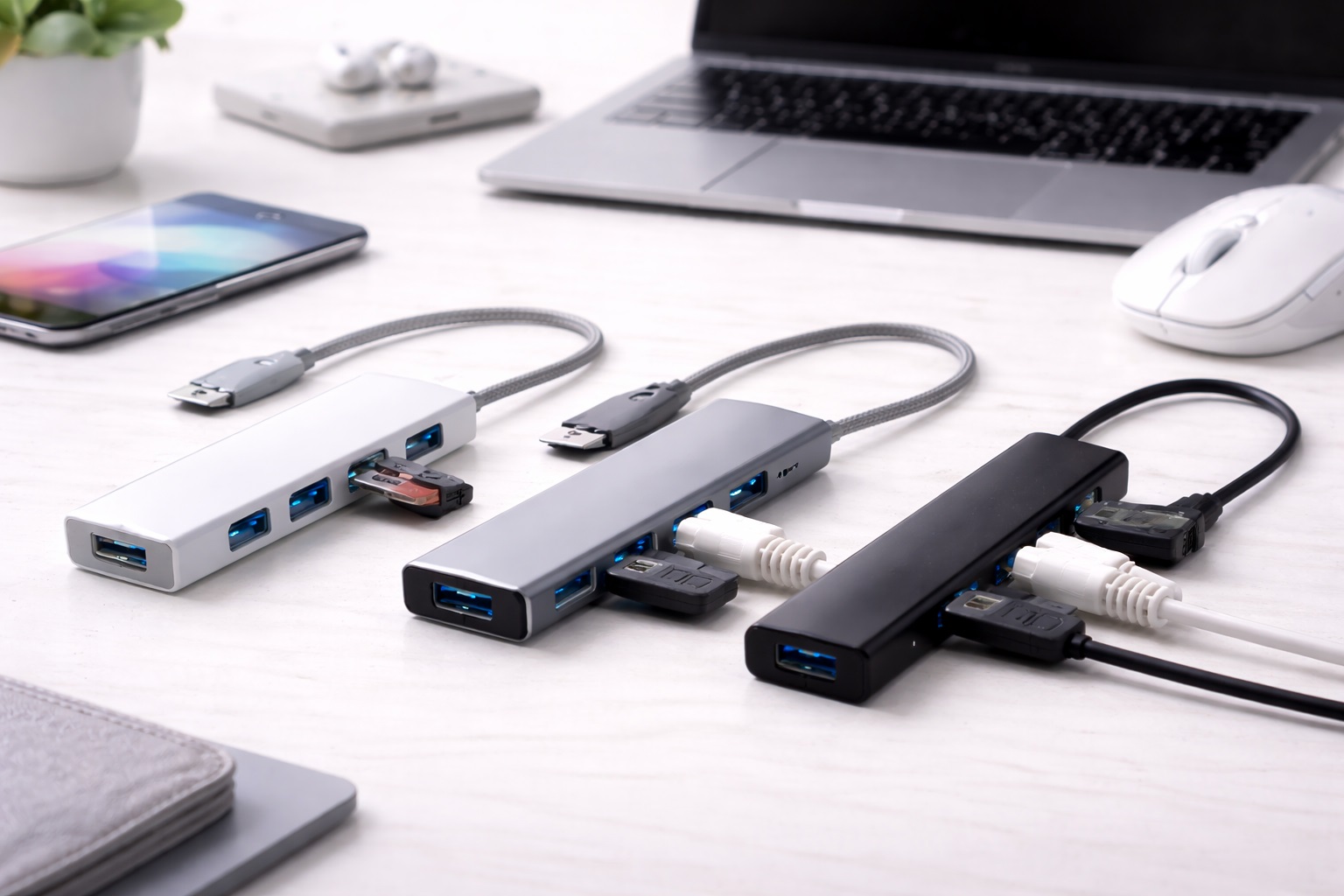
A USB-A hub focuses on a single job: multiplying standard USB-A ports for laptops that either still include a native USB-A port or connect through a USB-C-to-A adapter. This category matters most for users with older peripherals — mice, keyboards, printers, and flash drives — that were never designed around USB-C in the first place.
Its narrower focus means a USB-A hub generally can't handle video output or higher-power charging the way a multiport USB-C hub can. For users whose connectivity needs are mostly older USB-A accessories, though, that narrower focus keeps the hub simple and affordable.
- Pros:
- Straightforward way to add multiple USB-A ports
- Works well with older mice, keyboards, and flash drives
- Generally simpler and more affordable than multiport alternatives
- Cons:
- Doesn't provide video output like a multiport hub
- Less useful for laptops without a native USB-A port
Best For: Users with a collection of older USB-A peripherals who need more ports without upgrading every accessory.
Why We Recommend It: It solves a specific, common problem — legacy peripheral compatibility — without unnecessary complexity or cost.
This style also tends to be the most forgiving choice for shared or family computers, since USB-A peripherals rarely require any special drivers or configuration to work correctly once plugged in. If your laptop only has USB-C ports, though, remember you'll also need a USB-C-to-A adapter or cable to connect this type of hub in the first place.
3. Hub with Ethernet Port – Best for Reliable Wired Networking
Many modern laptops have dropped Ethernet entirely in favor of Wi-Fi only, which creates a real problem for anyone who needs a stable, low-latency wired connection — video conferencing, large file transfers, or gaming where Wi-Fi reliability isn't good enough. A hub with a built-in Ethernet port restores that wired option through a single USB-C or USB-A connection.
These hubs are typically bulkier than a basic multiport adapter because of the Ethernet jack's physical size, and Ethernet speeds through a hub can sometimes fall short of what a laptop's dedicated port would deliver natively. For anyone who depends on a stable wired connection regularly, though, this trade-off is usually worthwhile.
- Pros:
- Restores reliable wired networking on Ethernet-less laptops
- Reduces dependence on potentially unstable Wi-Fi
- Useful for video calls, large transfers, and latency-sensitive tasks
- Cons:
- Bulkier than a basic multiport hub due to the Ethernet jack
- Speeds may not always match a laptop's native Ethernet port
Best For: Remote workers and anyone who needs a dependable wired network connection on a laptop without a built-in Ethernet port.
Why We Recommend It: It directly addresses one of the most common gaps in modern laptop connectivity for users who can't rely on Wi-Fi alone.
These hubs are especially useful in shared living situations, hotels, or offices where the available Wi-Fi network is congested or unreliable at peak hours, since a wired connection sidesteps that variability entirely. Many models pair the Ethernet jack with one or two USB-A ports, so you're rarely giving up general connectivity to gain the wired option.
4. Hub with HDMI Output – Best for External Monitor Setups
Built around video output, this category focuses on connecting a laptop to an external monitor, projector, or TV through HDMI, often alongside a few standard USB ports. This matters for anyone running a dual-monitor setup, giving presentations, or simply preferring a larger external display over a laptop's built-in screen.
Video performance through a hub depends heavily on your laptop's USB-C port supporting video output in the first place — not every port does, even on laptops that look otherwise capable. Checking this compatibility before buying avoids a frustrating mismatch after purchase.
- Pros:
- Enables connecting an external monitor, projector, or TV
- Often bundles standard USB ports alongside video output
- Useful for presentations and dual-monitor productivity setups
- Cons:
- Requires your laptop's USB-C port to support video output
- Higher resolutions or refresh rates may be limited by the hub itself
Best For: Laptop users who regularly connect to an external display for work, presentations, or a larger-screen setup at a desk.
Why We Recommend It: It addresses the specific need for external video output that a basic USB-only hub doesn't cover.
Some models in this category support two independent video outputs at once, which matters for anyone running a true dual-monitor arrangement rather than simply mirroring or extending to a single external screen. Others are limited to a single HDMI port, so if a second display is part of your plan, confirming that capability up front saves a frustrating return.
5. Bus-Powered Portable Hub – Best for Travel and Minimal Setups
A bus-powered hub draws all its power directly from the laptop's USB-C port rather than requiring a separate power adapter, keeping the overall setup lighter and simpler. This makes it a natural fit for travel, coffee shop work, or any situation where carrying an additional power brick isn't practical.
Because it relies entirely on the laptop's own port for power, a bus-powered hub can draw down battery life somewhat faster than a self-powered alternative, and it generally supports fewer high-power devices simultaneously. For light, portable use, though, this remains the simplest and most travel-friendly option.
- Pros:
- No separate power adapter required, keeping travel setups light
- Compact and easy to pack alongside a laptop
- Simple to use without additional cables or bricks
- Cons:
- Draws power from the laptop, which can affect battery life
- Supports fewer high-power devices than a powered hub
Best For: Frequent travelers and anyone who wants a lightweight hub without an extra power adapter to carry.
Why We Recommend It: Its minimal footprint and lack of additional cabling make it the most convenient option for working away from a fixed desk.
Because there's no external power brick to lose or forget, this category also tends to be the least likely to leave you stranded without a working setup on a trip. The main thing to watch for is a hub that tries to support too many high-draw devices at once, since that's where a purely bus-powered design shows its limits fastest.
6. Powered Desktop Hub – Best for Permanent Multi-Device Workstations
Unlike a bus-powered hub, a powered desktop hub plugs into a wall outlet directly, supplying its own power to every connected device rather than drawing entirely from the laptop. This supports a larger number of simultaneously connected accessories — external drives, multiple monitors, charging devices — without straining the laptop's own power delivery.
The trade-off is a fixed power cord and generally a bulkier housing, making this category far less practical for travel than for a stationary desk setup. For a permanent workstation where the hub stays plugged in continuously, though, the added power capacity is a genuine advantage.
- Pros:
- Supplies its own power, supporting more connected devices at once
- Reduces strain on the laptop's own power delivery
- Better suited to demanding, multi-device desk setups
- Cons:
- Requires a wall outlet, making it impractical for travel
- Bulkier and less portable than bus-powered alternatives
Best For: Users with a permanent desk setup connecting multiple monitors, drives, and accessories simultaneously.
Why We Recommend It: Its independent power supply allows it to handle a heavier device load than a bus-powered hub without compromise.
This category is also the most likely to double as a charging station for phones, tablets, and other accessories left on the desk overnight, since it isn't drawing that power from the laptop's own battery. The main downside beyond portability is desk space — a powered hub with its own brick and cabling takes up noticeably more room than a slim travel adapter.
Buying Guide: How to Choose the Best USB Hub for Your Laptop
Before choosing a hub, it helps to understand the technical factors that actually determine whether it performs the way you expect with your specific laptop and accessories. These ten considerations cover what matters most.
1. Port Types and Count
Start by listing what you actually need to connect regularly — a monitor, an external drive, a mouse, a flash drive — and choose a hub whose port selection matches that list rather than one with the most ports overall regardless of type. Buying extra ports you'll never use adds bulk and cost without any real benefit.
It also helps to think a year or two ahead rather than only at your current setup, since adding one more monitor or a new external drive later is common, and a hub with a little headroom avoids needing a second purchase soon after the first.
2. USB-C Compatibility
Not every USB-C port on every laptop supports the same features. Some support data only, some support video output, and some support both alongside power delivery. Confirming what your specific laptop's port supports avoids a mismatch with a hub that assumes more capability than your port actually provides, which is one of the most common sources of buyer disappointment in this category.
Manufacturer specification pages usually list which USB-C standard a given port supports, and it's worth five minutes of research before buying rather than discovering the limitation after the hub arrives.
3. Data Transfer Speed
Hubs vary in the data transfer standards they support, which affects how quickly external drives and large file transfers perform. If you regularly move large files, checking the hub's supported transfer speed is worth the extra attention, since a mismatch between your drive's capability and the hub's supported speed will bottleneck the slower of the two.
This matters most for anyone working with large video files, backups, or archives, where the difference between a fast and a slow hub can add real minutes to a routine task performed daily.
4. Power Delivery Capability
Some hubs pass through power delivery so your laptop keeps charging while connected, while others don't support this at all. For anyone who wants to charge their laptop through the same hub used for other accessories, this feature is worth confirming before buying, along with the maximum wattage the hub can pass through.
A hub that supports pass-through charging but at a lower wattage than your laptop's original charger may still charge the battery, just more slowly, which is worth knowing if you plan to work through the hub all day.
5. Build Quality and Heat Management
Hubs handling significant data transfer or video output can generate noticeable heat during extended use. A well-ventilated or metal-bodied design tends to manage this better than a cheap plastic housing, which matters for long work sessions where the hub stays connected for hours at a time.
6. Video Output Resolution and Refresh Rate
If external monitor support matters to you, check the specific resolution and refresh rate the hub supports, since lower-end hubs may cap out well below what your monitor is actually capable of displaying, particularly for higher refresh rate displays used in creative or gaming work.
7. Number of Simultaneous Devices
Consider not just the number of ports but how many devices you'll realistically use at the same time, since shared bandwidth can affect performance when several demanding devices are connected simultaneously, especially on hubs that route everything through a single upstream connection.
Low-power accessories like a mouse, keyboard, or flash drive rarely strain a hub even when several are connected at once, so the real planning question is how many bandwidth-heavy devices you'll run together.
8. Portability vs. Power Needs
Decide whether portability or power capacity matters more for your use case. A bus-powered hub suits travel, while a powered desktop hub suits a stationary setup with heavier device demands, and some users find they genuinely need one of each for different situations.
9. Driver and Operating System Compatibility
Some hubs require specific drivers to function fully on certain operating systems, particularly for less common features like multiple external displays. Checking compatibility with your specific laptop and OS before buying avoids setup frustration, and reading recent owner feedback can reveal driver issues that aren't obvious from the specification sheet alone.
This is particularly relevant for anyone running an older operating system version, since manufacturers sometimes stop testing and updating drivers for hubs against outdated software after a few years.
10. Warranty and Build Reliability
A hub carries constant electrical load and gets plugged and unplugged frequently, both of which stress its ports and cabling over time. A reasonable warranty period is a useful signal of the manufacturer's confidence in long-term reliability, and a hub that fails within its first year is a clear sign of a deeper quality issue.
11. Cable Length and Desk Setup
For a permanent desk setup, consider whether the hub's cable is long enough to reach comfortably from your laptop to where you actually sit, since a too-short cable can force an awkward laptop position or require an additional extension cable.
12. Firmware Updates and Long-Term Support
Some hubs, particularly more advanced docking-style models, receive firmware updates that improve compatibility or fix bugs over time. Checking whether the manufacturer has a track record of ongoing support is worth considering for a hub you plan to rely on daily.
Frequently Asked Questions
1. Will any USB hub work with my laptop's USB-C port?
Not necessarily. Some USB-C ports only support data transfer, while others also support video output and power delivery. Checking your laptop's specific port capabilities before buying a hub that assumes more functionality avoids compatibility issues, and your laptop's manual or manufacturer's website is usually the most reliable source for this information.
2. Can a USB hub charge my laptop while I'm using it?
Some hubs support power delivery pass-through, letting your laptop charge while other devices are connected, but this isn't universal. Confirm this feature specifically if charging through the hub is important to you, and check the maximum wattage supported since underpowered pass-through can result in slow charging or none at all.
3. Why does my external monitor look blurry or won't turn on through my hub?
This is often a video output compatibility issue — either the hub doesn't support your monitor's resolution and refresh rate, or your laptop's USB-C port doesn't support video output in the first place. Checking both specifications solves most of these issues, and updating your laptop's graphics drivers can also resolve intermittent display problems.
4. Do USB hubs slow down data transfer speeds?
Cheaper hubs with lower-grade internal components can bottleneck transfer speeds, especially when multiple devices are connected simultaneously and sharing the same bandwidth. Higher-quality hubs minimize this but rarely eliminate it entirely under heavy simultaneous use, so setting realistic expectations for peak performance is worthwhile.
5. Is a bus-powered or self-powered hub better for daily use?
Bus-powered hubs are more convenient for travel and light use, while self-powered hubs handle more demanding, multi-device setups better without straining your laptop's own power delivery. Match the choice to your typical daily workload rather than picking based on price alone.
6. How many devices can I realistically connect to one hub?
This depends on the hub's design and power supply, but connecting several bandwidth-heavy devices simultaneously — like an external drive and a high-resolution monitor — is more likely to cause slowdowns than connecting a mix of low-power accessories like a mouse and keyboard.
7. Do I need a hub with Ethernet if I mostly use Wi-Fi?
If your Wi-Fi connection is generally reliable, an Ethernet hub may be unnecessary. It becomes valuable specifically when you need consistent low-latency performance for video calls, large transfers, or situations where Wi-Fi reliability can't be guaranteed, such as shared or congested networks.
8. Are expensive USB hubs actually better than budget ones?
Higher-priced hubs typically offer better build quality, more consistent data transfer speeds, and more reliable video output support. For occasional light use, a budget hub often performs adequately, but demanding daily use tends to reveal the gap in quality more clearly over time.
9. Can I use a USB hub with a Mac and a Windows laptop interchangeably?
Most hubs work across both operating systems for basic USB functionality, though certain advanced features like multiple external displays sometimes require OS-specific drivers or support. Checking compatibility with both systems in advance is worthwhile if you switch between them regularly.
10. What's the most common reason a USB hub stops working properly?
Overheating during extended heavy use, a loose or damaged connection at the laptop's port, or exceeding the hub's supported power or bandwidth limits are the most frequent causes. Restarting the connection and checking for firmware or driver updates resolves many of these issues without needing a replacement.
11. How do I know if my hub is causing a bottleneck versus my laptop itself?
Testing a demanding device, like an external SSD, connected directly to your laptop's port versus through the hub is the simplest way to isolate whether the hub itself is limiting performance. A noticeable speed difference points to the hub as the bottleneck rather than the laptop or the accessory.
12. Should students buy a different hub than professionals working with video?
Generally yes — students often need only a basic USB-A or simple multiport hub for everyday tasks, while video professionals typically need higher data transfer speeds, reliable video output, and sometimes an Ethernet connection for large file transfers and stable calls.
13. Can a USB hub damage my laptop if something goes wrong with it?
A poorly made hub with faulty power delivery could theoretically cause charging or port issues, which is one reason build quality and a reasonable warranty matter more than they might seem to for a relatively inexpensive accessory. Sticking with hubs from manufacturers with a track record of reliability reduces this risk considerably.
14. Do I need a hub at all if my laptop already has several ports?
If your laptop already covers your daily connectivity needs without adapters, a hub may not add much value. It becomes worthwhile once you find yourself regularly swapping cables or running out of ports for devices you use at the same time.
Final Verdict
The best USB hub for your laptop depends on what you're actually connecting and where you typically work, more than any single spec that sounds impressive on a product listing. A frequent traveler needs different priorities than someone with a fixed multi-monitor desk setup.
- Best Overall: USB-C multiport hub, for its balance of connector variety and portability.
- Best for Legacy Devices: USB-A hub, for older peripherals and accessories.
- Best for Networking: Hub with Ethernet port, for reliable wired connections.
- Best for External Displays: Hub with HDMI output, for monitor and presentation setups.
- Best for Travel: Bus-powered portable hub, for lightweight, cable-free setups.
- Best for Workstations: Powered desktop hub, for demanding multi-device desks.
Whichever category fits your workflow, confirm your laptop's actual port capabilities before buying, since even the best-designed hub can't add functionality your laptop's own hardware doesn't support. Matching the hub to your real daily connectivity needs, rather than the longest spec sheet, produces the most useful setup in practice.