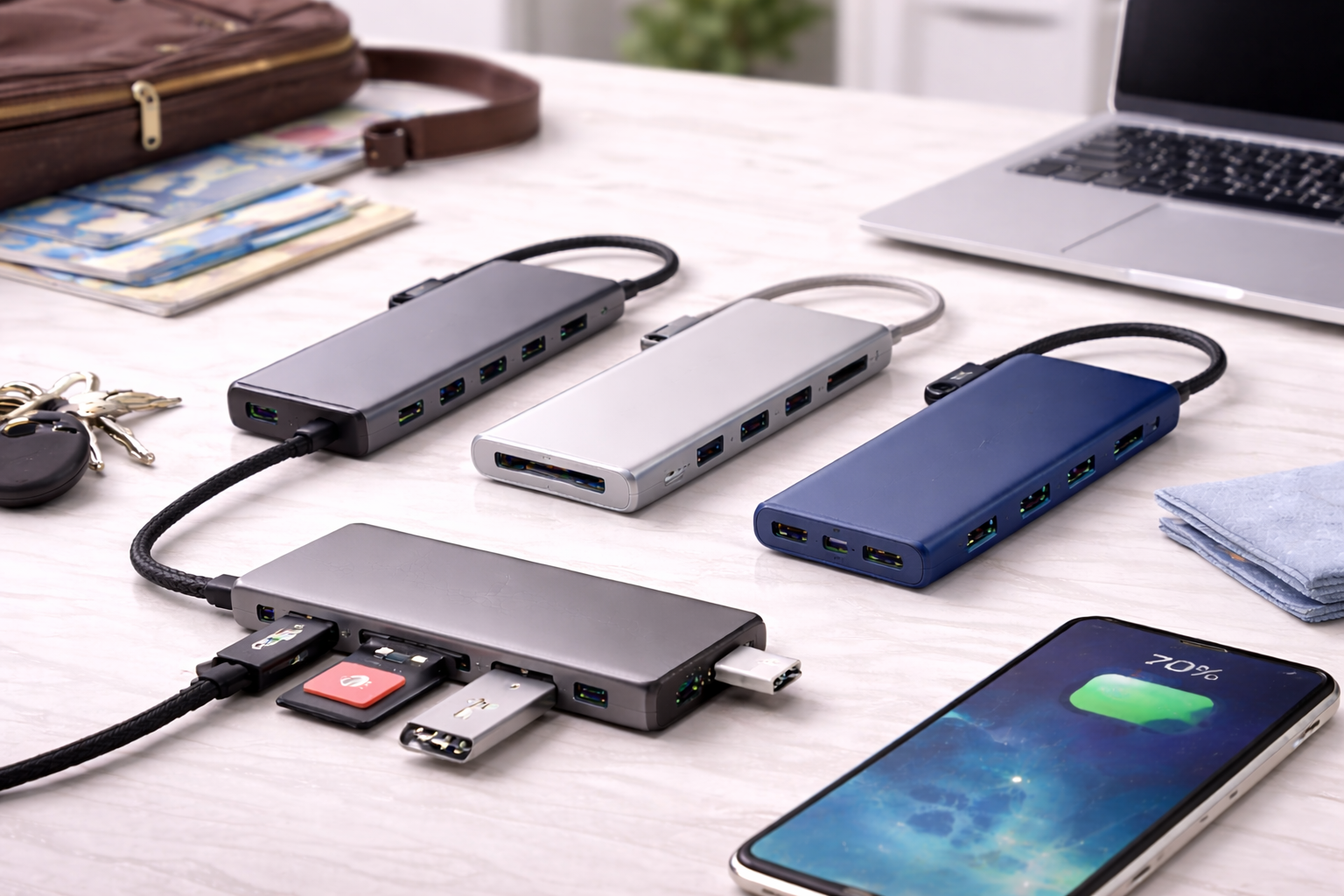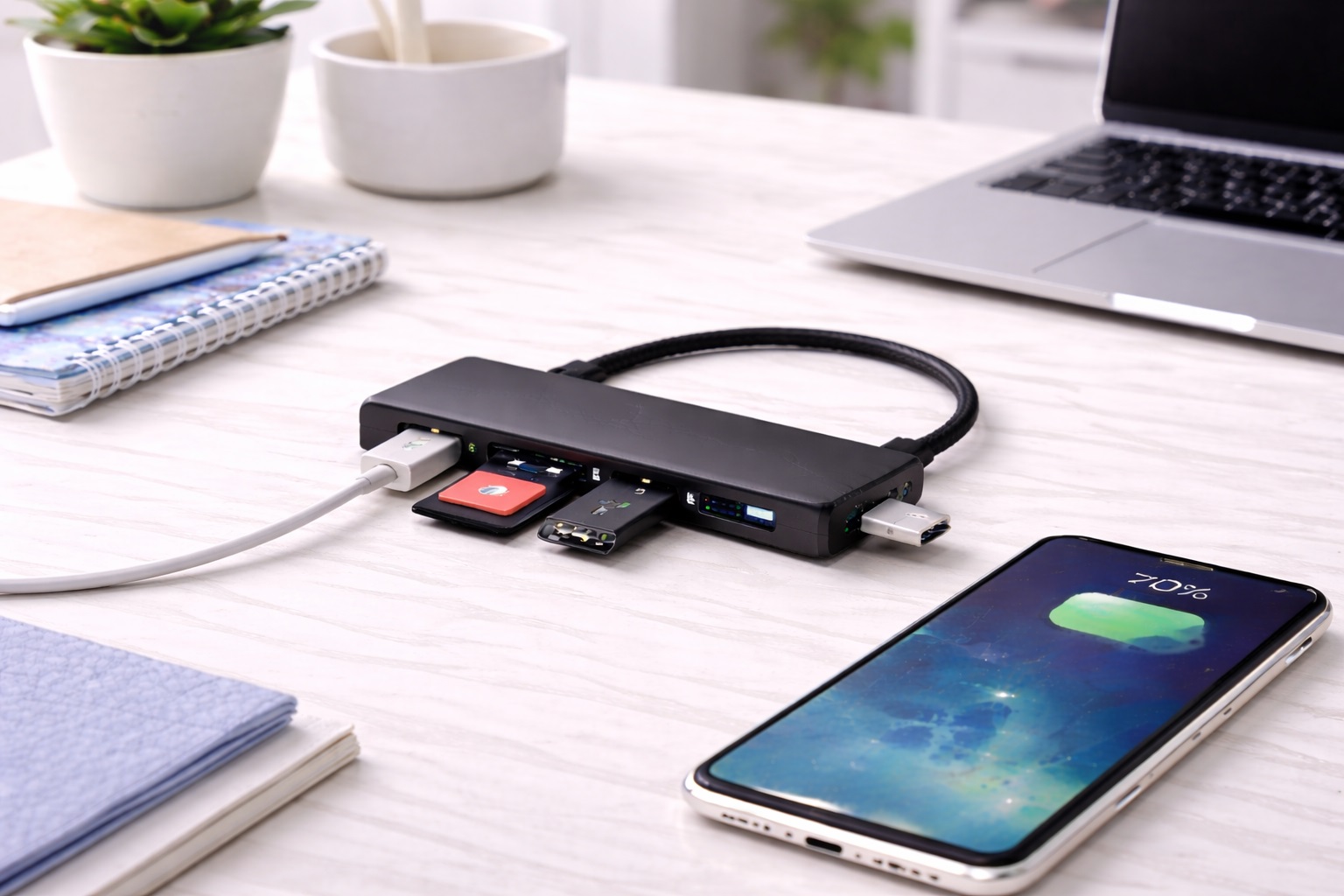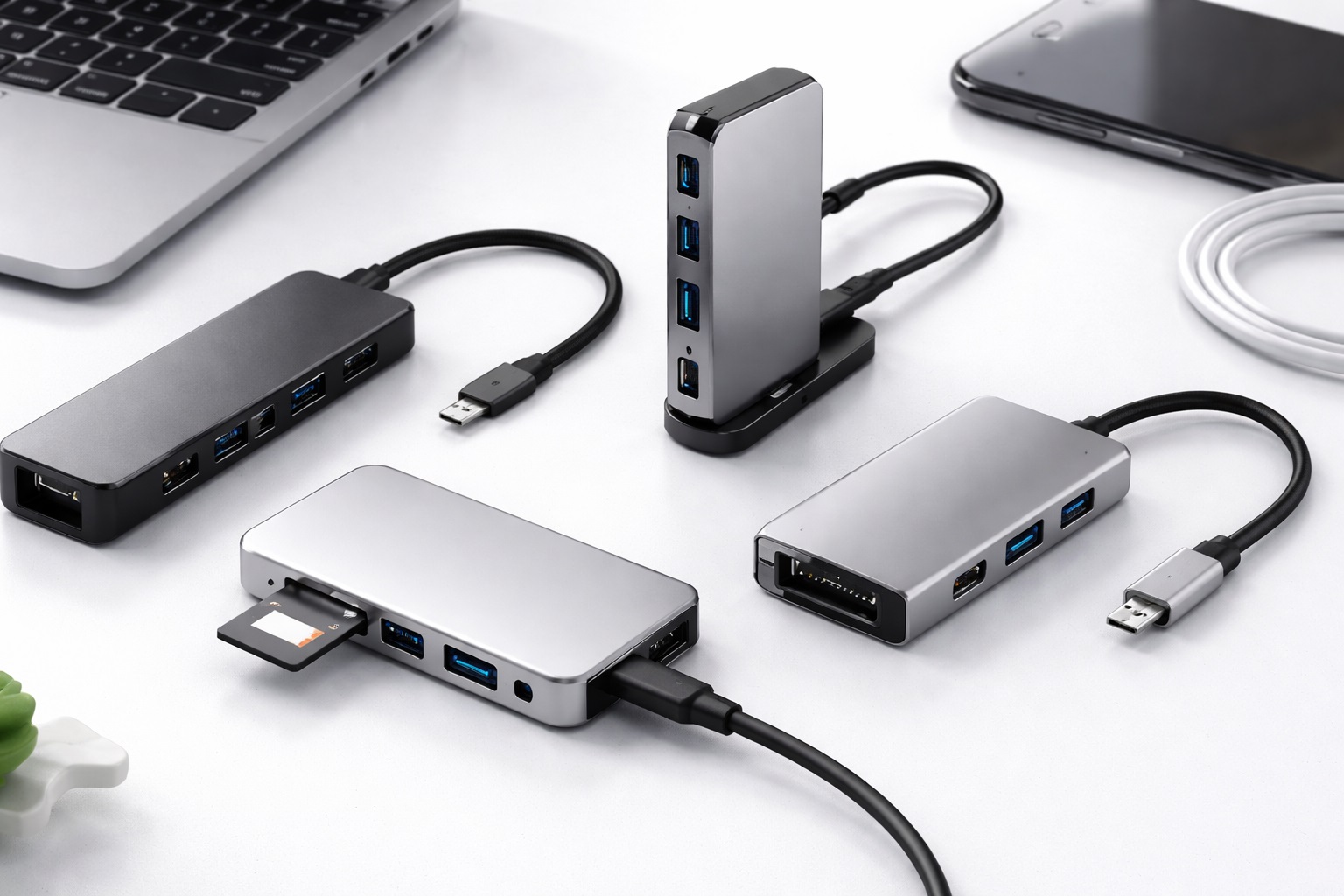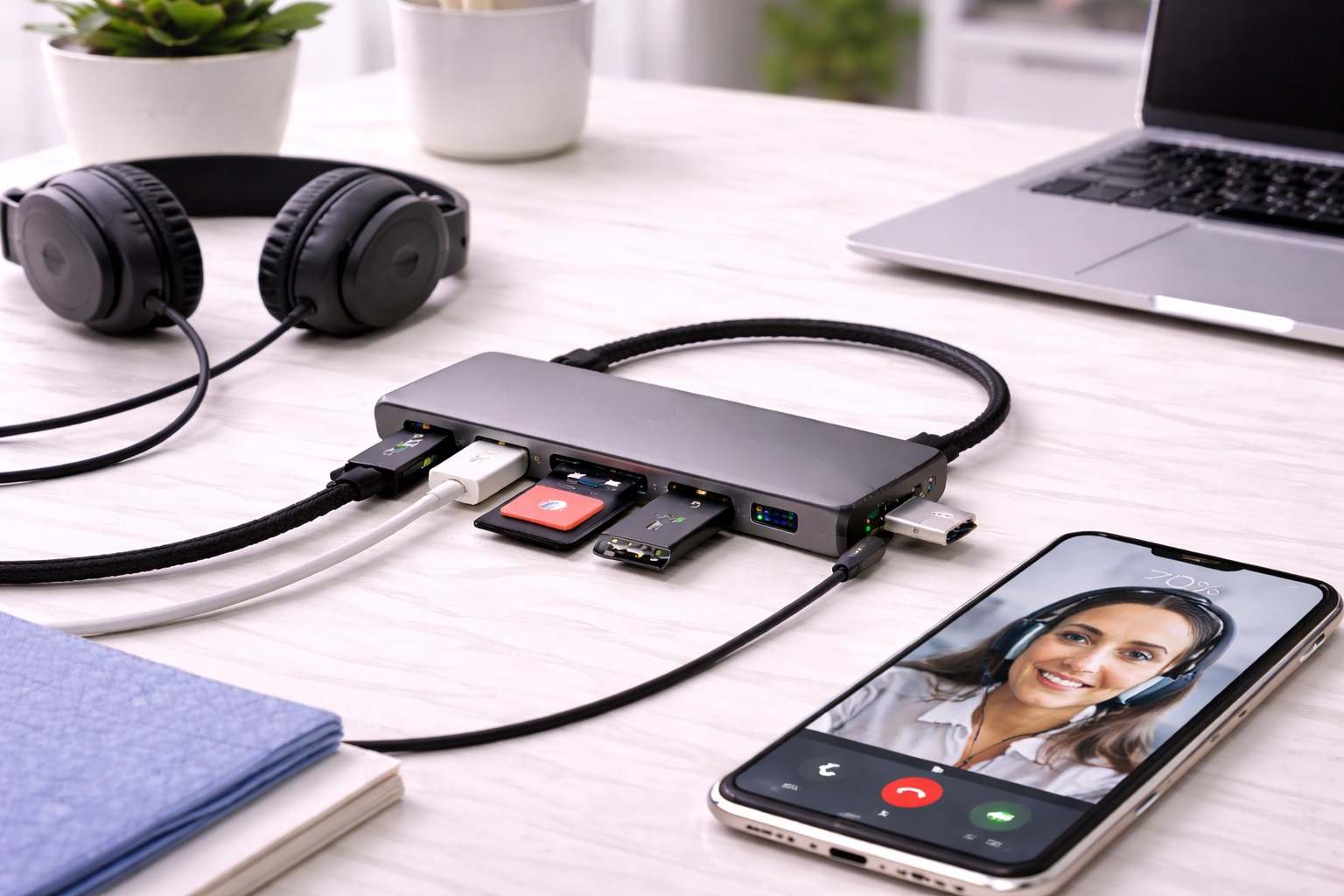
Best USB Hub for Video Calls: Stable Multi-Device Setups
Nothing undermines the flow and credibility of a video call faster than a peripheral dropping out mid-sentence — a webcam that freezes, a headset that cuts to laptop speakers, a microphone that silently stops transmitting while you keep talking, unaware anyone stopped hearing you until they awkwardly interrupt to point it out. These aren't rare edge cases for anyone running a full call setup through a single USB hub; they're the specific failure mode that separates a hub built for casual peripheral use from one that can be trusted for professional video calls, meetings, and client-facing work.
The difference usually comes down to two things: how much power the hub can reliably deliver to every connected device at once, and how it manages the shared bandwidth between them — two factors that rarely appear together clearly in a typical product listing, which is exactly why this specific use case deserves its own dedicated comparison rather than a generic hub buying guide. A webcam alone can consume a meaningful share of available USB bandwidth on its own, especially at higher resolutions like 1080p or 4K. Add a USB headset and a separate standalone microphone into the mix, and a hub not built with this specific three-device combination in mind can start to show its limits exactly when reliability matters most — live, during the call itself, not during a quiet moment of testing beforehand with nothing at stake.
This guide focuses specifically and deliberately on that exact use case: running a webcam, headset, and standalone microphone (or some combination of the three) simultaneously and reliably, call after call, week after week, without the small but real, recurring anxiety of wondering whether today is finally the day something drops out mid-conversation.
It's worth noting upfront that this isn't really about finding the fastest or most feature-rich hub on the market. A hub built primarily for high-bandwidth external drives or a wall of external monitors isn't necessarily the right choice here — call peripherals have a different profile, drawing steady but moderate power and bandwidth over long, continuous sessions rather than short bursts of intense data transfer typical of file backups or software downloads. The picks below are chosen with that specific pattern in mind.
It's also worth being honest about how this problem usually gets discovered. Rarely does someone research USB hub bandwidth specifications before a dropout happens — more often, a call goes wrong once, then twice, and only then does the hub itself become a suspect worth investigating. That reactive discovery process is understandable, but it means a lot of people are shopping for this specific solution after already experiencing the frustration of an unreliable setup during real, sometimes important, calls. This guide is written for both audiences: the person shopping proactively before that happens, and the person who has already lived through the dropped call and wants to make sure it doesn't happen again, having learned firsthand that a small, inexpensive fix can prevent a recurring and genuinely stressful problem.
Top Picks Reviewed
1. Powered USB Hub with Dedicated Per-Port Power – Best for Consistent Call Reliability
A powered hub with its own AC adapter delivers stable power to every connected device regardless of what the laptop's own USB port could otherwise supply on its own. For a webcam, headset, and microphone running simultaneously for an hour-long meeting, this consistency is exactly what prevents the intermittent dropouts that plague bus-powered hubs under sustained multi-device load. The external power source means the hub isn't competing with the devices themselves for a limited power budget pulled from the laptop. This matters especially during longer meetings, where a marginal setup that seems fine for the first few minutes can start showing strain as the laptop's own battery management and background processes add further demand on the same shared resources — a pattern that's easy to miss in a quick five-minute test but becomes obvious across an hour-long client call.
- Pros:
- Stable power delivery prevents mid-call disconnections
- Handles webcam, headset, and microphone simultaneously without strain
- Individual port switches on some models allow isolating a problem device
- Noticeably more reliable than bus-powered alternatives under sustained load
- Well suited to structured workdays with multiple back-to-back meetings scheduled without breaks in between
- Cons:
- Requires a wall outlet and an additional cable to manage
- Larger footprint than a simple bus-powered hub
Best For: Remote workers and professionals who run video calls daily and can't afford the risk of a peripheral dropping out mid-meeting. This includes anyone in client-facing roles, remote interviewers, hiring managers, and team leads who run back-to-back calls throughout the day where a single technical hiccup carries real professional cost measured in credibility and lost momentum rather than just an awkward pause.
Why We Recommend It: This is the category's most dependable option specifically because it removes power as a variable entirely. Once it's properly set up and tested, the question of whether the hub can handle the full call rig stops being a question at all — it simply does, meeting after meeting, freeing up the mental attention that would otherwise go toward silently monitoring the connection status in the corner of the screen instead of actually focusing on the conversation at hand.
2. USB-C Hub with Dedicated Audio and Video Bandwidth Allocation – Best for Laptops with Limited Ports
Modern USB-C hubs designed with call setups in mind allocate bandwidth intelligently across connected devices rather than treating every port identically. This matters specifically for webcams, which can otherwise compete with other connected peripherals for the same shared bandwidth pool. A hub engineered around this use case keeps the video feed stable even when a headset and microphone are also drawing from the same connection, which is particularly valuable for anyone using a modern ultraportable laptop that offers only one or two USB-C ports to begin with, leaving no room for a bulky multi-cable arrangement even if it were otherwise preferred.
- Pros:
- Bandwidth management specifically benefits webcam video stability
- Compact enough to travel between a home office and a work desk
- Single USB-C connection simplifies daily setup and teardown
- Compatible with modern thin laptops that only offer USB-C ports
- Light enough to carry along without noticing the added weight in a bag
- Cons:
- Bus-powered design still has a ceiling on total device draw
- Benefits are most noticeable with a high-resolution webcam specifically
Best For: Remote workers using a modern USB-C-only laptop who need reliable webcam performance alongside audio peripherals without a bulky powered hub.
Why We Recommend It: For the specific problem of webcam video stuttering under shared bandwidth, this hub type addresses the root cause directly rather than simply adding more ports. It's a targeted fix for a targeted problem, and for hybrid workers who move between a home desk and a coffee shop or coworking space, the compact single-cable design fits how the setup actually gets used day to day, packing away just as easily as it sets up without leaving cables or adapters behind at the previous location.
3. Compact Hub with USB 3.0 Ports and Surge Protection – Best Budget-Friendly Reliable Option
A well-built USB 3.0 hub, even without a dedicated power adapter, can handle a typical call setup reliably if it includes quality internal components and basic surge protection. This option suits users whose call setup is moderate — a webcam and a single USB headset, for example — rather than a full three-device rig, and who want dependable performance without the cost or bulk of a powered hub. For anyone occasionally joining calls from a laptop bag setup rather than a fixed desk, whether at a shared office, a client site, or a temporary workspace, this remains a genuinely portable option that still delivers solid results without requiring a wall outlet at every location where a call happens to take place.
- Pros:
- Reliable for moderate call setups at a lower price than powered alternatives
- USB 3.0 bandwidth comfortably covers webcam plus one audio peripheral
- Compact and portable for hybrid work between office and home
- Surge protection adds a layer of safety for the connected devices
- Reasonable middle ground between the cheapest hubs and full powered options for anyone unsure which category they truly need
- Cons:
- May struggle with a full three-device high-resolution setup
- No independent power for unusually demanding peripherals
Best For: Remote workers with a moderate call setup — one video device and one audio device — who want reliable performance without paying for a full powered hub.
Why We Recommend It: Not every call setup needs the most robust powered option available. For a more modest device combination, this hub delivers dependable performance at a meaningfully lower price, without the excess capacity going unused. It's a sensible middle ground for anyone whose calls are important but not so demanding that a full powered rig is really necessary, offering most of the reliability benefit at a fraction of the size and cost.
Buying Guide: How to Choose the Best USB Hub for Video Calls
These factors focus specifically on what determines reliability during live calls, not general-purpose hub specifications.
| Call Setup | Recommended Hub Type | Why |
|---|---|---|
| Webcam + headset + microphone | Powered hub with dedicated power | Avoids power contention under full simultaneous load |
| Webcam + one audio device, USB-C laptop | USB-C hub with bandwidth allocation | Keeps video stable without a bulky adapter |
| Webcam + single headset, moderate use | Quality USB 3.0 bus-powered hub | Reliable at a lower cost for lighter setups |
1. Match the Hub to Your Actual Device Count
Count exactly what runs simultaneously during a typical call — webcam, headset, microphone, sometimes a second monitor. A hub rated comfortably above that combined demand, rather than exactly at it, leaves headroom that prevents marginal performance from becoming a dropout under slightly heavier load on a bad day, such as a call that also involves screen sharing or recording at the same time, both of which add further, less obvious demand on the same shared connection without necessarily being visible in a simple device count.
2. Prioritize Power Stability Over Port Count
A hub with fewer ports but stable, adequate power for each is more valuable for calls than one with many ports but inconsistent power distribution across the ports that actually matter for the specific devices you rely on. Port count is the easy number to compare; power stability is the one that actually determines whether a call goes smoothly, and it's unfortunately also the harder number to find clearly stated in a typical product listing, which means it usually has to be pieced together from reviews and specifications rather than a single headline number.
3. Consider Bus-Powered Limits Honestly
Bus-powered hubs draw all their power from the laptop's own USB port, which has a fixed power budget shared across every connected device. For a demanding three-device call rig, this budget can become a genuine constraint — a powered hub sidesteps the issue entirely by supplying its own electricity, removing the guesswork of whether today's combination of devices will fit within the available power ceiling on any given day, regardless of what else happens to be plugged into the same laptop at the time, including a phone charging cable or a second display.
4. Check USB Standard for Webcam Bandwidth
High-resolution webcams, particularly 1080p or 4K models, require meaningful bandwidth. A USB 2.0 hub can bottleneck video quality or cause stuttering; USB 3.0 or higher provides comfortable headroom for video alongside audio peripherals running at the same time, even when a screen share or virtual background effect adds further processing demand on top of the base video stream itself, which many people don't realize draws meaningfully more resources than a plain, unfiltered camera feed running at a lower resolution.
5. Read Reviews Specifically for Call Use
General hub reviews often focus on file transfer speed or basic peripheral compatibility. Reviews that specifically mention video call setups — webcams, headsets, conferencing software — are far more relevant to this particular use case than reviews focused on unrelated tasks, since the failure patterns for calls are genuinely different from those for file transfers or charging — a hub that transfers files flawlessly can still stutter under the sustained, simultaneous demand of live audio and video that a file transfer benchmark never actually tests for in the first place.
6. Test the Full Setup Before an Important Call
Before relying on a new hub for a genuinely important meeting, run a full test call with every peripheral connected simultaneously. This catches any marginal performance issues in a low-stakes setting rather than during a client presentation or interview, when there's no room to troubleshoot without visible disruption in front of colleagues, clients, or interviewers who are watching and listening in real time and forming an impression based on how smoothly things go.
7. Consider a Dedicated Port for the Webcam
Some hubs perform more consistently when the highest-bandwidth device — typically the webcam — has a dedicated port rather than sharing a hub tier with several other devices. Checking a hub's internal port architecture, when documented, can reveal this kind of design detail, and specialized conferencing-focused hubs sometimes advertise this specifically as a feature, using language like "dedicated video lane" or "isolated port bandwidth" in their marketing materials, which is worth looking for specifically when comparing similarly priced options.
8. Keep a Backup Plan for Critical Calls
Even a reliable hub can occasionally have an off day. For genuinely critical calls, knowing how to quickly plug a webcam or headset directly into the laptop as a fallback avoids a bad situation from becoming an unrecoverable one, and it's worth actually rehearsing that fallback once, ahead of time, so it's not a fumbling process discovered live during an actual emergency when seconds and composure both matter more than usual and there's no time to search for the right cable.
9. Cable Quality Matters More Than It Seems
A hub's own build quality can be excellent while a worn or low-quality cable to an individual peripheral causes the actual dropout. Periodically checking peripheral cables, not just the hub itself, is a reasonable troubleshooting habit for anyone relying on a call setup daily, particularly around connectors that get bent or twisted during regular desk movement, since a cable under repeated strain at the connector can develop an intermittent internal break long before it looks visibly damaged from the outside, making the fault frustratingly hard to diagnose by sight alone.
10. Avoid Overloading With Unrelated Devices
Adding an external hard drive or other high-bandwidth device to the same hub as your call peripherals during a meeting increases contention for shared resources. Keeping the call-dedicated hub reserved for call peripherals specifically reduces unnecessary risk, even if it means occasionally using a second, separate connection point for unrelated file transfers, which is a small inconvenience worth accepting in exchange for a more predictable call experience.
11. Firmware and Driver Updates
Some USB hubs, particularly more advanced USB-C models, receive occasional firmware updates that improve stability. Checking the manufacturer's site periodically for updates is a reasonable maintenance habit for a hub that's central to daily professional calls, much like keeping conferencing software itself updated for the same reliability reasons, since both the hardware firmware and the software layer contribute to the overall stability of a call.
12. Warranty Reflects Confidence in Reliability
For a hub that's effectively mission-critical to daily work, a solid warranty — a year or more — is a reasonable baseline expectation. Manufacturers confident in consistent performance under sustained multi-device load tend to back that confidence with better support terms, while a short or absent warranty on a hub marketed specifically for this exact use case is worth treating with some skepticism, since it suggests the manufacturer's own confidence doesn't fully match its marketing claims.
Frequently Asked Questions
1. Why does my webcam freeze when other devices are connected to the same hub?
This is usually a bandwidth or power contention issue — the webcam is competing with other connected devices for a limited shared resource. A powered hub or one with dedicated bandwidth allocation for video specifically resolves this in most cases, and it's worth confirming the issue is actually hub-related before assuming it's a software or internet connection problem elsewhere, since the troubleshooting steps for each are quite different and chasing the wrong one wastes time better spent testing the actual hardware directly.
2. Do I need a powered hub for video calls?
If you regularly run three or more devices simultaneously — webcam, headset, and microphone, for example — a powered hub provides meaningfully more reliable performance. For a single webcam and headset, a quality bus-powered USB 3.0 hub is often sufficient, so the powered option is really about matching capability to your specific combination of devices rather than assuming more power is automatically better regardless of actual need.
3. Can a cheap hub cause audio to cut out during calls?
Yes, particularly under bus power with multiple simultaneous devices. Audio dropouts are often the first symptom of a hub reaching its power or bandwidth limit, even before video quality visibly degrades, which makes intermittent audio issues a useful early warning sign worth acting on before the same underlying problem eventually escalates to affecting video as well.
4. Is the most expensive USB hub for video calls always the best?
Not necessarily. Match the hub's power delivery and bandwidth handling to your actual device combination — a moderate two-device setup doesn't need the most robust powered hub on the market, while a full three-device rig benefits meaningfully from one and justifies the higher price through fewer disruptions across the course of a busy week of calls.
5. How long should a quality USB hub for video calls last?
A well-built hub used daily for calls typically lasts two to four years with reasonable care, assuming it isn't subjected to excessive heat, moisture, or repeated rough handling during travel between locations. Given how central it becomes to daily work, a solid warranty is worth prioritizing over a marginal price difference, since the cost of a mid-call failure — in professional impression, lost time, or a repeated meeting — is invariably higher than the cost of the hub itself.
6. Can I return a USB hub for video calls if it doesn't perform reliably?
Most retailers offer fifteen to thirty day return windows. Test the full call setup — every peripheral connected simultaneously across a real meeting — within that window before committing to the hub long-term, rather than relying on a single quiet test with nothing else running, since real-world conditions with background applications and multiple browser tabs open are what actually reveal marginal reliability issues.
7. What should I prioritize when buying a hub for video calls?
Match power delivery to your actual device count, confirm USB 3.0 or higher for webcam bandwidth, and read reviews specifically mentioning call and conferencing use rather than general peripheral compatibility, since that context is the most predictive of your own experience — a hub praised for backing up large photo libraries tells you little about how it will behave under the specific, sustained demands of a live video call.
8. Does brand name matter for a video call hub?
Established brands tend to offer more consistent performance and better warranty support, which matters more for a hub central to daily professional work than for a casual accessory used occasionally and without much professional consequence if it happens to fail unexpectedly during use.
9. Will a docking station work better than a hub for video calls?
A quality docking station often provides more stable power and dedicated bandwidth than a basic hub, and it also typically includes more robust internal components overall, making it a reasonable upgrade for someone running an especially demanding call setup with multiple monitors alongside webcam and audio peripherals all running together, since the demand of that combination usually exceeds what a basic hub's shared bandwidth can comfortably support without occasional strain.
10. Can too many devices on one hub cause echo or audio issues?
Indirectly, yes — power or bandwidth strain can cause audio processing delays that manifest as echo or garbled sound rather than a clean dropout. Reducing simultaneous load or upgrading to a more capable hub typically resolves this without needing to replace any of the peripherals themselves, since the peripherals are usually functioning correctly and simply not receiving the consistent power or bandwidth they need to perform as designed.
11. Should the webcam and headset be on the same hub or separate ports?
Either can work, but if a hub supports it, placing the highest-bandwidth device — usually the webcam — on a dedicated port rather than sharing a hub tier with other devices tends to produce the most consistent results across long calls, particularly once the call passes the thirty-minute mark and any marginal power management on the laptop's side becomes more noticeable.
12. How do I know if my current hub is the cause of call problems?
Temporarily plug the webcam and headset directly into the laptop's own ports for a test call. If the problems disappear, the hub is very likely the source of the issue and worth reconsidering, particularly if the same problem repeats across multiple different calls and days rather than appearing as an isolated one-off event that might have other causes.
Final Verdict
- Best for Consistent Call Reliability: Powered USB Hub with Dedicated Per-Port Power — removes power as a variable for demanding multi-device setups.
- Best for Laptops with Limited Ports: USB-C Hub with Dedicated Audio and Video Bandwidth Allocation — keeps webcam video stable in a compact form.
- Best Budget-Friendly Reliable Option: Compact Hub with USB 3.0 Ports and Surge Protection — dependable performance for moderate call setups.
A hub that quietly handles every call without a second thought is worth more than one with an impressive spec sheet that occasionally drops a device mid-meeting. Match the picks above to how many devices actually run simultaneously during your calls, and the small daily anxiety of wondering whether today's meeting will go smoothly becomes one less thing to think about. That peace of mind compounds over weeks and months of daily calls in a way that's easy to underestimate until you've actually experienced the alternative — the sinking feeling of realizing, mid-sentence, that the person on the other end stopped hearing you several seconds ago. Investing a bit more thought and, where needed, a bit more money into getting this right pays for itself the first time it prevents that exact situation from happening during a call that actually mattered.