Best Budget USB Hubs in 2026: Affordable Port Expansion
Modern laptops keep getting thinner, and ports are usually the first casualty. What used to be four or five USB-A slots, an SD card reader, and an Ethernet jack has often shrunk down to a pair of USB-C ports and not much else. A budget USB hub exists to fix exactly that problem — plugging back in the connectivity manufacturers stripped out, without requiring you to spend anywhere near what the laptop itself cost.
The trick is that "USB hub" covers a surprisingly wide range of products serving different needs. A simple four-port hub that just multiplies a single USB-A connection into several is a very different tool than a USB-C hub adding Ethernet and an SD card reader for a creative professional's workflow. Both are affordable, and both are legitimately useful, but only one of them solves your specific problem.
This guide walks through the practical shapes this category takes for everyday laptop users who need reliable, low-cost port expansion: basic USB-A multiplication, USB-C to USB-A adaptation, Ethernet-equipped hubs for stable wired networking, SD card reader hubs for photographers and content creators, and the ultra-affordable sub-$20 and sub-$30 tiers that cover most casual needs.
Price alone is a poor guide in this category, since two hubs at nearly identical cost can differ substantially in port count, materials, and long-term reliability. The reviews below focus on what each type of budget hub is actually built to do well, so you can match a hub to the ports you're missing rather than the marketing on the box.
It's also worth thinking about how a hub fits into your daily routine rather than just your desk setup. A hub that lives permanently plugged into a monitor or dock at a fixed workstation can prioritize port count and build quality over size, while one that travels in a laptop bag between a dorm room, a coffee shop, and a lecture hall benefits far more from being compact and lightweight, even if that means accepting a slightly shorter list of ports.
Top 6 Budget USB Hubs (Detailed Reviews)
Basic 4-Port USB-A Hub – Best For Simple Peripheral Expansion
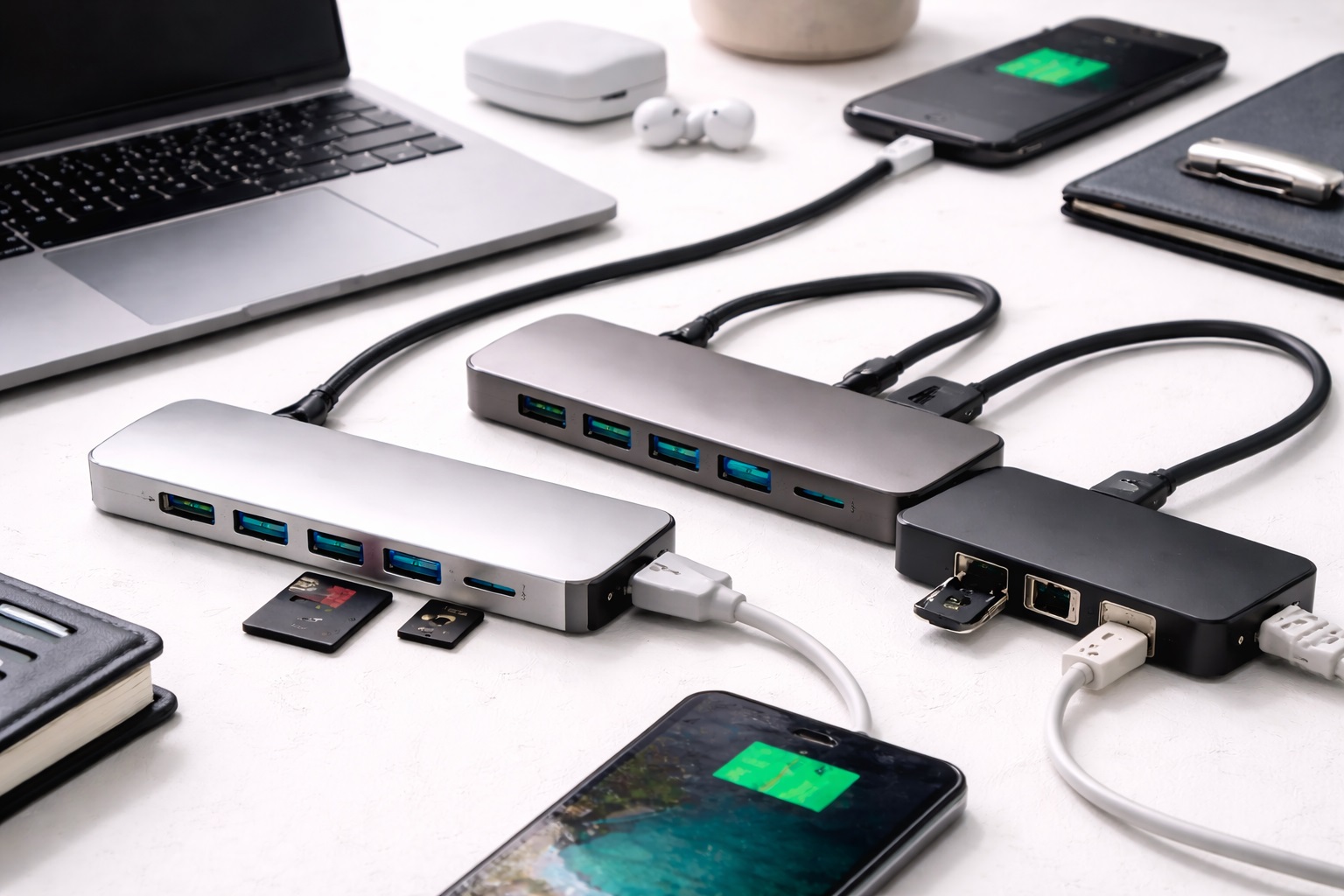
This is the most straightforward entry in the category: one USB-A input connects to your computer, and it splits out into three or four additional USB-A ports for a mouse, keyboard, external drive, or flash drive. There's no Ethernet, no card reader, no extra frills — just a multiplication of the one port type most peripherals still use. It's an obvious fit for older laptops and desktops that still have a USB-A port to spare but not enough of them, and it's usually the first result anyone searching for a simple hub will land on, for good reason.
- Pros:
- Simple, inexpensive way to add multiple USB-A ports at once
- No drivers or setup required in most cases
- Compact and easy to keep permanently plugged into a desktop
- Works well for low-bandwidth peripherals like keyboards and mice
- Cons:
- No USB-C connectivity for newer laptops
- Shared bandwidth across all ports can slow simultaneous transfers
- Some low-cost units lack individual port power management
Best For: Desktop users and owners of older USB-A-equipped laptops who simply need more of the same port type for everyday peripherals.
Why We Recommend It: It solves the most basic version of the port-shortage problem cheaply and without unnecessary complexity, which is exactly what a lot of users actually need.
USB-C to USB-A Affordable Hub – Best For Modern Thin-and-Light Laptops
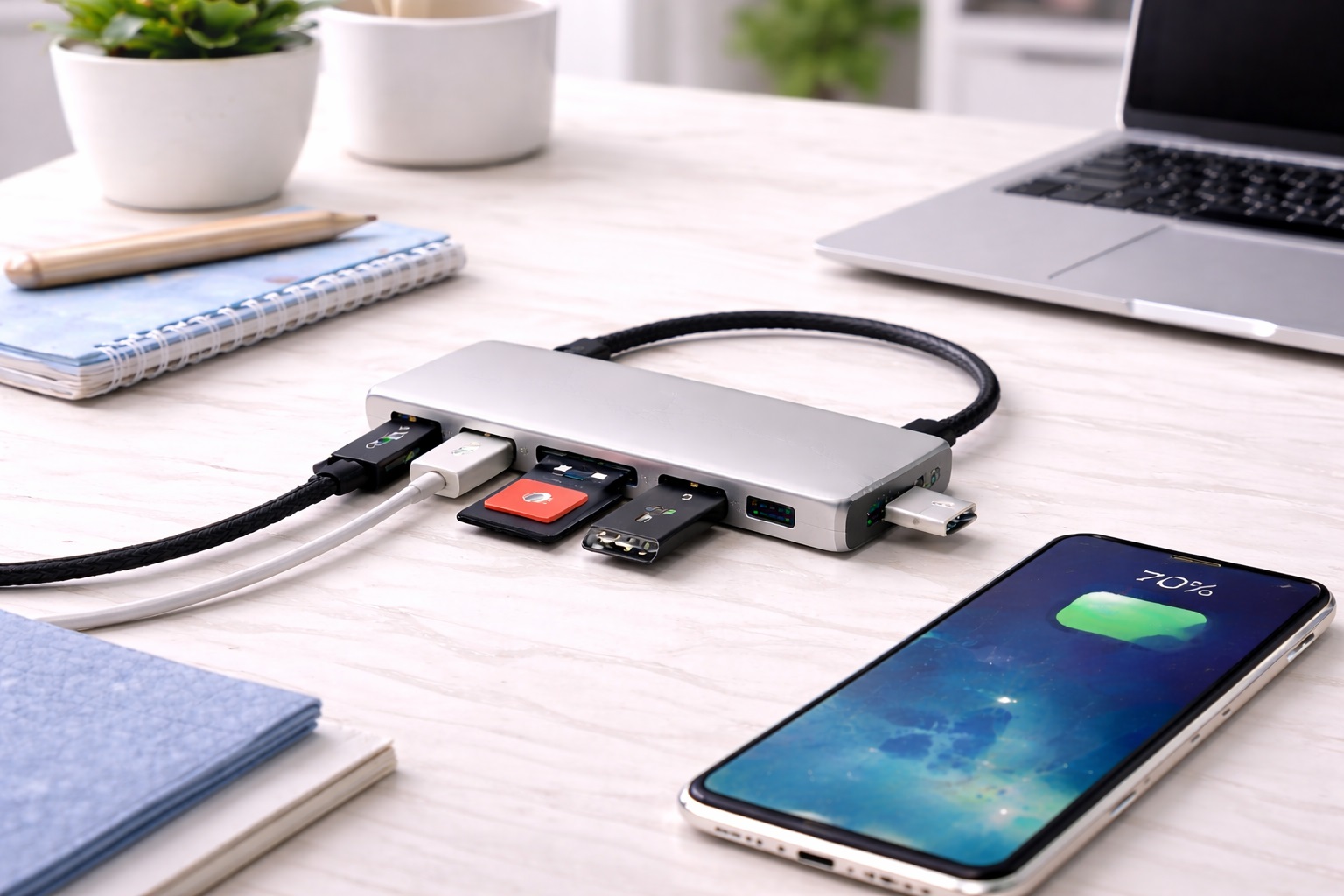
Most laptops released in the past several years ship with USB-C ports only, leaving owners of USB-A peripherals — external drives, printers, older flash drives — with nothing to plug them into. This category bridges that gap, taking a single USB-C connection and fanning it out into multiple USB-A ports, sometimes alongside a USB-C passthrough for charging. It's become one of the fastest-growing segments of the budget hub market precisely because so many recent laptop redesigns have gone all-in on USB-C.
- Pros:
- Restores compatibility with legacy USB-A accessories
- Compact design suits slim, portable laptops well
- Often includes a USB-C passthrough port for charging while in use
- Reasonably priced given the specific problem it solves
- Cons:
- Limited to a handful of ports due to size constraints
- No Ethernet or card reader in most basic models
- Passthrough charging speed may be capped below the laptop's full charging rate
Best For: Owners of modern USB-C-only laptops who still rely on USB-A peripherals for everyday work.
Why We Recommend It: It directly addresses the single biggest connectivity complaint about newer thin laptops, at a price that makes sense for something used mainly to plug in a mouse or a drive.
Budget Hub With Ethernet – Best For Stable Wired Networking
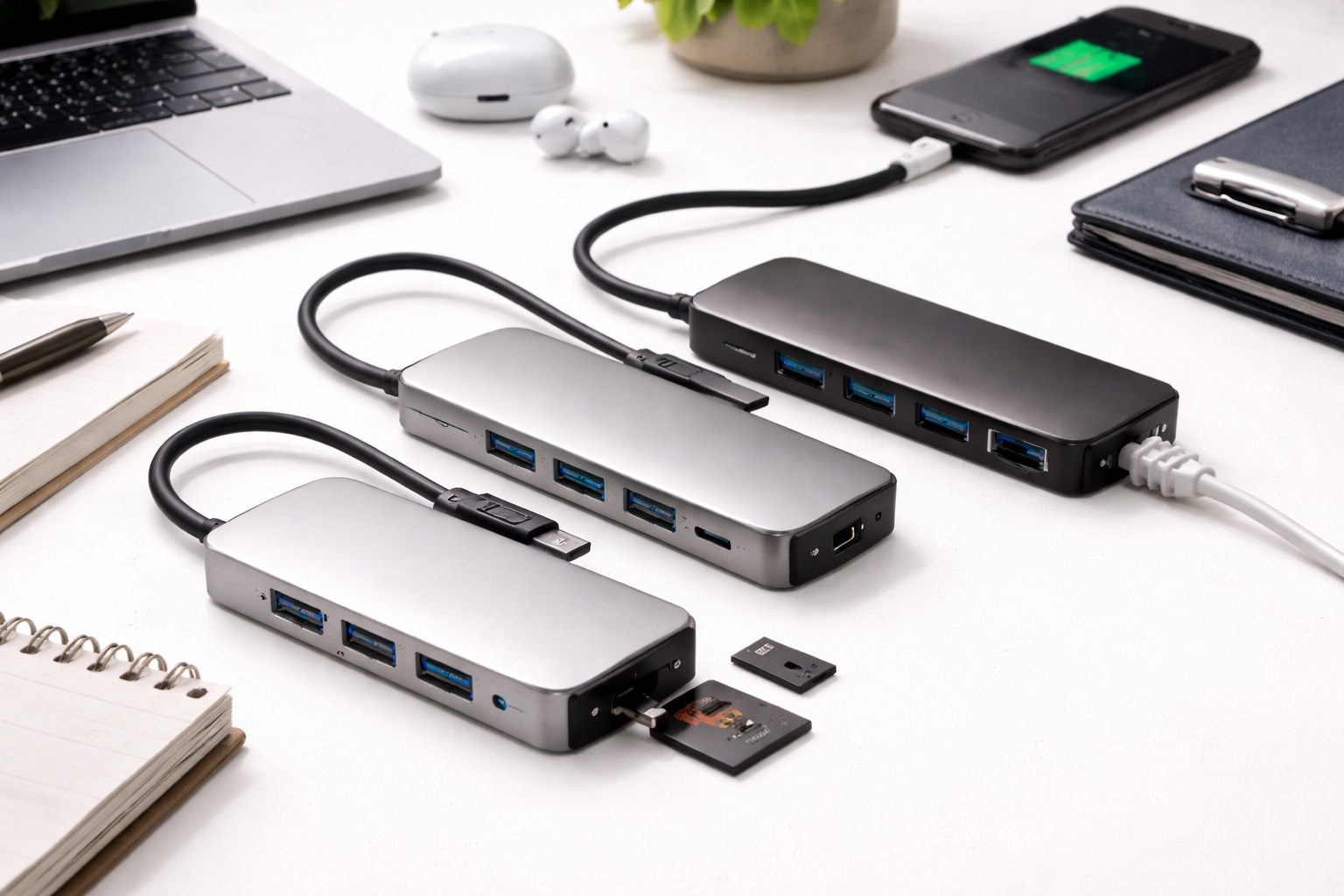
Wi-Fi is convenient, but it isn't always reliable, particularly in shared housing, older buildings, or during video calls where a dropped connection is genuinely disruptive. This category adds a wired Ethernet port to the hub's other connections, giving laptops without a built-in Ethernet jack a way to plug directly into a router for a more consistent connection. For anyone whose work depends on a steady video call or a large weekly file upload, this small addition can matter more than any other spec on the hub.
- Pros:
- Provides a stable, low-latency wired connection when Wi-Fi is unreliable
- Useful for video calls and large file transfers that benefit from consistency
- Often bundled with several USB-A ports in the same unit
- A meaningful upgrade for remote workers in weak Wi-Fi areas
- Cons:
- Ethernet speed on budget models may be capped below gigabit rates
- Bulkier than hubs without a networking port
- Requires a nearby Ethernet cable and router or switch
Best For: Remote workers and students in dorms or shared housing who need a more dependable connection than Wi-Fi alone can offer.
Why We Recommend It: It solves a real and common frustration — unreliable Wi-Fi — at a price far lower than most people assume a wired networking solution requires.
Budget Hub With SD Card Reader – Best For Photographers and Content Creators
For anyone regularly offloading photos or video from a camera, a built-in SD card reader saves the hassle of carrying a separate card reader dongle. This category combines a handful of USB ports with an SD and often a microSD slot, aimed squarely at casual and semi-professional content creators working from a laptop. It's a small convenience that adds up quickly once you're pulling cards in and out several times a week rather than once a month. For someone who only occasionally imports a handful of photos, a standalone card reader dongle might still make more sense, but for anyone shooting regularly enough that the workflow becomes routine, folding that step into the same hub already handling port expansion removes one more object to keep track of.
- Pros:
- Combines card reading and port expansion in a single accessory
- Reduces the number of separate dongles needed for a mobile workflow
- Convenient for quickly offloading photos or footage in the field
- Usually affordable relative to buying a hub and card reader separately
- Cons:
- Card reader speed can lag behind dedicated high-speed readers
- Bulkier profile than hubs without a card slot
- Not all models support both SD and microSD simultaneously
Best For: Photographers, videographers, and content creators who need to import media files regularly while working from a laptop.
Why We Recommend It: It consolidates two separate accessories into one affordable unit, which is a genuine convenience for anyone with a camera-based workflow.
Under $20 USB Hub – Best For Occasional, Low-Cost Use
This is the entry point of the entire category — the hub you buy when you need basic expansion and don't want to think about it much further. These units typically offer three to four ports of a single type, minimal extra features, and a design built to hit an aggressive price target rather than impress anyone. For a spare kept in a desk drawer or a backup for travel, this tier is often more than sufficient. Because expectations are appropriately modest at this price, buyers who go in understanding they're getting basic functionality rather than premium materials tend to be satisfied, while those expecting near-flagship durability from an entry-level price point are the ones most likely to be disappointed.
- Pros:
- Lowest cost of entry in the USB hub category
- Compact and easy to keep as a spare or backup
- Sufficient for light, occasional peripheral use
- Widely available, making replacement simple if needed
- Cons:
- Build materials are noticeably thinner than pricier alternatives
- Fewer ports and no extra features like Ethernet or card readers
- Data transfer speeds may not reach full USB 3.0 rates
Best For: Casual users who need occasional port expansion and don't require networking, card reading, or high sustained transfer speeds.
Why We Recommend It: It covers the core need — more ports — at the lowest reasonable price, without asking buyers to pay for features they won't use.
Under $30 Multi-Port Hub – Best For Balanced Everyday Use
A step above the absolute entry level, this category typically adds a port or two, slightly better build quality, and more consistent USB 3.0 speeds across all ports simultaneously. It's the middle ground for buyers who want more than the bare minimum but aren't ready to pay for Ethernet or card-reader functionality they may not need. For most everyday laptop owners, this is where the actual sweet spot in the category sits.
- Pros:
- Better balance of price, port count, and build quality
- More consistent USB 3.0 speeds across ports under simultaneous use
- Sturdier housing than the cheapest entry-level hubs
- Suitable for daily use rather than occasional or backup duty
- Cons:
- Still lacks specialized features like Ethernet or card slots
- Modest price increase over the absolute cheapest options
- Port layout may not suit every desk configuration
Best For: Everyday laptop and desktop users who want a dependable daily-use hub without paying for specialized networking or card-reading features.
Why We Recommend It: It offers meaningfully better reliability and speed consistency than the cheapest tier, while remaining solidly within budget territory.
Buying Guide: How to Choose the Best Budget USB Hub
Choosing the right budget USB hub comes down to matching the hub's specific strengths to the ports and features you're actually missing. Even within a narrow price range, small differences in specification and build quality separate a hub that lasts for years from one that ends up back in a drawer within months. Here's what to weigh before buying.
1. USB 3.0 Speeds at Minimum
Even budget hubs should support USB 3.0 for reasonable transfer speeds with external drives and flash drives. USB 2.0-only hubs are noticeably slower for anything beyond basic peripherals like a keyboard or mouse, so check the specification before assuming faster data speeds are included. The price gap between USB 2.0 and USB 3.0 hubs has narrowed enough that there's rarely a good reason to settle for the older standard today.
2. Build Quality at a Low Price
Cheaper hubs often use thinner plastic housings and less robust internal connections. If the hub will travel in a bag daily, a slightly sturdier build is worth prioritizing over saving a few extra dollars. Look at how the cable meets the housing — a molded, strain-relieved connection tends to outlast a cable that simply pokes through a thin plastic shell.
3. Number and Type of Ports
Count the actual ports you need regularly — USB-A for older peripherals, USB-C for newer ones — rather than buying based on total port count alone. A hub with the wrong port mix won't solve your actual problem no matter how many ports it has, and buying one extra port beyond your current needs leaves room to add an accessory later without unplugging something else.
4. Compatibility With Both Mac and Windows
Most budget hubs are plug-and-play across operating systems, but it's worth confirming compatibility if you're using a less common setup, since driver requirements occasionally differ between platforms for less standard features like Ethernet or card readers.
5. Heat Management Under Sustained Load
Hubs with multiple ports in simultaneous use, particularly during large file transfers, can generate noticeable heat in cheaper, poorly ventilated housings. A hub that gets warm during a long transfer is normal; one that becomes uncomfortable to touch or starts dropping connections is a sign of an underbuilt power circuit, and it's worth watching for in the first few weeks of ownership.
6. Cable Length and Desk Setup
A short built-in cable may not reach comfortably depending on your desk arrangement, while an overly long one can create clutter. Consider where the hub will actually sit relative to your laptop before choosing a model with a fixed cable length, since this detail rarely shows up clearly in product photos.
7. Power Delivery and Passthrough Charging
Some USB-C hubs include a passthrough port that allows charging while the hub is connected, which matters if your laptop has limited ports and you need to charge and use peripherals simultaneously. Confirm the passthrough wattage supports your laptop's charging needs before assuming it will fully replace the charging port it occupies.
8. Simultaneous Port Bandwidth Sharing
Many budget hubs share total bandwidth across all ports rather than giving each port a dedicated data lane. This rarely matters for basic peripherals but can slow things down if you're transferring large files across multiple ports at once, so it's worth considering if your typical use involves more than one high-bandwidth device at a time.
9. Specialized Features You Actually Need
Ethernet and SD card reader additions increase the price modestly but only deliver value if you actually use them. Buying a specialized hub for a feature you won't use is a common way to overspend in this category, even when the overall price still looks like a bargain.
10. Portability vs. Desktop Permanence
A hub destined for a bag benefits from a compact, lightweight design, while one that will live permanently on a desk can prioritize port count and build quality over size. Decide which role the hub will actually play before choosing, since a hub optimized for one purpose often makes compromises for the other.
11. Warranty and Return Policy
Because USB hubs are relatively simple devices, warranty length is a reasonable proxy for expected reliability. A short return window paired with a short or absent warranty is worth noting as a potential sign of lower manufacturer confidence in long-term durability, even if the upfront price looks attractive.
12. User Reviews and Real-World Feedback
Star ratings alone don't tell the full story of how a budget hub performs over time. Reading a handful of reviews that specifically mention months of daily use, rather than just an initial unboxing impression, gives a much clearer sense of whether a hub will hold up under regular, everyday conditions.
13. Number of Simultaneous High-Bandwidth Devices
Think honestly about how many demanding devices you'll actually plug in at the same time, rather than the theoretical maximum the hub supports. Running one external drive off a shared-bandwidth hub rarely causes a noticeable slowdown, but adding a second drive or an SD card transfer at the same time can meaningfully divide the available bandwidth. If your workflow regularly involves moving large files from more than one device simultaneously, that's a reason to look specifically for a hub described as offering dedicated bandwidth per port rather than a single shared pool.
14. Color, Finish, and Visibility on a Cluttered Desk
It's a minor factor compared to speed or build quality, but a hub that blends into cable clutter can be easy to misplace or accidentally unplug when reaching for something else on a crowded desk. A hub with a distinct color or a slightly raised profile is simply easier to locate by feel, which matters more than it sounds like it should once a desk accumulates its usual tangle of charging cables and peripherals.
15. Buying More Than One for Different Locations
Because budget hubs are inexpensive relative to a laptop or monitor, it's often more practical to buy two modest units for different locations — one that stays permanently at a home desk and one that travels in a bag — rather than a single premium hub you have to unplug and move each day. This avoids the wear and tear that comes from repeatedly disconnecting and reconnecting the same unit, and it means you're never without port expansion just because the hub is sitting in the wrong room.
Frequently Asked Questions
Do budget USB hubs support USB 3.0 speeds?
Many do, though not universally — check the specification sheet before buying, since some of the cheapest models are limited to USB 2.0 speeds, which are noticeably slower for external drives and large file transfers. When in doubt, look for an explicit mention of USB 3.0 or 3.1 support in the listing rather than assuming it based on price alone.
Can I connect a USB hub to a USB hub to add even more ports?
Technically yes, but daisy-chaining hubs often leads to bandwidth bottlenecks and occasional connection instability, particularly with budget models that already share bandwidth across ports. It's generally better to buy a single hub with enough ports for your actual needs rather than stacking two cheaper units together.
Will a budget USB hub slow down my external hard drive?
If the hub supports USB 3.0 and isn't overloaded with multiple simultaneous high-bandwidth devices, speed loss should be minimal. Shared-bandwidth hubs under heavy simultaneous use, such as running two external drives at once, may show a modest slowdown compared to plugging directly into the laptop.
Do USB-C hubs work with both laptops and tablets?
Most USB-C hubs work across any device with a compatible USB-C port, including many tablets, though some advanced features like Ethernet may behave differently depending on the operating system and whether the tablet's software supports that particular feature at all.
Is it worth paying more for a hub with Ethernet built in?
If Wi-Fi reliability has been a genuine problem for you, yes — a wired connection can meaningfully improve stability for calls and large transfers. If your Wi-Fi is already reliable, this feature may not be worth the added cost over a plain USB-A or USB-C hub.
How many ports do I actually need in a USB hub?
Count your regularly connected peripherals — mouse, keyboard, external drive, phone charging cable — and choose a hub with at least that many ports, plus one or two extra for occasional devices you connect less often.
Do USB hubs need external power for full performance?
Most budget hubs are bus-powered, drawing power from the connected laptop, which is sufficient for typical peripherals like a mouse, keyboard, or flash drive. Hubs powering several high-draw devices simultaneously, like external hard drives, may benefit from an externally powered model instead.
Can a cheap USB hub damage my laptop's port?
This is uncommon with normal use, but a poorly manufactured hub with a loose or unstable connector could contribute to wear over time. Choosing a hub with a snug, secure connection at the laptop side reduces this risk considerably.
What's the difference between a USB hub and a docking station?
A USB hub typically focuses on port multiplication for USB devices, while a docking station often adds video output, additional networking, and more comprehensive power delivery, generally at a higher price point than a basic hub in this category.
Do I need a hub with an SD card reader if I don't use a camera?
Not necessarily. This feature is primarily useful for photographers, videographers, or anyone regularly transferring files from SD cards used in cameras or drones. Users without that need can save money with a standard multi-port hub instead.
How long do budget USB hubs typically last?
With normal use, many budget hubs last two to three years or more, though connector wear and internal component quality vary by manufacturer. Checking the warranty length before buying gives a reasonable sense of expected durability.
Will a USB hub work with a printer or scanner?
Yes, most standard peripherals including printers and scanners work fine through a budget USB hub, provided the hub supports adequate bandwidth and the correct port type for the device you're connecting.
Do budget USB hubs work with gaming consoles or smart TVs?
Many do, since most consoles and smart TVs recognize a standard USB hub the same way a computer does, though advanced features like Ethernet passthrough may not be supported depending on the specific device's software. It's worth checking a device's own documentation for USB hub compatibility before assuming full feature support carries over.
Is it safe to leave a USB hub plugged in and powered all the time?
Yes, for the vast majority of budget hubs, since they're designed for continuous bus-powered operation without any special precautions. Unplugging peripherals you're not actively using is a reasonable habit for reducing wear on ports over time, but leaving the hub itself connected isn't a safety concern.
Do USB hubs come with a carrying case or pouch?
Occasionally, though it's more common at slightly higher price points than the cheapest budget tier. If portability matters to you, a small pouch or case sold separately is an inexpensive way to protect the hub and its cable from wear while traveling in a bag.
Can a budget USB hub support two monitors through USB-C?
Not typically — this category focuses on standard USB port expansion rather than video output, so hubs marketed for connecting two monitors usually fall into the more expensive docking station category instead. If a display connection matters, confirm the hub specifically lists video output support rather than assuming any USB-C hub can drive an external monitor.
Final Verdict
- For most everyday laptop users: A USB-C to USB-A hub in the sub-$30 range restores lost compatibility without unnecessary bulk.
- For remote workers with unreliable Wi-Fi: A hub with built-in Ethernet offers a meaningfully more stable connection for calls and large transfers.
- For photographers and content creators: A hub with an SD card reader consolidates two accessories into one convenient tool.
The best budget USB hub is the one that restores exactly the connectivity you're missing, without paying for features you'll never touch. Whichever option fits your setup, remember that a USB hub is a small, inexpensive fix for a problem that's ultimately about convenience — getting your existing peripherals to work with a laptop that shipped with fewer ports than you actually need. Buying based on the ports you're missing, rather than the flashiest spec sheet, is the fastest way to land on a hub that quietly does its job every day without a second thought.