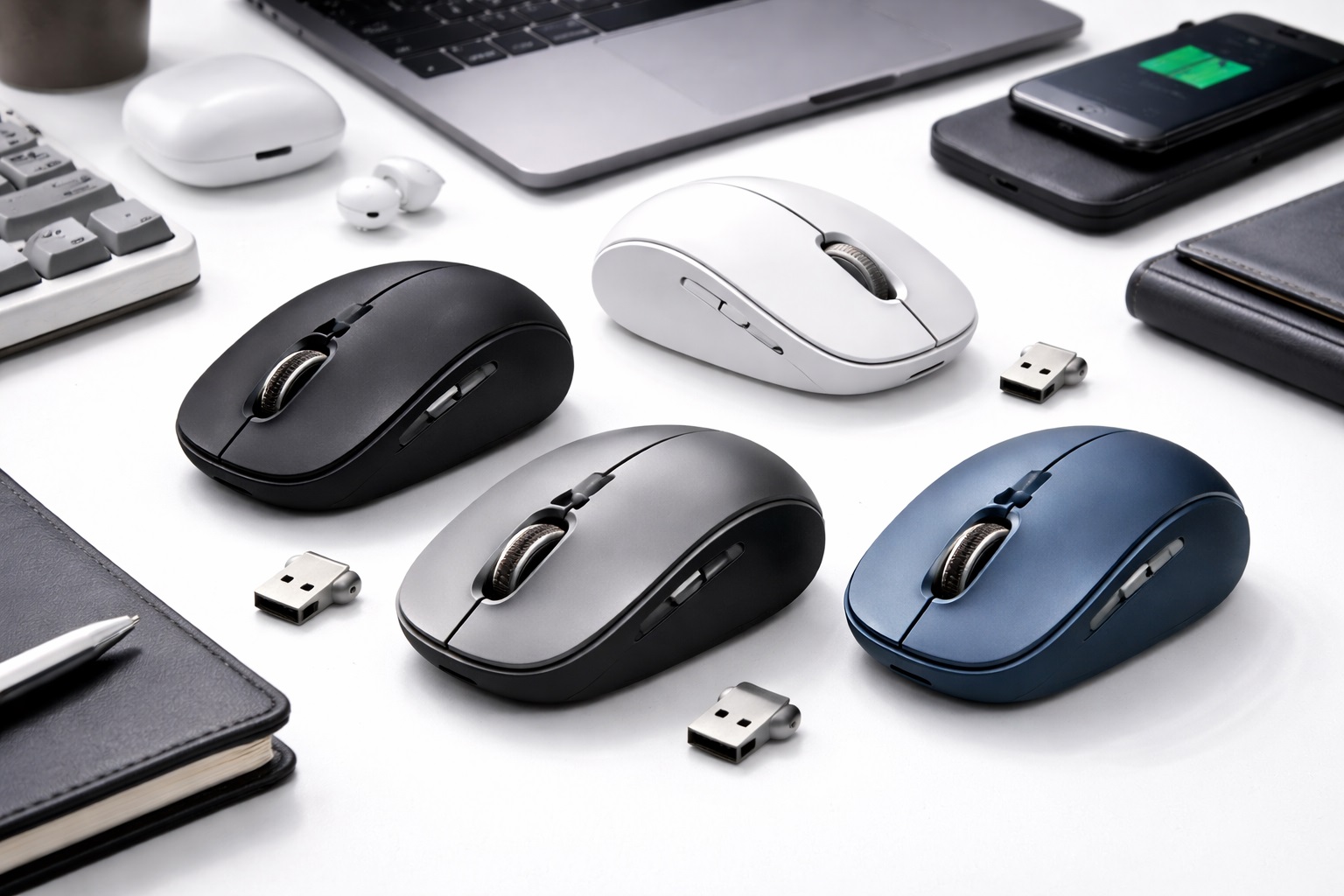
Best Wireless Mice Under $100: Pro Performance at a Sensible Price
The gap between a basic wireless mouse and a genuinely premium one used to require a significant jump in price to bridge. That's changed considerably over the past several years, as sensor technology, ergonomic engineering, and wireless connectivity that once defined flagship, top-tier mice have gradually trickled down into the sub-$100 price bracket. Today, a mouse under $100 can offer precise tracking, comfortable all-day ergonomics, and reliable multi-device support that would have required spending considerably more not long ago.
That said, "under $100" still covers a wide range of actual products with genuinely different priorities. Some options in this bracket push hard on raw sensor precision, borrowing technology directly from gaming mice. Others focus on ergonomic comfort for long work sessions. Others still prioritize the convenience of switching between multiple connected devices throughout a workday. Knowing which of these priorities matters most for your specific work is the key to getting real value out of this price bracket rather than simply picking whatever has the most impressive-sounding spec sheet.
This guide walks through six distinct approaches within the sub-$100 wireless mouse category, followed by a detailed buying framework and answers to the most common questions buyers have at this price point. Since this bracket includes both near-premium options and genuinely affordable entry points, the goal is to help you find real value rather than simply the most feature-dense option available.
It's worth approaching this price bracket with a specific question in mind: which single capability, if genuinely improved, would make the biggest difference to your daily work? For some people that's raw tracking precision; for others it's all-day comfort; for others still it's the convenience of moving seamlessly between two or three different computers. Identifying that one priority upfront makes comparing the six categories below considerably more straightforward than trying to evaluate every possible feature against every other one.
It also helps to think about total cost of ownership rather than just the sticker price. A mouse that ships with a companion app you will never open, or extra buttons you will never remap, is not delivering additional value just because it is included — it is simply a feature you are paying for without using. Approaching this bracket by matching spend to genuine need, rather than treating a longer feature list as inherently superior, is the more reliable way to land on a mouse that still feels worth the money six months in, not just on the day you unbox it.
Top Picks Reviewed
Premium Ergonomic Mouse – Best For All-Day Comfort at a Sub-$100 Price
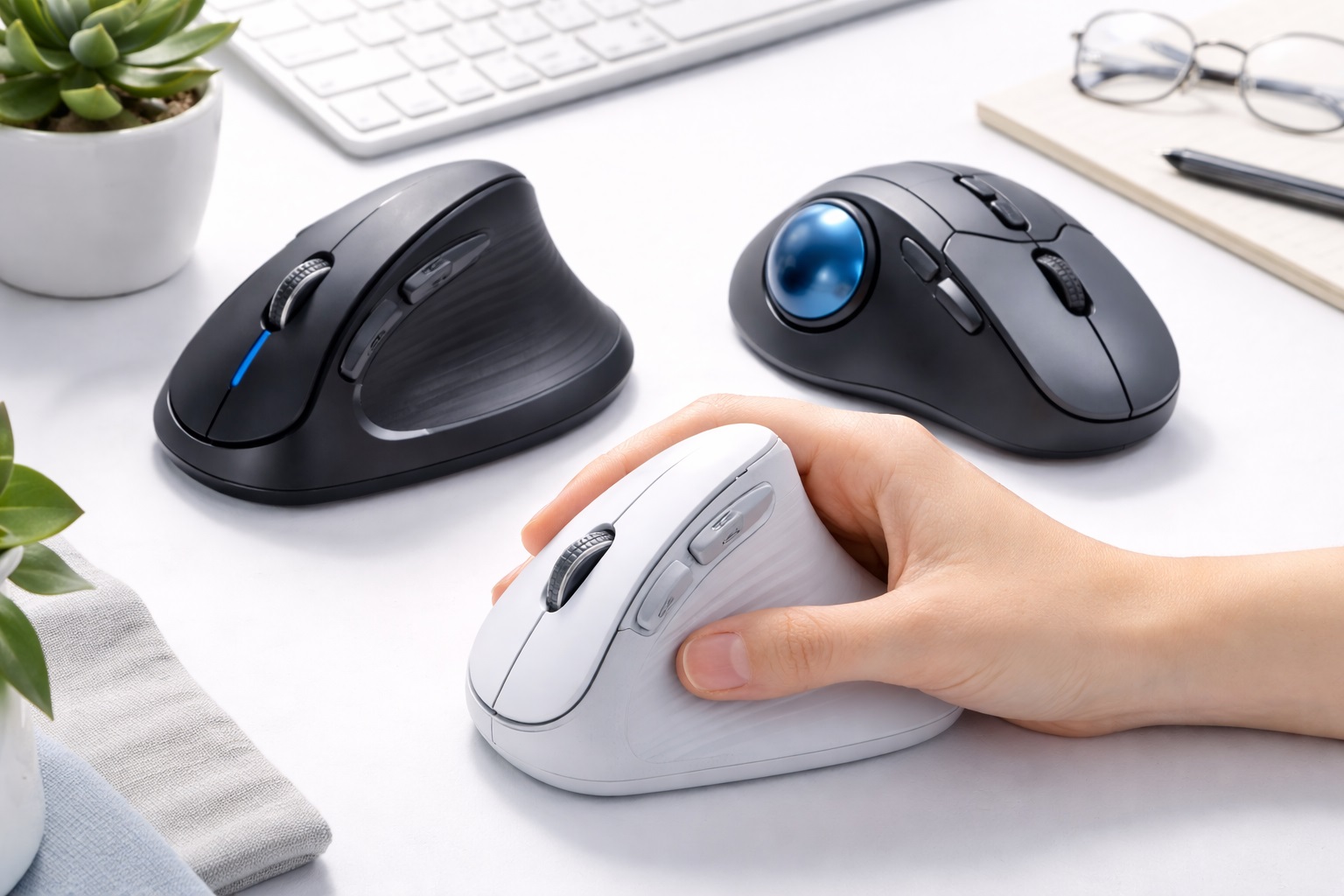
This category brings genuinely contoured, ergonomic shaping — the kind that once required a much higher price to access — into the sub-$100 bracket. The shape is designed to keep the wrist and hand in a more natural, relaxed position during extended work sessions, reducing the strain that a flatter, more generic mouse shape can cause over a full workday. For anyone who spends the majority of their working hours at a computer, this comfort factor compounds meaningfully over weeks and months of daily use. Many people don't notice the cumulative strain of a flat mouse shape until they switch to something more contoured and feel the difference by the end of a full workday.
- Pros:
- Genuinely contoured shape that reduces wrist and hand strain over long sessions
- Brings ergonomic engineering previously reserved for pricier mice into an accessible price bracket
- Well suited to anyone using a computer for the majority of a working day
- Cons:
- Ergonomic shapes are frequently designed for right-handed use specifically
- Bulkier profile than flatter, more compact alternatives, which affects portability
Best For: Professionals who spend long hours at a computer daily and want genuine ergonomic comfort without paying flagship prices.
Why We Recommend It: It delivers a comfort upgrade that directly affects daily wellbeing during long work sessions, at a price point that makes the upgrade an easy decision rather than a significant splurge.
Ambidextrous Performance Mouse – Best For Either-Hand Precision
Rather than molding the body specifically for one hand, this category uses a symmetrical shape paired with a precise sensor, aiming to deliver strong tracking performance regardless of which hand you use. This matters for left-handed users who are frequently underserved by ergonomic mouse designs built exclusively around a right-handed grip, as well as for shared workstations where more than one person regularly uses the same mouse. It's a category that quietly solves a problem the mainstream mouse market has historically underserved, without asking left-handed buyers to settle for a lesser sensor or build quality. That matters in practice too, since a shared household or office computer often gets used by whoever is nearest, and a mouse that only feels right in one hand quietly becomes an annoyance for anyone who is not its primary, habitual user.
- Pros:
- Works equally well for left-handed and right-handed users
- Pairs a precise, capable sensor with a genuinely flexible shape
- A practical choice for shared desks or multi-user workstations
- Cons:
- Symmetrical shape offers less specialized contouring than a dedicated ergonomic design
- May feel less tailored to any individual user's specific hand shape
Best For: Left-handed users and shared workstations that need strong precision without favoring one specific hand.
Why We Recommend It: It closes a real gap in the market — precise, capable performance for left-handed users — while remaining a sensible general-purpose choice for anyone who values flexibility over specialized comfort.
Multi-Device Wireless Mouse – Best For Switching Between Computers
Many professionals now regularly move between a work laptop, a personal computer, and sometimes a tablet throughout the day. This category is built specifically around that reality, supporting quick switching between multiple paired devices, often through a physical button on the mouse itself, without needing to re-pair each time you change which device you're using. Over the course of a busy week, avoiding even a few minutes of repeated re-pairing adds up to a genuinely meaningful reduction in daily friction.
- Pros:
- Switches quickly between multiple paired devices without re-pairing each time
- Reduces the need to own separate mice for separate computers
- Well suited to professionals who regularly move between work and personal devices
- Cons:
- Slightly more complex initial setup when pairing multiple devices for the first time
- Switching button placement varies and isn't always intuitive at first
Best For: Anyone who regularly works across more than one computer and wants a single mouse that follows them between devices.
Why We Recommend It: It solves a specific, increasingly common workflow problem directly, removing the friction of switching input devices every time you switch which computer you're using.
Silent Click Premium Mouse – Best For Quiet Offices
Using modified switches designed to significantly dampen click noise while preserving tactile feedback, this category is aimed squarely at shared or quiet working environments — an open-plan office, a quiet co-working space, or a home office shared with someone on their own calls. It brings genuinely premium sensor and build quality alongside the noise reduction, rather than treating quiet clicks as the only selling point. This matters because a mouse that's quiet but otherwise mediocre would be a poor tradeoff for anyone doing serious daily work rather than just casual browsing.
- Pros:
- Significantly quieter clicks than a standard mouse, without sacrificing tactile feel
- Pairs noise reduction with genuinely capable sensor performance
- Considerate choice for shared offices, co-working spaces, or quiet home environments
- Cons:
- Some users notice a subtly different, softer feel to the click compared to standard switches
- A more specialized feature that adds cost relative to an otherwise similar standard-click mouse
Best For: Professionals working in shared, open, or noise-sensitive environments who want quiet operation without compromising on performance.
Why We Recommend It: It solves a genuine everyday annoyance for anyone working in close proximity to others, without asking users to sacrifice the tracking precision or build quality expected at this price point.
Gaming-Sensor Productivity Mouse – Best For Maximum Tracking Precision
Borrowing sensor technology originally developed for competitive gaming mice, this category delivers exceptionally precise tracking that benefits detail-oriented productivity work just as much as gaming, particularly tasks like photo editing, graphic design, or detailed spreadsheet work where fine cursor control genuinely matters. It's a good example of technology developed for one audience turning out to benefit an entirely different group of users just as much, if not more.
- Pros:
- Exceptionally precise sensor tracking, borrowed directly from gaming mouse technology
- Genuinely useful for detail-oriented productivity tasks, not just gaming
- Often includes adjustable sensitivity for switching between different task types
- Cons:
- Some gaming-oriented designs include aesthetic choices, like RGB lighting, that some professional users may not want
- Advanced sensitivity settings may require companion software that adds a small setup step
Best For: Detail-oriented professionals, such as designers or editors, who genuinely benefit from best-in-class tracking precision.
Why We Recommend It: It brings a genuinely meaningful performance advantage to precision-dependent work, at a price point that makes the upgrade reasonable even outside a strictly gaming context.
Best Wireless Mouse Under $50 – Best For Budget-Conscious Buyers
Sitting at the more accessible end of the sub-$100 bracket, this category proves that solid, reliable performance doesn't require spending close to the full $100 ceiling. It strips away some of the more specialized extras found in pricier options while still delivering dependable tracking, comfortable general-use ergonomics, and stable wireless connectivity. It's proof that meaningful improvements over a truly basic mouse don't require spending anywhere near the top of this bracket to notice a real difference.
- Pros:
- Delivers reliable core performance at a genuinely accessible price
- A sensible choice for anyone who doesn't need specialized features like multi-device switching or gaming-grade sensors
- Leaves budget available for other accessories or upgrades
- Cons:
- Lacks the specialized features found in pricier options within this bracket
- Sensor precision, while solid, doesn't match dedicated gaming-grade options
Best For: Buyers who want dependable everyday performance without paying toward the top of the sub-$100 range for features they won't use.
Why We Recommend It: It represents genuine value within this bracket, delivering reliable day-to-day performance without asking buyers to pay for specialized capabilities most people don't actually need.
Buying Guide: How to Choose the Best Wireless Mouse Under $100
Before making a purchase in this price bracket, it helps to identify which specific capability matters most to your workflow, since a $100 budget can be spent on quite different priorities depending on what you actually need.
1. Sensor Resolution (DPI) and Precision
Sensor quality varies meaningfully even within this price bracket. If your work involves detail-oriented tasks like design or photo editing, prioritize a mouse with higher, adjustable DPI settings and genuinely precise tracking rather than assuming all sensors in this price range perform similarly across every product.
2. Ergonomic Shape for Long Sessions
For anyone using a mouse for many hours daily, ergonomic shaping can meaningfully reduce strain over time. Consider your hand size and grip style, since a contoured shape that suits one person's hand may not suit another's equally well, regardless of how well-reviewed it is generally.
3. Multi-Device Pairing Support
If you regularly switch between multiple computers, a mouse that supports quick switching between paired devices removes real daily friction. Check how many devices can be paired simultaneously and how switching between them is actually triggered before assuming this feature works the way you expect.
4. Rechargeable Versus AA Battery Power
Rechargeable mice avoid the ongoing cost and hassle of replacing batteries, while AA-battery-powered mice can be simpler to keep running indefinitely by swapping in fresh batteries without waiting for a recharge. Consider which tradeoff better suits your habits and how often you're near a charging cable during the day.
5. Software Customization Depth
Some mice in this bracket include companion software for customizing buttons, sensitivity profiles, and other settings, while others work well with no software at all. Decide whether this level of customization is something you'll actually use before treating it as a deciding factor in your final choice.
6. Number and Placement of Buttons
Extra programmable buttons can genuinely speed up workflows for some users, particularly those doing repetitive tasks, while going entirely unused for others. Consider your actual daily tasks honestly before paying extra for a mouse with more buttons than you'll ever actually use.
7. Build Quality and Click Durability
At this price point, build quality should hold up to years of daily use rather than months. Reading verified user feedback on long-term durability, particularly regarding button and scroll wheel wear, is worth the extra research time before committing to a specific model.
8. Connection Stability and Range
Check both the connection type — USB receiver or Bluetooth — and how the manufacturer describes range and stability, particularly if your workspace has other wireless devices nearby that could introduce interference with the signal.
9. Weight and Balance
A mouse's weight and how that weight is distributed affects comfort and control during extended use. Some users prefer a lighter mouse for quick, precise movements, while others prefer additional heft for a more grounded, stable feel during detailed work.
10. Noise Level of Clicks
If you work in a shared or quiet environment, standard click noise may be worth considering as a factor, particularly if a silent-click option is available at a similar price point without meaningfully sacrificing other important features.
11. Compatibility With Your Operating System
Confirm the mouse's full feature set, including any companion software, works with your specific operating system, since some customization software is only available for certain platforms and not universally supported.
12. Warranty and Manufacturer Support
At this price point, a solid warranty is a reasonable expectation and a good indicator of the manufacturer's confidence in long-term reliability. Compare warranty length across options you're considering as part of your final decision-making process.
13. Scroll Wheel Feel and Line-by-Line Precision
Scroll wheels vary more than people expect even within this price bracket, from a light, free-spinning feel suited to quickly moving through long documents to a firmer, notched feel that makes it easier to stop precisely on a single row in a spreadsheet or a specific line in a document. If your daily work involves a lot of fine-grained scrolling through data or long documents, a firmer, more deliberate scroll action is often more useful than a fast, loose one, even though the looser feel can seem nicer during a quick first impression in a store.
Frequently Asked Questions
Is a wireless mouse under $100 genuinely comparable to more expensive premium options?
In many respects, yes. Sensor technology, wireless connectivity, and ergonomic design that once required spending well over $100 have become increasingly available in this bracket. The main differences at higher price points tend to be more specialized extras, premium materials, or brand-specific features rather than fundamental performance gaps, so it's worth being honest about whether those extras genuinely matter to you before paying more.
What's the biggest difference between a $40 mouse and a $90 mouse?
Generally, sensor precision, build quality, ergonomic sophistication, and additional features like multi-device pairing or software customization scale upward with price within this bracket. Whether that difference matters depends entirely on whether you'll actually use those additional capabilities in your daily work, rather than simply having access to them on paper.
Does a mouse under $100 support both Windows and Mac operating systems?
Most mice in this bracket support both major operating systems for basic functionality, though companion customization software is sometimes limited to one platform or offers a reduced feature set on the other. Checking the specific software compatibility listed for a product is worth doing if customization features matter to your workflow.
Do I need a gaming-grade sensor for regular office or productivity work?
Not necessarily, though detail-oriented tasks like design, photo editing, or precise spreadsheet work can genuinely benefit from the tracking precision gaming sensors offer. For general browsing, document editing, and typical office tasks, a standard productivity sensor is usually more than sufficient, and paying extra for gaming-grade precision may not translate into a noticeable everyday benefit.
Is multi-device pairing worth paying extra for?
If you regularly switch between more than one computer throughout your day, yes, since it removes a real point of daily friction. If you consistently use just one computer, this feature offers little practical benefit and isn't worth prioritizing over other factors like sensor precision or comfort.
How long does a rechargeable mouse in this price bracket typically last per charge?
This varies by product, but many rechargeable mice in the sub-$100 range offer battery life ranging from a couple of weeks to well over a month per charge, depending on usage intensity. Checking the manufacturer's specific stated battery life gives a clearer expectation than assuming based on price alone, and heavier daily use naturally shortens the interval between charges.
Are ergonomic mice in this price range comfortable for smaller hands?
This varies significantly by specific product design rather than price point alone. Some ergonomic shapes accommodate a range of hand sizes well, while others are noticeably better suited to larger hands. Checking detailed size specifications, and user feedback specifically mentioning hand size, is worth doing before purchasing rather than relying on general comfort claims in the product description.
Do silent-click mice sacrifice any performance compared to standard-click options?
Generally no, since the click-noise reduction is achieved through modified switch mechanisms rather than changes to sensor performance. Tracking precision, DPI range, and overall build quality can be just as capable as standard-click alternatives at a similar price point, so choosing a quieter option doesn't require accepting a meaningful performance tradeoff.
Is it worth buying a mouse with companion software if I don't plan to customize settings?
Not particularly. If you don't anticipate customizing button assignments or sensitivity profiles, prioritizing a mouse that performs well out of the box without requiring software is a more practical choice, since unused software features don't add real value.
How do I know if a wireless mouse under $100 will last for years rather than months?
Reading verified user reviews that specifically mention long-term use, ideally reviews written well after the initial purchase, gives a more reliable indicator than reviews focused only on first impressions. Checking the manufacturer's warranty length also offers a reasonable proxy for expected durability.
Should I prioritize a specific brand within this price bracket?
Brand reputation is a reasonable factor to weigh, since established manufacturers in this space generally have more consistent quality control and more accessible customer support than lesser-known alternatives. That said, plenty of solid options exist across multiple brands at this price point, so it's worth evaluating specific models rather than assuming one brand is universally superior.
Can a mouse under $100 handle demanding creative software like video editing tools?
Yes, particularly options with precise, gaming-derived sensors and adjustable DPI settings, which translate well to the fine cursor control needed for timeline scrubbing and detailed selections in creative software. Pairing a capable mouse with adequate DPI adjustment tends to matter more for this kind of work than any other single specification.
Can I return a wireless mouse in this price bracket if it doesn't meet expectations?
Most retailers offer a return window, typically between 15 and 30 days. It's worth checking the specific return policy before purchasing and retaining original packaging during your evaluation period in case the mouse doesn't suit your needs.
Do mice in this price bracket typically include a carrying case or extra accessories?
Some do, particularly models positioned for both desk and travel use, though it varies significantly by product and isn't a universal feature at this price point. Checking the specific product listing for included accessories, rather than assuming based on price alone, avoids any surprise when the package arrives.
Is it better to buy near the top or bottom of the sub-$100 range?
This depends entirely on which specific features you'll actually use. Paying toward the top of the range only makes sense if you genuinely need the specialized capabilities that come with it, such as multi-device switching or gaming-grade sensors, rather than assuming a higher price within the bracket automatically means better value for your specific needs.
Does a heavier or lighter mouse perform better for productivity tasks?
Neither is objectively better — it comes down to personal preference and the type of work you do. Lighter mice tend to suit quick, precise movements well, while a bit of added weight can feel more stable and deliberate for some users during detailed, slower-paced tasks.
Can I use a wireless mouse in this price bracket for both work and casual gaming?
Many mice in this bracket, particularly those with gaming-derived sensors, perform perfectly well for casual gaming alongside daily productivity work. If competitive gaming performance is a serious priority, dedicated gaming mice at a similar or higher price point may still offer additional gaming-specific features this category doesn't prioritize.
How much should software customization actually factor into my decision?
If you have specific workflow needs, such as remapping buttons for particular software shortcuts, customization software can add real value. For most general productivity use, a mouse that performs well without any software installation is often the more practical and hassle-free choice.
Does a higher DPI number always mean better tracking accuracy?
Not necessarily. DPI measures sensitivity, meaning how far the cursor moves per inch of physical mouse movement, rather than accuracy or tracking quality directly. A mouse with a lower maximum DPI but a well-tuned sensor can track more accurately than one with a higher DPI figure and a mediocre sensor behind it, so it is worth weighing sensor reputation and reviews alongside the DPI number rather than treating DPI alone as the deciding factor.
Final Verdict
The sub-$100 wireless mouse category has matured to the point where genuinely capable, precise, and comfortable options are available without requiring a jump to flagship pricing. The key to getting real value here is matching the specific capability — precision, comfort, multi-device support, or quiet operation — to what actually matters in your daily work.
- For detail-oriented or precision work: a gaming-sensor productivity mouse delivers tracking accuracy that genuinely matters for design and editing tasks.
- For long daily sessions: a premium ergonomic mouse reduces strain that compounds meaningfully over weeks and months of use.
- For straightforward, dependable use: a budget-friendly option under $50 covers the essential need without paying for unused extras.
Rather than assuming the priciest option within this bracket is automatically the best choice, match your purchase to the specific capability that actually improves your daily work. A wireless mouse under $100 chosen for the right reason will feel like genuine value, not just a mid-range compromise.
It's also worth remembering that this bracket rewards a bit of patience and honest self-assessment more than most accessory categories. A quick impulse purchase based on the highest star rating often overlooks the specific tradeoffs that actually matter for your workflow. Taking the time to identify your genuine priority — precision, comfort, multi-device flexibility, or simple reliability — before comparing specific products tends to produce a purchase you're still satisfied with well after the initial excitement of a new gadget has worn off.