Best Mice for Beginners: Simple, Reliable, Easy to Set Up
Someone setting up their first desktop computer, or moving off a laptop trackpad for the first time, usually isn't looking for programmable buttons, adjustable weights, or a companion app with a dozen settings menus. What actually matters at that stage is whether the mouse works the moment it's plugged in, tracks smoothly without any tinkering, and stays comfortable during the learning curve of getting used to a new input device. Complexity is the enemy of a good first experience, not the missing feature.
The mouse market doesn't always make that easy to find. Product listings are often crowded with gaming terminology, RGB lighting callouts, and DPI numbers that mean little to someone who has never shopped for a mouse before. Underneath that noise, the mice that actually work best for beginners share a short list of traits: dependable plug-and-play connectivity, a shape that suits a natural, relaxed grip, and click and scroll mechanisms that hold up to the trial-and-error clicking that comes with learning any new piece of hardware.
This guide breaks down three mouse styles well suited to first-time buyers and those newer to desktop computing, then walks through the specific factors worth checking before buying — connectivity, comfort, and the small details that make a mouse either forgettable in the best way or a recurring source of minor frustration. The goal is helping a first-time buyer feel confident in a purchase without needing to become an expert in mouse specifications first.
It's worth noting upfront that "beginner-friendly" doesn't mean stripped-down or lower quality. The mice covered here are simply chosen for how little setup and adjustment they demand, not because they cut corners on the sensor or build quality that determines whether a mouse actually works well day to day. A first mouse that's genuinely reliable also tends to be a mouse that lasts through the entire process of getting comfortable with a new computer setup, rather than needing replacement halfway through.
There's also no need to feel behind if mouse shopping feels more complicated than expected. The market is genuinely crowded with options aimed at buyers who already know exactly what they want — competitive gamers, graphic designers, programmers with specific button-mapping needs — and very little of that applies to someone simply looking for a dependable way to point and click. Filtering out that noise is largely a matter of knowing which handful of features actually matter at this stage, which is exactly what the sections below are built to clarify.
Top 3 Mice for Beginners (Detailed Reviews)
1. Wireless Ergonomic Mouse – Best Overall for a Comfortable Learning Curve
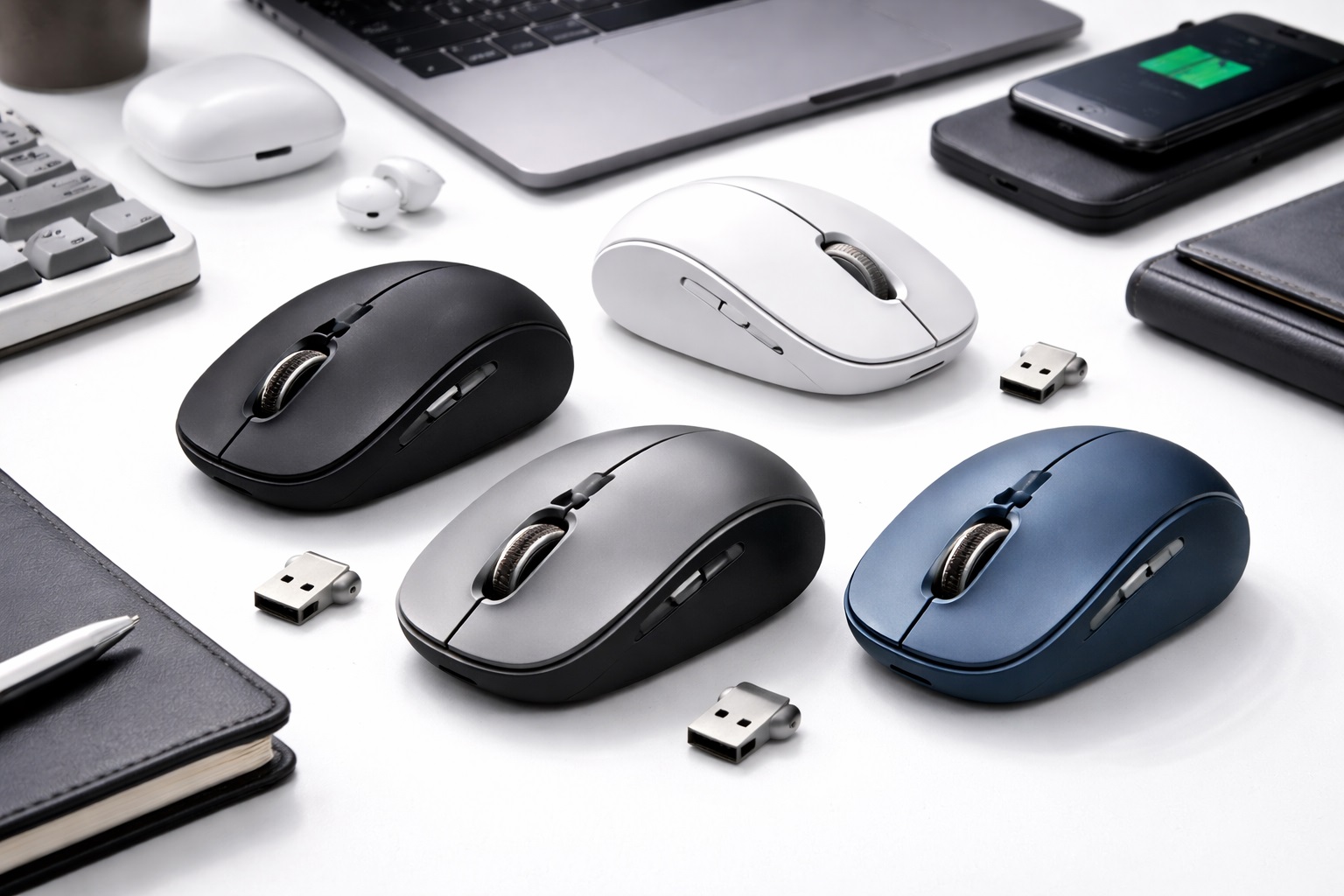
A wireless ergonomic mouse shapes the hand into a naturally rotated position instead of the flat orientation a standard mouse requires, which is genuinely helpful for someone still building the muscle memory of everyday mouse use. Most models are designed for right-handed use, though ambidextrous versions exist for buyers who aren't sure yet which style suits them best. Setup typically involves nothing more than plugging in a small USB receiver or pairing over Bluetooth, with no drivers required for basic functionality on any current operating system.
- Pros:
- Neutral hand position is comfortable from the very first use
- Wireless connection means no cable to manage while learning a new setup
- Plug-and-play — works immediately without installing anything
- Long battery life reduces the chance of an unexpected mid-task interruption
- Cons:
- Right-handed shape on most models limits left-handed buyers
- Larger size than a compact mouse, less ideal for a small desk
Best For: First-time desktop users, anyone switching from a laptop trackpad, and beginners who plan to spend real time at a computer daily rather than just occasional light use.
Why We Recommend It: The ergonomic shape removes one variable from an already unfamiliar experience — an uncomfortable hand position layered on top of learning a new device tends to make the whole process feel harder than it needs to be. Starting with a shape that feels natural from day one makes the learning curve considerably smoother.
Because this style requires essentially no setup beyond plugging in a receiver, it also avoids the common early frustration of software installation failing or a driver not being recognized — problems that can be genuinely confusing for someone unfamiliar with troubleshooting a new peripheral. A mouse that simply works the moment it's connected removes an entire category of potential first-day frustration.
The adjustable DPI presets included on most models are also worth exploring once basic comfort with the mouse is established, even though they aren't necessary from day one. Slowing the cursor down slightly for detailed tasks like formatting a document, or speeding it up for quicker navigation around a larger screen, is a small adjustment that becomes more useful once the fundamentals of clicking and scrolling feel automatic rather than effortful.
2. Compact Wireless Mouse – Best for a Simple, Uncluttered Desk
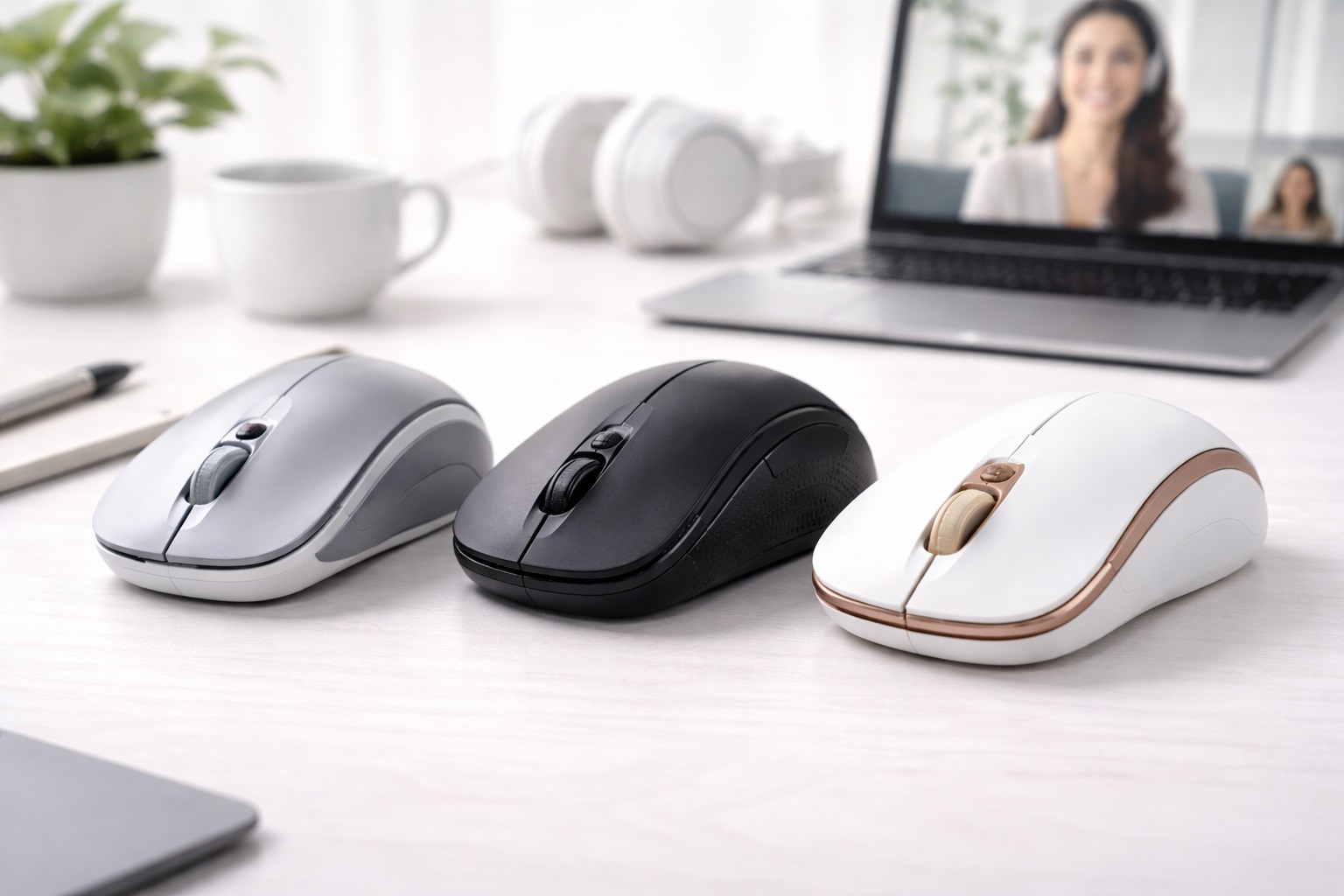
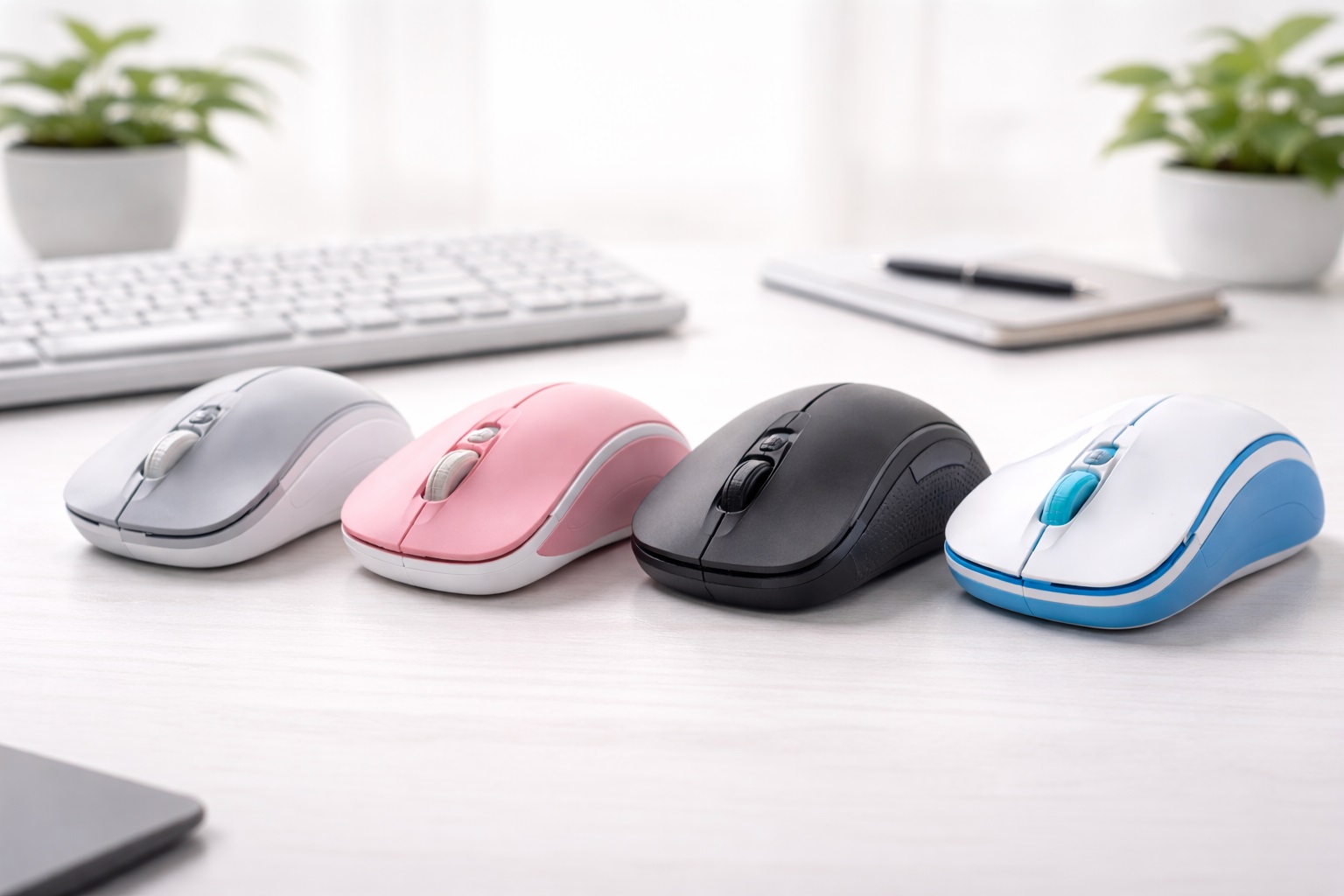
Compact wireless mice are built around a straightforward priority: taking up minimal space while still delivering reliable tracking. Most weigh under 80 grams and include a small USB receiver that stores inside the mouse body, so there's no risk of misplacing a tiny dongle during the early days of setting up a new desk. The smaller shape trades away some of the contouring of a larger ergonomic design but remains genuinely easy for a beginner to pick up and use immediately. Because there's so little bulk to the design, it also tends to feel the least intimidating of the three styles to someone handling a mouse for the very first time, since there's no unusual contouring or sculpted grip zones to figure out before basic clicking and scrolling feel natural.
- Pros:
- Small, simple shape that's easy to get comfortable with quickly
- Receiver stores inside the mouse body, reducing setup confusion
- Lightweight and easy to handle for shorter early sessions
- Available in Bluetooth-only versions for a genuinely cable-free desk
- Cons:
- Less comfortable than a full-size ergonomic design for long sessions
- Smaller shape may not suit larger hands as well over time
Best For: Students, casual users, and anyone setting up a first desktop or laptop workstation who wants a mouse that stays out of the way and doesn't require any real thought to use.
Why We Recommend It: Simplicity is the entire point of this category, and that works strongly in favor of a first-time buyer. There's no learning curve beyond basic mouse use itself, and the compact size means it fits naturally into almost any desk arrangement without needing to be planned around.
For someone building their very first desk setup, a compact mouse also avoids overwhelming an already unfamiliar space with a larger accessory. Keeping the initial setup simple — one mouse, one small receiver, no additional cables — makes the entire process of getting comfortable with a new computer considerably less intimidating.
Because this style is also common among laptop users generally, it's a genuinely versatile first purchase for someone who might eventually use the same mouse across a desktop and a laptop interchangeably. That flexibility isn't a primary reason to choose it, but it's a reasonable bonus for a beginner who isn't yet sure exactly how their computer setup will evolve over the following months.
3. Silent Click Wireless Mouse – Best for Shared Homes and Quiet Study Spaces
Silent click mice use a modified switch that dampens the audible snap of a standard click by roughly 90 percent, without changing how precisely the click registers. For a beginner setting up a computer in a shared bedroom, a family living room, or a quiet study space, that reduced noise avoids drawing attention to the process of getting familiar with a new device — useful when clicking around while learning naturally involves more trial and error than confident, deliberate use. Because the switch itself still registers each press with the same precision as a standard mechanism, a beginner loses nothing in terms of dependable performance while gaining a genuinely useful reduction in day-to-day household noise.
- Pros:
- Meaningfully quieter operation than a standard click mechanism
- Click precision and tracking accuracy remain fully unaffected
- Available in both compact and ergonomic shapes
- Well suited to shared bedrooms, dorms, and quiet study environments
- Cons:
- Slightly softer click feel compared to a standard mechanical switch
- Less tactile feedback for beginners who prefer a firmer, more audible click
Best For: Younger users, students in shared housing, and anyone setting up a first computer in a space where a loud, repetitive clicking sound would be noticeable or disruptive to others nearby.
Why We Recommend It: Learning to use a mouse naturally involves more clicking than confident, experienced use — testing buttons, double-checking selections, clicking around unfamiliar menus. A quieter click mechanism makes that learning process considerably less noticeable to anyone sharing the same room.
This is also a genuinely practical pick for parents setting up a first computer for a child or a young student, since it removes one small but real source of household friction during the early weeks of getting used to a new device.
Beyond the immediate noise benefit, a quieter click also tends to feel less startling to someone genuinely new to using a mouse regularly, since a loud, sharp click can occasionally feel more jarring than expected during the earliest sessions. It's a small comfort factor on top of the practical noise reduction that benefits shared spaces.
Buying Guide: How to Choose the Best Mouse for Beginners
A first mouse should remove friction from an already unfamiliar experience, not add to it. Use the factors below to identify which features actually matter for a beginner and which ones are unnecessary complexity.
1. True Plug-and-Play Functionality
The single most important beginner feature is working immediately after connecting, without installing software or hunting for drivers. Check the product listing specifically for plug-and-play language, and favor mice that explicitly confirm compatibility with your operating system without any additional setup steps required. If a listing mentions a required companion app just to get basic movement and clicking working, that's usually a sign the mouse is aimed at a more advanced audience than a true beginner.
2. Sensor Reliability Over Sensor Complexity
A standard optical sensor tracks reliably on nearly every everyday surface a beginner is likely to use, including a basic desk or simple mousepad. There's no practical reason for a first-time buyer to pay extra for advanced sensor features designed for competitive gaming or specialized professional work. A simple, well-reviewed optical sensor will handle browsing, document editing, and general navigation just as smoothly as a far more expensive sensor built for split-second competitive precision.
3. Wireless vs. Wired for a First Mouse
A wired mouse removes battery management entirely, which can simplify the experience for someone still getting comfortable with a new setup. A wireless mouse keeps the desk tidier and adds flexibility, at the minor cost of remembering to charge or replace batteries occasionally. Either is a reasonable beginner choice depending on personal preference, and neither option meaningfully affects how easy the mouse is to learn or how accurately it tracks day to day.
4. Basic DPI Settings Without Overcomplication
Most beginners do fine with a single default DPI setting around 1000 to 1200, which suits typical browsing, document work, and general computer use without requiring any adjustment. Mice offering a small number of simple presets are fine; ones built around extensive, gaming-focused DPI customization add unnecessary complexity for a first-time buyer who just wants the cursor to move at a comfortable, predictable speed.
5. Comfortable, Neutral Shape
A shape that encourages a relaxed, natural hand position helps prevent early discomfort while still building the muscle memory of regular mouse use. An overly aggressive gaming shape with sharp contours designed for a specific competitive grip style isn't necessary and can actually feel less intuitive to someone new to using a mouse regularly. A rounded, moderate shape without unusual angles tends to feel familiar almost immediately, even to someone who has only ever used a laptop trackpad before.
6. Simple, Clearly Labeled Buttons
A beginner benefits from a mouse with a straightforward button layout — left click, right click, a scroll wheel, and perhaps two clearly positioned side buttons — rather than a dense cluster of programmable buttons that require memorizing custom functions before they become useful. Fewer buttons also means less chance of accidentally triggering an unfamiliar action while still getting used to where everything is positioned.
7. Battery Life That Minimizes Maintenance
Longer battery life matters more for a beginner than for an experienced user who's used to a regular charging routine. A mouse that lasts months on a single set of batteries, or several weeks per charge, reduces one more thing to remember during the process of settling into a new computer setup. Running out of charge unexpectedly is a minor annoyance for an experienced user but can feel like a bigger setback for someone still building confidence with a new device.
8. Clear, Jargon-Free Instructions
Check whether a product includes a simple printed quick-start guide rather than relying entirely on a manufacturer's website or app for setup instructions. For a first-time buyer, a physical guide with clear, plain-language steps removes an unnecessary layer of searching for help online, and a quick glance at customer photos or reviews mentioning the included instructions is a reasonable way to gauge this before buying.
9. Build Quality That Tolerates Learning-Curve Clicking
Beginners naturally click more than necessary while getting comfortable with a new device — double-checking selections, testing menu options, and generally exploring an unfamiliar interface. A mouse with a durable, well-built click mechanism holds up better to that early period of heavier-than-average use than a poorly constructed budget alternative. This extra clicking tends to settle down within the first few weeks, but a mouse needs to survive that period without the switches already feeling worn.
10. Price as a Low-Risk Entry Point
A first mouse doesn't need to be expensive, and a moderate price point actually works in a beginner's favor, since it lowers the stakes of the purchase while still meeting basic reliability standards. Spending heavily on a first mouse before knowing personal preferences around shape, weight, and connectivity is rarely necessary, and a reasonably priced option leaves room to upgrade later once those preferences become clearer.
11. Ambidextrous or Handedness-Specific Design
Most ergonomic mice are designed for right-handed use, so left-handed beginners should specifically check for ambidextrous or left-handed options rather than assuming any ergonomic mouse will work comfortably. Compact and standard-shaped mice are more commonly ambidextrous by default, which makes them a safer starting point for a left-handed first-time buyer who hasn't yet found a specifically suited ergonomic option.
12. Retailer Return Policy for a Confident First Purchase
Since a beginner may not yet know their own preferences around size, shape, or click feel, buying from a retailer with a generous return window removes some of the pressure of getting the choice exactly right on the first attempt. Testing the mouse for a week of normal use before the return window closes is a reasonable way to confirm it's actually a good fit, rather than judging it after only a few minutes of handling in a store.
13. Multi-Device Bluetooth Pairing for a Growing Setup
Some mice can remember and switch between more than one paired device, which can be useful for a beginner who starts with a single laptop but later adds a desktop or a tablet to the mix. This isn't a feature every beginner needs immediately, but it's worth a quick check on the product listing if a second device is already anticipated, since it saves buying a separate mouse down the line rather than something to worry about on day one.
14. Warranty Length as a Beginner Confidence Signal
A longer manufacturer warranty is a reasonably reliable indicator of build confidence, since companies generally calibrate warranty length to how long they expect a product to actually hold up under normal use. For a first-time buyer who isn't yet equipped to judge build quality from a listing alone, a one- to two-year warranty from an established brand is a reasonable baseline expectation, and it also means less risk if an early defect shows up during the first few months of regular use.
Frequently Asked Questions
1. Do I need to install software for a beginner mouse to work?
No, not for basic functionality. Nearly all mice, including budget and beginner-focused models, work immediately after connecting a USB receiver or pairing via Bluetooth. Software is typically only needed for optional customization like button remapping, which most beginners don't need right away, and skipping it entirely doesn't limit basic clicking and tracking performance in any way.
2. What DPI setting is best for someone new to using a mouse?
Around 1000 to 1200 DPI suits most everyday tasks for a new user, including browsing, typing, and general navigation. There's no need to adjust this setting unless you notice the cursor moving distinctly too fast or too slow for comfortable control, and most mice ship with a sensible default already close to this range.
3. Should a beginner buy a wired or wireless mouse?
Either works well. A wired mouse removes any concern about battery life or charging, which can simplify the experience for a first-time buyer. A wireless mouse offers a tidier desk and more flexibility, with the minor trade-off of occasional charging or battery replacement. Neither option is meaningfully harder to learn than the other.
4. How do I know if a mouse is compatible with my computer?
Check the product listing for explicit compatibility with your operating system — Windows, macOS, or Chrome OS. Nearly all standard mice work across all three without issue, but confirming compatibility before purchase avoids any unnecessary surprises during setup, particularly for buyers using a less common or older operating system version.
5. Is a more expensive mouse better for a first-time buyer?
Not necessarily. Higher-priced mice often add gaming-oriented features, extra programmable buttons, or premium materials that a beginner typically doesn't need yet. A moderately priced, reliable option is usually the more sensible starting point, with room to upgrade later once personal preferences are clearer.
6. Can a beginner mouse cause hand or wrist discomfort?
Any mouse used with poor hand positioning for long periods can contribute to discomfort over time. Choosing an ergonomic shape and taking normal breaks during longer sessions reduces that risk significantly, even for someone still new to regular computer use and not yet aware of their own posture habits.
7. How long should a first mouse be expected to last?
Two to five years is a reasonable expectation from a reputable brand with typical daily use. Since a first mouse also serves as a way to learn personal preferences, it's common to eventually replace it with a more specifically suited model even before it wears out, once you have a clearer sense of what actually matters to you day to day.
8. Can I return a beginner mouse if it doesn't feel right?
Most retailers offer a return window of fifteen to thirty days. Using that window to test the mouse across a normal range of everyday tasks, rather than deciding within the first few minutes, gives a much clearer sense of whether it's genuinely a good fit for daily use.
9. What is the best mouse for someone new to desktop computing?
It depends on the setup — a comfortable ergonomic shape suits someone spending real daily time at a computer, while a simple compact mouse suits lighter or more occasional use. Matching the choice to expected daily habits is more useful than assuming one style fits every beginner equally, and it's fine to change that choice later as habits become clearer.
10. Does brand name matter for a first-time mouse purchase?
Established brands generally offer more consistent quality control and more reliable customer support, both of which can be reassuring for a first-time buyer who isn't yet familiar with troubleshooting hardware issues independently. Lesser-known brands can still offer good value with recent, verified reviews, so it's worth reading a handful before assuming brand recognition alone guarantees quality.
11. Will a beginner mouse work with a tablet or a smart TV?
Many Bluetooth mice do work with tablets and some smart TVs, though compatibility varies by device. Checking the specific device's supported peripherals before purchasing avoids buying a mouse that won't actually pair with the intended screen, especially for older tablets or smart TVs with more limited Bluetooth support.
12. How many buttons does a beginner actually need on a mouse?
A standard left click, right click, scroll wheel, and two side buttons for forward and back navigation cover the needs of nearly all new users. Additional programmable buttons are a feature to grow into later, not something a first mouse needs to include, and having fewer buttons to remember actually makes the early learning process simpler rather than more limited.
13. Do beginner mice need special drivers on Windows or macOS?
No. Basic tracking, clicking, and scrolling work through built-in operating system drivers on both Windows and macOS without installing anything extra. A companion app is only needed for optional customization like remapping buttons or adjusting DPI presets, which most beginners can skip entirely without losing any core functionality.
14. I'm left-handed — does that limit my beginner mouse options?
It narrows the ergonomic category specifically, since most ergonomic shapes are designed for a right-handed grip, but it doesn't limit beginner options generally. Compact and standard-shaped mice are commonly ambidextrous by default, making them a safe and comfortable starting point for a left-handed first-time buyer while a more specifically suited ergonomic option is found later if needed.
Final Verdict
- Best Overall: Wireless Ergonomic Mouse – the most comfortable starting point for daily desktop use.
- Best for a Simple Desk: Compact Wireless Mouse – an uncomplicated, space-friendly choice for casual or occasional use.
- Best for Shared and Quiet Spaces: Silent Click Wireless Mouse – the considerate pick for shared bedrooms, dorms, and quiet study areas.
A first mouse doesn't need to check every box on a spec sheet — it needs to work immediately, feel comfortable enough not to distract from learning a new computer setup, and hold up through the trial and error that comes with getting familiar with any new device. All three styles covered here meet that bar without requiring any real technical knowledge to set up or use.
Once you've spent a few weeks or months with a first mouse, you'll likely have a clearer sense of your own preferences — whether comfort during long sessions matters more than portability, or whether click noise is something you actually care about day to day. That's a normal part of the process, and it's worth revisiting the choice once those preferences become clear rather than assuming the very first mouse purchased has to be the last one.
There's genuinely no wrong starting point among the three styles covered here, since each one solves the same core problem — reliable, comfortable pointing and clicking without a confusing setup process — in a slightly different way. Choosing based on where and how the computer will actually be used day to day is a more useful guide than trying to anticipate every future need before making a first purchase.