Best Wireless Mice for Video Calls and Meetings in 2026
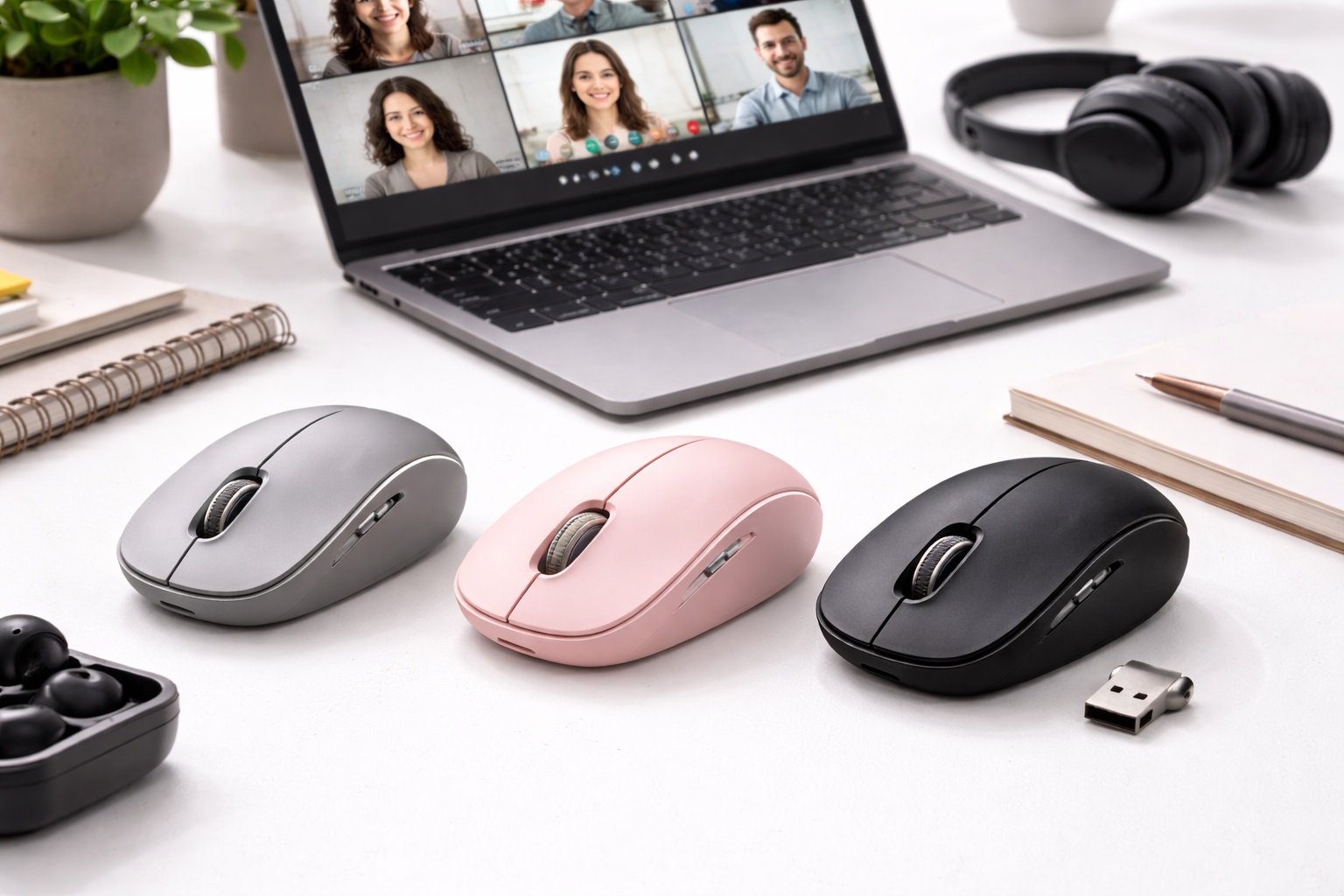
If your workday is bookended by video calls, your mouse works harder than most people realize. It's clicking through slide decks while you're muted, scrolling a shared document while someone else talks, and doing all of it within earshot of a live microphone that will pick up every audible snap of a cheap switch. That last part is the detail most buying guides skip entirely, and it's often the single biggest factor separating a mouse that feels professional from one that becomes a minor embarrassment on every call.
This guide is built specifically around that reality. Rather than ranking mice on generic specs, it groups them by the actual role they play for someone living in back-to-back meetings: silent operation for open offices, ergonomic support for eight-hour days, multi-device switching for people juggling a laptop and a docked monitor, premium builds for those who want the best available experience, budget-conscious options for cost-aware buyers, and vertical designs for anyone managing wrist strain.
None of these categories require you to compromise between "quiet" and "comfortable" — modern budget and mid-range mice increasingly combine both, and understanding which combination fits your day is more useful than chasing the single "best" mouse on a review site.
It's also worth acknowledging that this is a fairly personal purchase. Two professionals with identical meeting schedules can have completely different priorities — one might care most about never hearing their own clicks on a recording, while another cares far more about never having to hunt for a spare battery before a client call. Reading through the categories below with your own specific friction points in mind, rather than looking for a single universally "best" pick, tends to produce a far more satisfying result.
It's worth noting too that your specific meeting cadence shapes which of these categories matters most. A day built around three or four scheduled calls creates different priorities than one where you're essentially live on camera from nine to five with only brief gaps between sessions. The more continuous your meeting schedule, the more the smaller details — click volume, hand fatigue, connection stability — compound into something that actually affects how you feel by the end of the day, rather than being a minor inconvenience you barely notice.
Top Wireless Mice for Calls and Meetings (Detailed Reviews)
Silent Ergonomic Mouse – Best For Open Offices and Frequent Calls
This category pairs two features that matter enormously for meeting-heavy days: a muted click mechanism and a contoured shape built for extended holding rather than quick, occasional use. The silent switches reduce the sharp snap of a standard click to a soft, low-volume tap, which matters a great deal when your microphone is live and your coworkers or clients are listening. The ergonomic shaping addresses the second half of the problem — the fact that your hand rests on this device for most of an eight-hour day, not just a few minutes here and there.
What makes this combination especially practical is that neither feature requires a significant compromise on the other. Manufacturers have largely solved the engineering challenge of pairing dampened switches with contoured housings, so buyers no longer have to choose between a quiet mouse and a comfortable one the way they sometimes did in earlier generations of these products.
- Pros:
- Noticeably quieter clicks that won't distract call participants
- Contoured shape reduces strain across long meeting days
- Works well in shared and open-plan office environments
- Reasonably priced relative to the comfort and quiet it delivers
- Cons:
- Muted clicks feel less tactile to users who prefer a firmer response
- Shape typically favors one hand orientation over the other
- Switch longevity can vary depending on the manufacturer
Best For: Professionals working in open offices or shared spaces who are on video calls for a significant part of their day and need both quiet operation and comfortable support.
Why We Recommend It: It solves the two most common pain points of meeting-heavy work at once — noise and fatigue — without asking you to choose between them.
Multi-Device Professional Mouse – Best For Switching Between Meeting Platforms and Devices
Many professionals now split their day across a work laptop, a personal device, and sometimes a tablet used for note-taking during calls. A multi-device mouse pairs with two or three machines simultaneously and switches between them with a button press rather than requiring you to unplug and re-plug a USB receiver mid-meeting, which is exactly the kind of small disruption nobody wants during a live call.
For hybrid professionals in particular, this feature quietly removes one of the more annoying parts of the modern workday. Instead of carrying a spare receiver or hunting for a free USB port between a home office setup and a corporate desk, the mouse itself remembers each paired device and jumps between them in under a second.
- Pros:
- Instant switching between paired devices without re-pairing
- Reduces desk clutter from multiple receivers and cables
- Convenient for hybrid workers moving between office and home setups
- Supports both Bluetooth and USB receiver connections in most models
- Cons:
- Slightly higher price than single-device alternatives
- Occasional brief lag when switching between paired devices
- More buttons and settings to learn initially
Best For: Professionals who regularly move between a laptop, a secondary device, and shared meeting hardware throughout the workday.
Why We Recommend It: It eliminates a small but recurring friction point for anyone whose meeting day spans more than one device, saving time and avoiding awkward mid-call fumbling.
Premium Meeting-Optimized Mouse – Best For Professionals Who Want the Best Available Experience
This category sits at the top of the meeting-focused mouse market, typically combining refined ergonomics, premium materials, exceptionally quiet switches, and longer battery life into one package. It's aimed at professionals for whom the mouse is a daily tool worth investing in properly, not simply a commodity accessory to replace whenever it wears out.
The price gap between this category and a mid-range meeting mouse is real, but so is the difference in day-to-day feel — the switches tend to be quieter still, the surface materials resist wear better over years of use, and the shaping is generally the result of more extensive ergonomic testing than budget alternatives receive.
- Pros:
- Best-in-class combination of silence, comfort, and build quality
- Typically includes longer battery life than entry-level models
- Refined materials and finish feel more substantial in daily use
- Often includes more configurable buttons for meeting-specific shortcuts
- Cons:
- Highest price point in the category
- Premium features may be more than casual users need
- Replacement cost is higher if lost or damaged
Best For: Professionals who spend the majority of their working day in meetings and view a high-quality mouse as a reasonable investment in daily comfort and reliability.
Why We Recommend It: For heavy daily use, the added refinement genuinely shows up in comfort and consistency, which can justify the higher price for the right buyer.
Budget Silent Office Mouse – Best For Cost-Conscious Professionals
Not everyone needs — or wants — to pay a premium for a quiet mouse. This category delivers the core benefit of muted clicks at a genuinely affordable price, trading away some of the ergonomic refinement and premium materials found in pricier options while still solving the primary problem of click noise during calls.
This makes it a sensible default for departments equipping several desks at once, where the marginal cost of premium ergonomics across dozens of units adds up quickly, but the basic requirement of not disrupting a call with click noise applies to every single desk equally.
- Pros:
- Meaningfully quieter than a standard click mouse at a low price
- Easy to buy in volume for office-wide equipment refreshes
- Straightforward, no-frills design with minimal learning curve
- Practical choice for occasional rather than constant meeting use
- Cons:
- Less refined shaping than ergonomic-focused competitors
- Shorter battery life is common at this price point
- Build materials feel noticeably less premium
Best For: Office managers equipping multiple desks, and individual buyers who want quieter clicks without paying for additional ergonomic or premium features.
Why We Recommend It: It addresses the single most disruptive issue — click noise on calls — at a price that makes sense for occasional or budget-conscious buyers.
Rechargeable Professional Mouse – Best For Avoiding Battery Swaps Mid-Week
Few things derail a meeting faster than a mouse dying mid-call with no spare battery in sight. This category replaces disposable batteries with a built-in rechargeable cell, typically charged via USB-C, and is designed for professionals who'd rather plug in briefly overnight than keep a stock of AA batteries in a desk drawer.
Beyond convenience, this also removes a small but recurring source of workday anxiety — the moment a cursor starts lagging mid-presentation and you realize the battery indicator has been blinking for two days. A predictable charging routine, plugged in the same way a phone is each night, sidesteps that entirely.
- Pros:
- No disposable batteries to buy, store, or replace
- Quick top-up charging often provides hours of use from a short session
- More environmentally friendly than single-use battery models
- Battery status typically visible through software or an onboard indicator
- Cons:
- Requires remembering to charge periodically
- Can't be used while charging on some models
- Battery capacity degrades gradually over years of daily use
Best For: Professionals who want to avoid the recurring cost and hassle of disposable batteries and are comfortable with an occasional overnight charge.
Why We Recommend It: It removes one of the more annoying maintenance tasks tied to daily mouse use, in exchange for a small and predictable charging habit.
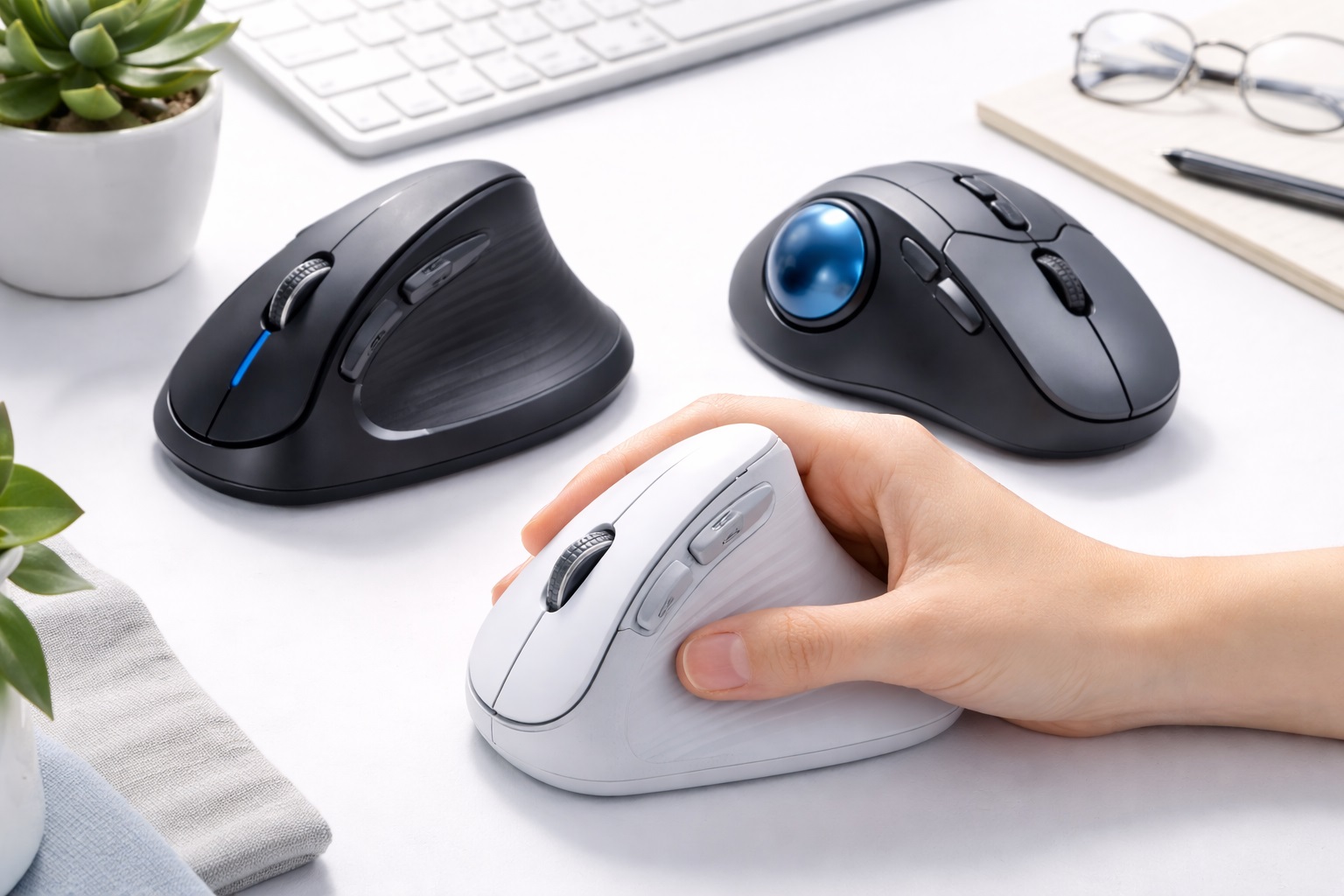
Vertical Ergonomic Meeting Mouse – Best For Managing Wrist Strain
Vertical mice orient the hand in a more natural, handshake-like position rather than the flat, palm-down posture of a standard mouse. For professionals who spend hours a day clicking and scrolling during calls, this shift can meaningfully reduce the wrist strain associated with prolonged flat-hand positioning, particularly for anyone who has already noticed discomfort with a conventional mouse.
The adjustment period tends to be the main barrier to entry here, since the grip and clicking motion feel unfamiliar for the first several days. Professionals who push through that adjustment window generally report it becomes second nature quickly, at which point the wrist-strain benefits start to outweigh the initial learning curve.
- Pros:
- Natural hand position reduces wrist rotation strain
- Can ease discomfort for users with existing wrist sensitivity
- Still available with silent-click switches for meeting use
- Often includes adjustable DPI for precise on-screen navigation
- Cons:
- Takes an adjustment period for users unfamiliar with the shape
- Bulkier profile than standard flat mice
- Not as widely available in left-handed configurations
Best For: Professionals experiencing or wanting to prevent wrist strain from long days of clicking and scrolling during video calls and general computer use.
Why We Recommend It: It directly targets a specific physical discomfort that standard mice can aggravate over time, offering a practical alternative for anyone who needs it.
Buying Guide: How to Choose the Best Wireless Mouse for Calls and Meetings
Meeting-focused mice have to satisfy a slightly different set of priorities than a general office mouse. Here's what actually matters when your mouse doubles as a piece of professional equipment used in front of others.
1. Silent Click Switches
If your microphone is regularly live during calls, click noise is worth prioritizing above almost every other feature. Even a moderately loud click can register on a sensitive microphone and distract other participants, so silent-switch models are worth the modest price difference for anyone in frequent calls. This matters even more for headset microphones positioned close to the mouth, which tend to pick up ambient desk noise more readily than a laptop's built-in microphone.
2. Ergonomic Support for Long Days
Eight-hour workdays add up quickly in terms of hand fatigue. A shape that matches your grip style — palm, claw, or fingertip — will feel noticeably more comfortable by the end of the day than a generic flat design, especially on days packed with back-to-back meetings. If you already experience mild wrist or hand discomfort by mid-afternoon, this factor alone may justify moving up a price tier.
3. Reliable Connection Stability
A mouse that briefly disconnects mid-call is more than an inconvenience — it can interrupt screen sharing or presenting at exactly the wrong moment. Look for a stable 2.4GHz USB receiver connection where possible, since it's typically more consistent than Bluetooth in busy wireless environments like open offices, where dozens of other wireless devices can compete for the same frequency band.
4. Multi-Device Switching Capability
If you regularly move between a laptop, a docked desktop setup, or a secondary device for notes, a multi-device mouse removes the friction of re-pairing hardware throughout the day. Single-device users can skip this feature and save some money, since multi-pairing hardware typically adds a modest amount to the overall price.
5. Customizable Buttons for Shortcuts
Some meeting-focused mice include programmable buttons that can be mapped to mute, screen-share toggles, or other frequently used shortcuts. This is a genuine convenience for anyone in constant video calls, though it's not essential for lighter meeting schedules, and it typically requires installing companion software to configure.
6. Battery Life and Charging Method
Consider whether you'd rather manage disposable batteries or a rechargeable cell. Rechargeable models cut down on battery waste but require remembering to plug in periodically, while replaceable batteries mean a quick swap keeps you going indefinitely without ever needing a charging cable nearby.
7. Weight and Portability
Professionals who move between a home office, a corporate office, and travel destinations should weigh how portable the mouse is. A lighter, more compact design travels more easily but may sacrifice some of the ergonomic bulk that supports comfort during long sessions, so frequent travelers should decide which trade-off matters more for their specific routine.
8. Build Quality and Long-Term Durability
Since this mouse will likely see daily use for years, click-switch durability and overall build quality matter more than they would for an occasional-use device. Look for manufacturers who specifically market their switches as rated for high click counts, since that figure is a reasonably direct proxy for how long the mouse will feel consistent before clicks start to feel mushy or unreliable.
9. Left-Handed vs. Right-Handed Design
Ergonomic and vertical mice are frequently designed for right-handed use specifically. Left-handed professionals should confirm compatibility before purchasing, since comfort is central to the value of these designs, and a symmetrical model remains the safer default when a left-handed option isn't clearly listed.
10. Compatibility With Video Conferencing Software
While most mice work independently of any specific meeting platform, some premium models include software that lets you map buttons to shortcuts within particular video conferencing tools. Confirm this compatibility if it's a feature you specifically want, since not every manufacturer supports every popular meeting platform equally well.
11. Price Relative to Daily Use
A mouse used for six or more hours daily justifies a higher budget than one used occasionally. Calculate the value in terms of hours of use per dollar rather than the sticker price alone, particularly if comfort issues have been a problem with previous mice you've owned.
12. Warranty and Manufacturer Support
A longer warranty is a reasonable indicator of a manufacturer's confidence in their product, and it matters more for a device you rely on daily for professional purposes where downtime is genuinely disruptive. Check whether support is handled directly by the manufacturer or only through the original retailer.
13. Scroll Wheel Feel for Navigating Slides and Documents
Clicking through a slide deck or scrolling a shared document while muted is one of the most common actions a meeting mouse performs, and scroll wheel feel varies more than people expect. A wheel with a slight ratchet or notch makes it easier to land precisely on the next slide or the next row of a spreadsheet without overshooting, while a completely smooth, free-spinning wheel can feel faster for casual browsing but less precise for exact single-step movements during a live presentation.
Frequently Asked Questions
Do silent mice really make a noticeable difference on video calls?
Yes, for anyone using a sensitive microphone or working close to it, silent-click switches meaningfully reduce the chance of click noise being picked up and heard by other call participants. This becomes especially noticeable on recorded calls or webinars, where a sharp click can stand out even more clearly on playback than it did in the moment for the person doing the clicking.
Is a vertical mouse difficult to get used to?
There's typically a short adjustment period, often just a few days, as your hand adapts to the more upright grip position. Most users report the transition is worthwhile if wrist discomfort was already a concern. Keeping the mouse at a comfortable height relative to the keyboard during this adjustment period, rather than immediately reverting to old habits at the first sign of awkwardness, tends to shorten the learning curve considerably.
How much does an ergonomic mouse actually help with comfort during long meeting days?
An ergonomic shape that matches your grip style can meaningfully reduce fatigue over an eight-hour day compared to a flat, generic design, though the degree of benefit varies by individual hand size and posture.
Should I choose Bluetooth or a USB receiver for a meeting mouse?
A dedicated USB receiver generally offers a more stable, lower-latency connection, which matters during screen sharing or presenting. Bluetooth frees up a port, which is useful on laptops with limited connectivity.
How long does a rechargeable meeting mouse typically last on one charge?
This varies significantly by model, but many rechargeable mice provide enough charge for several weeks of typical office use, with quick top-up sessions extending that further.
Can I use programmable buttons to control meeting software directly?
Some premium models allow button mapping to shortcuts within specific applications through accompanying software, though this feature isn't universal across the category, so check compatibility for your particular meeting platform before assuming support exists.
What's the difference between a multi-device mouse and a standard one for meetings?
A multi-device mouse can pair with and quickly switch between two or three devices via a button, while a standard mouse remains paired to a single device, requiring a manual reconnection to switch.
Are premium meeting mice worth the extra cost over budget silent models?
For professionals in meetings most of the day, the added comfort, battery life, and build quality of premium models can be a reasonable investment. For occasional meeting use, a budget silent mouse often covers the core need adequately.
Will a wireless mouse cause noticeable lag during screen sharing?
A stable, well-paired wireless mouse using either a 2.4GHz receiver or Bluetooth should introduce no perceptible lag for typical screen-sharing and presentation use under normal conditions.
Do I need a mouse pad for consistent tracking during calls?
Not always, but a simple mouse pad can improve tracking consistency on glass or glossy desks, which is worth considering if you've noticed occasional cursor jumps during important moments on a call.
How do I know if a meeting mouse will fit my hand comfortably?
Consider your grip style — palm, claw, or fingertip — and look for shape descriptions that match it. Testing a similar shape in person before ordering online, where possible, remains the most reliable way to confirm comfort.
Is it worth replacing a standard mouse just for meeting-specific features?
If click noise, connection reliability, or hand fatigue have been recurring issues during your workday, a meeting-focused mouse addresses those specific problems directly and is generally a worthwhile upgrade over a generic model.
Can a wireless mouse interfere with a video conferencing headset connection?
In most cases, no — a mouse and a headset use separate wireless connections, whether both Bluetooth or one on a 2.4GHz receiver, and modern devices handle multiple simultaneous wireless connections without meaningful interference under normal office conditions. Crowded environments with many wireless devices nearby can occasionally introduce minor interference, but this is uncommon in typical home or office setups.
Do I need special drivers or software to use a meeting-optimized mouse?
Basic functions like clicking, scrolling, and tracking typically work immediately without any software. Companion software is only needed if you want to customize buttons, adjust DPI presets beyond the default settings, or check battery status in detail.
How often should I replace a wireless mouse used daily for meetings?
There's no fixed timeline, but many professionals replace a daily-use mouse every few years as click switches wear down or battery capacity diminishes noticeably. Well-built models from established manufacturers often last considerably longer with normal care, and a warranty claim can sometimes extend a unit's usable life well past the point it might otherwise have been retired.
Does a silent-click mouse still register clicks normally in meeting software?
Yes, the reduced click noise comes from a modified physical switch mechanism, not from any change in how the click signal is registered by your computer or meeting software. Muting the audible snap doesn't affect click responsiveness, double-click speed, or how reliably the software detects each individual click.
Final Verdict
The right wireless mouse for meetings depends on which part of your day causes the most friction — noise, fatigue, device switching, or battery anxiety. Rather than assuming one model solves everything, match your choice to the specific problem you actually experience most often.
- For most meeting-heavy professionals: A silent ergonomic mouse offers the best balance of quiet operation and daily comfort.
- For multi-device workers: A multi-device professional mouse removes the friction of switching between a laptop, desktop, or tablet throughout the day.
- For wrist strain concerns: A vertical ergonomic design directly addresses discomfort that flat mice can aggravate over long sessions.
Whichever option you choose, remember that this is a tool you'll likely touch for hours every single working day. Investing a little extra thought — and where appropriate, a little extra budget — into getting the fit right pays off far more than most people expect once the discomfort or distraction of the wrong mouse finally disappears from the daily routine.
It's also worth resisting the temptation to buy purely on brand recognition or the loudest marketing claims. A mouse that a colleague swears by might not suit your hand size, your desk surface, or the specific mix of devices you switch between during the day. The categories outlined above exist because meeting-heavy work isn't one uniform experience — a professional glued to a single laptop all day has different needs than someone bouncing between a docked monitor, a tablet, and a phone for notifications. Identifying which of those situations actually describes your day is the fastest way to skip past irrelevant options and land on a mouse that quietly does its job, call after call, without ever becoming something you have to think about.