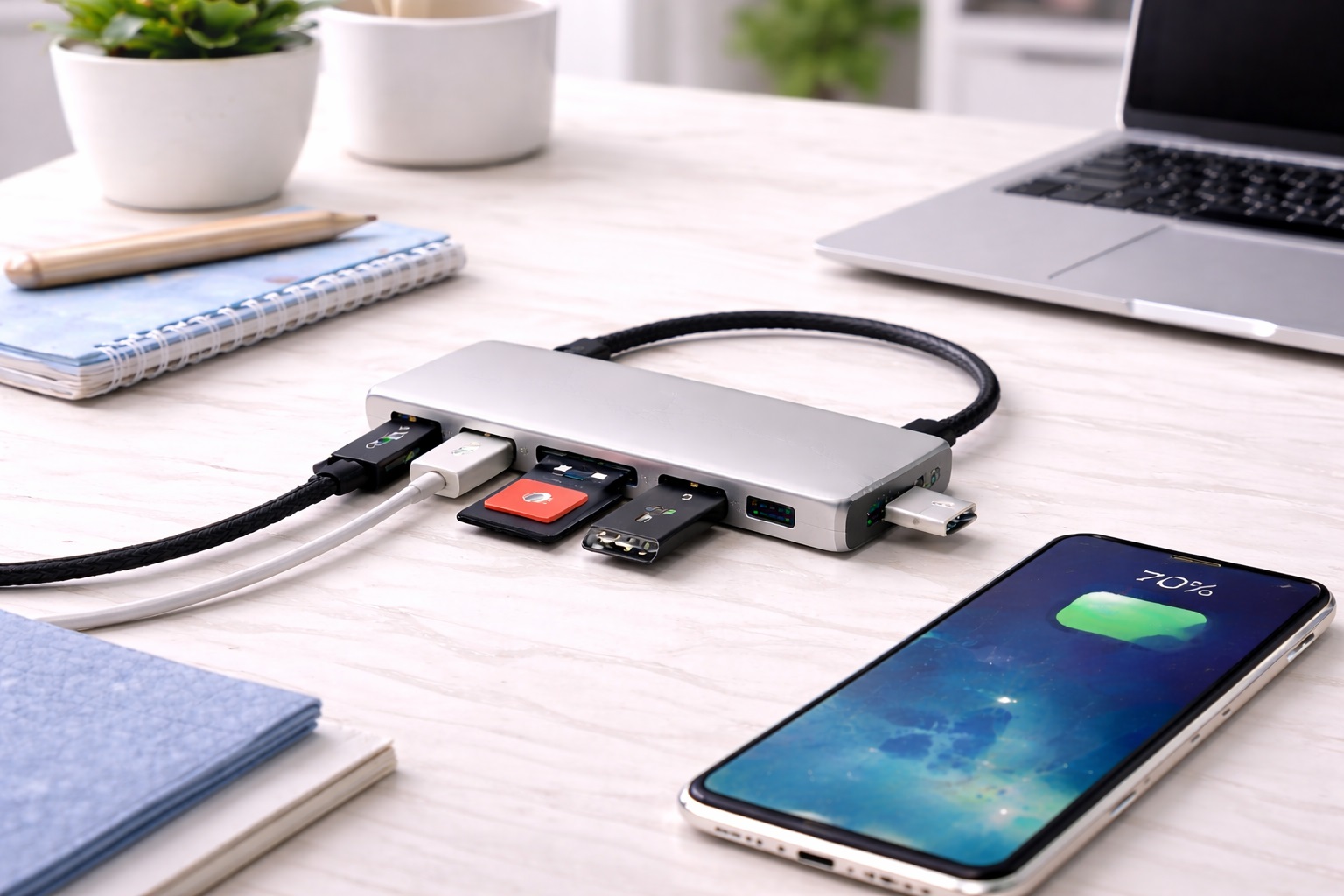
Best USB Hub for Beginners: Simple Picks That Just Work
Buying a USB hub sounds like it should be simple, and for the most part it is — until the product page starts listing specifications that mean nothing without prior context. Gbps, PD wattage, Gen 2 versus Gen 1, Thunderbolt versus standard USB-C: none of that is required knowledge to plug in a mouse, a flash drive, and a phone charger. For a first-time buyer, the goal is not to master USB terminology. It's to find a hub that works the moment it's connected and keeps working without any troubleshooting.
This guide is written for exactly that situation. Rather than leading with technical specifications, it leads with the question a beginner actually has: which of these will plug in and function immediately, without hunting for drivers, without guessing which port does what, and without returning it because it didn't do what the box implied. The options below are chosen specifically because they ask little of the person setting them up.
Each pick includes a plain description of what it does, what to expect when using it day to day, and who it's actually built for — not a list of numbers that require a glossary to interpret.
A quick note on expectations: even the simplest hub occasionally has a device that doesn't get recognized on the first try, usually resolved by unplugging and reconnecting it or trying a different port on the same hub. This isn't unique to beginner-friendly hubs — it happens across the entire category, including expensive premium models — so it shouldn't be read as a sign of a defective unit unless it happens consistently across multiple ports and devices. Knowing this ahead of time turns a moment of confusion into a two-second fix rather than a reason to second-guess the purchase.
It also helps to know that USB hubs, as a category, are one of the more forgiving purchases in computer accessories. Unlike a graphics card or a router, there is rarely a wrong configuration that breaks something — at worst, a mismatched hub simply doesn't offer a feature you wanted, like faster charging or a video output. That lower stakes environment makes it a reasonable category to learn on, and this guide is built to make that learning curve as short as possible.
It's also worth acknowledging why this purchase feels more confusing than it should. Product listings are often written by people deeply familiar with USB standards, and the language reflects that familiarity rather than a beginner's actual question. A listing that leads with "USB 3.2 Gen 2x2 10Gbps" is technically accurate but doesn't answer whether the hub will work with your specific laptop, or whether your mouse and keyboard will simply function the moment you plug them in. This guide translates that gap deliberately, focusing on outcomes rather than specifications wherever the two diverge.
Top Picks Reviewed
1. USB-C Hub with HDMI, PD, and Data Ports – Best for a Complete First Setup
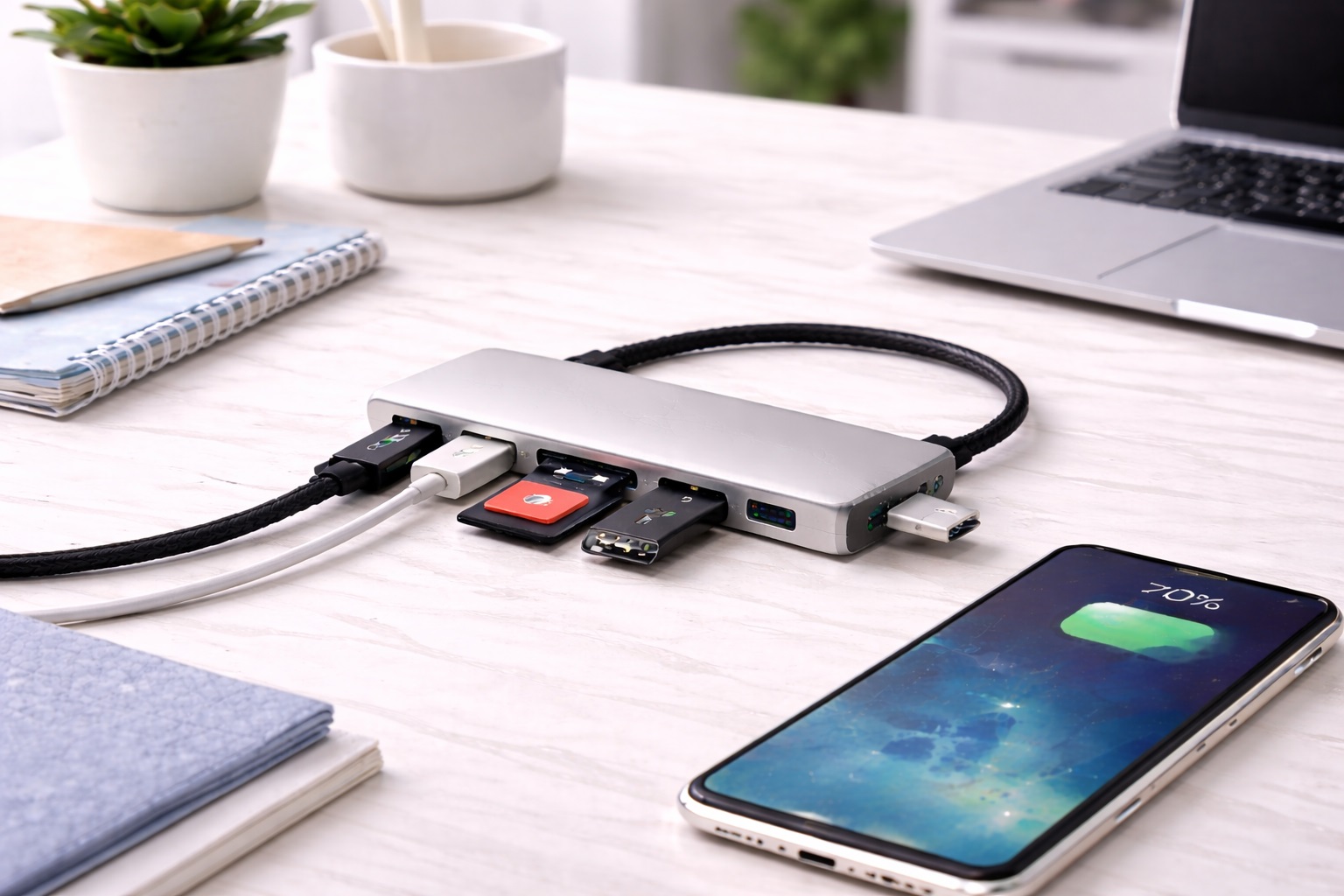
For a beginner who just bought a modern laptop and discovered it only has one or two USB-C ports, this style of hub solves the entire problem in one purchase. It adds HDMI for a monitor, several USB-A ports for a mouse, keyboard, and flash drive, and a pass-through connection that keeps the laptop charging while everything else is plugged in. There is no configuration step — the laptop recognizes the hub as soon as it's connected, and each port works exactly as labeled. For someone who just unboxed a new laptop and is still getting used to its port selection, this single accessory closes the gap between the laptop's built-in connectivity and everything the user actually owns.
- Pros:
- Works immediately with no drivers or setup software
- Covers monitor, peripherals, and charging in a single device
- Ports are clearly labeled, reducing guesswork
- Solves the most common beginner problem: too few ports on a new laptop
- One purchase replaces what might otherwise take three separate accessory searches
- Cons:
- More expensive than a basic hub with fewer capabilities
- Slightly bulkier than a simple port-only hub
Best For: First-time hub buyers who need to connect a monitor and several peripherals to a laptop that only has USB-C ports, and who want one purchase to handle everything.
Why We Recommend It: This is the hub most beginners actually need, even if they don't know to ask for it by name. It answers the real question — "how do I plug in everything I own to this new laptop" — without requiring any understanding of USB standards first. Everything from the wired mouse to the external monitor cable simply plugs into a labeled port and works, which is the exact outcome a first-time buyer is hoping for when they search for a solution to a suddenly port-poor laptop.
2. Basic USB-A Hub with Individual Ports – Best for Straightforward Port Expansion
A simple USB-A hub with four to seven ports and no additional features is the most beginner-friendly option in the category. There's no video output to configure, no charging wattage to match, and no USB-C versus USB-A confusion — it's a straight expansion of the ports already on a desktop or older laptop. Plugging in a device makes it appear on the computer within seconds, and there's essentially nothing to misconfigure. It's the kind of accessory that gets set up once and then genuinely forgotten about, which for a first purchase is a meaningful advantage over anything with a learning curve attached.
- Pros:
- Fewest decisions required at purchase — one hub type, one connection style
- Lowest price point among common hub types
- Compatible with virtually any computer that has a USB-A port
- Simple to understand: more ports, nothing else to learn
- Small and light enough to keep in a drawer as a spare when not in daily use
- Cons:
- No video output or fast charging features
- Not usable on newer laptops with only USB-C ports
Best For: Beginners using a desktop computer or an older laptop with standard USB-A ports who just need more places to plug things in.
Why We Recommend It: For someone buying their very first hub, simplicity has real value. A basic USB-A hub removes every possible point of confusion — there's no feature to misuse, no setting to get wrong, just more working ports than before. It's a purchase that's almost impossible to get wrong, which is exactly the kind of low-risk first step that builds confidence before moving on to anything more feature-rich.
3. Hub with Clearly Labeled Ports and LED Indicators – Best for Confidence During Setup
Some hubs are designed with the specific goal of reducing user uncertainty: each port is labeled with an icon or text describing what it's for, and an LED indicator confirms when a device is properly connected and receiving power. For someone who has never set up a hub before, this kind of visual feedback answers the most common early question — "is this actually working?" — without needing to check a settings menu. That small reassurance matters more than it might sound like on paper, particularly during the first few uses before trust in the device is established.
- Pros:
- Clear labeling removes guesswork about which port to use
- LED indicators confirm connection status at a glance
- Reduces the "is this working" uncertainty common for first-time users
- Diagrams and labels remain useful reference points even after the initial setup period
- Typically includes a printed quick-start guide with simple diagrams
- Well suited to households where more than one person might use the same setup
- Cons:
- Fewer high-end features compared to premium multi-function hubs
- LED indicators can be a minor distraction in a dark room
Best For: Anyone setting up a hub for the very first time who wants visual confirmation that everything is connected correctly rather than relying on trial and error.
Why We Recommend It: The value here isn't a technical feature — it's reassurance. A labeled port and a lit indicator answer the question a beginner is most likely to have during setup, which reduces the chance of an unnecessary return or a frustrated support call. For a category of product that gets very little attention once it's working correctly, that initial confidence-building moment is worth more than it might seem when comparing spec sheets side by side.
Buying Guide: How to Choose the Best USB Hub for Beginners
These factors are chosen specifically to help a first-time buyer avoid the most common mistakes without needing prior technical knowledge.
| Question to Ask | Why It Matters for a Beginner |
|---|---|
| USB-C or USB-A ports on my computer? | Wrong connector type means the hub simply won't plug in |
| Do I need an external monitor connected? | Determines whether HDMI output is worth paying extra for |
| How many devices do I actually plug in daily? | Prevents overbuying a hub with far more ports than needed |
Answering these three questions before opening a single product listing does most of the filtering work automatically. Once the connector type and rough port count are settled, the remaining choice usually comes down to price and a handful of convenience features — labeling, cable length, indicator lights — none of which require any technical background to evaluate. That's a deliberately short list, and it's short on purpose: a first-time buyer doesn't need twenty criteria, they need the handful that actually determine whether the hub works the moment it arrives.
1. Match the Hub's Connector to Your Computer
Before anything else, check whether your computer has USB-C or USB-A ports — this single detail eliminates most of the wrong options instantly. Most modern thin laptops use USB-C exclusively, while desktops and older laptops typically still use USB-A. If you're unsure, a quick look at the port shape on the side of your computer is the fastest way to check: USB-C is a small oval, USB-A is a slightly larger rectangle. If your computer has one of each, it's worth deciding which port you'd rather keep free before choosing which type of hub to buy.
2. Understand Bus-Powered vs Powered Hubs
A bus-powered hub gets its electricity from the computer itself and needs no separate cord — the simplest option for a beginner. A powered hub has its own plug into the wall and provides more reliable power for things like external hard drives, but it's an extra cable and step to manage. For basic peripherals like a mouse and keyboard, bus-powered is almost always sufficient. Save the powered option for later, once you know from experience whether you actually need it. Most beginners discover they never do, since the devices people connect first — a mouse, a keyboard, a phone cable — draw very little power in the first place.
3. Don't Overbuy on Port Count
It's tempting to buy the hub with the most ports, assuming more is always better. In practice, count what you actually plan to plug in — usually a mouse, keyboard, and maybe a flash drive or phone charger — and choose a hub with two or three more ports than that. A ten-port hub is rarely necessary for typical home use and adds unnecessary cost and desk space. Extra ports that never get used don't provide any benefit; they just add size and price to the purchase.
4. Check for Plug-and-Play Compatibility
Nearly all modern USB hubs work without installing any software — plug it in, and the operating system recognizes it automatically. Avoid any hub that requires downloading a driver from a manufacturer's website unless there's a specific reason to need one, since that adds an unnecessary technical step for no real benefit. A quick search of the product name alongside the word "setup" or "driver" in reviews will usually confirm whether other buyers had to do anything beyond plugging it in. If a listing mentions a companion app just to recognize connected devices, that's a sign the product is aimed at a more advanced user than a first-time buyer typically is.
5. Video Output Only If You Need It
If you don't plan to connect an external monitor, a hub with HDMI output is an unnecessary added cost and complexity. Save that feature — and the price premium that comes with it — for a future purchase if a second screen becomes something you actually want. There's no downside to starting simple and adding capability later once your actual needs become clearer through regular use, and a simpler hub is also usually easier to find a direct replacement for if it's ever lost or damaged.
6. Look for Clear Physical Labeling
Hubs with icons or text next to each port reduce the guesswork of figuring out which port does what, especially on hubs that mix USB-A, USB-C, and card reader slots on the same unit. This is a small feature that makes a noticeable difference for a first-time setup, particularly in the first few days before the layout becomes familiar from repeated use.
7. Read Reviews for Ease of Setup
Beyond star ratings, look specifically for reviews mentioning how straightforward the setup process was. A hub with many five-star reviews that mention plugging it in and having it work immediately is a stronger signal for a beginner than one praised mainly for advanced features that may not matter to your situation. Reviews from other first-time buyers are often more useful than reviews from experienced users comparing advanced specifications, since they tend to describe the actual unboxing and first-connection experience rather than a technical benchmark against competing products.
8. Cable Length for Your Desk Layout
A built-in cable that's too short forces the hub to sit right next to the laptop, which can be inconvenient depending on your desk setup. A cable of at least 30 centimeters gives more flexibility in where the hub physically sits without needing an extension. This becomes more noticeable after the first few days of use than it might seem when first unboxing the product, once the hub's actual resting spot on the desk becomes clear through regular use rather than a first guess.
9. Keep the Return Window in Mind
As a first-time buyer, it's reasonable to not be entirely sure a specific hub will meet your needs. Purchasing from a retailer with a clear return policy — and keeping the original packaging until you're confident in the choice — removes pressure from the decision. This alone makes it easier to try a hub without worrying about being stuck with the wrong one, which matters more for a first purchase than for a later, more confident one.
10. Avoid Overly Technical Marketing
Some product listings lean heavily on technical jargon to seem more advanced. For a beginner, a product description that clearly explains what the hub does in plain language is usually a better sign of a straightforward user experience than one filled with unexplained acronyms. If a listing reads more like a specification sheet than a description of what the product actually does for you, that's worth noting, and it's fair to move on to a competing listing that explains itself in ordinary language instead.
11. Warranty as a Simple Quality Signal
A hub backed by at least a one-year warranty from a recognizable brand suggests the manufacturer stands behind the product. This is a useful shortcut for a beginner who doesn't yet have the experience to judge build quality directly from a listing, and it also means a legitimate path to a replacement if something stops working after the return window closes. It's a small line item on the packaging that's easy to overlook, but worth reading before purchase rather than after something goes wrong.
12. Start Simple, Upgrade Later
There's no requirement to buy the most feature-complete hub on the first purchase. Starting with a simple, inexpensive hub that covers your immediate needs is a reasonable strategy — if you later need faster speeds, video output, or more ports, that becomes a more informed second purchase, made with the benefit of knowing exactly what you missed the first time around. There's no penalty for starting simple, and every beginner who eventually becomes comfortable with the more advanced terminology started from exactly this same point — plugging something in and being relieved when it just worked.
Frequently Asked Questions
1. Do I need to install software for a USB hub to work?
No. Virtually all consumer USB hubs are plug-and-play, meaning the computer recognizes them automatically without any driver installation. If a hub requires special software just for basic port expansion, that's unusual and worth double-checking before purchase, since it usually signals a more complex device than a first-time buyer needs, or one aimed at a specialized professional use case rather than everyday connectivity.
2. How do I know if I need a USB-C or USB-A hub?
Look at the ports on your computer. USB-C ports are small and oval-shaped with no visible pins; USB-A ports are wider and rectangular. Buy the hub type that matches what your computer actually has — an adapter to bridge the two adds unnecessary complexity for a first purchase and is best avoided until you understand why you might need one.
3. What's the difference between a hub and a docking station?
A hub is a simple, compact device that adds more ports, typically for portable use. A docking station is larger, often includes its own power supply, and is designed to stay on a desk permanently with more extensive connectivity. For a beginner, a basic hub is almost always the right starting point, and a docking station is worth considering only once your setup and needs are more established, typically after living with a basic hub long enough to know exactly what it's missing.
4. Will a cheap USB hub damage my devices?
A reputable hub from an established brand, even at a budget price, is built to standard safety specifications and won't damage connected devices. Avoiding completely unknown brands with no reviews or warranty is a reasonable precaution, but price alone isn't an indicator of safety risk — a modest price from a known brand is generally safer than an unusually cheap price from an unfamiliar one.
5. Can I plug too many devices into one hub?
Hubs have a fixed number of ports, so you're limited by that count, but there's no risk from using all the ports simultaneously for typical low-power devices like a mouse, keyboard, and flash drive. Only high-power devices like external hard drives may need a powered hub to work reliably, and even then the failure mode is simply the device not getting enough power, not any damage to your computer.
6. Do I need to turn off my computer to plug in a hub?
No. USB hubs are designed to be connected and disconnected while the computer is running. Simply plug it in, and the operating system will detect it within a few seconds, usually with a small notification sound or on-screen message confirming the new connection.
7. Is the most expensive USB hub for beginners always the best?
Not always. Price often reflects extra features like video output or fast charging that a beginner may not need on a first purchase. Match the product to what you'll actually use rather than the highest-rated or most expensive option available, and remember that a simpler hub covering your real needs is a better first purchase than an advanced one sitting mostly unused.
8. How long should a beginner-friendly USB hub last?
A well-built basic hub from a known manufacturer typically lasts two to five years with normal use. If ports become loose or devices stop being recognized reliably before then, that's a sign the unit is wearing out or was a lower-quality build to begin with, and it's reasonable to consider a replacement rather than living with an unreliable connection.
9. Can I return a USB hub if it doesn't work the way I expected?
Most retailers offer a fifteen to thirty day return window. Keep the packaging until you've tested the hub with your actual devices, since that's the most reliable way to confirm it meets your needs before the return window closes and the option disappears entirely, leaving only a warranty claim as a slower fallback.
10. What should a first-time buyer prioritize most?
Confirm the connector type matches your computer, keep the port count close to what you'll actually use, and favor a hub with straightforward plug-and-play reviews over one with a long feature list you may not need yet. These three checks resolve the large majority of first-purchase mistakes before they happen, and everything past that point is really just personal preference rather than a technical requirement.
11. Does brand name matter for a beginner's first hub?
Established brands tend to offer more consistent quality control and better customer support if something goes wrong, which is reassuring for a first purchase. Lesser-known brands can still be reliable, but it's worth reading recent verified reviews before committing, particularly reviews that mention long-term reliability rather than just the first week of use, since early enthusiasm doesn't always predict how a hub holds up months later.
12. What if my devices aren't recognized after plugging into the hub?
Try a different port on the hub first, then a different USB port on the computer itself, since occasionally a single port can be at fault rather than the whole unit. If the problem persists across multiple ports and devices, it's reasonable to treat that as a manufacturing defect covered by the return policy rather than something you need to troubleshoot further on your own. It's also worth restarting the computer once before assuming the hub is at fault, since that resolves a surprising share of first-time connection issues on its own.
Final Verdict
- Best for a Complete First Setup: USB-C Hub with HDMI, PD, and Data Ports — solves monitor, peripheral, and charging needs in one purchase.
- Best for Straightforward Port Expansion: Basic USB-A Hub with Individual Ports — the simplest possible option with nothing extra to learn.
- Best for Confidence During Setup: Hub with Clearly Labeled Ports and LED Indicators — visual reassurance that everything is connected correctly.
For a first USB hub, the right choice is rarely the one with the most features — it's the one that works without requiring any troubleshooting. Match the picks above to what your computer already has and what you actually plan to plug in, and the extra ports become something you stop thinking about entirely, which is exactly the point of buying one in the first place. Once that first hub is working reliably, any future upgrade — faster speeds, more ports, added video output — becomes a decision made from real experience rather than a guess based on marketing copy, and that's a far more comfortable position for any beginner to shop from.