Best USB Hub for Beginners: The Easiest Way to Add Ports
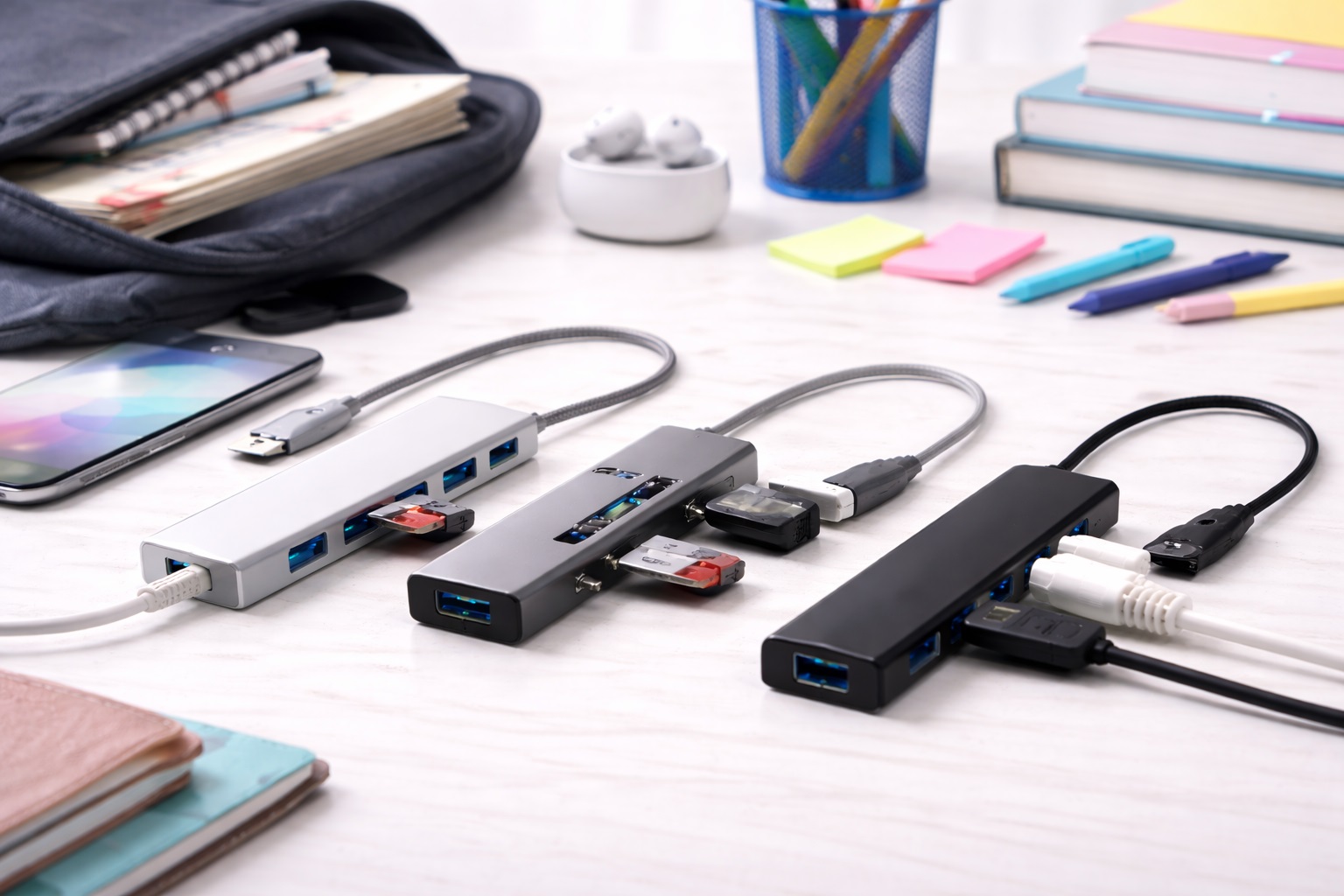
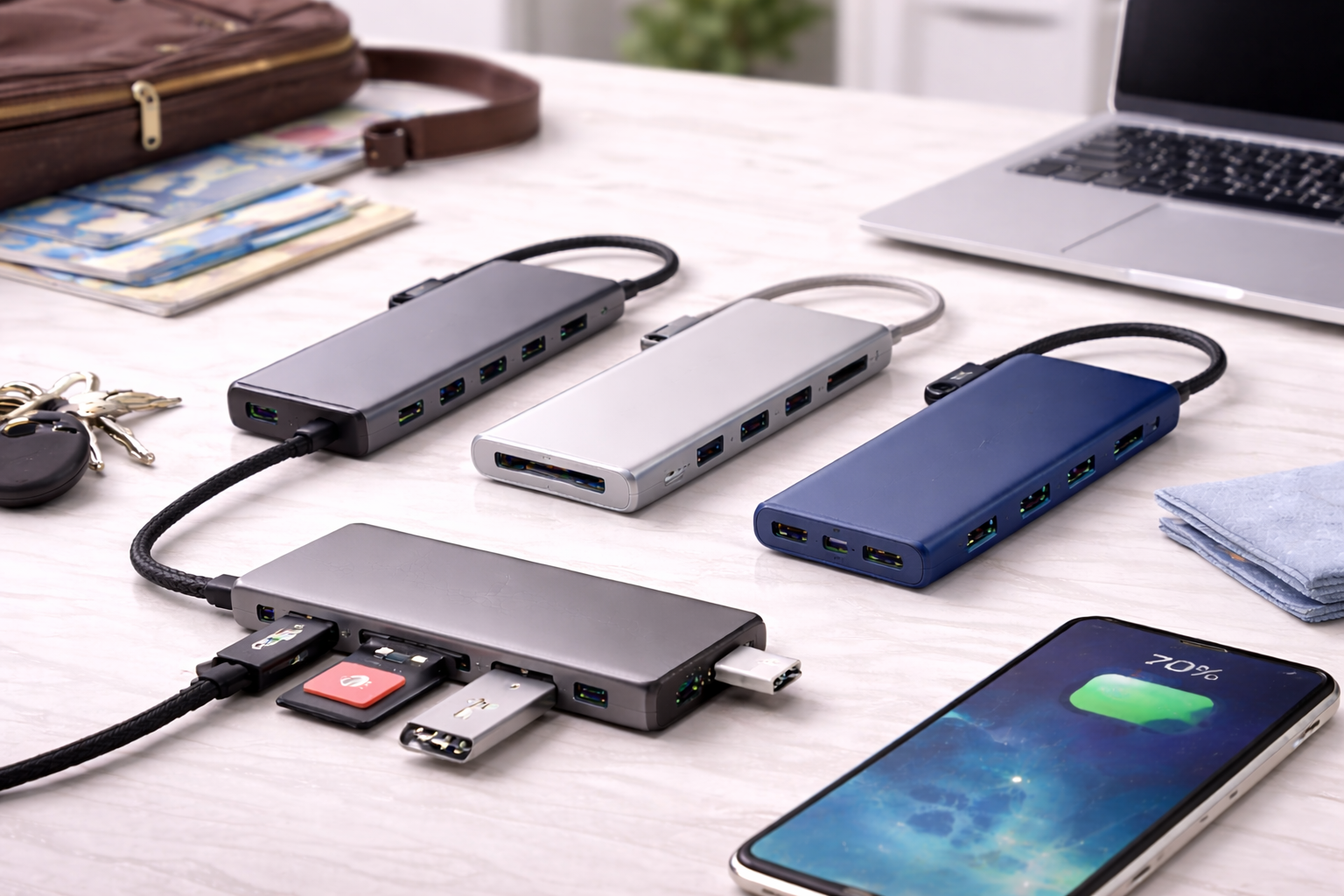
Modern laptops trade ports for thinness, and the first time that becomes a real problem is usually the day you try to plug in a mouse, a monitor, and a backup drive at once and discover there's exactly one USB-C slot to share between them. A beginner-friendly USB hub is supposed to make that problem disappear without introducing a new one. That means no drivers to hunt down, no settings menus to configure, and no risk of a cheap chipset quietly overheating next to an expensive laptop.
The terminology alone can be intimidating the first time you shop for one — Power Delivery wattage, 4K refresh rates, Gigabit Ethernet, driverless compatibility. None of it is complicated once explained, but retailers rarely explain it clearly on the product page. This guide focuses on hubs that get the basics right for someone buying their first one: reliable connections that don't drop, cool operation under normal use, and a plug-in-and-forget experience on both Windows and Mac.
Every option below comes from a brand with a track record in this category, chosen specifically because it works the way a first-time buyer expects it to work — immediately, and without a learning curve. Whether the goal is a tidy dorm desk, a home office upgrade, or simply a mouse and a monitor that stay connected, these are the picks worth starting with.
A quick note before diving in: nearly every mistake a first-time hub buyer makes traces back to skipping one of three checks — confirming Power Delivery wattage, confirming 4K refresh rate rather than just 4K resolution, and confirming the specific laptop or chipset is listed as compatible. None of these checks take more than a minute, and doing them before buying prevents almost every common complaint people post in hub reviews after the fact.
Top 8 Best Beginner-Friendly USB Hubs (Detailed Reviews)
1. Anker 555 USB-C Hub (8-in-1) – Best For All-Around First-Time Buyers
Anker built its reputation on portable power, and the 555 carries that same reliability into the hub category. The standout feature for a first-time buyer is 100W Power Delivery passthrough — plug your laptop's own charger into the hub, and the hub charges the laptop while a mouse, keyboard, and monitor all stay connected through the same single cable. The aluminum housing helps the unit stay cool even during longer sessions, and the 4K HDMI output looks sharp without any picture-quality complaints common to cheaper alternatives. Setup is exactly one step: plug it in once, and every port behaves the way you'd expect the very first time, with no configuration screen to click through.
- Pros:
- Strong overall build quality with an aluminum frame
- 100W Power Delivery charging passthrough
- Sharp 4K HDMI video output
- Zero software or driver installation required
- Cons:
- Cable is permanently attached and cannot be swapped
- Slightly larger footprint than the smallest pocket hubs
Best For: First-time buyers who want one reliable hub that handles charging, video, and everyday peripherals without any setup.
Why We Recommend It: It removes every common beginner worry at once — no drivers, stable charging, and a build quality that doesn't feel like it's cutting corners.
2. Belkin Connect USB-C 7-in-1 – Best For Worry-Free Reliability
Belkin's standing as an official accessory partner for both Apple and Microsoft shows up in the small details, particularly the internal surge protection built into the Connect line. For someone new to hubs, that extra layer of protection against power irregularities is reassuring when trusting an unfamiliar accessory with an expensive laptop. The hub itself stays thin and light, pairing a dedicated 4K video port with two standard USB ports and 100W PD charging. It's the kind of accessory that fades into the background of daily use, which is exactly what a first hub should do.
- Pros:
- Internal surge protection circuitry
- Slim, pocketable profile
- Backed by a well-known accessory warranty
- 100W Power Delivery charging support
- Cons:
- No Ethernet port included
- Fixed cable is on the shorter side for some desk setups
Best For: Students and first-time buyers who want the added peace of mind of a brand with a strong safety and warranty reputation.
Why We Recommend It: The internal safety design gives it an edge for anyone nervous about plugging an unfamiliar accessory into a laptop they can't easily replace.
3. Plugable 7-in-1 USB-C Hub – Best For No-Fuss Compatibility
Plugable has built its business around remote-work accessories that simply work, and the driverless 4K support on this hub is the clearest example. It connects instantly across Windows, macOS, ChromeOS, and Linux without any setup step, which matters for a beginner who doesn't want to troubleshoot software the first time they use it. The aluminum body handles heat well, and the inclusion of SD and microSD slots adds practical value for anyone offloading photos. It's a hub built by a company whose entire product line exists to solve exactly this compatibility headache, and it shows in how uneventfully it just works.
- Pros:
- Fully driverless across every major operating system
- Competitively priced for the feature set
- Durable aluminum housing
- Supports 4K HDMI output
- Cons:
- Data transfer speeds are standard rather than high-speed
- The attached cable is thinner than some competitors'
Best For: Office workers and students who want a straightforward hub that works identically no matter which computer they plug it into.
Why We Recommend It: Compatibility issues are the single biggest frustration for first-time hub buyers, and this model is built specifically to avoid them.
4. UGREEN Revodok Pro 210 (10-in-1) – Best For Maximum Port Count
Anyone setting up a full desk — monitor, printer, wired internet, and multiple peripherals — benefits from the sheer port density UGREEN packs into this hub. Two HDMI outputs support a dual-monitor setup on compatible laptops, and the Gigabit Ethernet port gives a wired internet connection that's steadier than most home Wi-Fi. The braided cable is more durable than the plastic-coated cables typical at this price.
- Pros:
- Ten ports covering nearly every common connection type
- Dual HDMI outputs for multi-monitor setups
- Braided cable resists fraying
- Strong value for the total port count
- Cons:
- Dual-monitor support depends on the specific laptop's graphics output
- Mostly plastic construction compared to aluminum competitors
Best For: Anyone building out a complete desk setup who wants to connect a monitor, printer, and wired internet through a single sturdy cable.
Why We Recommend It: Few hubs in this price range offer this many ports, making it the practical choice for a beginner who wants to plug in everything at once rather than upgrade later.
5. Satechi On-the-Go Multiport Adapter – Best For Style-Conscious MacBook Users
Satechi designs its accessories to visually match Apple hardware, and this adapter follows that pattern with a Space Gray aluminum finish. The more practical beginner feature is its detachable cable system, which ships with both a long cable for desk use and a shorter one for travel. It also includes a legacy VGA port, useful for anyone who still encounters older projectors in classrooms or conference rooms.
- Pros:
- Detachable dual-cable system for desk and travel use
- Premium aluminum finish matching Apple devices
- Includes both 4K HDMI and legacy VGA video output
- Well-built for daily handling
- Cons:
- VGA resolution is noticeably lower than the HDMI output
- Can run warm during extended video editing sessions
Best For: MacBook owners who want an accessory that matches their laptop's design while still handling office presentation needs.
Why We Recommend It: The dual video output covers both modern and legacy display situations, which is a genuinely useful safety net for students and presenters.
6. CalDigit SOHO Dock – Best For Long-Term Durability
CalDigit is better known for professional-grade docks well above $200, and the SOHO Dock brings a scaled-down version of that engineering to a more accessible price. The detachable USB-C cable is the feature worth highlighting for a first-time buyer — if the cable fails, which is the most common point of failure in any hub, replacing a ten-dollar cable is far simpler than replacing the entire unit. The 10Gbps data ports are also a genuine step up from the 5Gbps standard on most budget hubs.
- Pros:
- Detachable cable simplifies long-term repairs
- 10Gbps high-speed data ports
- Supports both DisplayPort and HDMI
- Professional-grade build quality
- Cons:
- No Ethernet port included
- Priced higher than most beginner-oriented hubs
Best For: Buyers who want a hub built to last several years and don't mind paying slightly more upfront for that durability.
Why We Recommend It: A replaceable cable quietly solves the most common long-term failure point in this entire product category.
7. HyperDrive Slim 8-in-1 – Best For Photo and Video Transfers
HyperDrive built its name on SD card performance, and this slim hub carries a genuinely fast card reader in a body about the size of a chocolate bar. For a beginner who shoots photos on a dedicated camera, offloading them through a fast card reader beats waiting on a slow one every time. It includes 4K HDMI output and 100W power delivery, plus an LED indicator that shows at a glance whether the hub is receiving power.
- Pros:
- Fast SD and microSD card performance
- Very slim and lightweight body
- Includes 100W Power Delivery charging
- LED indicator confirms active connection
- Cons:
- 4K video output is limited to 30Hz rather than 60Hz
- Cable is fixed and cannot be replaced
Best For: Beginning photographers and students who regularly move photos or video off SD cards and want a compact, reliable option.
Why We Recommend It: The card reader performance is the standout reason to choose this over a more generic hub, especially for anyone new to managing camera files on a laptop.
8. Amazon Basics 7-Port USB-C Hub – Best For Absolute Lowest Cost
When the goal is simply a functioning hub at the smallest possible price, Amazon Basics covers the essentials without pretending to be anything more. It includes a 4K HDMI port, a handful of USB ports, and basic charging support, all wrapped in a durable plastic shell that can take some daily wear. It lacks the high-speed data ports and internal surge protection found on pricier options, but for a straightforward, occasional connection need, it does the job.
- Pros:
- Lowest price point of any hub on this list
- Durable plastic construction
- Very simple, no-frills setup
- Covers basic video and USB needs
- Cons:
- Data transfer speeds are on the slower side
- Internal components are not built to the same standard as premium brands
Best For: Students on a tight budget who need a simple, occasional connection for a mouse and an external monitor.
Why We Recommend It: It's a sensible backup or starter option for anyone who wants to try out a hub before committing to a pricier one.
Buying Guide: How to Choose the Best Beginner USB Hub
You don't need to become a hardware expert to buy the right hub. These are the terms and concepts that actually matter, explained without the jargon.
1. Power Delivery (PD) Passthrough
Look specifically for the letters "PD" alongside a wattage figure. This feature lets you plug your laptop's own charger into the hub instead of directly into the laptop, and the hub passes that power straight through while everything else stays connected. It's the single feature that turns a messy desk with two cables into a clean one with just a single wire running to the laptop. Keep in mind the hub's own internal chip uses a small slice of that wattage to run itself, so a hub rated at 60W typically delivers a touch less than 60W to the laptop in practice.
2. HDMI 4K/60Hz vs. 4K/30Hz
Cheaper hubs commonly cap out at 4K resolution running at only 30 frames per second, which is perfectly fine for spreadsheets and email but noticeably choppier for video and even ordinary cursor movement. A hub rated for 4K at 60Hz looks meaningfully smoother, and if the attached monitor cost a significant amount of money, it's worth paying attention to this spec specifically rather than assuming all 4K hubs perform the same.
3. Gigabit Ethernet for Stable Calls
A hub with a built-in Ethernet port lets you run a physical internet cable directly into the laptop instead of relying on Wi-Fi. For frequent video calls or online gaming, a wired connection is typically far steadier than a wireless one, and it's one of the more overlooked features for anyone whose calls keep freezing at the worst moments. It's especially worth prioritizing in shared housing or apartment buildings where Wi-Fi congestion during peak hours is common.
4. Fixed vs. Detachable Cable Design
A fixed cable, like the one on the Anker 555, is simpler for a beginner because there's no separate cord to misplace. A detachable cable, like the one on the CalDigit SOHO Dock, is the more advanced option — if the cable ever fails, which is the most common failure point on any hub, you replace a ten-dollar cord instead of an entire eighty-dollar unit.
5. Aluminum vs. Plastic Construction
Aluminum housings, common on Anker, Belkin, and Satechi models, dissipate heat more effectively and generally survive years of daily handling better than an all-plastic shell. Plastic isn't disqualifying at this price point — it keeps costs down and still functions reliably — but it's worth knowing the tradeoff before assuming every hub in a similar price bracket performs identically. A hub that sits permanently on a desk rarely needs the extra durability of metal, while one that travels daily in a bag benefits from it considerably.
6. Matching Port Count to Actual Need
A ten-port hub is impressive on paper but wasted if you only ever connect a mouse and a monitor. Before comparing specific models, write down exactly what you plan to plug in regularly, then look for a hub that covers that list comfortably rather than the one advertising the largest total port count. It's easy to be swayed by a bigger number on the box, but unused ports don't add value — they just add size and cost.
7. Data Transfer Speed for External Drives
If an external SSD or hard drive is part of the setup, check whether the hub's data ports run at the standard 5Gbps or a faster 10Gbps. For a beginner just connecting a mouse and keyboard, this distinction barely matters. For anyone regularly moving large files, the faster ports noticeably cut down on waiting. Over a semester or a year of regular use, that saved time adds up to a meaningful amount compared to sitting through slower transfers repeatedly.
8. SD and MicroSD Card Reader Quality
Not every card reader performs the same, even when the spec sheet looks similar. Dedicated card-reader hubs, like the HyperDrive Slim, are built specifically around faster read and write speeds for camera files, which matters if photo or video transfer is a regular task rather than an occasional one. A generic card slot bundled onto a general-purpose hub is fine for the occasional file, but it won't match a dedicated card reader's throughput on larger memory cards.
9. Driver-Free Operation Across Operating Systems
The best beginner hubs work the instant they're plugged in, with no software to download on Windows, macOS, ChromeOS, or Linux. A small number of hubs, usually ones supporting unusual multi-display configurations, require a driver install. Unless there's a specific reason to need that feature, driver-free is simpler and less likely to cause confusion later.
10. Warranty and Brand Support
Established accessory brands typically back their hubs with one to two years of warranty coverage and responsive customer support if something goes wrong. That matters more for a first-time buyer than for someone experienced with troubleshooting hardware issues on their own, since a good warranty means an actual resolution rather than a frustrating dead end.
11. Weight and Portability for Students
If the hub is going to travel between a dorm, a library, and a classroom daily, weight and cable management matter more than they would for a hub that never leaves a desk. A slim, lightweight design with a manageable cable reduces the odds of it being left behind or damaged in a bag.
Frequently Asked Questions
1. Why does my hub get warm during use?
This is completely normal. A USB hub is essentially a small computer translating signals between several devices at once, and that process generates heat, especially while also charging a laptop through Power Delivery. Aluminum-bodied hubs are designed to release that heat through their metal frame, so avoid covering the hub with papers or a laptop sleeve while it's in use. Keeping it in open air on the desk, rather than tucked underneath a laptop or a stack of books, makes a noticeable difference over a long work session.
2. Will a hub slow down my laptop?
No. A modern laptop's USB-C port is built to handle far more data than a typical hub setup demands, and a hub from an established brand won't introduce any meaningful slowdown. The only scenario where you'd notice reduced speed is transferring very large files across multiple high-speed ports simultaneously.
3. Can I use a USB-C hub with a tablet or phone?
Yes, in most cases. Modern iPads and many Android phones with USB-C ports work with the same hubs designed for laptops, effectively turning the tablet into a more capable workstation with an external monitor, keyboard, and mouse. Just make sure the hub is receiving power so it can charge the tablet while everything else stays connected. This combination is popular with students who want to use a tablet as a lightweight secondary computer during the day and switch back to a full setup at their desk.
4. Why does my wireless mouse lag when the hub is plugged in?
This is a known issue called USB 3.0 interference, where the high-frequency signal from USB 3.0 ports can disrupt a 2.4GHz wireless mouse dongle nearby. The simplest fix is plugging the wireless dongle into a port on the opposite side of the laptop, away from the hub, or choosing a hub with better internal shielding. It's a hardware quirk rather than a defect, and it affects nearly every brand of hub to some degree when a wireless dongle sits too close to a USB 3.0 port.
5. How do I stop the hub from falling off my desk?
Hubs are intentionally lightweight, and a heavy HDMI or Ethernet cable plugged into one can pull it right off the edge of a desk. A small strip of double-sided tape or a Velcro patch under the hub, anchoring it to the desk or the side of a laptop stand, solves this permanently without any real cost.
6. Do I need to install any software?
Almost never. Every hub reviewed above works as a plug-and-play device on Windows and macOS without installing anything. The rare exception involves specific multi-display features that rely on DisplayLink technology, which the product listing will mention explicitly if it applies.
7. What's the real difference between a $30 hub and an $80 hub?
Mostly build quality, internal chipset reliability, and included features like Power Delivery wattage or 10Gbps data speeds. A $30 hub covers the basics fine for occasional use; an $80 hub tends to run cooler, transfer data faster, and hold up better under years of daily use. Beyond that price range, additional cost mostly buys aesthetics and brand cachet rather than meaningfully better performance for a typical beginner's needs.
8. Can a cheap hub damage my laptop?
It's rare, but it can happen with hubs that skip basic surge protection or use poorly regulated internal power circuitry. Choosing a recognized brand with verified reviews and clear specifications significantly lowers that risk compared to an unbranded listing with no safety information.
9. How long should a good hub last?
A well-built hub from an established brand typically lasts five to eight years with normal use, since there are no moving parts or batteries involved. The most common point of failure is the cable itself, which is why a detachable cable design extends the realistic lifespan considerably. Storing the cable loosely coiled, rather than tightly wound, also reduces the internal wire fatigue that eventually leads to intermittent connections.
10. Is a hub with more ports always the better choice?
Not necessarily. Extra ports you never use add bulk and cost without adding value. The better approach is matching port count and type to what you actually plan to connect regularly, rather than defaulting to whichever hub advertises the largest number.
11. Which hub is best for someone who just wants it to work?
The Anker 555 and Plugable 7-in-1 are both built around that exact expectation — plug in once, and everything works immediately without configuration. Either is a safe starting point for a true first-time buyer.
Final Verdict
- The Absolute Best: Anker 555 USB-C Hub – a dependable all-rounder with strong build quality, 100W charging, and sharp 4K video.
- The Safest Choice: Belkin Connect Hub – built-in surge protection and a trusted warranty for anyone nervous about their first hub.
- The Value Pick: Plugable 7-in-1 Hub – driverless compatibility and a genuinely fair price for a straightforward setup.
A first USB hub doesn't need to be complicated, and none of the models above ask the buyer to learn anything new before it works. Pick the one that matches how you'll actually use your laptop day to day, plug it in, and the extra ports simply become part of the desk from that point on. If any of these eight feel like overkill for a simple mouse-and-monitor setup, that's a reasonable signal to start with the least expensive option on this list and upgrade later once the actual usage pattern becomes clear.