Best Ergonomic Mice Under $100: Pro Hand Support at a Smart Price
A sore wrist at the end of the workday is usually not a mystery — it is the direct result of hours spent gripping a mouse shaped for nobody's hand in particular. The generic flat mouse that ships with most computers forces the forearm into a twisted, palm-down position for every single click, scroll, and drag. Multiply that twist by thousands of repetitions a day and the strain adds up quickly, especially for anyone who spends six or more hours at a desk.
The good news is that fixing this does not require a premium price tag. Ergonomic mice under $100 now cover the same core design principles found in far more expensive professional models: neutral hand orientation, stationary tracking, adjustable sensitivity, and contoured grip support. The differences between budget-friendly and flagship options tend to show up in build materials and extra software features rather than in the fundamental ergonomic benefit, which means a careful buyer can get real relief without overspending.
What makes shopping in this category tricky is that "ergonomic" gets used loosely by manufacturers, and not every mouse labeled that way solves the same problem. A vertical mouse addresses forearm rotation. A trackball addresses arm and wrist movement. A contoured standard mouse addresses grip pressure with almost no adjustment period. Picking the wrong type for your specific complaint means spending money without fixing the actual issue you set out to solve.
This guide breaks down the three most practical ergonomic mouse categories available under $100, explains exactly which physical problem each one is built to solve, and walks through the buying factors that actually matter — sizing, hand orientation, DPI range, and the adjustment period every new user should expect. The goal is to help you match a design to your hand and your specific strain complaint rather than simply buying whatever has the most reviews.
One common mistake buyers make in this category is treating every "ergonomic" label as interchangeable, then feeling disappointed when the product they picked doesn't resolve their particular discomfort. A worker with elbow and forearm tightness who buys a lightly contoured standard mouse expecting vertical-mouse-level relief will likely be underwhelmed, not because the product is defective, but because it was never designed to solve that specific problem. Reading past the marketing copy to understand the actual mechanical difference between these categories is the single most useful thing you can do before spending money in this space.
Top 3 Ergonomic Mice Under $100 (Detailed Reviews)
1. Vertical Ergonomic Mouse – Best For Preventing Forearm Strain
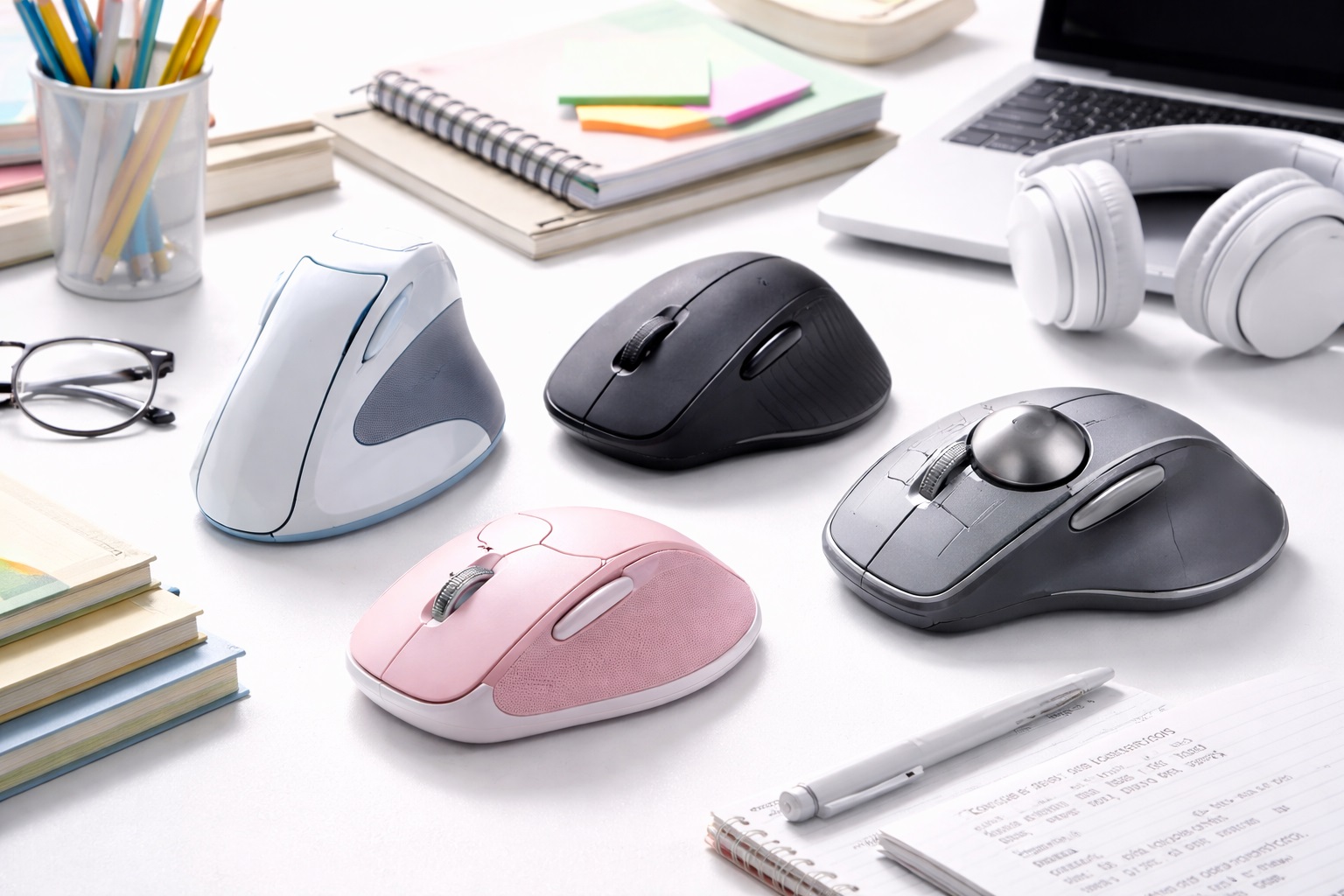
Vertical mice reorient the entire hand into a handshake position, with the thumb pointing up and the palm facing inward rather than down. That single geometric change puts the forearm into its natural resting posture and removes the constant inward rotation (pronation) that a flat mouse demands hour after hour. Because pronation stress is one of the leading contributors to repetitive strain injury in heavy computer users, a vertical mouse tends to produce the most noticeable relief of any ergonomic mouse type, particularly for people who already feel tightness radiating from the wrist up into the forearm and elbow. Most models in this category include adjustable DPI settings so sensitivity can be tuned for different tasks, along with both wired and wireless connectivity options depending on the specific unit.
The angle of the vertical grip typically ranges from roughly 45 to 70 degrees depending on the model, and this angle has a real effect on comfort — a steeper angle further reduces pronation but can feel unfamiliar for longer, while a shallower angle eases the transition at the cost of slightly less ergonomic benefit. Buyers coming from a standard flat mouse for the first time often do better starting with a moderate angle rather than the most aggressive vertical design on the market, since a smoother introduction tends to improve long-term adherence to the new grip style.
- Pros:
- Neutral forearm position reduces pronation stress
- Reduces wrist and forearm strain over time
- Adjustable DPI for different task sensitivities
- Available wired and wireless
- Cons:
- Right-handed only on most models
- Adjustment period of one to two weeks is common
Best For: Users experiencing wrist, forearm, or shoulder pain from standard mouse use, and preventative users who want to avoid RSI before it develops.
Why We Recommend It: The vertical mouse is the most directly effective ergonomic mouse design for preventing and relieving forearm strain. The neutral forearm position it creates is the closest a mouse can get to a resting, unstrained hand position, and the benefit compounds the longer the workday runs.
2. Trackball Mouse – Best For Wrist Stillness
A trackball mouse flips the standard interaction model: instead of moving the whole device across a mouse pad, the body stays anchored in one spot on the desk while a ball embedded in the housing is rolled with the thumb or fingers to move the cursor. Because the hand and forearm no longer need to travel back and forth, a trackball virtually eliminates the repetitive gliding motion that standard and even vertical mice still require. That makes it especially valuable for anyone recovering from an existing wrist injury, managing severe RSI, or working in a cramped space where there simply isn't room for a mouse to move freely. Trackballs come in both thumb-operated and finger-operated layouts, and the choice between them usually comes down to personal comfort rather than one being objectively superior.
Finger-operated trackballs, where a larger ball sits centered under the fingers, tend to suit users who want a grip closer to a traditional mouse hold. Thumb-operated trackballs, with the ball positioned to the side, free up the fingers entirely for clicking and often allow a more relaxed hand posture during long sessions. Either layout takes practice before fine cursor control feels natural, and rushing precision-heavy tasks like detailed image editing in the first week is where most new trackball users get frustrated and give up too early.
- Pros:
- Near-zero wrist and arm movement required
- Mouse body stays stationary on desk
- Available in thumb-operated and finger-operated designs
- Precise control once the learning curve is mastered
- Cons:
- Steep learning curve for new users
- Trackball requires regular cleaning as dust accumulates
Best For: Users with wrist injuries, severe RSI, or those who need maximum wrist movement reduction during computer use.
Why We Recommend It: The trackball design offers the most wrist-stationary operation of any mouse type. For users whose wrist or forearm condition requires minimal movement, no other mouse design comes close to matching that level of physical rest.
3. Ergonomic Standard Mouse – Best For an Easy, No-Adjustment Transition
Not every user wants — or needs — to relearn how they hold a mouse. An ergonomically shaped standard mouse takes a gentler approach: the body is contoured for a right hand, the thumb rests on a slightly raised ledge, and the overall grip angle is tilted just enough to reduce flat-mouse pressure points without asking the hand to adopt an unfamiliar position. Because the interaction model stays essentially the same as a conventional mouse, there is effectively no learning curve, and existing muscle memory for clicking, scrolling, and dragging carries over immediately. This makes it a sensible starting point for anyone who is mouse-curious about ergonomics but hesitant to commit to the more dramatic shift required by a vertical or trackball design.
These mice are also a practical choice for shared or multi-user setups, such as a family desktop or a small office where several people rotate through the same workstation, since there is no adjustment period to relearn each time someone new sits down. The trade-off is that the ergonomic benefit, while real, is more modest than what a vertical or trackball design delivers, so a user with an already-developed strain complaint may find this category insufficient on its own.
- Pros:
- More comfortable than flat mice with minimal adjustment required
- Still compatible with standard mouse muscle memory
- Side thumb button support on most models
- Often available at more accessible prices
- Cons:
- Less ergonomic benefit than vertical or trackball alternatives
- Not suitable for left-handed users on most models
Best For: Users who want better ergonomics than a standard flat mouse without the adjustment period of a fully vertical or trackball design.
Why We Recommend It: For users who want to start improving mouse ergonomics without committing to a new grip style entirely, an ergonomically shaped standard mouse offers meaningful improvement with zero learning curve, making it an easy first step for cautious buyers.
Buying Guide: How to Choose the Best Ergonomic Mouse Under $100
Use these factors to match your purchase to your actual physical complaint rather than defaulting to whichever option has the most reviews or the flashiest marketing copy.
1. Identify Your Specific Strain Complaint First
Before comparing individual products, take a moment to pinpoint exactly where the discomfort shows up. Pain concentrated in the forearm and radiating toward the elbow usually points to pronation stress, which a vertical mouse addresses directly. Pain or numbness localized in the wrist itself, especially after repetitive dragging motions, often responds better to a trackball's stationary design. General fatigue without a sharp complaint may be solved with the gentler adjustment of a contoured standard mouse. Matching the design to the actual symptom avoids buying the wrong tool for the job. It also helps to note when the discomfort appears — pain that builds gradually over a full workday points toward cumulative strain that any of the three categories can help with, while sharp pain triggered by specific motions like double-clicking or fast dragging suggests a mechanical issue worth discussing with a healthcare provider alongside any equipment change.
2. Ergonomic Type (Vertical vs. Standard Contoured vs. Trackball)
Vertical mice put the forearm in a neutral position, reducing pronation. Standard contoured mice improve on flat mice with less dramatic hand angle change and virtually no learning curve. Trackballs eliminate arm movement entirely. Each category solves a genuinely different mechanical problem, so understand the distinction before comparing specific models against each other.
3. Hand Orientation (Right-Handed vs. Ambidextrous)
Most ergonomic mice are right-hand specific. Left-handed users have fewer options — some vertical mice offer left-handed versions, and trackballs are often ambidextrous by design since the ball can typically be operated from either side. Verify orientation compatibility before purchasing, as most ergonomic mouse designs don't work well for left-handed use out of the box.
4. Size and Grip Match
Vertical mice specifically need to match hand size. A mouse that's too small forces the hand into an uncomfortable, cramped grip angle. A mouse that's too large strains the hand in the opposite direction by overextending the fingers and palm. Check whether the manufacturer lists size recommendations, usually broken down by small, medium, and large hand dimensions, and use them rather than guessing. Measuring your hand length from the base of the palm to the tip of the middle finger, and comparing that number against the manufacturer's chart, takes less than a minute and meaningfully reduces the odds of buying the wrong size on your first attempt.
5. Learning Curve Expectation
Vertical mice require a one to two week adjustment period. During that window, control feels less precise than with a familiar flat mouse, cursor movements may overshoot targets, and clicking accuracy can dip slightly. This is normal and temporary. If you abandon the vertical mouse within the first week due to imprecision, you haven't given it enough time to evaluate it accurately — most of the reported dissatisfaction with vertical mice comes from users who quit before the adjustment period completes. Sticking with the new mouse full-time rather than switching back and forth with an old flat mouse during the transition also speeds up the process, since alternating between two very different grips slows the hand's ability to adapt to either one.
6. Wireless vs. Wired Ergonomic Mouse
Both wired and wireless ergonomic mice are widely available. Wireless removes the cable drag that can subtly affect movement, which matters more with a vertical mouse orientation where the cable exit point sits at an unusual angle. Battery life on wireless ergonomic mice is typically two to four weeks per charge depending on usage. If a cable would create awkward routing given your desk setup, wireless simplifies things considerably.
7. DPI Range for Precision Tasks
Adjustable DPI allows fine-tuning of cursor sensitivity for different tasks. For vertical mice, which may feel imprecise during the initial adjustment period, starting at a lower DPI and increasing it gradually helps the hand calibrate to the new form factor. Most users settle somewhere between 1,000 and 2,000 DPI for general office use with an ergonomic mouse, though creative work like photo editing may call for finer control at lower sensitivity, while broad navigation across multiple large monitors often benefits from a higher setting to reduce the physical distance the hand needs to travel.
8. Thumb Rest Design
Vertical mice support the thumb against a dedicated rest rather than using it primarily for scrolling or clicking side buttons. The angle and height of this rest significantly affects grip comfort. Check whether the thumb rest suits your thumb length — too vertical a rest extends the thumb uncomfortably upward, while too horizontal a rest fails to properly support the hand's natural resting position.
9. Scroll Wheel Position and Button Layout
On a vertical mouse, the scroll wheel is angled sideways compared to a flat mouse, and side buttons sit in a different relative position. Most users adapt to this quickly, but it is worth confirming the scroll wheel falls naturally under your index finger in the vertical grip position before committing to a purchase, since an awkwardly placed wheel undermines the whole point of a more comfortable grip.
10. Silent vs. Standard Clicks
Silent click ergonomic mice reduce the audible snap of standard switches by roughly 90 percent. This is useful in quiet environments, shared offices, or homes with sleeping family members nearby, and it also suits users who simply find repetitive clicking sounds distracting over a long session. Silent clicks register with the same functional precision as standard switches but have a softer, less tactile feel that some users prefer and others find less satisfying to use. If tactile click feedback is important to how you gauge whether an action registered, testing a silent-click model in person before committing is worth the extra step, since the difference in feel is more noticeable than most buyers expect.
11. Build Quality and Long-Term Durability
Because an ergonomic mouse is meant to be used daily for years, click switch durability and shell material matter more here than on a mouse bought purely for short-term use. Look for models with a stated click-cycle rating on the primary buttons where available, and favor a matte or textured shell over glossy plastic, which tends to show wear and become slippery with hand oils over extended use.
12. Return Policy for Ergonomic Mice
Ergonomic mice have a higher return rate than standard mice because hand fit is difficult to evaluate without physically holding the device for an extended period. Purchasing from a retailer with a generous return window gives you sufficient time to evaluate whether the design genuinely suits your hand and relieves your specific strain complaint before the return window closes. Keep the original box and any inner packaging until you are confident in the decision, since many retailers require the product to be returned in resalable condition to qualify for a full refund.
13. Cable Type and Desk Setup Compatibility
For wired ergonomic mice, check the cable length against your actual desk arrangement, particularly if the computer tower sits on the floor or off to one side rather than directly on the desk. A cable that is too short forces awkward positioning that can undo some of the ergonomic benefit of the mouse itself. For wireless models using a USB receiver, confirm you have a free USB-A port within reasonable range, or check whether the model supports Bluetooth as an alternative connection method.
Frequently Asked Questions
1. How long does it take to adjust to a vertical ergonomic mouse under $100?
Most users need one to two weeks to feel as comfortable with a vertical mouse as they were with their previous flat mouse. During the adjustment period, tracking may feel slightly less precise as the hand adapts to the new orientation. Most users who push through the adjustment period report no desire to return to a flat mouse afterward. Setting DPI slightly lower than usual for the first few days can also help ease the transition by making cursor movements feel more predictable while the hand recalibrates.
2. Is a vertical ergonomic mouse under $100 better than a trackball?
Both address different aspects of ergonomics. Vertical mice reduce forearm pronation significantly. Trackballs eliminate arm movement entirely by keeping the mouse body stationary. For users whose primary complaint is wrist rotation strain, vertical is the better choice. For users who need to minimize all arm movement, a trackball is more appropriate.
3. Can left-handed users use most ergonomic mouse under $100 designs?
Most vertical ergonomic mice are right-hand specific by design. Left-handed users have more limited options. Some manufacturers offer specific left-handed vertical models. Trackball mice are often ambidextrous, and thumb-operated trackballs are available in both right and left-hand versions on some models.
4. Does an ergonomic mouse under $100 help with carpal tunnel syndrome?
Ergonomic mice can reduce the forearm pronation and repetitive movements that contribute to carpal tunnel syndrome. They're not a medical treatment and should be used alongside medical advice for existing conditions. For prevention, early adoption of ergonomic designs reduces cumulative strain significantly. Consult a healthcare provider for existing RSI conditions.
5. Can I use an ergonomic mouse under $100 for gaming?
Vertical mice are less commonly used for gaming because the hand position doesn't suit the rapid directional changes and precise tracking gaming requires. For casual gaming, a vertical mouse works adequately. For competitive gaming, the adjustment required by the vertical form factor typically disadvantages users compared to purpose-built gaming designs. Trackballs face a similar limitation for fast-paced titles, though some strategy and simulation games actually pair well with trackball control since they rely less on split-second cursor flicks.
6. Is the most expensive ergonomic mouse under $100 always the best choice?
Not necessarily. Higher price within this budget often means additional software features or premium materials, but many mid-range options within the category deliver the same core ergonomic benefit. Focus on the design type and fit that matches your specific complaint rather than the price tag alone.
7. How long should a quality ergonomic mouse under $100 last?
A well-built product from a reputable brand typically lasts two to five years or longer with reasonable daily use. Always check the warranty terms as a quality indicator, since manufacturers confident in their switch durability tend to offer longer coverage.
8. Can I return an ergonomic mouse under $100 if it doesn't suit my hand?
Most retailers offer a 15 to 30 day return window. Keep the original packaging during your evaluation period to ensure you have the option to return the product if it doesn't relieve your symptoms or fit your hand comfortably.
9. Do ergonomic mice require special drivers or software?
Most ergonomic mice work as plug-and-play devices using standard operating system drivers, with basic pointer functions available immediately. Models with adjustable DPI buttons or extra programmable side buttons may include optional software for customizing those functions, but this software is rarely required for the core ergonomic benefit to work.
10. Will switching to an ergonomic mouse slow down my workflow at first?
Some temporary slowdown is normal, particularly with a vertical mouse, as clicking accuracy and cursor control recalibrate to the new grip. Contoured standard mice have close to no workflow impact since the interaction model barely changes. Trackballs fall in between, with most users regaining full speed within a couple of weeks of regular use.
11. What is the best ergonomic mouse under $100 for buyers who want meaningful quality without flagship pricing?
The best choice depends on your specific priorities and where your discomfort is concentrated. Review the buying guide factors above and match each option to your most important requirement — forearm relief, wrist stillness, or an easy no-adjustment upgrade.
12. Does brand name matter when choosing an ergonomic mouse under $100?
Established brands generally offer better quality control, customer support, and warranty reliability. However, newer brands sometimes offer excellent value in this category — read verified reviews carefully before purchasing, particularly ones that mention long-term durability rather than just first impressions.
13. Can I use an ergonomic mouse with a laptop instead of a desktop?
Yes, ergonomic mice function the same way with a laptop as with a desktop computer, whether connected through a USB port, a wireless receiver, or Bluetooth. The main consideration is portability — a full-size vertical mouse or trackball adds bulk to a laptop bag, so travel-focused users sometimes keep a compact standard ergonomic mouse for mobile use and reserve a larger vertical or trackball model for their primary desk setup.
Final Verdict
- Best Overall: Vertical Ergonomic Mouse – The most direct solution for wrist and forearm strain.
- Best For Wrist Stillness: Trackball Mouse – Maximum wrist protection for injury recovery and severe RSI.
- Best For an Easy Transition: Ergonomic Standard Mouse – The easy ergonomic entry point with no adjustment period.
The right ergonomic mouse under $100 depends entirely on where your discomfort is concentrated and how willing you are to adapt to a new grip style. A vertical mouse delivers the strongest relief for forearm and wrist pronation but asks for a short adjustment period in return. A trackball all but eliminates arm movement for users who need that level of physical rest. A contoured standard mouse offers a gentler first step for anyone easing into the idea of ergonomic gear. Match the design to your actual complaint using the factors above, and the extra few minutes spent comparing options will pay off in fewer sore afternoons at the desk. None of these three options require a large budget to deliver a genuine improvement over a standard flat mouse, which is exactly why the under-$100 category is worth taking seriously rather than treating as a compromise on the way to a pricier flagship purchase.