Best Ergonomic Mice for Video Calls: Silent, Precise & Comfortable
A day full of back-to-back video calls puts different demands on a mouse than a normal workday. You're clicking to mute and unmute, switching between screen shares, scrolling through chat and shared documents, and doing all of it while a microphone sits a few inches from your hand. The mechanical click of a standard mouse switch, barely noticeable in an empty room, becomes surprisingly audible through an open mic during a quiet moment in a meeting. Add in the hours of small, repetitive movement that back-to-back calls require, and the case for a mouse built around comfort and quiet operation gets stronger the more meetings fill your calendar.
This guide focuses specifically on what matters for remote workers on long meeting days who need quiet, comfortable mouse operation: how different ergonomic mouse designs handle noise, how they hold up across a full day of use, and which type suits which kind of day. Rather than ranking mice by spec sheet alone, it breaks down the three most practical ergonomic categories by what they actually change about your hand position and how audible they are during a call.
None of these designs eliminate mouse clicks entirely, and none of them turn a demanding meeting schedule into an effortless one. What they do is remove specific sources of strain and noise that build up over a full day of video calls, so the physical side of your workday stops adding friction to an already packed schedule.
The right choice depends on which problem is bothering you most right now — sore wrists by Friday afternoon, self-consciousness about clicking during calls, or simply wanting a smoother transition into better habits without relearning how to use a mouse from scratch. The sections below walk through all three angles.
It also helps to separate two things that often get bundled together: the noise a mouse makes and the strain it causes. A mouse can be perfectly silent and still leave your wrist sore by the end of a six-call day, and a mouse can dramatically reduce strain while still clicking as loudly as any standard model. The three categories below differ on both dimensions, and knowing which one you actually need — quiet, comfortable, or both — will save you from buying based on marketing language that promises everything at once.
Top 3 Ergonomic Mice for Video Calls (Detailed Reviews)
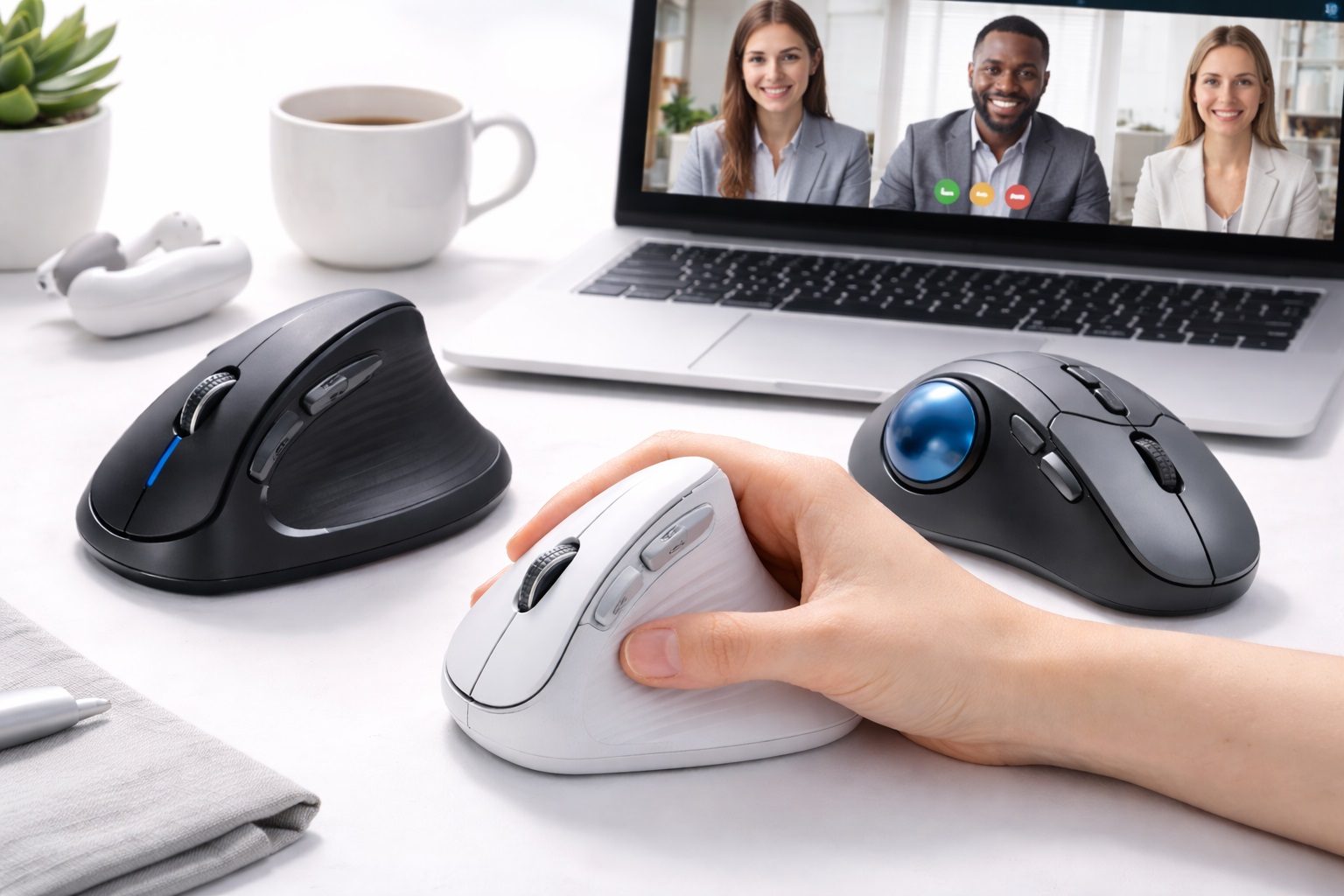
1. Vertical Ergonomic Mouse – Best Overall for All-Day Call Comfort
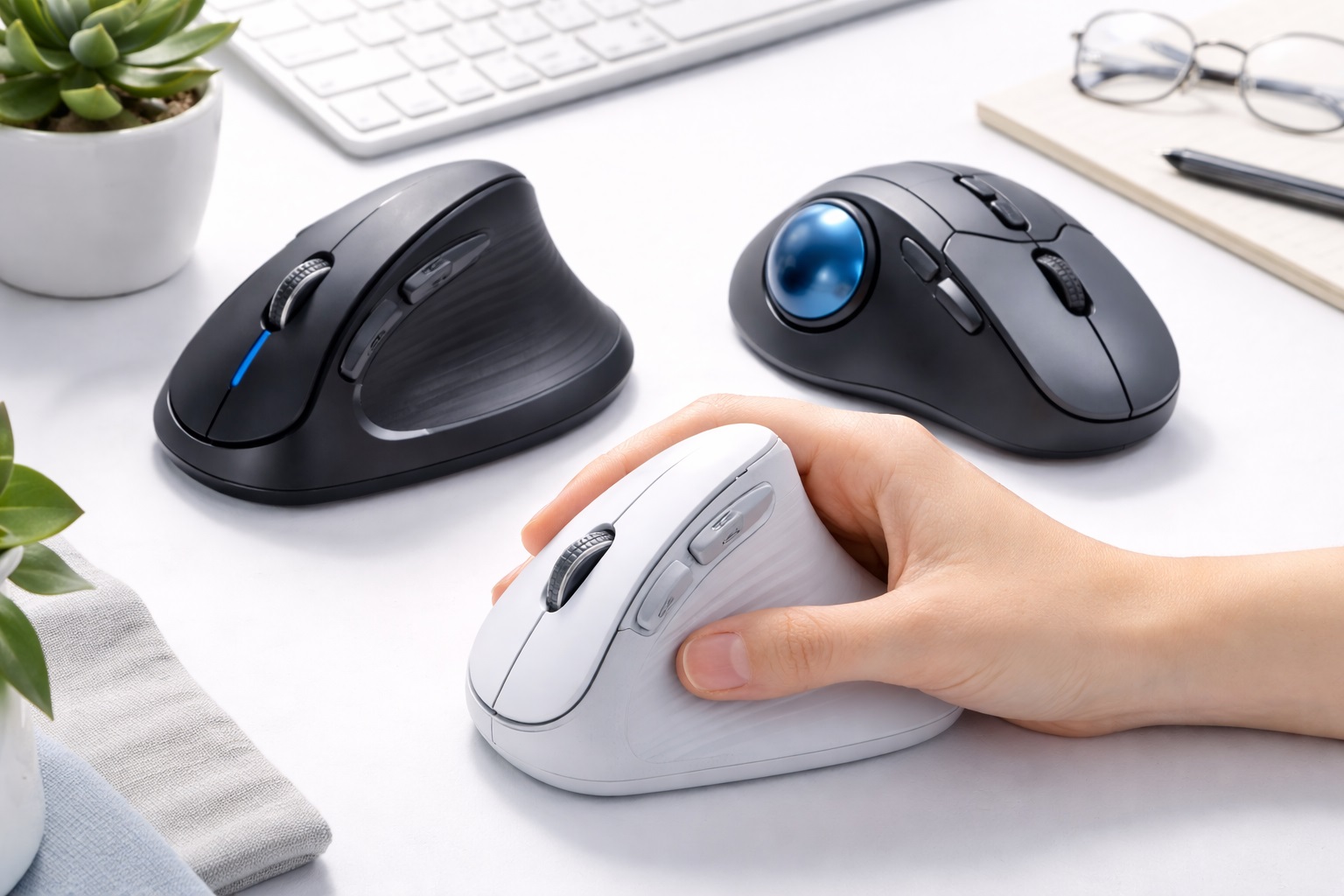
Vertical mice orient the hand in a handshake position — thumb up, palm facing inward — which places the forearm in its neutral position and eliminates the forearm rotation that flat mice require. This single change dramatically reduces the wrist pronation stress that causes repetitive strain injury in heavy computer users, and it's the pronation that accumulates fastest across a day made up of dozens of short clicking and scrolling actions between calls rather than one long continuous task. Most vertical mice include adjustable DPI and wireless connectivity, both of which matter on a call-heavy day where you're frequently moving between a laptop, an external monitor, and sometimes a second display for notes.
- Pros:
- Neutral forearm position reduces pronation stress
- Reduces wrist and forearm strain over time
- Adjustable DPI for different task sensitivities
- Available wired and wireless
- Cons:
- Right-handed only on most models
- Adjustment period of one to two weeks is common
Best For: Users experiencing wrist, forearm, or shoulder pain from standard mouse use, and preventative users who want to avoid RSI before it develops, particularly those whose calendar is dense with meetings that keep the hand on the mouse for hours at a stretch.
Why We Recommend It: The vertical mouse is the most directly effective ergonomic mouse design for preventing and relieving forearm strain. The neutral forearm position it creates is the closest a mouse can get to a resting, unstrained hand position, which matters most on the days when back-to-back calls leave little room for the kind of stretch breaks that would otherwise offset the strain. Many vertical models also ship with a standard, non-silent click mechanism by default, so if quiet operation is your top priority alongside comfort, check the specific listing for a silent-click variant rather than assuming every vertical mouse handles noise the same way.
2. Trackball Mouse – Best for Minimizing Hand Movement Across Long Call Days
Trackball mice keep the mouse body stationary — you move the cursor by rolling a ball with your thumb or fingers rather than moving the entire mouse. This virtually eliminates the repetitive arm and wrist movement that standard mice require, making them particularly valuable for users who need complete wrist stillness due to injury or severe RSI, and equally useful for anyone whose meeting-heavy schedule adds up to an unusually high number of small cursor movements across a normal day. Because the body of the mouse never needs to travel across the desk, a trackball also takes up less physical space next to a laptop or external keyboard during a call, which matters when desk real estate is already tight with notes, a coffee cup, and a second monitor.
- Pros:
- Near-zero wrist and arm movement required
- Mouse body stays stationary on desk
- Available in thumb-operated and finger-operated designs
- Precise control once the learning curve is mastered
- Cons:
- Steep learning curve for new users
- Trackball requires regular cleaning as dust accumulates
Best For: Users with wrist injuries, severe RSI, or those who need maximum wrist movement reduction during computer use, including anyone whose meeting schedule leaves almost no downtime for the wrist to rest between clicks.
Why We Recommend It: The trackball design offers the most wrist-stationary operation of any mouse type. For users whose wrist or forearm condition requires minimal movement, no other mouse design comes close, and the compact footprint is a genuine secondary benefit for anyone working from a crowded desk during video calls. The clicking mechanism on most trackballs is still a standard switch, so buyers pairing a trackball with a quiet-call priority should still check for a silent-click version specifically, rather than assuming the design's other quiet-desk benefits extend to the click itself.
3. Ergonomic Standard Mouse – Best for an Easy, Low-Disruption Switch
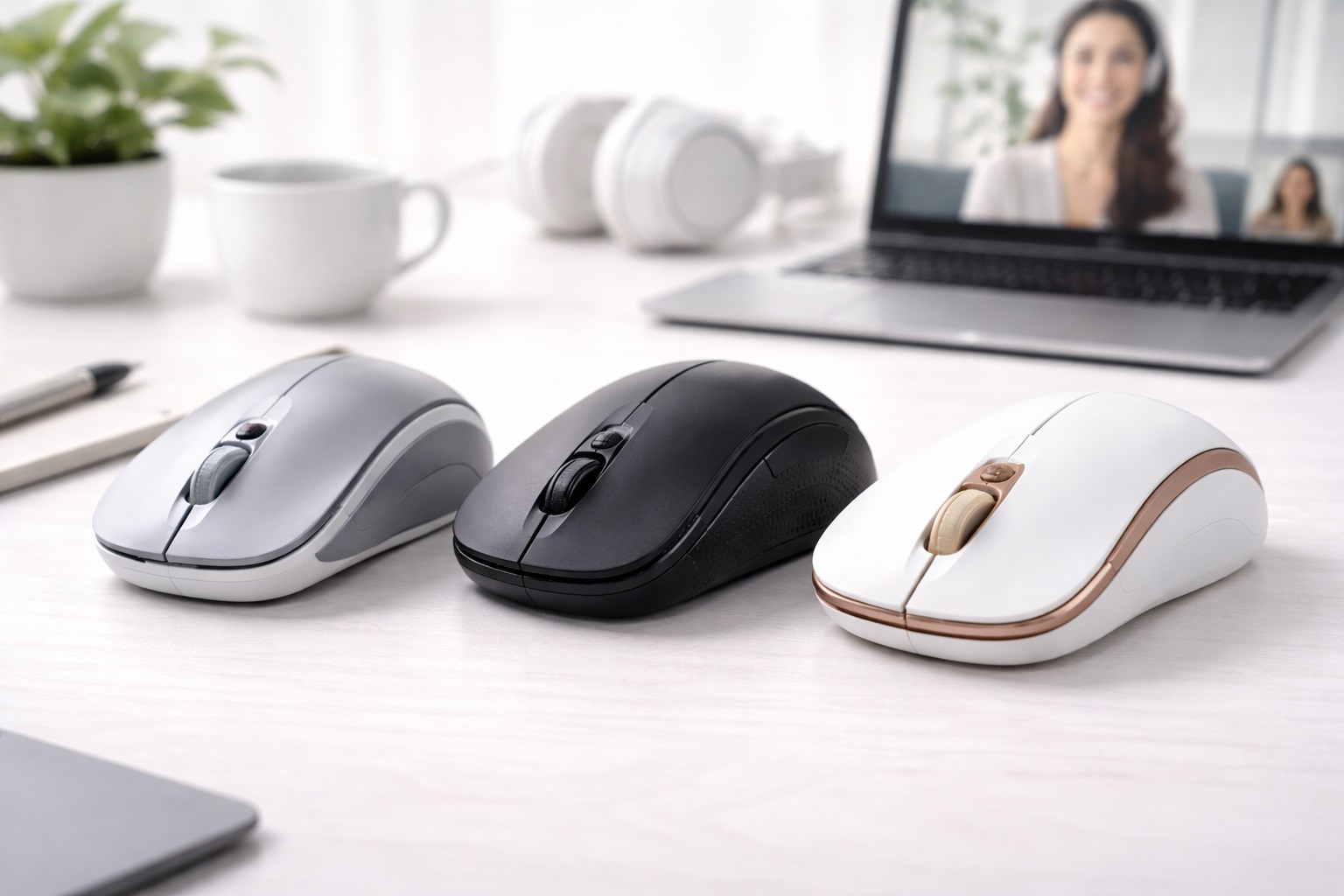
Some mice take a less radical approach to ergonomics — using a contoured right-hand shape, elevated thumb rest, and angled grip that improves on a standard flat mouse without the full commitment of a vertical design. These represent a gentler ergonomic improvement that requires no adjustment period while still reducing strain compared to a generic flat mouse, which makes them a sensible choice for anyone who doesn't want to spend a week relearning cursor control in the middle of a busy meeting stretch. Because the grip is so close to a standard mouse, switching mid-week or even mid-call causes no real disruption to accuracy.
- Pros:
- More comfortable than flat mice with minimal adjustment required
- Still compatible with standard mouse muscle memory
- Side thumb button support on most models
- Often available at more accessible prices
- Cons:
- Less ergonomic benefit than vertical or trackball alternatives
- Not suitable for left-handed users on most models
Best For: Users who want better ergonomics than a standard flat mouse without the adjustment period of a fully vertical or trackball design, especially those who can't risk reduced precision during an active meeting week.
Why We Recommend It: For users who want to start improving mouse ergonomics without committing to a new grip style entirely, an ergonomically shaped standard mouse offers meaningful improvement with zero learning curve, which is exactly the kind of low-risk switch that fits into a packed call schedule without a transition period. This category is also where silent-click switches show up most often at accessible prices, making it a practical starting point for anyone whose main concern is reducing clicking noise during calls rather than solving a deeper strain problem.
Buying Guide: How to Choose the Best Ergonomic Mouse for Video Calls
Use these factors to match your purchase to how your specific meeting schedule actually uses a mouse, rather than defaulting to the highest-rated option in general.
1. Ergonomic Type (Vertical vs. Standard Contoured vs. Trackball)
Vertical mice put the forearm in a neutral position, reducing pronation. Standard contoured mice improve on flat mice with less dramatic hand angle change and virtually no learning curve. Trackballs eliminate arm movement entirely. Assess your specific strain complaint and how much of your day is spent on calls before choosing the most appropriate design. Someone who alternates between calls and heads-down work throughout the day has different needs than someone whose entire schedule is calls back to back, and it's worth being honest about which pattern actually describes your week before picking a category.
2. Silent Click Mechanisms for Quiet Meetings
Silent click ergonomic mice reduce the audible snap of standard switches by 90%. This matters specifically on video calls, where an open microphone can pick up mouse clicks during quiet moments in a discussion. Silent clicks register with the same precision but have a softer, less tactile feel that some users prefer and others find less satisfying — worth testing if tactile feedback matters to your typing and clicking habits.
3. Wireless vs. Wired for Call-Heavy Setups
Both wired and wireless ergonomic mice are available. Wireless removes the cable drag that affects mouse movement with some designs, and it also keeps the desk area near your webcam and microphone free of an extra cord. Battery life on wireless ergonomic mice is typically 2 to 4 weeks per charge, which comfortably covers a heavy meeting schedule without frequent recharging concerns. A wired connection remains a reasonable choice if you never move the mouse between locations and prefer to avoid battery management altogether, since it removes one small maintenance task from your routine.
4. Hand Orientation (Right vs. Ambidextrous)
Most ergonomic mice are right-hand specific. Left-handed users have fewer options — some vertical mice offer left-handed versions, and trackballs are often ambidextrous. Verify orientation compatibility before purchasing, as most ergonomic mouse designs don't work for left-handed use. If you regularly switch hands to relieve fatigue during a long call day, an ambidextrous trackball keeps that option open in a way most vertical designs simply don't.
5. Size and Grip Match
Vertical mice specifically need to match hand size. A mouse that's too small forces the hand into an uncomfortable grip angle. A mouse that's too large strains the hand in the opposite direction. Check whether the manufacturer lists size recommendations and use them, since an ill-fitting grip becomes more noticeable across a day with many hours of active mouse use. A grip that feels fine during a short test at a store can feel noticeably different after four or five hours of cumulative call time, so err toward the manufacturer's stated size range rather than judging fit from a brief handling session alone.
6. Learning Curve Expectation
Vertical mice require a one to two week adjustment period. During this time, control feels less precise than with a familiar flat mouse. If your calendar has a particularly demanding week of presentations or screen-share-heavy calls coming up, it may be worth starting the adjustment period during a quieter stretch rather than the busiest week on your calendar.
7. DPI Range for Everyday Precision
Adjustable DPI allows fine-tuning cursor sensitivity. For vertical mice, which may feel imprecise during adjustment, starting at lower DPI and increasing gradually helps calibrate to the new form factor. Most users settle between 1000 and 2000 DPI for general office use with an ergonomic mouse, which is sufficient precision for navigating shared screens and presentation software. If you regularly annotate slides or draw attention to specific areas of a shared screen during calls, slightly lower DPI can make fine cursor movements easier to control precisely.
8. Thumb Rest Design
Vertical mice support the thumb against a rest rather than using it for scrolling. The angle and height of this rest affects grip comfort significantly. Check whether the thumb rest suits your thumb length — too vertical a rest extends the thumb uncomfortably; too horizontal doesn't support the hand properly, and this becomes more noticeable the longer a single call or back-to-back sequence of calls runs. Reading user reviews for specific complaints about thumb discomfort is often more informative than a manufacturer's general description of the rest shape.
9. Scroll Wheel Position
On a vertical mouse, the scroll wheel is angled sideways compared to a flat mouse. Most users adapt to this quickly. Ensure the scroll wheel position falls naturally under your index finger in the vertical grip position before purchasing, since scrolling through shared documents and chat windows is one of the most frequent actions during a video call. A scroll wheel that requires shifting your whole grip to reach comfortably will become a source of minor irritation across a day with many separate documents and chat threads to review.
10. Cable and Desk Space Near Your Webcam Setup
A video-call workstation often already has a webcam, ring light, or external microphone competing for desk space near the keyboard. A wireless mouse, or one with a shorter cable routed cleanly, avoids adding another cord to an already crowded area directly in your camera's field of view. This matters more than it might seem — a tangle of cables near a webcam is one of the more common small annoyances reported by people who spend most of their day on camera.
11. Return Policy for Ergonomic Mice
Ergonomic mice have a higher return rate than standard mice because hand fit is difficult to evaluate without physically holding the device. Purchasing from a retailer with a 30-day return window gives you sufficient time to evaluate whether the design genuinely suits your hand and relieves your specific strain complaint across a realistic sample of your actual meeting schedule. A shorter window, such as 15 days, may not fully cover the vertical mouse's typical adjustment period, so check the specific return terms before assuming standard coverage applies.
12. Matching the Mouse to Your Actual Meeting Load
Someone with two calls a day has different priorities than someone with six. If your calendar is dense with calls most days, prioritize the design that most directly reduces strain — vertical or trackball. If calls are occasional and mixed with other work, the standard ergonomic mouse's zero-learning-curve advantage may matter more than the deeper ergonomic benefit of the other two types. Reviewing your actual calendar from the past two or three weeks, rather than estimating from memory, often gives a more accurate picture of which category fits your real routine.
13. Mute Button and Side Button Placement
Some ergonomic mice let you assign a side button to mute or unmute in conferencing software, turning a keyboard shortcut into a single click without moving your hand away from the mouse. If your video call platform supports customizable shortcuts, check whether the mouse's software allows you to map a side button to that specific action, since it removes one more small movement from an already repetitive set of motions.
14. Testing Before Committing to a Full-Week Rollout
If you're switching mice specifically to solve a problem that's bothering you during calls, test the new mouse on a lighter meeting day first rather than your busiest day of back-to-back calls. This gives you a fair read on whether the grip, click sound, and precision suit you before you're relying on it during a demanding stretch.
15. Desk Setup Consistency Across Home and Office
If you split time between a home desk and an office desk, consider whether a lighter, more portable ergonomic mouse makes sense for the location you travel to, versus a larger, more feature-rich model for your primary desk. Consistency in grip between the two locations reduces the mental adjustment of switching hand position depending on where you're working that day.
Frequently Asked Questions
1. How long does it take to adjust to a vertical ergonomic mouse for video calls?
Most users need one to two weeks to feel as comfortable with a vertical mouse as with their previous flat mouse. During the adjustment period, tracking may feel slightly less precise as the hand adapts to the new orientation. Most users who push through the adjustment period report no desire to return to a flat mouse.
2. Do silent-click mice actually help during video calls?
Silent click mechanisms reduce the audible snap of a standard mouse switch by a significant margin, which is specifically useful when an open microphone might otherwise pick up clicking sounds during a quiet moment in a meeting. The tradeoff is a softer, less tactile click feel that not every user prefers, so it's worth weighing how much you rely on the physical feedback of a click against how often your microphone stays open during silent stretches of a call.
3. Is a vertical ergonomic mouse better than a trackball for call-heavy days?
Both address different aspects of ergonomics. Vertical mice reduce forearm pronation significantly. Trackballs eliminate arm movement entirely by keeping the mouse body stationary. For users whose primary complaint is wrist rotation strain, vertical is the better choice. For users who need to minimize all arm movement across a long stretch of calls, trackball is more appropriate.
4. Can left-handed users find a good ergonomic mouse for video calls?
Most vertical ergonomic mice are right-hand specific by design. Left-handed users have more limited options. Some manufacturers offer specific left-handed vertical models. Trackball mice are often ambidextrous, and thumb-operated trackballs are available in both right and left-hand versions on some models.
5. Does an ergonomic mouse help with carpal tunnel syndrome?
Ergonomic mice can reduce the forearm pronation and repetitive movements that contribute to carpal tunnel syndrome. They're not a medical treatment and should be used alongside medical advice for existing conditions. For prevention, early adoption of ergonomic designs reduces cumulative strain significantly, and switching before symptoms appear is generally easier than adjusting to a new grip while already managing existing wrist discomfort.
6. How much battery life do I need for a full day of video calls?
Wireless ergonomic mice typically last 2 to 4 weeks per charge under normal office use. A demanding day of back-to-back calls uses the mouse more actively than a mixed workday, but the difference is unlikely to push a well-rated wireless mouse below a comfortable buffer before it needs a recharge. It's still sensible to keep a charging cable within reach on your busiest weeks rather than assuming battery life will never become a mid-call inconvenience.
7. Is the most expensive ergonomic mouse always the best for video calls?
Not necessarily. Higher price often means more features, but many mid-range options offer excellent performance for everyday call use. Focus on the features — silent clicks, wireless connectivity, comfortable grip — that matter for your specific schedule rather than assuming the top-priced model automatically addresses your particular strain or noise concern.
8. How long should a quality ergonomic mouse for video calls last?
A well-built product from a reputable brand typically lasts two to five years or longer with reasonable care. Always check warranty terms as a quality indicator, particularly for wireless models where battery replacement or charging port durability can affect long-term reliability.
9. Can I return an ergonomic mouse if it doesn't suit my hand?
Most retailers offer a 15 to 30 day return window. Keep the original packaging during your evaluation period to ensure you have the option to return if the product doesn't meet your needs, and use that window to test the mouse across at least one genuinely representative meeting-heavy week rather than a single quiet day.
10. What is the best ergonomic mouse for remote workers with a heavy meeting schedule?
The best choice depends on your specific priorities. Review the buying guide factors above and match each option to your most important requirements — noise reduction, wrist strain relief, or ease of transition. For most remote workers with a genuinely dense meeting calendar, the vertical mouse offers the broadest combination of comfort benefits, while the trackball suits those with an existing injury or severe strain complaint more precisely.
11. Does brand name matter when choosing an ergonomic mouse?
Established brands generally offer better quality control, customer support, and warranty reliability. However, newer brands sometimes offer excellent value — read verified reviews carefully before purchasing.
12. Can a standard ergonomic mouse be a stepping stone to a vertical one?
Yes. Many users start with a contoured standard mouse to build tolerance for a slightly different grip angle, then move to a fully vertical design once they've confirmed they want the deeper ergonomic benefit. This staged approach avoids the steepest part of the vertical mouse's adjustment period landing during a demanding meeting stretch.
13. Will switching mice mid-project disrupt my workflow?
A brief dip in precision during the first few days of adjustment is normal with a vertical or trackball mouse, but it typically resolves well before it meaningfully affects a project timeline. Choosing a lighter week for the switch, as noted above, minimizes any disruption during the transition.
Final Verdict
- Best Overall for Call Comfort: Vertical Ergonomic Mouse – The most direct solution for wrist and forearm strain across a full day of meetings.
- Best for Minimizing Hand Movement: Trackball Mouse – Maximum wrist protection for the heaviest call schedules and long stretches without breaks.
- Best for an Easy Switch: Ergonomic Standard Mouse – The low-disruption entry point that keeps precision steady mid-week.
The right ergonomic mouse for video calls depends on which problem is actually bothering you — sore wrists, self-consciousness about clicking noise, or simply wanting a comfortable upgrade without relearning your grip. Match the design to your real meeting load and the specific strain or noise issue you're trying to solve, and the choice becomes far more straightforward than scanning a list of features in isolation. A few days of side-by-side comparison against your current mouse, on a realistic mix of meeting days rather than a single quiet afternoon, will tell you more about the right fit than any spec sheet.