Best USB Hub Under $100: Multi-Port Professional Connectivity for Less
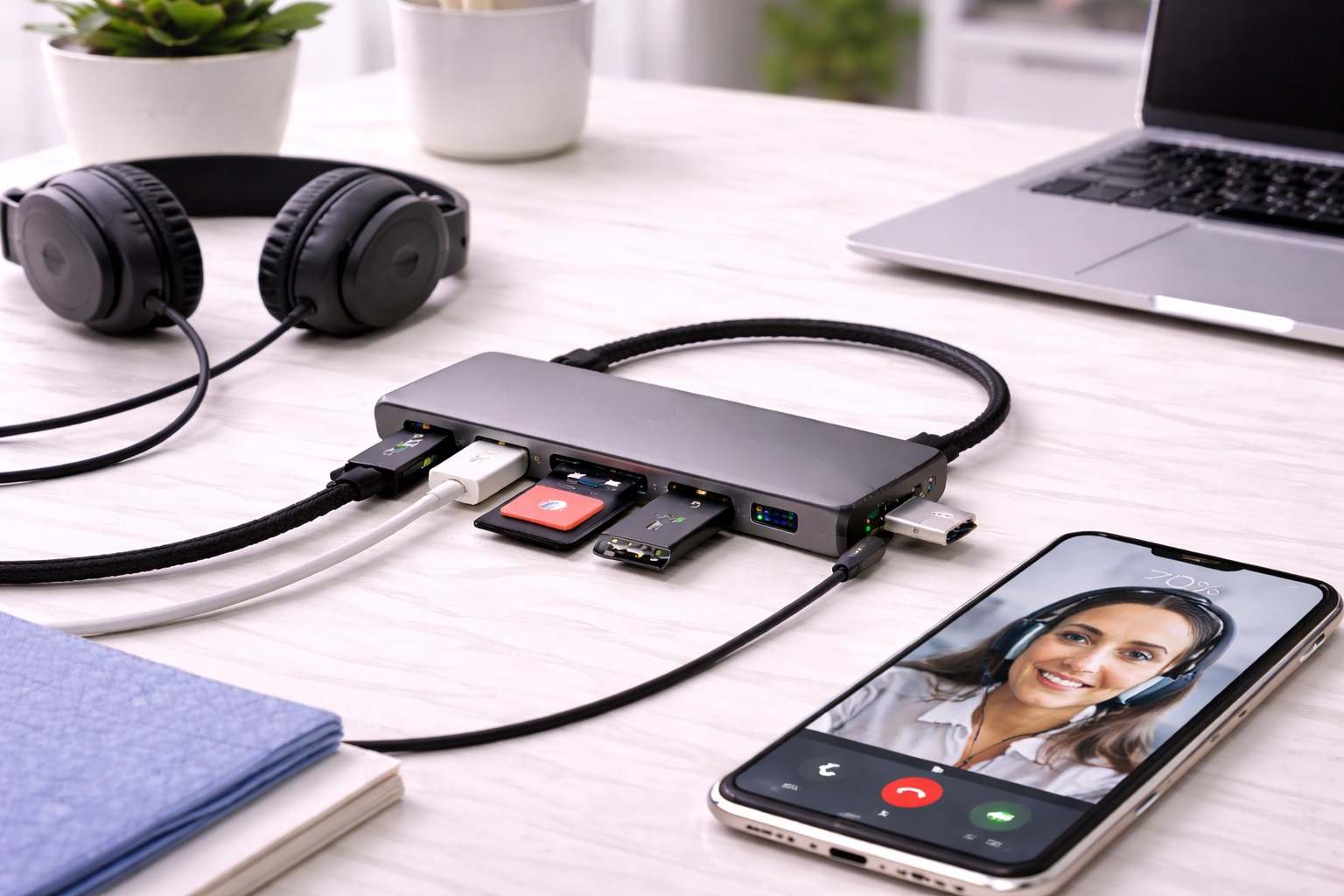
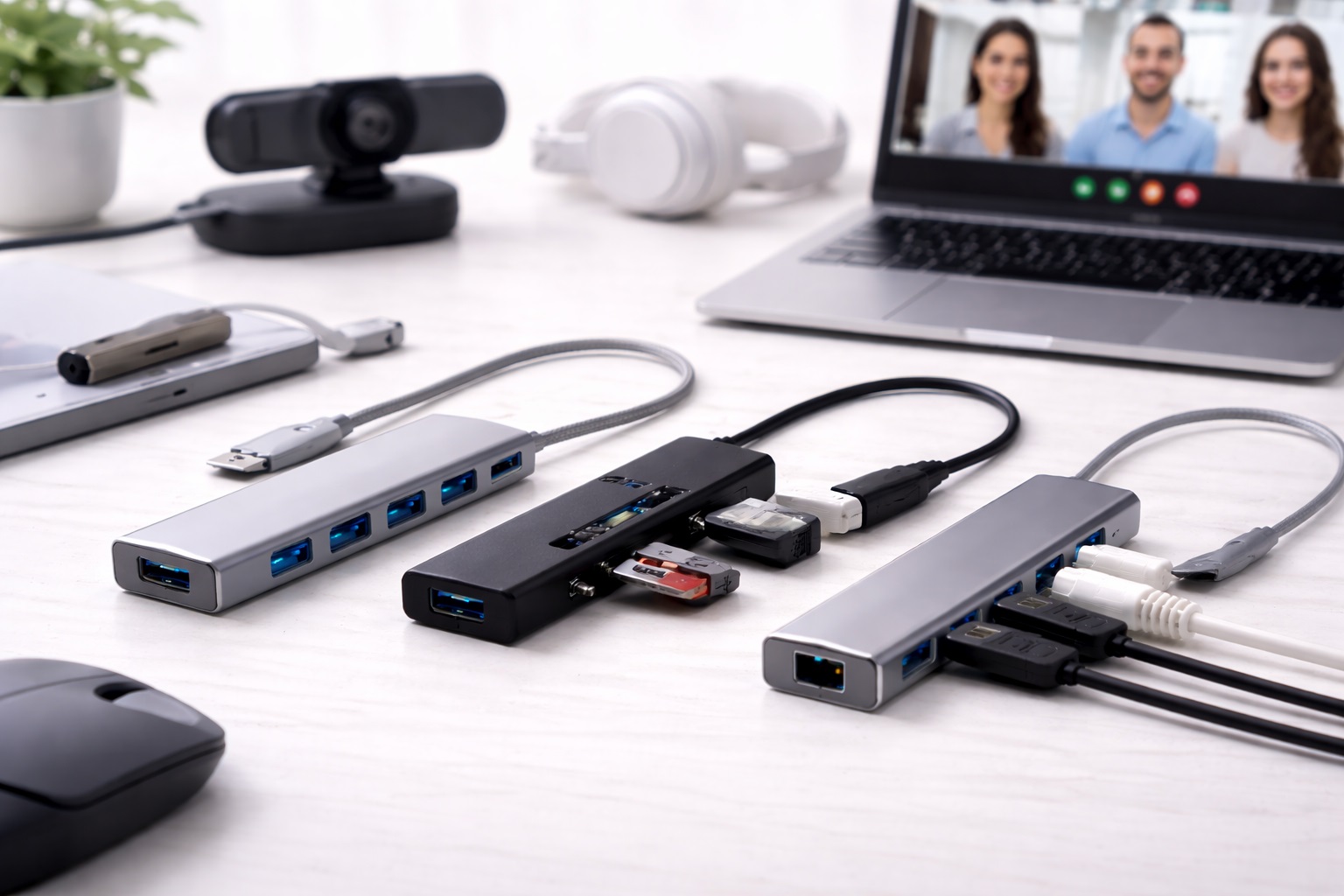
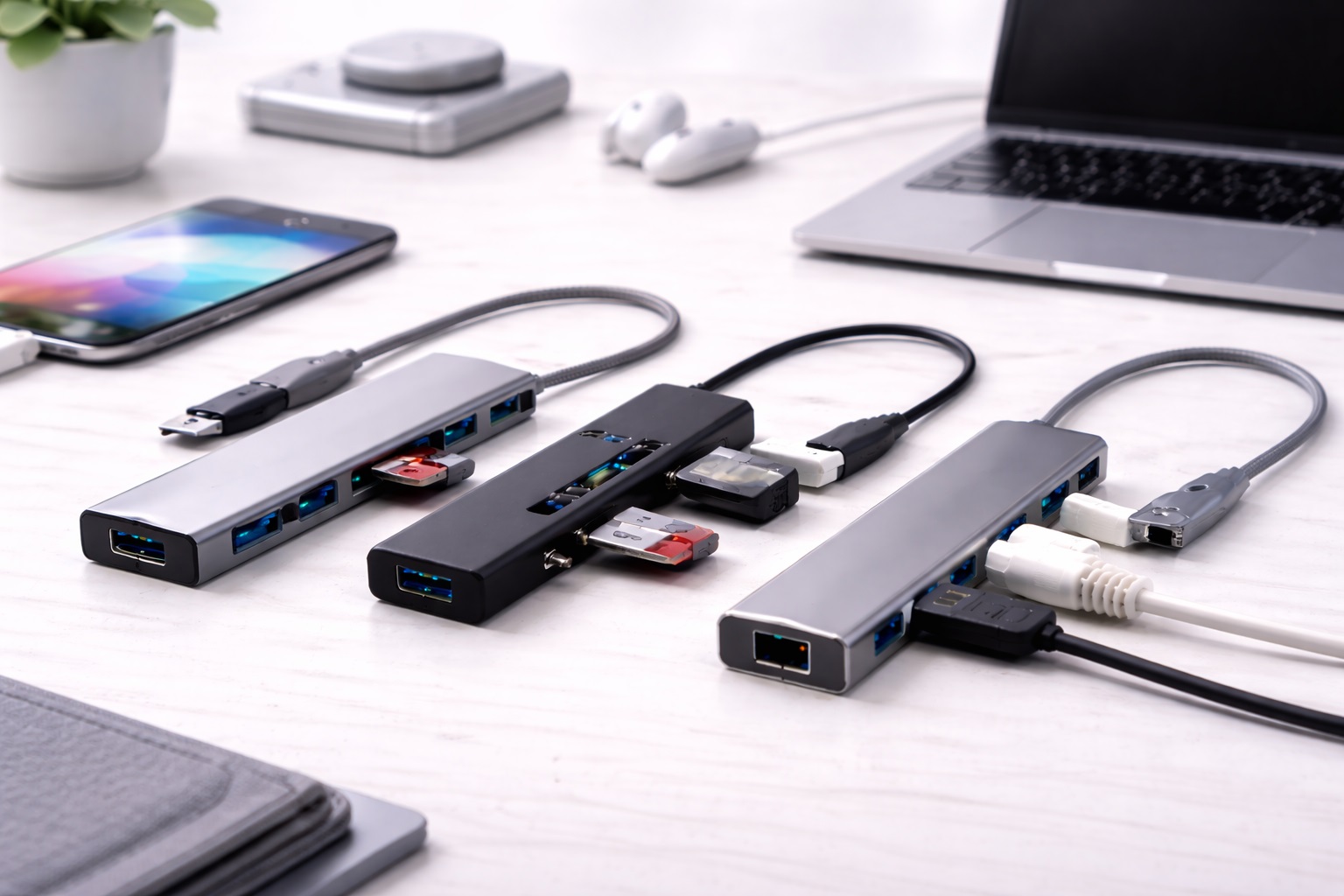
Modern laptops keep getting thinner, and the trade-off for that slimmer design is almost always a shortage of ports. A MacBook Air, a Dell XPS, or a current-generation ultrabook typically offers one or two USB-C ports total, which is rarely enough once a monitor, a keyboard, a mouse, an SD card reader, and a charging cable all need somewhere to plug in at the same time. A quality USB hub solves this by turning that single port into a genuine connectivity hub, letting a laptop drive an external display, charge, and handle peripherals through one consolidated cable. What used to require a small pile of individual dongles and adapters, each handling a single connection type, now fits into a single palm-sized accessory that sits permanently at a desk or travels easily in a bag.
Under $100, the meaningful trade-offs are less about whether a hub works at all and more about which specific combination of features matters for a given setup. Video resolution and refresh rate, data transfer speed, port count, and cable design all vary between models at similar prices, and a hub that excels at one of these while shorting another isn't necessarily a bad product — it's simply built for a different kind of daily use than a hub optimized differently. A hub optimized for maximum port count, for instance, will naturally compromise somewhere else, whether that's build material, cable flexibility, or raw data throughput, and understanding that trade-off up front makes comparing specific listings considerably easier.
This guide focuses specifically on what separates a genuinely reliable USB hub from one that overheats, drops connections, or bottlenecks data transfer under real daily use. Four practical options are reviewed in detail below, chosen to represent different priorities — maximum overall value, port density, raw data performance, and premium build quality — followed by a buying guide covering the factors that matter most once a hub becomes a permanent part of a daily laptop setup. None of the four options here represents a compromise pick — each is simply optimized around a different real priority, and matching the right one to your own setup produces a noticeably better daily experience than picking whichever hub happens to rank highest on a generic bestseller list.
Top 4 USB Hubs Under $100 (Detailed Reviews)
Anker 555 USB-C Hub (8-in-1) – Best For All-Around Reliability
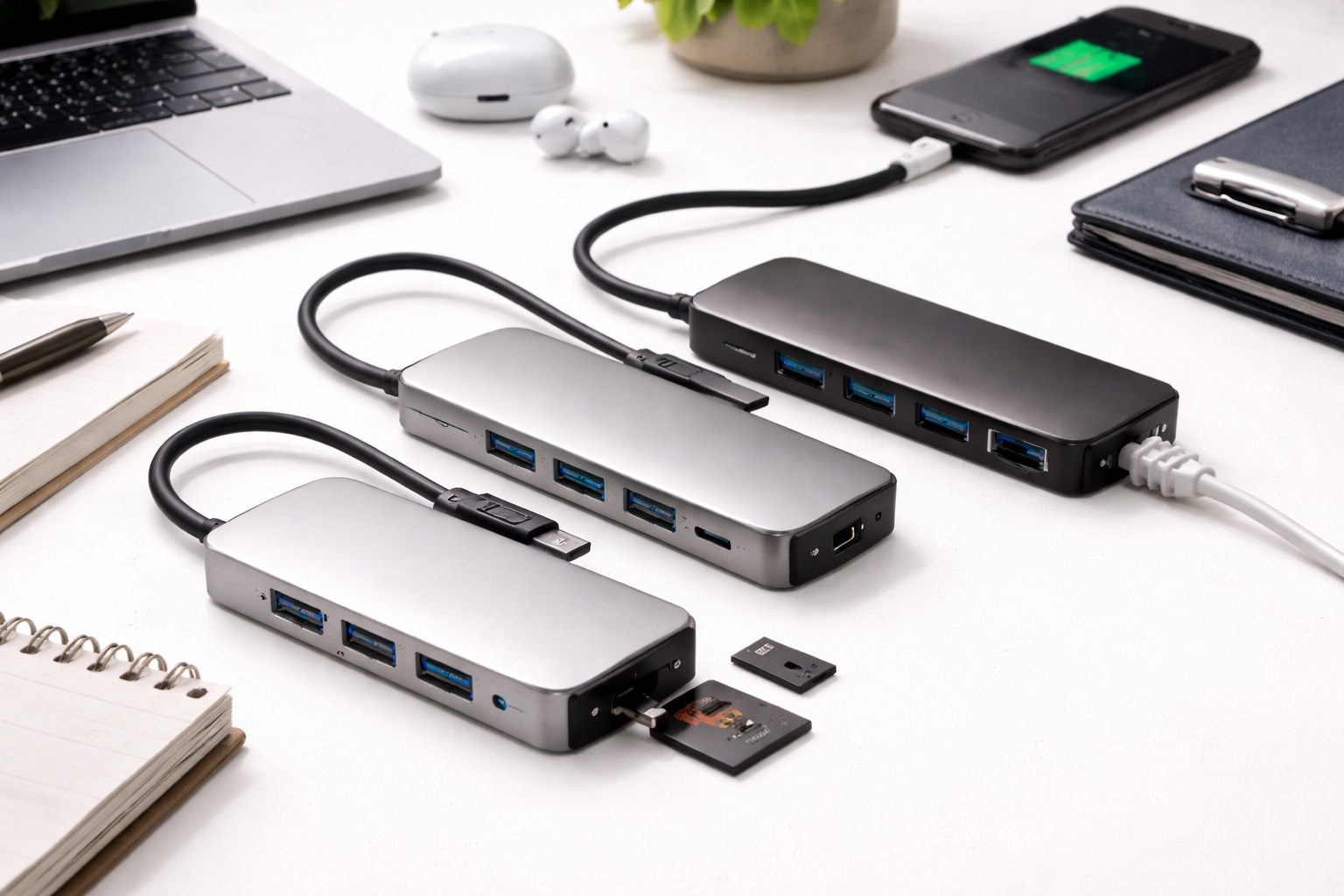
The Anker 555 is built around a genuinely useful core feature for anyone trying to run a full setup off a single cable: 100W Power Delivery pass-through, which allows a laptop to charge at full speed while all eight ports remain active for peripherals and displays at the same time. It includes a 4K/60Hz HDMI output for smooth video on an external monitor, along with SD and microSD card slots and two 10Gbps high-speed USB-A ports. The aluminum frame is specifically designed to help dissipate the heat that any hub generates while running multiple high-bandwidth connections simultaneously, which becomes especially relevant during long workdays where the hub stays active for eight or more hours without a break.
- Pros:
- 100W Power Delivery pass-through charges a laptop at full speed while ports stay active
- 4K/60Hz HDMI output for smooth external monitor video
- Aluminum frame manages heat better than plastic alternatives
- Two 10Gbps USB-A ports for fast external drive transfers
- Cons:
- Fixed cable can't be replaced if it wears out or is damaged
- Slightly larger than some of the more minimal "mini" hub designs
Best For: Professionals and office workers who want a single hub that handles charging, video, and data transfer reliably without needing to think about it daily.
Why We Recommend It: The combination of full-speed charging pass-through, capable video output, and genuinely effective thermal management makes this the most dependable all-around choice for someone who wants one hub to simply work every day without complications. It's the kind of product that rarely gets discussed specifically because it quietly does its job well, which is precisely the point for a piece of daily infrastructure like this.
UGREEN Revodok Pro 210 (10-in-1) – Best For Port Density
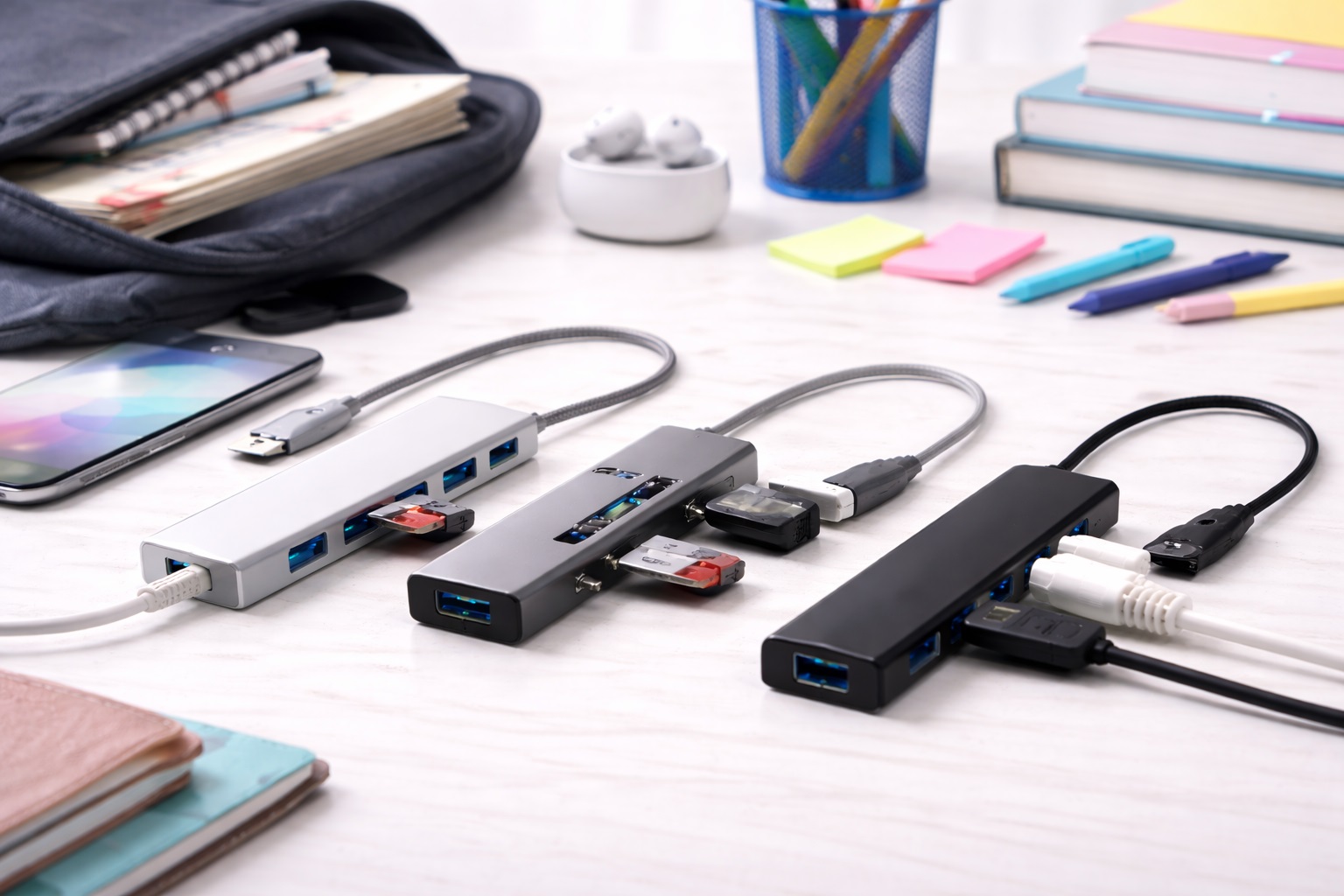
For around $60, the UGREEN Revodok Pro 210 packs in ten ports, making it the strongest choice for anyone connecting multiple peripherals simultaneously — a mouse, a keyboard, an external monitor, an ethernet cable, and an SD card reader all at once. Its dual HDMI 4K support allows some laptops to drive two external monitors from a single hub, a feature not commonly found at this price point. A heavy-duty braided cable and shielding designed to reduce interference with a wireless mouse round out the package, along with independent SD and TF card slots that can be used at the same time, which is a genuinely useful detail for anyone offloading footage from more than one card at once during a busy shoot day.
- Pros:
- The highest port count in this comparison at a genuinely affordable price
- Dual HDMI 4K support for driving two external monitors on compatible laptops
- Braided cable with shielding to reduce wireless mouse interference
- Independent SD and TF card slots usable simultaneously
- Cons:
- Dual monitor support depends heavily on the specific laptop, with some models like the MacBook Air limited to a single external display
- Mostly plastic construction compared to the aluminum builds of pricier competitors
Best For: Students and power users setting up a full multi-monitor home office on a tight budget who need to connect several peripherals at once.
Why We Recommend It: Ten ports for around $60 is a genuinely strong value proposition, and the dual HDMI support gives budget-conscious buyers a path to a two-monitor setup that's usually reserved for pricier docking stations. For students setting up a home study station on a limited budget, this hub alone often replaces what would otherwise require two or three separate adapters purchased individually.
CalDigit SOHO Dock – Best For Fast Data Transfer
CalDigit built its reputation on considerably pricier professional docking stations, and the SOHO Dock brings that same high-throughput engineering down to a sub-$100 price point. Its Gen 2 10Gbps architecture allows data to move from an external SSD roughly twice as fast as standard budget hubs manage, which adds up to real time saved for anyone regularly transferring large files. It includes a detachable USB-C cable and supports both HDMI 2.0b and DisplayPort 1.4, giving it more display flexibility than most hubs built primarily around HDMI alone, which matters for anyone connecting to a monitor or display that specifically expects a DisplayPort signal rather than HDMI.
- Pros:
- Fastest data transfer speeds in this comparison at 10Gbps
- Detachable cable can be replaced independently if damaged
- Supports both DisplayPort and HDMI for more flexible monitor connections
- Professional-grade build quality and durability
- Cons:
- No ethernet port included
- Priced closer to the top of the sub-$100 range than most competitors
Best For: Video editors, photographers, and anyone who regularly moves large files from an external SSD and doesn't want to wait longer than necessary for transfers to finish.
Why We Recommend It: For data-heavy workflows, the doubled transfer speed compared to standard budget hubs translates into meaningful time savings over months of regular use, justifying the higher price within this category for the right kind of buyer. Someone who only occasionally moves a handful of small files won't notice the difference, but for a working professional handling large video or photo projects regularly, the time savings compound significantly over months of use.
Satechi On-the-Go Multiport Adapter – Best For Design and Portability
Satechi has built a reputation for accessories that visually match Apple's own design language, and the On-the-Go hub carries that same premium aesthetic in a Space Gray aluminum finish. Its detachable cable system is a genuinely practical touch for travelers — a longer cable ships for desk use, while a short cable stores inside the hub itself for more compact packing. It also includes a VGA port, a feature that has mostly disappeared from newer hubs but remains useful for professionals who occasionally present through older projectors in meeting rooms, alongside USB-C, USB-A, and Gigabit Ethernet, covering the full spread of connections a traveling professional is likely to encounter across different meeting rooms and office setups.
- Pros:
- Premium aluminum design that visually matches Apple laptops closely
- Detachable cable system with both a long desk cable and a compact travel cable
- Includes a VGA port for compatibility with older projectors
- Gigabit Ethernet port for stable wired internet
- Cons:
- VGA output resolution is noticeably lower than HDMI
- Can run warm during sustained heavy video editing work
Best For: MacBook users and traveling presenters who want a hub that looks the part while still handling occasional legacy projector connections.
Why We Recommend It: The combination of genuinely premium design and practical travel features like the dual-cable system makes this the strongest choice for anyone who values how their gear looks and travels as much as raw specifications. It's a hub that feels intentionally designed rather than purely functional, which matters to a specific kind of buyer even if it doesn't show up anywhere on a spec sheet.
Buying Guide: How to Choose the Best USB Hub Under $100
1. Power Delivery Pass-Through Wattage
Look specifically for hubs advertising 100W PD pass-through, which means your laptop's own charger can plug into the hub and charge the laptop at full speed while the hub simultaneously powers connected peripherals. It's worth noting that the hub itself typically uses roughly 10 to 15W of that power just to run its own internal chips, so the laptop doesn't receive the full rated wattage even with a 100W-capable charger connected. This is a normal and expected part of how pass-through charging works, not a defect, and it's worth knowing so you don't mistake slightly reduced charging speed for a malfunctioning hub.
2. Video Resolution and Refresh Rate
4K/30Hz output is adequate for spreadsheets, email, and general browsing, but the cursor and any video content can feel noticeably less smooth compared to 4K/60Hz. If you regularly work with a large external 4K monitor, prioritizing 60Hz support over a cheaper 30Hz-only hub makes a genuine difference in daily comfort, particularly for anyone doing visual or creative work. The difference between the two refresh rates is subtle enough that some buyers dismiss it until they've actually used both side by side, at which point the smoother 60Hz option becomes hard to go back from.
3. Data Transfer Speed
A hub rated for 5Gbps is entirely sufficient if you're primarily connecting a mouse, a keyboard, and a monitor. If you regularly move large files to or from an external SSD, looking specifically for "USB 3.2 Gen 2" or "10Gbps" labeled ports makes a meaningful difference, potentially saving hours over a year of regular large file transfers. It's worth checking that both the hub and the specific USB-A or USB-C port you plan to use are rated for the higher speed, since a single slower link anywhere in the chain limits the entire connection to that lower speed.
4. Fixed Versus Detachable Cables
Fixed cables are more common and simplify the design, but a detachable cable offers a real practical advantage: if the cable eventually wears out or gets damaged, you can replace just the cable for a small cost instead of replacing the entire hub. Detachable cable systems also allow using a longer cable for a desk setup and a shorter one for travel. Over several years of ownership, the cable is genuinely the single most likely component to wear out from repeated bending and coiling, making its replaceability a meaningful long-term durability factor rather than a minor convenience.
5. Ethernet Port Inclusion
A hub with a Gigabit Ethernet port provides a wired internet connection that's typically far more stable than Wi-Fi, which matters considerably for video calls and any work where a dropped connection is costly. Not every hub in this price range includes ethernet, so it's worth checking specifically if a wired connection matters for your setup. Anyone working from a home with unreliable Wi-Fi coverage, or living in an apartment with significant network congestion from neighbors, benefits disproportionately from this single feature compared to someone with strong, uncontested wireless already.
6. SD and MicroSD Card Reader Speed
For photographers and videographers, the specific SD card reader speed matters as much as any other single specification. UHS-II compatible slots transfer photos and video considerably faster than standard UHS-I readers, which adds up to real time savings when regularly offloading large amounts of footage from a camera. For anyone shooting in 4K or higher resolutions regularly, the difference between a slow and fast card reader can mean the gap between a quick coffee-break transfer and one that eats into actual editing time.
7. Aluminum Versus Plastic Construction
Aluminum-bodied hubs dissipate heat more effectively during sustained use with multiple active high-bandwidth connections, which matters for anyone running a hub for hours at a time during a workday. Plastic hubs are generally lighter and more affordable but can run warmer under heavy sustained use, which is worth considering for your specific daily workload. If the hub sits under a monitor stand or against a wall with limited airflow around it, the material choice matters even more than it would in an open desk setup with plenty of ventilation.
8. Port Count Versus Actual Need
More ports aren't automatically better if you don't need them — a 10-in-1 hub is only genuinely useful if you actually have ten things to plug in regularly. Counting your actual peripherals before shopping helps avoid overpaying for port density you won't use, or underbuying and needing a second hub down the line. Write down every device you'd genuinely plug in on a typical day, including things that are easy to forget like a phone charging cable or an occasional external drive, before deciding on port count.
9. Wireless Interference Shielding
USB 3.0 and 3.1 ports can emit a signal that interferes with 2.4GHz wireless mice and keyboards, causing occasional lag or stutter. Hubs with dedicated shielding around these ports reduce this interference meaningfully, which is worth checking for if you rely on a wireless mouse for detailed or precise work. Designers, editors, and anyone doing fine cursor work notice this kind of lag far more readily than someone doing general browsing or document editing, so the priority level here depends heavily on your specific tasks.
10. Warranty and Safety Certification
A hub that includes internal surge protection and official safety certification reduces the risk of it damaging your considerably more expensive laptop through a power fault. Checking warranty length alongside these certifications gives a reasonable indication of how confident the manufacturer is in their own product's electrical safety and durability. Given that a hub sits directly between mains power and an expensive laptop, this is one area where it genuinely pays to favor a slightly pricier, better-certified option over the cheapest available alternative.
11. Tablet and Mobile Device Compatibility
Most current USB-C hubs work with iPads and Android tablets in addition to laptops, effectively turning a tablet into a more complete workstation with an external monitor, keyboard, and mouse. If you plan to use the hub across both a laptop and a tablet, verify the hub can supply its own power to keep the tablet charged during use rather than drawing charge away from it. This combination has become genuinely popular for turning a lightweight tablet into a surprisingly capable portable workstation for travel or occasional desk use.
12. Physical Size and Portability
A hub that lives permanently plugged into a desk monitor doesn't need to be compact, but one that travels daily in a bag benefits considerably from a smaller, lighter design. Weigh how often the hub actually moves with you before prioritizing maximum port count and features over a more portable, minimal footprint. A hub that never leaves a single desk can reasonably prioritize maximum ports and performance, while one that travels regularly benefits more from a smaller, lighter, and more pocketable design overall.
Frequently Asked Questions
1. Why does my USB hub get hot during use?
This is normal and expected. A hub is essentially a small computer translating signals between multiple connected devices simultaneously, which generates heat, especially while charging a laptop and driving a 4K monitor at the same time. Aluminum-bodied hubs use their metal frame specifically to help release this heat, so just make sure the hub isn't covered by papers or other objects that would trap heat during use. A hub that feels warm to the touch after hours of active use is behaving normally; one that feels genuinely hot or emits any smell should be unplugged and checked, though this is rare with reputable brands.
2. Will a USB hub slow down my internet connection?
No, provided it includes a genuine Gigabit Ethernet port. A wired connection routed through a quality hub is typically several times faster and considerably more stable than Wi-Fi, making it a worthwhile upgrade for video calls, large file transfers, and online gaming where connection stability matters. Anyone who has experienced a dropped video call during an important meeting understands immediately why a stable wired connection routed through a hub is worth the small extra effort of running an ethernet cable to a router.
3. Can I use a USB hub with a tablet like an iPad?
Yes, in most cases. Nearly all current USB-C hubs work with iPads and Android tablets, effectively giving the tablet access to an external monitor, keyboard, mouse, and other peripherals simultaneously. Just confirm the hub can supply its own power through pass-through charging so the tablet's battery stays topped up during extended use.
4. Why does my wireless mouse lag when connected through a hub?
This is a known issue caused by interference between USB 3.0 signals and 2.4GHz wireless devices. If this happens, try plugging the wireless mouse's receiver into a port on the opposite side of your laptop from the hub, or choose a hub with shielded ports specifically designed to minimize this kind of interference. Switching to a wired mouse temporarily is a quick way to confirm whether this interference is actually the cause before spending money on a different hub.
5. How long should a good USB hub last?
A well-built aluminum hub from a reputable brand can realistically last five to eight years, since it has no moving parts and no battery to degrade over time. The most common point of failure is a fixed cable that's been bent or stressed repeatedly, which is one reason a detachable cable design can meaningfully extend a hub's usable lifespan. Storing the hub somewhere the cable isn't constantly bent at a sharp angle, like coiled tightly in a drawer, also helps extend its working life considerably.
6. Do all the ports on a USB hub work at the same time?
Generally yes, though total bandwidth is shared across all active ports, meaning heavy simultaneous use of multiple high-bandwidth connections, like a 4K monitor and a fast external SSD together, can occasionally reduce the maximum speed available to each individual port. Checking a hub's specific bandwidth allocation details helps set realistic expectations for heavy multi-device use. In everyday practice, this shared bandwidth limitation is rarely noticeable unless you're running several high-bandwidth tasks simultaneously, such as a 4K monitor and a fast SSD transfer at the exact same time.
7. Does a USB hub require driver installation?
Most current hubs are "driverless," meaning they work automatically with Windows, macOS, ChromeOS, and Linux without needing separate software installed. This is worth confirming specifically if you plan to use the hub across multiple different operating systems or computers.
8. Is the most expensive USB hub always the best choice?
Not necessarily. Higher price sometimes reflects genuinely faster data speeds or premium materials, but a hub priced in the middle of the sub-$100 range often delivers everything a typical user actually needs without paying for professional-tier specifications aimed at a different kind of workflow.
9. Can I return a USB hub if it doesn't meet my needs?
Most retailers offer a return window of roughly 15 to 30 days. Testing the hub with your actual monitor, peripherals, and daily workflow during that window is the most reliable way to confirm it meets your specific needs before the return period closes.
10. How many ports do I actually need in a USB hub?
Count your regular peripherals honestly before choosing — a monitor, keyboard, mouse, and occasional SD card typically covers most home office setups with a 6 to 7 port hub, while more elaborate multi-monitor or multi-device setups benefit from the 8 to 10 port options.
11. Does brand name matter when choosing a USB hub?
Established brands generally offer better quality control, more reliable warranty support, and safer internal electronics, which matters given that a faulty hub sits directly between a power source and an expensive laptop. Reading verified long-term reviews is worth the extra effort regardless of which brand you're considering.
Final Verdict
- The Absolute Best: Anker 555 USB-C Hub – the most dependable all-around choice with full-speed charging, strong video output, and effective heat management.
- The Value Leader: UGREEN Revodok Pro 210 – ten ports and dual HDMI support at one of the most affordable prices in this category.
- The Performance Leader: CalDigit SOHO Dock – the fastest data transfer speeds for anyone moving large files regularly.
Choosing the right USB hub comes down to matching specific features to your actual daily workflow rather than chasing the highest port count or the lowest price alone. A laptop is only as capable as the connections available to it, and a well-chosen hub genuinely simplifies a daily setup by consolidating charging, video, and peripherals into a single reliable cable, making the investment worthwhile for almost anyone working from a modern, port-limited laptop. Take a few minutes to honestly list the devices you actually connect on a typical day, decide whether video quality, data speed, or portability matters most for your specific work, and the right choice among these four options becomes considerably easier to identify than comparing every listing available at this price point.