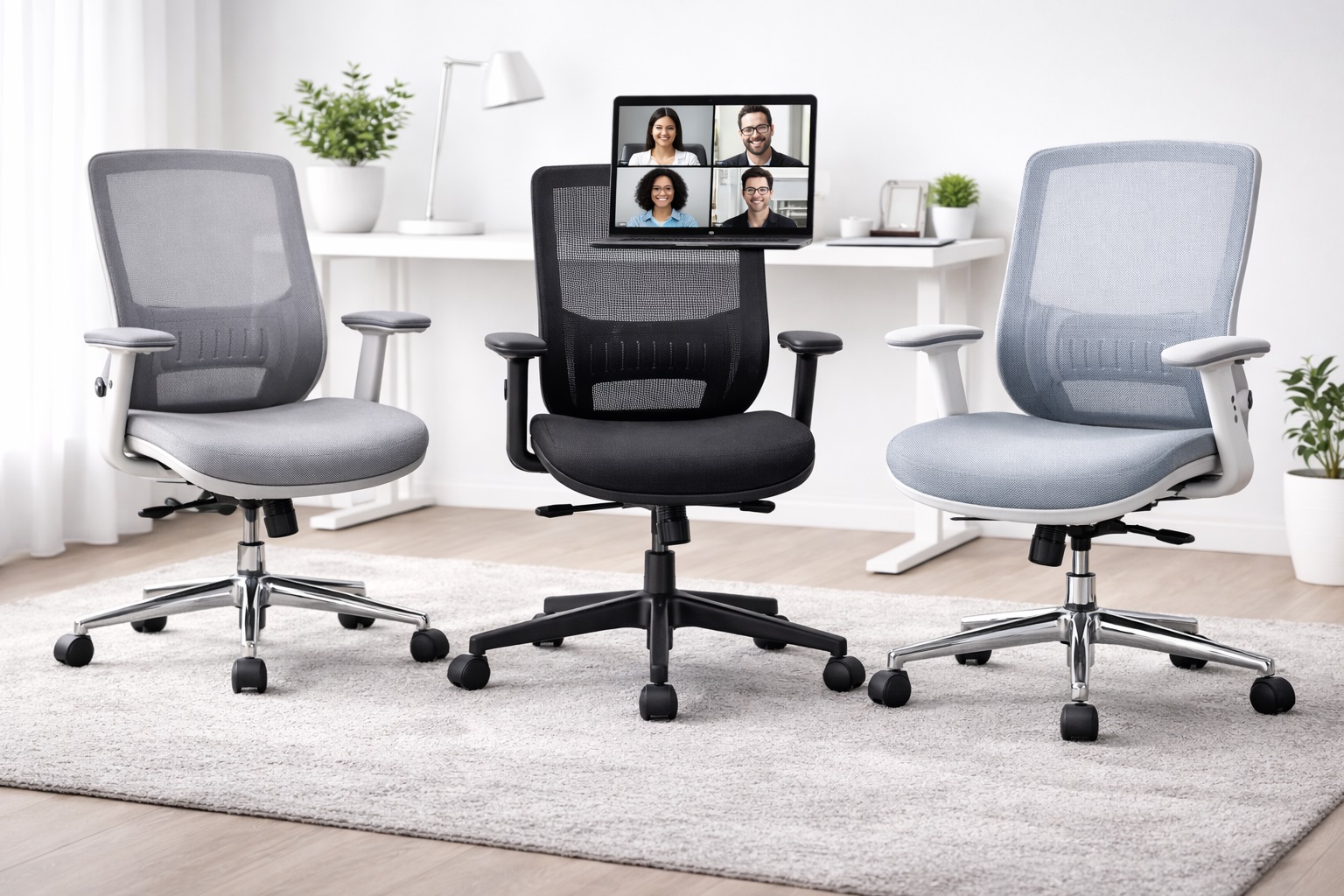
Best Office Chairs for Video Calls: Comfortable and Camera-Ready
Video calls changed a quiet requirement of office furniture that most people never had to think about before: how the chair looks and behaves on camera. A chair that's perfectly comfortable for solo desk work can look slouchy on screen, creak audibly during a shift in position, or force you to lean in a way that reads as disengaged to everyone on the call. None of that is really about the chair being bad — it's about a mismatch between what the chair was designed for and what a camera-facing workday actually demands.
The upright posture that keeps you looking alert and present on a call is also, conveniently, close to what ergonomic guidance already recommends for spinal health. So the goal here isn't a chair that performs for the camera at the expense of comfort — it's one that supports both at once, since good posture and a professional appearance on screen are largely the same problem solved from two directions.
This comparison looks at three chair styles through that lens, weighing how each behaves during a typical day of back-to-back calls rather than just how comfortable it feels in isolation. Quiet mechanisms, a supportive but not slouch-inducing recline, and a look that reads professionally in a small video frame all factor in alongside the usual ergonomic considerations.
It's worth separating two things that often get conflated when shopping for this specific use case: how a chair performs and how it appears. A chair can be excellent ergonomically while looking unremarkable on camera, or vice versa. The best pick for your situation depends on how much of the chair typically shows in your camera frame, how many hours a day you spend in video meetings, and whether your calls tend to be internal and casual or client-facing and more formal. It also helps to think about how these two dimensions — function and appearance — tend to trade off against each other across the three categories below, since none of them maximizes both at once. Understanding that trade-off up front makes the comparison below easier to weigh against your own weekly meeting load rather than treating the three options as simple better-or-worse alternatives.
Top 3 Office Chairs for Video Calls (Detailed Reviews)
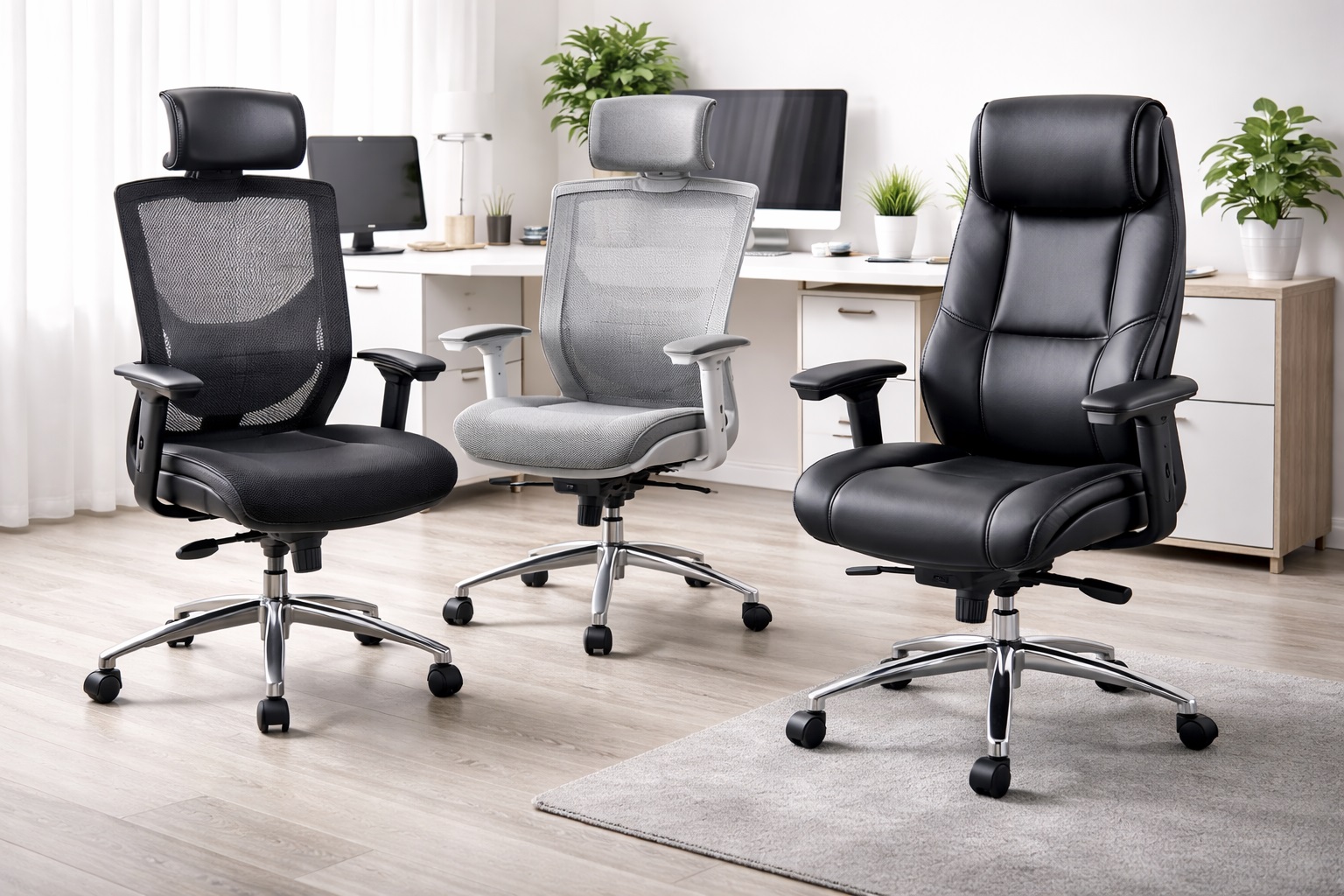
Mesh Back Ergonomic Chair – Best For Long Days of Back-to-Back Calls
A mesh back chair earns its place here for the same reason it works well for any long sitting session: it manages heat and supports posture without requiring constant readjustment. For someone moving from one video call to the next with little break in between, that consistency matters. The breathable back keeps you from getting visibly flushed or restless by the fourth or fifth meeting of the day, and the flexible mesh naturally encourages an upright seated position rather than a slumped one.
Where mesh chairs sometimes fall short on camera is visual presence — the open weave can look plain in a video frame compared to a more substantial upholstered backrest, especially in a wide shot. For calls where the chair itself is barely visible behind you, this is a non-issue. For situations where more of the chair shows in frame, it's worth weighing against the more traditional look of a padded executive design.
The lack of bulk also has a practical upside beyond appearance. A mesh chair is generally easier to reposition quietly between calls, without the scraping or shifting sound a heavier padded chair can make against flooring. For a day packed with back-to-back meetings and little transition time between them, that small detail adds up. It also tends to run lighter overall, which matters if the chair needs to be pulled closer to a desk quickly between one meeting ending and the next starting, rather than requiring a slower, more deliberate adjustment each time.
- Pros:
- Stays cool and comfortable through a full day of consecutive calls
- Mesh naturally encourages upright posture that reads well on camera
- Includes the core ergonomic adjustments most people need
- Available across a wide range of price points
- Cons:
- Less visually substantial in frame than a padded executive design
- Mesh quality varies noticeably between brands and price points
Best For: Remote workers with several hours of back-to-back video calls who need sustained comfort more than a particular on-camera look.
Why We Recommend It: Comfort and posture directly affect how present and alert you appear on a call, and mesh chairs support both without demanding attention during the meeting itself. It's the most functionally reliable option of the three for a heavy call schedule.
Executive Padded Chair – Best For a Polished, Professional Look on Camera
An executive-style padded chair has a visual presence that mesh designs generally don't — a taller, upholstered backrest that reads as traditionally professional even in a wide or medium camera shot. For roles where client-facing calls or leadership meetings are common, that appearance carries some real value alongside the comfort it provides. The high back also supports more of the upper spine, which helps maintain a straighter on-camera posture during longer meetings.
The trade-off is heat retention during longer sessions, since the thicker padding doesn't breathe the way mesh does. For a schedule with frequent but shorter calls interspersed with other work, this is rarely noticeable. For a day filled almost entirely with back-to-back video meetings, it's worth checking whether your workspace has enough air circulation to offset it.
The upholstery also tends to photograph more consistently under typical home lighting than an open mesh weave, which can sometimes create a distracting moiré pattern on camera depending on the weave density and the camera's resolution. A solid upholstered surface avoids that specific visual quirk entirely, which is a small but occasionally relevant consideration for anyone whose calls are recorded or streamed.
- Pros:
- Polished, traditional appearance that reads well on camera
- Tall backrest supports upright posture through longer calls
- Comfortable cushioned seating for extended sitting
- Usually includes a recline function for breaks between calls
- Cons:
- Retains more heat than a mesh design over a full day
- Bulkier profile may not suit a tight home office frame
Best For: Remote workers whose calls are client-facing or involve leadership visibility, where a more traditional office appearance carries some professional value.
Why We Recommend It: When how the chair looks in frame genuinely matters — not just comfort — the taller, upholstered profile of an executive chair does more visual work than a mesh design, without sacrificing the posture support that keeps you looking engaged.
Task Chair with Lumbar Support – Best For a Simple, Distraction-Free Setup
A task chair keeps things minimal, both in features and in how much of it typically appears on camera. Its smaller, low-profile design means it rarely draws attention in a video frame, which suits anyone who would rather the focus stay entirely on them rather than their furniture. Functionally, it still covers the essentials — adjustable lumbar support and seat height — that keep posture upright through a long call schedule.
Because it skips the reclining headrest and thicker padding of an executive design, a task chair also tends to keep you sitting more consistently upright by default, which can be an advantage for calls, since there's less temptation to lean back out of frame or slouch during a long stretch of listening rather than speaking.
This style also suits anyone working from a multi-purpose room, such as a bedroom or living space repurposed for calls during the day, since its smaller size and neutral look tend to blend into a variety of backgrounds more easily than a bulkier executive chair that visually competes with the room around it. Its smaller footprint also makes it easier to push fully under the desk at the end of the day, which matters more in a shared or multi-purpose room than it would in a dedicated home office that stays set up permanently.
- Pros:
- Low-profile design that stays out of the way visually on camera
- Encourages consistently upright posture by default
- Compact footprint suits smaller home office setups
- Generally the most affordable of the three options
- Cons:
- Less cushioned than an executive design for longer sitting
- Typically lacks a headrest or advanced recline for breaks
Best For: Anyone who wants a functional, unobtrusive chair for calls without the bulk or visual presence of an executive design.
Why We Recommend It: For remote workers who'd rather their setup stay simple and out of frame, a task chair delivers the posture support that matters for calls without adding visual bulk or cost.
Buying Guide: How to Choose the Best Office Chair for Video Calls
These factors focus specifically on what matters for a schedule built around video meetings, alongside the general ergonomic basics.
1. Prioritize a Quiet Mechanism
A squeaky tilt mechanism or creaky base is a minor annoyance during solo work but becomes a genuine distraction on a live call, especially with a sensitive microphone nearby. Reviews that specifically mention noise, or the lack of it, are worth checking before buying if your day involves frequent calls. This matters even more if your microphone is built into your laptop or webcam rather than a dedicated headset, since those tend to pick up ambient creaking and shifting sounds far more readily.
2. Choose a Backrest Height That Suits Your Camera Framing
If your camera is positioned to show much of the chair behind you, a taller backrest fills the frame more deliberately and can look more composed than a low mid-back design that leaves visible empty space above your shoulders. Consider your typical camera angle before assuming any chair height will look the same on screen.
3. Get the Lumbar Support Right for Sustained Sitting
Video calls often involve sitting more still than regular desk work, since you can't get up and move around mid-meeting the way you might during other tasks. Solid, adjustable lumbar support matters more here than in a job with more natural movement built in throughout the day. Without the small, natural movement breaks that come from getting up to grab a document or refill a coffee, static lumbar strain tends to build up faster during a morning of consecutive calls than during a similarly long stretch of varied solo work.
4. Match Seat Height to Your Camera and Desk Setup
Your seat height affects your eye level relative to the camera, which affects how you appear in frame. Adjust seat height first for ergonomic correctness — feet flat, thighs level — and then check the resulting camera angle, adjusting camera position rather than seat height if the two don't align.
5. Decide How Much the Chair's Appearance Actually Matters
Not every video call role requires the chair to look a certain way. If your calls are mostly internal team check-ins with the camera mostly on your face, chair appearance matters far less than if you regularly present to clients or leadership in a wider shot.
6. Consider Armrest Height for Typing During Calls
Many video calls involve simultaneous note-taking or typing. Armrests set at the correct height prevent shoulder strain during this dual-tasking, which becomes more noticeable over a day with several consecutive meetings than during isolated typing sessions.
7. Weigh Mesh Against Padding for a Full Day of Calls
If your schedule is unusually call-heavy, heat management becomes more relevant than it would be for a mixed workday, since you're less likely to be up and moving between meetings. Mesh tends to hold up better across many consecutive hours in a seated position, particularly in a warmer room or during summer months when a padded seat can start to feel noticeably warmer by the afternoon.
8. Check the Recline Range for Break Moments
A moderate recline is useful for the brief gaps between calls, letting you shift posture without fully leaving your desk. A tilt lock that holds you upright during the call itself, combined with the ability to recline briefly between meetings, covers both needs without requiring two different chairs.
9. Think About Headrest Value for Longer Meetings
Extended meetings, especially ones where you're mostly listening rather than speaking, benefit from an adjustable headrest that supports a brief recline without taking you out of camera frame entirely. This matters less for shorter, faster-paced calls.
10. Confirm Weight Capacity and Base Stability
A stable base matters more than usual here, since shifting or wobbling during a call is both distracting and visible on camera. Check the weight capacity and consider a sturdier aluminum or steel base if stability during natural movement is a concern.
11. Read Reviews for Assembly and Long-Term Comfort
Since a video-call-heavy schedule means many consecutive hours in the chair, long-term comfort reviews are especially relevant. Look for feedback specifically from remote workers describing a full workday of use rather than short-term impressions, since a chair that feels fine for a quick fifteen-minute test can still reveal pressure points or fatigue after a genuine multi-hour meeting block.
12. Test the Chair During an Actual Call Before Committing
If possible, use the chair during a real video call within the return window before deciding. Comfort and posture during a 30-minute solo test rarely reveal what an hour-long meeting with a fixed camera angle will feel like.
13. Consider the Chair's Color Against Your Typical Background
A very dark chair can blend into a dim background and lose definition on camera, while a very light chair can appear washed out under strong backlighting. A mid-tone color tends to hold up more consistently across different lighting setups and rooms, which matters if you work from more than one location.
14. Check How the Chair Handles Small, Frequent Position Shifts
Unlike focused solo work, calls often involve small, repeated posture shifts as you react, gesture, or glance at notes. A chair with smooth, quiet pivot and tilt movement handles this kind of frequent, minor repositioning more gracefully than one built mainly for a single fixed sitting position.
15. Account for Lighting When Judging Chair Appearance
Photos on a product listing are usually taken under ideal studio lighting, which doesn't always match your home office setup. Before assuming a chair will look a certain way on your calls, consider your typical lighting — natural window light, a ring light, or dim overhead lighting all affect how upholstery color and texture actually render on camera.
16. Think About Long-Term Durability Under Daily Call Use
A chair used for several hours of video calls daily experiences more consistent, concentrated wear than one used for varied tasks throughout the day. Checking reviews specifically for how the seat cushion and backrest hold up after months of near-continuous sitting is more relevant here than for a chair used only intermittently.
17. Weigh Portability If You Work From More Than One Room
Some remote workers take calls from different rooms depending on the day — a home office some days, a kitchen table or living room on others. A lighter chair that's easy to wheel or carry between spaces adds flexibility that a heavier, more elaborate executive chair doesn't offer as easily.
18. Confirm the Chair Doesn't Require Frequent Re-Adjustment
A chair that slowly sinks or loses tilt tension over the course of a long call is more disruptive than one that holds its setting reliably. Reviews mentioning gas cylinder drift or tension loss over time are worth checking, since re-adjusting mid-call is both distracting and visible.
19. Account for Chair Width and On-Camera Body Language
A seat and backrest that are noticeably too narrow can restrict small natural movements like turning slightly to gesture or reach for notes, which reads as stiff and uncomfortable on camera even if the person themselves feels fine off-camera. A chair sized appropriately for your build allows those small, natural movements to happen without visibly constrained shifting, which tends to make a presenter look more relaxed and engaged during a call.
20. Coordinate Chair Choice With Desk and Monitor Height
A chair rarely works in isolation — its ideal height only holds up if the desk and monitor are set at a matching level. If switching chairs changes your eye height relative to the screen, your camera angle and neck position change with it, sometimes undoing the very posture benefits the new chair was meant to provide. It's worth rechecking monitor height and camera angle any time the chair itself changes, rather than assuming the rest of the desk setup will adapt automatically.
Frequently Asked Questions
Does the chair actually matter for how I look on video calls?
Yes, more than most people expect. Posture affects how alert and engaged you appear, and a chair that supports an upright, comfortable sit for the full duration of a call helps maintain that appearance without conscious effort throughout a long meeting.
Should the chair be visible in my video call background?
That's a personal and role-dependent choice. Some people prefer a chair that's barely visible so attention stays on them; others in more client-facing roles prefer a more polished, visible setup. Either approach can work with the right chair style.
How do I stop my chair from squeaking during calls?
A small amount of silicone lubricant applied to the tilt mechanism and gas cylinder joints usually resolves minor squeaking. If the noise persists, it may indicate a mechanism issue worth addressing through the manufacturer's warranty.
What's the best seat height for video calls?
Set seat height for ergonomic correctness first — feet flat on the floor, thighs roughly parallel to the ground — then adjust your camera position to achieve good framing rather than compromising your posture to fit the camera angle.
Is mesh or padding better for a full day of video calls?
Mesh tends to hold up better across many consecutive hours of relatively still sitting, since it manages heat more effectively than padding. Padding offers a more polished on-camera look and works well for a lighter, more mixed call schedule.
Do I need a headrest for video calls?
It depends on call length and how often you're mostly listening rather than actively speaking. Longer meetings benefit from the option to recline briefly with head support; shorter, faster-paced calls make a headrest less essential.
How long should a chair used mainly for video calls last?
A well-built chair typically lasts several years of daily use, with the gas cylinder, armrests, and casters being the most common components needing eventual attention. Chairs with replaceable parts hold up better long-term than ones requiring full replacement.
Can I return the chair if it doesn't look right on camera?
Most retailers offer a 15 to 30 day return window, which is enough time to test the chair during several real video calls and confirm it looks and performs the way you expected before the window closes.
Does armrest height matter for typing during calls?
Yes. Armrests set too high or too low during simultaneous typing and video calls can cause shoulder strain over a full day of meetings. Adjustable armrests let you set the correct height once and rely on it consistently.
Is a more expensive chair always better for video calls?
Not necessarily. A higher price often buys extra styling or features rather than meaningfully better posture support. Focus on lumbar adjustability, a quiet mechanism, and a backrest height that suits your camera framing rather than price alone.
Will a chair with wheels roll noticeably during a call?
Only if you shift position significantly or the casters are poorly matched to your flooring. Casters rated for your specific floor type roll more quietly and predictably, reducing unwanted movement during a call.
Does brand matter when buying a chair for video call use?
Established brands tend to offer more consistent quality control, which reduces the odds of a squeaky mechanism or wobbly base showing up during a call. Reading recent, detailed reviews remains the most reliable way to judge a specific model regardless of brand recognition.
What color chair works best for video calls?
Mid-tone colors generally hold up better across different lighting conditions than very dark or very light chairs, which can lose detail or appear washed out depending on your camera's exposure settings and the lighting in your room.
Should I match my chair to my video call background aesthetic?
It's a nice-to-have rather than a necessity. If your setup is otherwise curated for calls, matching tones can look more intentional, but a mismatched chair rarely detracts from a call as long as posture and comfort are handled well.
Can a chair be too reclined for video calls?
Yes. Leaning too far back can push your face out of ideal camera framing and read as disengaged. A tilt lock that holds a slight, controlled recline rather than a full lean-back position tends to work best during active meetings.
How do I keep the same chair comfortable across a multi-room work routine?
Choose a lighter chair with smooth-rolling casters if you regularly move between rooms during the week. Re-adjusting the seat height and lumbar support briefly in each location is worth the minor effort compared to sitting in a poorly fitted chair for an entire call.
Is it better to buy a chair specifically marketed for streaming or video work?
Not necessarily. Chairs marketed this way sometimes just carry a higher price for similar underlying construction. Focus on the actual specifications — lumbar adjustability, backrest height, and base stability — rather than marketing language aimed specifically at remote or streaming workers.
Does the chair's fabric affect audio quality on calls?
Indirectly, yes. A softly upholstered chair absorbs a little more ambient sound than a hard plastic or leather seat, which can very slightly reduce echo in a small, mostly bare room. It's a minor factor next to actual room acoustics and microphone choice, but worth noting if your calls are recorded and audio clarity is a priority.
Should I ever stand instead of sitting for certain calls?
Some people prefer standing for short, high-energy calls and sitting for longer, detail-heavy ones, and alternating between the two across a busy day can reduce the fatigue of staying in one position for too long. If you do mix the two, make sure your chair height and any standing setup share a consistent camera framing so you don't have to readjust the camera every time you switch.
How often should I re-adjust the chair between different types of calls?
Most people set the chair once for their average posture and camera framing and leave it alone rather than re-adjusting for every individual call. It's worth revisiting the settings only when your desk, monitor, or camera position changes, or if you notice new discomfort creeping in after a schedule shift toward longer or more frequent meetings.
Final Verdict
- Best For Long Days of Back-to-Back Calls: Mesh Back Ergonomic Chair – sustained comfort and posture support through a full call-heavy schedule.
- Best For a Polished, Professional Look on Camera: Executive Padded Chair – a more traditional, camera-friendly appearance for client-facing roles.
- Best For a Simple, Distraction-Free Setup: Task Chair with Lumbar Support – functional posture support that stays out of the frame.
The right chair for video calls depends on how visible it is in your typical camera frame and how many consecutive hours you spend on meetings each day. A chair that supports genuinely good posture will usually look better on camera as a side effect, so prioritizing comfort and adjustability over appearance alone tends to serve both goals at once. Before deciding, think honestly about your actual weekly schedule — the number of calls, their length, and how visible your seating is in frame — rather than picking based on styling photos alone, since that specific mismatch is the most common source of buyer's remorse in this category.