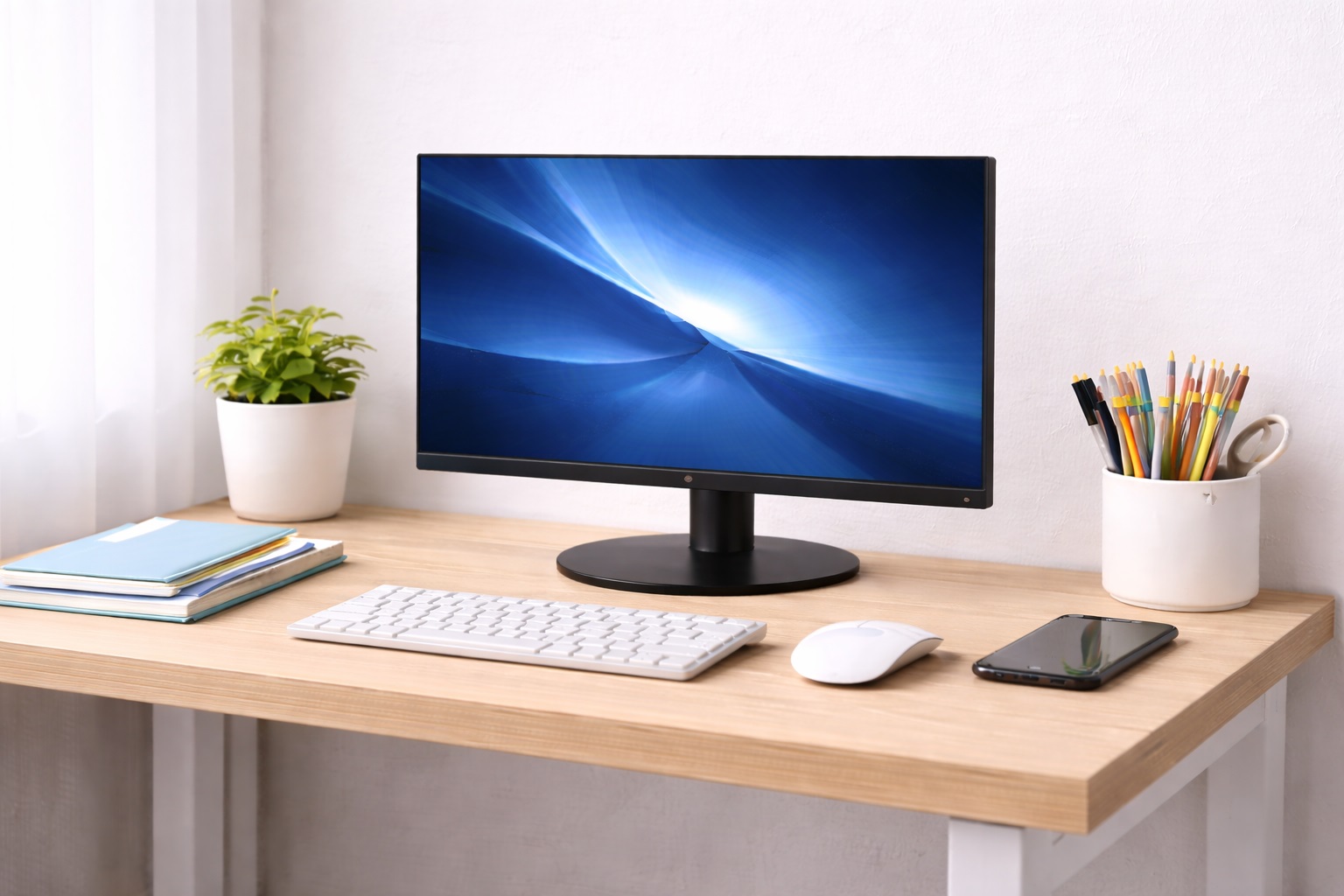
Best Monitors for Small Desks: Compact Screens That Perform
A small desk changes the math on monitor shopping. Screen size that looks reasonable in a big-box store display often turns out to be overwhelming once it's sitting eighteen inches from your face in a studio apartment or a corner workstation. Stand footprint matters as much as diagonal size, because a wide tripod base can eat the exact strip of desk you were counting on for a notebook, a coffee mug, or a second keyboard tray.
The three formats compared below cover the realistic range of what fits well on a compact desk: a standard 24-inch IPS display that leaves the most usable surface behind it, a 27-inch 1440p screen for people who need sharper detail and are willing to sit a bit closer, and an ultrawide curved panel for anyone trying to replace two monitors with one continuous piece of glass. None of them is universally correct — the right pick depends on your desk depth, your seating distance, and how much of that desk you actually need to keep clear.
This guide walks through what each option does well, where it falls short on a small footprint, and the specific measurements — stand base size, VESA compatibility, viewing distance — that matter more on a compact desk than they would in a spacious home office. Use it to match the display to the space rather than the other way around.
It also helps to think about the desk itself before you think about the monitor. A desk that's 24 inches deep behaves very differently from one that's 30 inches deep once you add a keyboard, a mouse mat, and a coffee cup in front of the screen. Small-desk shopping isn't just about picking a smaller monitor — it's about understanding which dimension of your desk is actually the constraint, since depth, width, and stand clearance each rule out different products for different reasons.
Top 3 Monitors for Small Desks (Detailed Reviews)
1. IPS 1080p Monitor 24-inch – Best Overall for Small Desks
A 24-inch IPS panel at 1080p is the size that consistently causes the fewest space complaints on compact desks. Its stand base is smaller than what 27-inch and ultrawide models typically ship with, and the screen itself doesn't demand the extra six to ten inches of desk depth that larger panels need to stay within a comfortable viewing distance. IPS technology gives it accurate, consistent color and wide viewing angles, which matters when the monitor sits at an angle in a corner setup rather than dead-center in front of you. It's also the size and resolution combination most manufacturers optimize first, so the selection at this size tends to be the widest and the most competitively priced of the three formats compared here.
- Pros:
- Compact stand footprint that leaves more usable desk surface
- Comfortable pixel density at 1080p resolution for a 24-inch panel
- IPS color accuracy and wide viewing angles suit angled desk placement
- Widely available at accessible prices in this size class
- Cons:
- Text and images look noticeably softer if you upgrade past 24 inches later at the same 1080p resolution
- Some base stands still sit wider than expected — check footprint dimensions, not just screen size
Best For: Desks under 30 inches deep, corner setups, and anyone prioritizing usable desk surface over maximum screen size.
Why We Recommend It: On a small desk, the stand footprint often matters more than the screen itself, and 24-inch IPS panels are consistently built with the smallest bases in the monitor market. It's the size that lets you keep a notebook or a second device within reach without the monitor stand getting in the way. If you're replacing an older monitor on the same small desk, this is also the size least likely to require rearranging anything else you already have positioned around it.
2. 27-inch 1440p Monitor – Best for Detail Work in a Tight Footprint
A 27-inch 1440p panel pushes more pixels into a slightly larger frame, which sharpens text and images noticeably compared to a 1080p screen of the same size. On a small desk, this matters because it lets you sit closer without the display feeling blurry or under-resolved — useful when desk depth limits how far back you can position the screen in the first place. The tradeoff is a larger physical footprint than the 24-inch option, so measuring your available depth before buying is worth the extra minute. Many models in this category still keep a reasonably compact stand base despite the larger screen, so it's worth comparing footprints across a few specific models rather than assuming size scales with base width automatically.
- Pros:
- Sharper 1440p resolution compensates for closer seating distance
- More usable screen area for split-window work without needing a second monitor
- IPS variants keep the same color accuracy benefits as the 24-inch option
- Good middle ground between compact size and working resolution
- Cons:
- Larger panel and stand base than a 24-inch monitor, so desk depth needs checking first
- Needs a somewhat more capable GPU to render comfortably at 1440p
Best For: Users on a small desk who still need multi-window workflows, coding, or detailed image work and are willing to sit slightly closer to the screen.
Why We Recommend It: It's the option that stretches a compact desk's usable screen real estate the furthest without crossing into ultrawide territory, which most small desks can't accommodate depth-wise anyway. If your current setup already sits at a comfortable arm's length, moving from 24 to 27 inches at 1440p is usually the single upgrade with the most noticeable everyday payoff.
3. Ultrawide Curved Monitor – Best for Replacing Two Monitors With One
An ultrawide curved display uses a 21:9 aspect ratio, giving roughly a third more horizontal space than a standard widescreen monitor of similar height. On a small desk where there isn't room for a second monitor stand, this format lets you get dual-monitor-style screen space from a single base and a single footprint. The curve slightly reduces head movement across the width of the screen, which helps on a desk where you're already sitting closer than ideal. Because it replaces two separate displays with one continuous surface, it also removes the center bezel gap that otherwise interrupts a wide field of view.
- Pros:
- Replaces a two-monitor setup with a single stand and a single footprint
- More horizontal workspace than a standard 16:9 screen of the same height
- Curved design reduces head movement when seated close to the screen
- Removes the center bezel that splits attention on dual-monitor setups
- Cons:
- Physically wider than a standard monitor, which can crowd a narrow desk even with one base
- Requires a more capable GPU to run comfortably at native resolution
Best For: Small desks where width, rather than depth, is the more flexible dimension, and where a second monitor stand simply isn't an option.
Why We Recommend It: For desks that can't fit two separate monitor stands but still need multi-window space, an ultrawide condenses that need into one footprint — trading desk width for the depth and clutter a second monitor would otherwise require. It's worth walking the space out with tape or a cardboard cutout before ordering, since ultrawide dimensions vary more between models than standard monitor sizes do.
Buying Guide: How to Choose the Best Monitor for a Small Desk
Small-desk monitor shopping comes down to matching physical dimensions to your available space before you even get to image quality. Use the factors below in roughly this order.
1. Measure Your Desk Depth Before Anything Else
Desk depth determines your realistic viewing distance, which in turn determines what screen size actually works. A 27-inch monitor on a 24-inch-deep desk forces you to sit closer than the panel is designed for, which can make even a sharp screen feel cramped and cause you to hunch forward. Measure from the wall or back edge to where you sit, subtract a few inches for the monitor's own depth, and use that number — not the screen's diagonal size — as your starting point. It only takes a tape measure and a couple of minutes, but it's the single step that prevents the most common small-desk monitor regret: buying a screen that photographs well online but feels oversized the moment it's unboxed.
2. Check the Stand's Footprint, Not Just the Screen Size
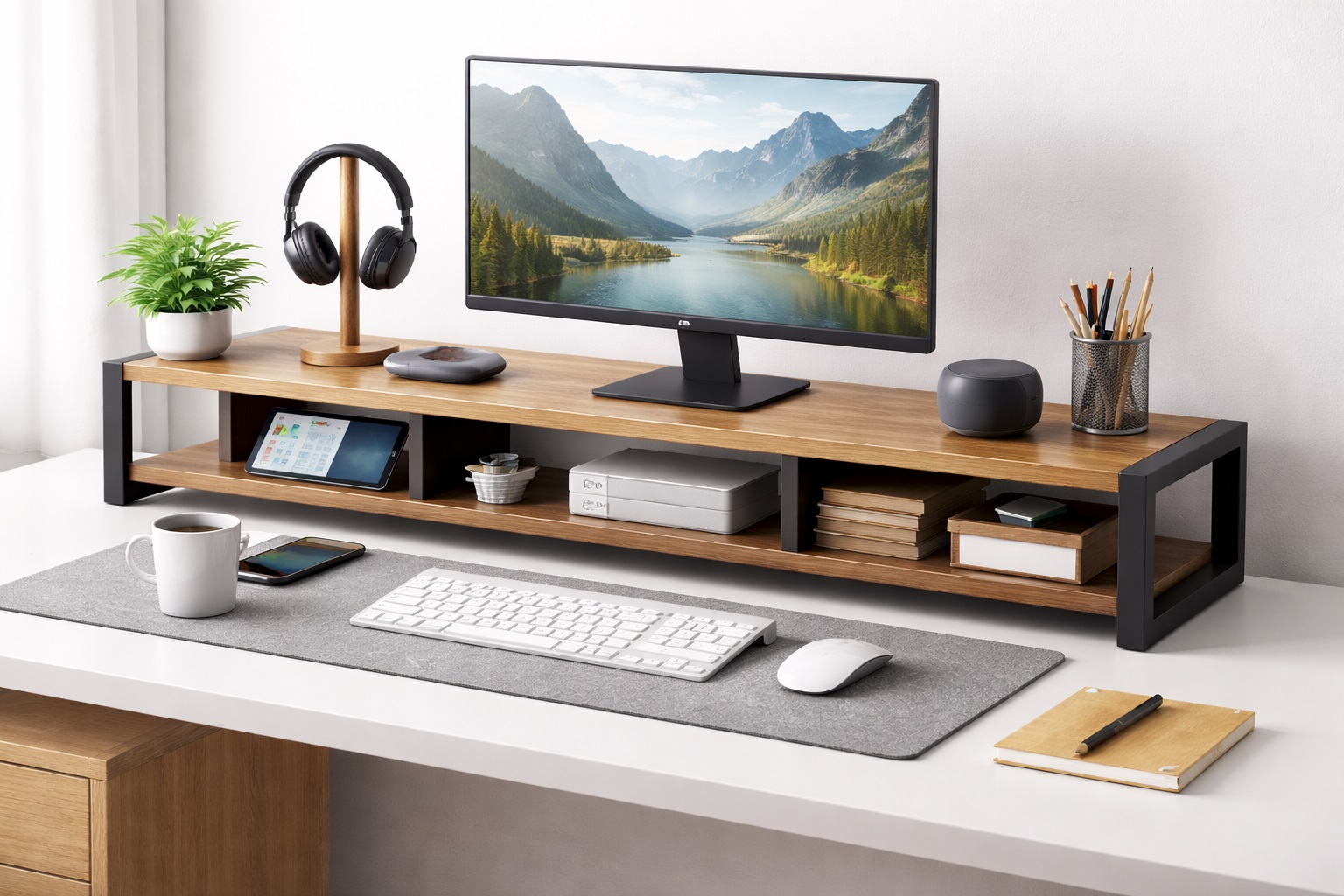
Two monitors with the same screen size can have very different base footprints. Tripod-style stands with wide feet can claim more desk space than the screen above them suggests, while compact C-clamp or slim rectangular bases reclaim that space for other use. If the product listing doesn't state base dimensions, look for it in the manual or user photos before assuming it will fit. A quick search for the exact model plus "base width" or "footprint" often turns up a spec sheet or a forum thread with the numbers a general product page leaves out.
3. Consider VESA Mounting to Skip the Stand Entirely
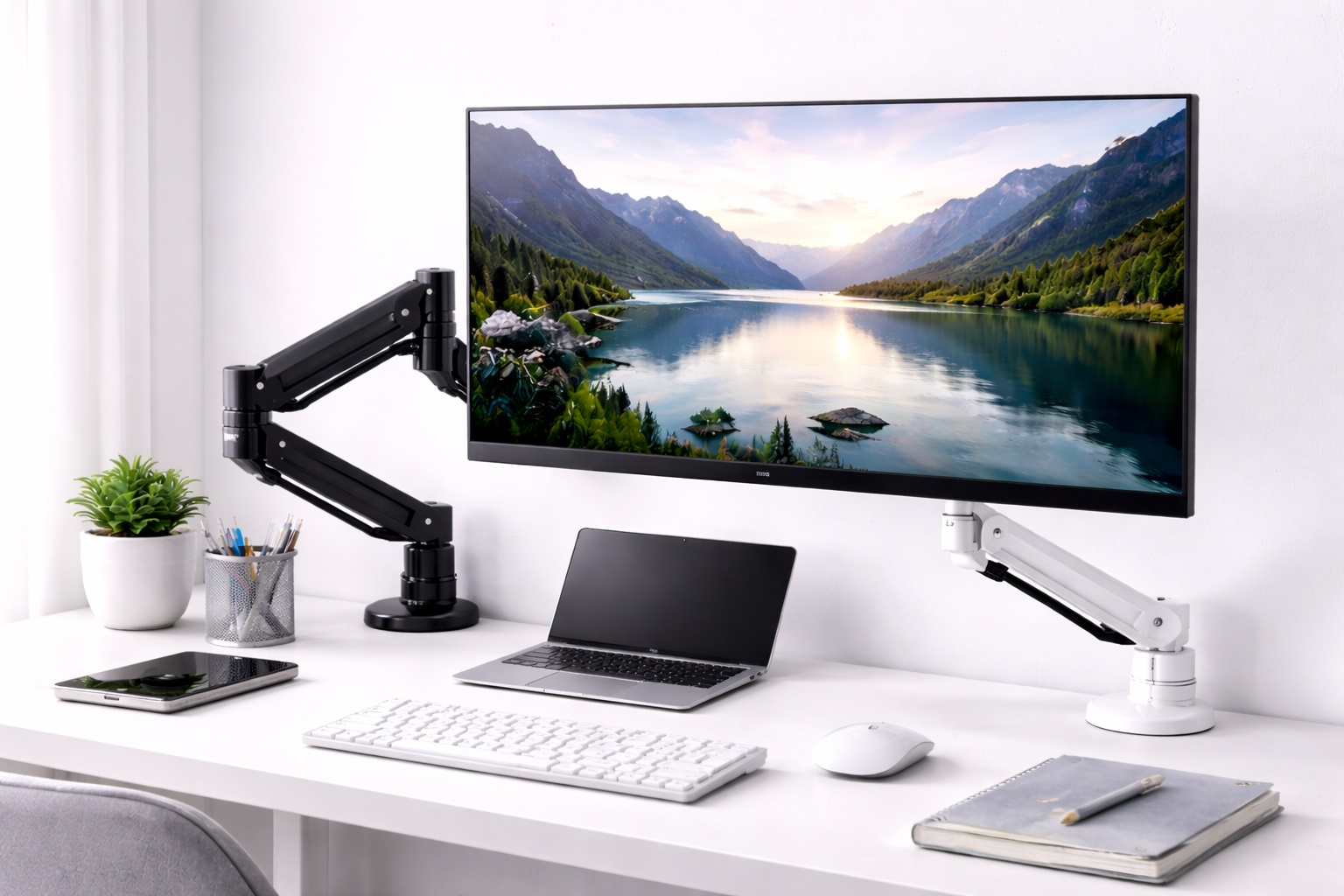
A monitor with VESA mounting holes (75x75mm or 100x100mm are the common patterns) can be moved onto a clamp-style monitor arm, which removes the stand's footprint from your desk entirely. On a genuinely tight desk, this is often a bigger space win than choosing a smaller screen. Confirm VESA compatibility on the spec sheet before buying if you plan to add an arm later. Clamp-style arms also attach directly to the desk edge without drilling, which matters if you're renting or don't want to modify the furniture just to gain a few inches of surface.
4. Panel Technology (IPS vs. VA vs. TN)
IPS panels offer the best color accuracy and the widest viewing angles, which is especially useful on a small desk where the monitor often sits at a slight angle rather than dead center. VA panels provide strong contrast for media viewing. TN panels have the fastest response times but the narrowest viewing angles, which becomes more noticeable at close range. For general desk use, IPS remains the safest default. If your small desk sits in a shared room where someone else occasionally glances at the screen from an angle, that wide-viewing-angle advantage becomes more than a spec-sheet number.
5. Resolution and Pixel Density at Close Range
Sitting closer to your screen — which is common on a small desk — makes pixel density more noticeable than it would be at a standard viewing distance. A 1080p panel at 24 inches still looks sharp up close, but a 1080p panel stretched to 27 inches or larger starts to show individual pixels when you're sitting nearer than average. If your desk forces closer seating, matching a higher resolution to your screen size becomes more important, not less. This is one of the few areas where a small desk actually raises the bar rather than lowering it, since the eye simply has less distance to smooth over any softness in the image.
6. Height and Tilt Adjustability
A monitor positioned too low forces your neck downward for hours at a time, which is a common problem on small desks where the stand sits directly on the surface with no separate riser. Look for stands with at least basic height adjustment, and tilt adjustment to correct the viewing angle if the screen ends up closer to eye level than intended once it's in place. A stack of books or a low riser can substitute in a pinch, but a stand with built-in adjustment saves you from permanently dedicating desk depth to a workaround.
7. Refresh Rate for Your Actual Use Case
A 60Hz panel is entirely sufficient for office work, browsing, and video calls. Higher refresh rates of 75Hz or above make a noticeable difference for gaming and fast-motion video, but they add cost that doesn't return value if your desk is used mainly for documents and spreadsheets. Match refresh rate to what you'll actually do at that desk, not to the highest number available. Paying extra for a spec you won't use is money that could otherwise go toward a smaller footprint stand or a VESA arm that solves an actual space problem.
8. Response Time and Everyday Use
Response time, typically listed between 1ms and 8ms, describes how quickly pixels change color. For office and productivity work, anything in the 5ms range or below prevents noticeable blur when scrolling through documents. It becomes far more relevant for gaming, where faster response times reduce ghosting during quick motion. For a desk used mainly for typing and reading, this spec should sit fairly low on your priority list compared to panel type and screen size.
9. Connectivity for a Simplified Small-Desk Setup
Fewer cables matter more on a small desk, where cable clutter is harder to hide. USB-C with power delivery lets a laptop connect and charge through a single cable, removing one cord from the desk entirely. HDMI 2.0 supports 4K at 60Hz, while DisplayPort 1.2 and 1.4 handle higher resolutions and refresh rates. Check that the ports on the monitor match what your laptop or desktop actually offers before assuming compatibility. A single USB-C cable replacing a video cable, a power brick, and a separate data cable is a meaningfully cleaner setup on a desk with no room to spare.
10. Eye Care Features for Extended Close-Range Sessions
Sitting closer to a screen for long stretches, which is common on compact desks, makes flicker-free backlighting and adjustable blue light filtering more valuable rather than less. These features reduce eye strain during multi-hour sessions. Look for a blue light mode that can be toggled or adjusted rather than one that permanently shifts the color temperature, especially if you also do any color-sensitive work at that desk. Since a small desk often doubles as an eating, studying, or crafting surface, an adjustable eye-comfort setting is more practical than one locked to a single mode.
11. Screen Coating and Glare in Small Rooms
Small desks are often positioned against a wall or window in a room with limited layout flexibility, which means you have less control over where light sources sit relative to the screen. Matte coatings diffuse reflections and hold up better in rooms with unavoidable glare. Glossy coatings look vibrant in ideal lighting but show every reflection when you can't reposition the desk to avoid a window or overhead light. If your small desk backs onto a window, matte is almost always the more livable choice regardless of how the glossy panel looked in a showroom.
12. Cable Management Built Into the Stand
Some monitor stands include a cable routing channel or clip built into the base, which keeps cords from spilling across the limited desk surface you're trying to protect. On a small desk this is a bigger quality-of-life factor than it sounds, since there's less room to route cables along the back or sides out of sight. It's a small detail on a spec sheet, but it's one of the first things you'll notice every single day once the monitor is in place.
Frequently Asked Questions
1. What's the best monitor size for a small desk?
For most small desks, a 24-inch monitor offers the best balance between a comfortable viewing distance and a manageable stand footprint. If your desk has more width than depth, a 27-inch model or an ultrawide can still work, but measure your actual seating distance first rather than assuming a bigger screen will fit. When in doubt, the smaller size that leaves room to spare is usually the safer purchase to make first.
2. Should I get a monitor arm instead of a stand on a small desk?
If your monitor supports VESA mounting, a clamp-style arm can free up significant desk space by removing the stand's footprint entirely and letting the screen hang above the desk surface. This is worth considering specifically because desk space is the constraint, not image quality. Most clamp-style arms attach in minutes and can be repositioned later if your desk layout changes.
3. How close is too close to sit to a monitor on a small desk?
Roughly 50 to 70 centimeters (about 20 to 28 inches) is the generally recommended range. If your desk depth forces you closer than that consistently, a smaller screen size or a higher resolution panel helps reduce the strain of viewing text and images at close range. Adjusting the operating system's text scaling can also help in the meantime if repositioning isn't possible.
4. Does an ultrawide monitor actually fit on a small desk?
It depends on which dimension is limited. Ultrawide monitors need more desk width but not necessarily more depth than a standard screen, since they use one stand and one base rather than two. If width is available but depth is tight, an ultrawide can work well; if both are limited, a smaller standard monitor is the safer choice. Checking the exact overall width listed in the product specs, rather than the diagonal screen measurement, gives the clearest answer.
5. Is a 1080p monitor good enough for a small desk, or should I get 1440p?
At 24 inches, 1080p still looks sharp for general use. If your desk forces you to sit closer than usual, or if you're considering a 27-inch panel, 1440p keeps text and images crisp at that closer distance and larger size. The difference is most obvious in small text and fine UI details rather than in video or photos.
6. Do I need a bigger desk instead of a smaller monitor?
Not necessarily. Matching monitor size, stand footprint, and VESA mounting options to your existing desk is usually more practical and less disruptive than replacing furniture, and it often solves the space problem just as effectively. Furniture changes also come with their own costs and constraints that a monitor swap or a monitor arm simply doesn't.
7. Can I use two monitors on a small desk?
It's possible with two compact-footprint stands or a dual monitor arm mounted via VESA, but many small desks simply don't have the depth or width for two separate stands. An ultrawide monitor is often a more practical way to get similar screen space from one footprint. Before committing to either approach, sketch out the desk layout on paper with actual measurements to see what genuinely fits.
8. Is the most expensive monitor for a small desk always the best choice?
Not necessarily. Higher price often adds features like faster refresh rates or HDR support that don't matter for typical desk work. Focus on stand footprint, panel type, and resolution matched to your actual viewing distance rather than price alone. The most expensive model in a given size class is often priced for gaming features that a small desk work setup will never use.
9. How long should a monitor for a small desk last?
A well-built display from a reputable manufacturer typically lasts several years of daily use with reasonable care. Check the warranty length as a general indicator of expected reliability before buying. A longer standard warranty, even without added cost, is usually a reasonable signal of how confident the manufacturer is in its own build quality.
10. Can I return a monitor if the footprint doesn't fit my desk?
Most retailers offer a return window of two to four weeks. Keep the original packaging until you've confirmed the stand footprint and viewing distance actually work in your space, since this is one of the more common reasons for returns on small desks specifically. Taking measurements the same day the monitor arrives, before it's fully unpacked and set up, makes the return process much simpler if it doesn't work out.
11. Does screen curvature help on a small, close-range desk?
Curvature has the most noticeable benefit on wider ultrawide screens, where it reduces head movement across the full width. On standard 24 to 27-inch monitors viewed up close, the effect is much smaller and shouldn't be a deciding factor on its own. Prioritize panel type and resolution first and treat curvature as a minor bonus rather than a core requirement at these sizes.
12. What connectivity should I prioritize for a small desk setup?
USB-C with power delivery is worth prioritizing if you connect a laptop, since it reduces the number of cables crossing a limited desk surface. Beyond that, match the ports to whatever device you're actually connecting rather than choosing based on the highest port count. A monitor with more ports than you'll ever plug in isn't a meaningful advantage if none of them actually simplify your specific setup.
Final Verdict
- Best Overall for Small Desks: IPS 1080p Monitor 24-inch – the smallest footprint with dependable image quality.
- Best for Detail Work in a Tight Footprint: 27-inch 1440p Monitor – sharper detail for closer seating distances.
- Best for Replacing Two Monitors: Ultrawide Curved Monitor – dual-monitor screen space from a single base.
None of these three options is wrong for a small desk — they simply solve different space constraints. If desk depth is your limiting factor, the 24-inch IPS panel keeps the most surface free. If you need sharper detail and can sit slightly closer, the 27-inch 1440p model earns its larger footprint. And if a second monitor simply won't fit but you still need the screen space, the ultrawide consolidates that need into one base. Measure your desk first, match the format to what you actually have room for, and the rest of the decision becomes much simpler.
It's also worth remembering that a monitor purchase on a small desk isn't just about the screen — it's about everything that has to coexist with it. A keyboard, a mouse, a notebook, and a drink all need a place to sit once the display arrives, and the difference between a stand that hugs a small footprint and one that sprawls across the desk shows up every single day, not just on move-in day. Treat the buying guide above as a checklist rather than a set of nice-to-haves, and revisit your own desk measurements one more time before finalizing a purchase, since a returned monitor costs more in time than the few extra minutes spent measuring would have.