Best Monitor Arms for Small Desks: Save Space & Improve Posture
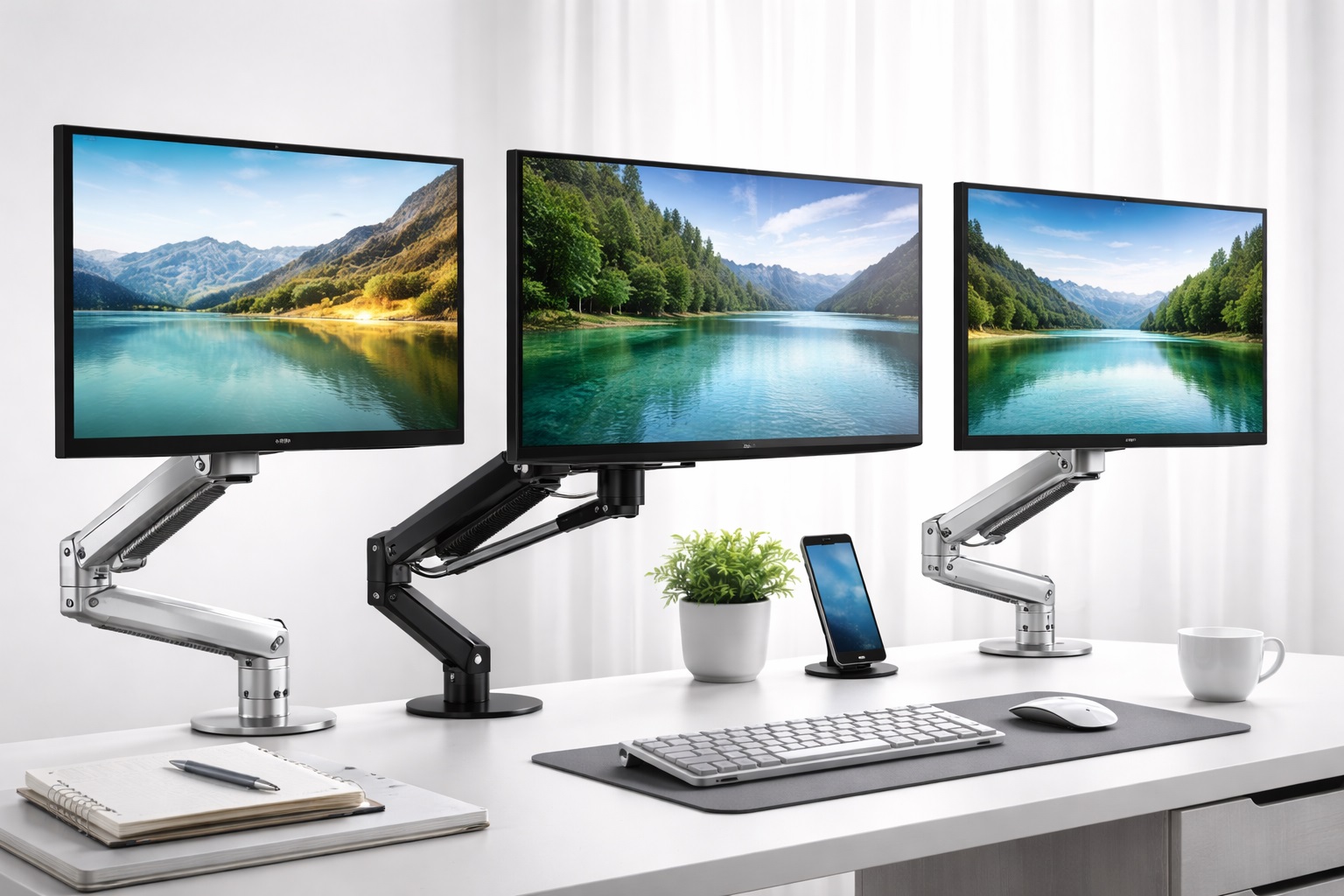
A monitor sitting on its stock stand takes up a fixed, non-negotiable amount of desk space, and on a small desk that footprint eats into the room you have for a keyboard, notebooks, or a second screen. A monitor arm solves this by lifting the display off the desk surface entirely and mounting it to a pole clamped or bolted at the back edge, freeing up the space underneath and giving you a much wider range of height, tilt, and distance adjustment than a fixed stand ever could.
Beyond the space savings, a properly positioned monitor is one of the more effective, low-cost fixes for the neck and shoulder strain that comes from looking down at a screen that's mounted too low or angled awkwardly. Getting the top of the screen roughly at eye level, and the whole display at a comfortable viewing distance, is something a monitor arm makes far easier than nudging a stock stand around on a cramped desk.
This guide walks through the main types of monitor arms suited to home office setups — single-monitor arms, dual-monitor arms, gas spring designs, budget mounts, fully articulating arms, and arms built for ultrawide displays — along with the practical factors that determine whether an arm will actually work with your desk, your monitor, and your setup.
It's worth being clear up front that not every monitor arm works with every desk or every monitor, which is different from most desk accessories that simply sit on the surface. Compatibility depends on your monitor's VESA mount pattern and weight, your desk's edge thickness and material, and how much clearance you have behind the desk for the clamp mechanism. None of these checks take long, but skipping them is the most common reason people end up with an arm that arrives and doesn't fit — so the buying guide below treats compatibility as seriously as the adjustment features themselves.
Top Monitor Arms for Small Desks (Detailed Reviews)
1. Single Monitor Arm – Best Overall for One-Screen Setups
A single monitor arm is the most straightforward option in this category: one pole, one mounting point, and a mechanism to hold a single display at an adjustable height, tilt, and distance from the desk edge. For anyone running a one-monitor setup, this is generally the simplest way to reclaim desk space and dial in ergonomic positioning without the added cost or complexity of hardware built for multiple screens.
- Pros:
- Simple setup with fewer moving parts than multi-monitor designs
- Frees up significant desk space compared to a stock monitor stand
- Generally more affordable than dual or multi-monitor arm systems
- Cons:
- Not expandable if you later add a second monitor
- Weight capacity may be limited compared to heavier-duty arms
Best For: Anyone running a single-monitor setup who wants to free up desk space and improve viewing height without paying for multi-monitor hardware.
Why We Recommend It: It delivers the core benefit of this entire category — desk space and ergonomic flexibility — in its simplest, most affordable form for the most common setup. For anyone who has never used a monitor arm before, this is also the easiest category to install and understand, since there's only one mounting point and one adjustment mechanism to learn.
2. Dual Monitor Arm – Best for Multi-Screen Productivity
A dual monitor arm mounts two displays on a single base, either on independent poles or a shared crossbar, letting both screens share one clamp point on the desk instead of two separate stands eating into your workspace. This is a particularly meaningful space saver on a small desk, where two stock stands can consume most of the usable surface area even before a keyboard and mouse are accounted for.
- Pros:
- Consolidates two monitor stands into a single desk clamp point
- Independent adjustment on most models lets each screen be positioned separately
- Significant desk space recovery compared to two stock stands
- Cons:
- Higher price point than single-monitor arms
- Heavier overall load requires a more secure clamp and sturdier desk edge
Best For: Multi-monitor users on a small or shared desk who want to reclaim the space two separate stands would otherwise occupy.
Why We Recommend It: For dual-screen setups specifically, this consolidates hardware and desk footprint in a way that buying two single arms usually can't match as cleanly. It also tends to result in more consistent screen alignment between the two displays, since both are anchored to the same base rather than positioned independently by eye.
3. Gas Spring Monitor Arm – Best for Effortless Height Adjustment
A gas spring arm uses a pressurized cylinder to counterbalance the monitor's weight, allowing height and position adjustments with a light touch rather than requiring you to loosen and retighten a mechanical joint. This makes repositioning fast and nearly effortless, which matters for anyone who shares a desk across shifts, switches between sitting and standing throughout the day, or simply likes to adjust their screen position frequently.
- Pros:
- Smooth, low-effort height adjustment compared to mechanical or friction joints
- Well suited to frequent repositioning throughout the day
- Generally holds position reliably once set at the desired height
- Cons:
- Gas spring mechanism must be rated for your specific monitor's weight range
- Tends to cost more than basic mechanical-joint arms
Best For: People who reposition their monitor frequently, including those alternating between sitting and standing desks or sharing a workstation across shifts.
Why We Recommend It: The ease of adjustment genuinely encourages more frequent repositioning, which supports better posture habits over the course of a workday than an arm that's a hassle to move. An arm that requires tools or noticeable effort to reposition tends to get left in one spot indefinitely, which defeats much of the ergonomic benefit a gas spring design is built to provide.
4. Budget Monitor Mount – Best Value Pick
A budget monitor mount trims the adjustment range and premium materials of pricier arms but still delivers the fundamental benefit of the category: lifting a monitor off the desk and clamping it to the desk edge instead. For anyone testing whether a monitor arm fits their workflow, or working with a single lighter display that doesn't need heavy-duty hardware, this tier covers the basics without a significant investment.
- Pros:
- Low price point makes it an accessible way to try a monitor arm setup
- Still frees up meaningful desk space compared to a stock stand
- Simple installation with fewer adjustment mechanisms to learn
- Cons:
- More limited adjustment range than premium gas spring or articulating arms
- Weight capacity and build materials are generally less robust
Best For: First-time monitor arm buyers and anyone with a lighter single display who wants the core space-saving benefit without paying for premium adjustment features.
Why We Recommend It: It's a low-risk way to find out whether a monitor arm genuinely improves your setup before committing to a pricier, more feature-rich model. Many people find that even a basic mount solves their space and posture concerns entirely, making the extra cost of a premium arm unnecessary for their particular setup.
5. Articulating Arm with Full Range – Best for Maximum Flexibility
A fully articulating arm uses multiple joints along its length, giving it a wider range of motion than a simple single-joint design — extending far out over the desk, pulling in close, swiveling side to side, and tilting through a broad range of angles. This flexibility particularly suits people who need to frequently share their screen with someone sitting beside them, switch between close-up and distant viewing, or position a monitor around other equipment on a crowded desk.
- Pros:
- Wide range of motion accommodates varied desk layouts and viewing needs
- Useful for sharing a screen with someone else at the desk
- Can reach around monitors, speakers, or other desk equipment
- Cons:
- More joints mean more potential points of wear over time
- Can be more complex to initially set up and adjust than simpler arms
Best For: People with complex desk layouts, those who regularly share their screen with a colleague or family member, or anyone who wants maximum positioning flexibility.
Why We Recommend It: The extended range of motion solves positioning challenges that simpler single-joint arms genuinely can't address, particularly on desks with unusual layouts or multiple pieces of equipment. It's a reasonable upgrade for anyone who has found a simpler arm's adjustment range too limiting for how their desk is actually arranged.
6. Monitor Arm for Ultrawide Display – Best for Large or Curved Screens
Ultrawide and larger curved monitors are heavier and have a different center of gravity than standard displays, which means they need an arm specifically rated for that weight and shape rather than a generic mount that happens to fit the VESA pattern. Arms built for this category typically feature reinforced joints and a sturdier base to handle the additional load without drooping or losing position over time.
- Pros:
- Reinforced construction rated specifically for heavier, larger displays
- Reduces the risk of drooping or sagging that an underrated arm might experience
- Frees up substantial desk space given how much room an ultrawide stand normally occupies
- Cons:
- Higher price point reflecting the reinforced hardware
- Requires careful clamp placement given the added weight and torque
Best For: Owners of ultrawide or large curved monitors who need an arm engineered for the extra weight and different balance point of these displays.
Why We Recommend It: Using an arm genuinely rated for a heavy ultrawide display avoids the sagging and stability issues that come with mismatching hardware to monitor weight. Given how much desk space a large curved monitor's stock stand typically occupies, the space recovered by mounting it on a properly rated arm is often more dramatic than with a standard-size display.
Buying Guide: How to Choose the Best Monitor Arm for a Small Desk
Choosing a monitor arm involves matching the hardware to your specific monitor, desk, and workflow rather than picking the most feature-heavy option available. A handful of practical checks up front will save you from an arm that doesn't fit your desk edge or can't support your monitor's weight.
1. VESA Compatibility
VESA is the standardized mounting pattern on the back of most monitors, and confirming your monitor's specific VESA size — commonly 75x75mm or 100x100mm for standard monitors — against what the arm supports is the first and most important compatibility check. Some monitors, particularly ultrawide and curved models, use non-standard or larger VESA patterns that require an arm rated for that specific mount. If your monitor doesn't have a VESA mount built in, a separate VESA adapter plate is sometimes available for specific models, though this adds another point of compatibility to verify before purchase.
2. Weight Capacity
Every monitor arm has a rated weight range, and choosing one that comfortably covers your monitor's actual weight — not just the minimum threshold — helps ensure smooth adjustment and stable positioning over time. An arm running near its maximum rated weight is more prone to drift or drooping than one with headroom to spare.
3. Adjustment Range: Height, Tilt, and Swivel
The practical value of a monitor arm comes from how much genuine adjustment range it offers across height, forward and backward tilt, and side-to-side swivel. Consider your desk height, chair height, and typical seated posture, since these determine how much vertical and horizontal range you'll actually use day to day. Rotation into portrait orientation is another feature worth checking if you ever work with tall documents, code, or vertically-oriented content, since not every arm supports a full 90-degree rotation of the monitor.
4. Cable Management Channels
Built-in cable channels running along the arm keep power and video cables organized and prevent them from dangling loosely or catching on other items as the monitor moves through its adjustment range. This is a small feature on paper but makes a noticeable difference in how tidy and functional the final setup looks and feels.
5. Desk Clamp vs. Grommet Mount
Most monitor arms attach either with a clamp that grips the desk edge or a grommet mount that passes through a drilled hole in the desk surface. Clamp mounts are non-permanent and easier to reposition or remove, while grommet mounts can offer a slightly more stable, flush attachment but require a hole in the desk and are less practical for rented spaces or shared furniture.
6. Price and Long-Term Value
Monitor arms range from inexpensive basic mounts to premium gas spring and fully articulating designs, and the right spend depends on how much you'll actually use the adjustment range on offer. A frequently repositioned setup justifies a pricier gas spring arm, while a mostly static single-monitor setup may not need to pay for that level of adjustability. Since a monitor arm is typically a one-time purchase that stays installed for years, it's also reasonable to weigh the long-term value of a sturdier, better-built arm against the short-term savings of the cheapest option available.
7. Desk Thickness and Edge Type
Clamp-style mounts have a maximum desk thickness they can grip securely, and desks with unusual edges — rounded, beveled, or very thick — may not accommodate a standard clamp properly. Checking your desk's edge thickness against the arm's specified clamp range before purchasing avoids a mismatch that only becomes apparent after unboxing.
8. Warranty and Support
A longer warranty on a monitor arm is a reasonable signal of confidence in the gas spring, joints, and clamp mechanism holding up under sustained daily adjustment. Since these are mechanical components subject to wear, warranty coverage matters more here than it might for a purely static product.
9. User Reviews and Real-World Feedback
Reviews that specifically mention long-term stability — whether the arm still holds position firmly after months of daily adjustment, or whether it has started to droop — are more useful than reviews focused only on initial unboxing and setup impressions. Drift over time is one of the more common complaints in this category and is best assessed through real-world, longer-term feedback.
10. Compatibility with Your Existing Desk Setup
Beyond the clamp and VESA compatibility already covered, consider how the arm interacts with your existing desk accessories — keyboard trays, desk organizers, or a standing desk's moving mechanism. An arm that works fine on a standard fixed desk can sometimes interfere with the range of motion on a sit-stand desk if not positioned carefully.
11. Clearance Behind the Desk
Clamp mounts require enough open space behind the desk for the clamp mechanism to close around the edge, which can be a problem for desks pushed flush against a wall or built into a corner. Measuring the available clearance behind your desk before ordering avoids the surprise of an arm that physically can't attach to your specific setup.
12. Base Footprint and Stability
The clamp or grommet base itself takes up a small amount of desk space, and how far it protrudes onto the work surface varies between models. A compact base footprint matters more on a genuinely small desk, where even a few extra inches of hardware at the back edge can interfere with keyboard placement or other accessories.
Frequently Asked Questions
Will a monitor arm fit any desk?
Most clamp-style arms fit a wide range of standard desks, but desk thickness, edge shape, and whether the desk has an open back edge for the clamp to grip all affect compatibility. Checking the manufacturer's specified clamp range against your desk's actual measurements before buying avoids a mismatch.
Do I need to drill holes in my desk to install a monitor arm?
Not with a clamp-mounted arm, which is the more common and non-permanent option. Grommet-mounted arms do require a drilled hole and are generally chosen when a more flush, permanent installation is preferred over the flexibility of a clamp.
Can a monitor arm hold an ultrawide or curved monitor?
Only if it's specifically rated for the weight and VESA pattern of that display. Ultrawide and curved monitors are typically heavier and have a different balance point than standard monitors, so using an arm designed for that category, rather than a generic single-monitor mount, is important for long-term stability.
How much weight can a typical monitor arm support?
This varies significantly by model and category, from lighter-duty single-monitor arms to reinforced arms built for heavier ultrawide displays. Checking your monitor's actual weight against the arm's rated capacity, with some margin rather than running at the maximum, is the safest approach.
Is a gas spring arm worth the extra cost over a mechanical joint arm?
If you reposition your monitor frequently throughout the day, the smoother, lower-effort adjustment of a gas spring arm is a genuine, noticeable benefit. For a largely static setup adjusted once and left alone, a mechanical joint arm can deliver the same end result at a lower price.
Can I mount two monitors on a single-monitor arm?
No, a single-monitor arm is built and weight-rated for one display. Running two monitors on hardware designed for one risks instability and exceeds the rated weight capacity, so a dedicated dual-monitor arm is the appropriate choice for a two-screen setup.
Will a monitor arm actually help with neck and shoulder pain?
Positioning the top of your screen near eye level and at a comfortable viewing distance is a widely recommended ergonomic practice, and a monitor arm makes achieving that positioning considerably easier than a fixed stock stand. It's a meaningful contributor to better posture, though it works best alongside a properly adjusted chair and desk height rather than as a standalone fix.
How do I know if my monitor has a VESA mount?
Nearly all modern monitors include a VESA mounting pattern on the back, though some ultra-slim or all-in-one displays may not. Checking your monitor's specifications or the back panel directly for the four-hole mounting pattern confirms compatibility before buying an arm.
Do monitor arms come with the necessary mounting screws?
Most monitor arms include a set of VESA mounting screws in a couple of common lengths to accommodate different monitor housings. It's still worth checking the included hardware list against your specific monitor if it has an unusually thick or thin rear panel.
What's the difference between a desk clamp and a grommet mount in terms of stability?
A well-installed grommet mount can offer a marginally more rigid, permanent connection since it passes through the desk surface itself, while a quality clamp mount is generally stable enough for typical use and has the advantage of being removable without modifying the desk. For most home office setups, a properly tightened clamp is sufficient.
How do I set the correct height and distance once the arm is installed?
A common starting point is positioning the top of the screen at or just below eye level, with the monitor roughly an arm's length away, then fine-tuning tilt so the center of the screen sits at a comfortable viewing angle without requiring you to crane your neck up or down. Because a monitor arm makes these adjustments easy, it's worth revisiting the position after a few days of use rather than assuming the first setting is correct.
Are monitor arms noisy or prone to wobbling during use?
A well-built arm, properly tightened and rated for the monitor's weight, should hold position firmly without noticeable wobble during normal typing or desk activity. Wobbling is more often a sign of an underrated arm, loose joints that need tightening, or a clamp that wasn't secured firmly enough during installation.
Can I use a monitor arm on a standing desk?
Yes, and many people find it particularly useful on a sit-stand desk, since the arm's height adjustment can complement the desk's own height changes to keep the monitor at eye level throughout the day. It's worth checking that the arm's clamp doesn't interfere with the desk's moving mechanism at its lowest setting.
What happens if my monitor is heavier than the arm's rated capacity?
Exceeding the rated weight capacity typically results in the arm drifting downward over time, failing to hold position at certain angles, or in more severe cases, mechanical failure of the joint or gas spring. It's not a risk worth taking to save on cost — choosing an arm rated comfortably above your monitor's actual weight is the safer approach.
Can I move a monitor arm to a different desk later?
Clamp-mounted arms are generally portable between desks as long as the new desk's edge thickness and clearance behind it meet the arm's requirements. Grommet-mounted arms are less portable since moving them means dealing with the hole left in the original desk and potentially drilling a new one.
Final Verdict
The right monitor arm for a small desk depends primarily on how many screens you're running, how often you reposition them, and how much desk space you're trying to reclaim. There's no single arm that's correct for every setup, but matching the category to your actual daily use makes the choice considerably more straightforward.
- Best Overall: The single monitor arm, for its simplicity and strong space-saving value on a one-screen setup.
- Best for Multi-Screen Setups: The dual monitor arm, for consolidating two stands into one desk clamp point.
- Best Value: The budget monitor mount, for a low-cost way to try the category before upgrading.
- Best for Large Displays: The ultrawide-rated arm, for heavier and differently balanced screens.
Whichever type fits your setup, the underlying benefit is the same: more usable desk space and a monitor positioned where your neck and shoulders actually want it, rather than wherever a fixed stand happens to place it. Take the time to confirm VESA compatibility and weight capacity before buying, and the rest of the decision comes down to how much adjustment range your daily routine genuinely calls for.