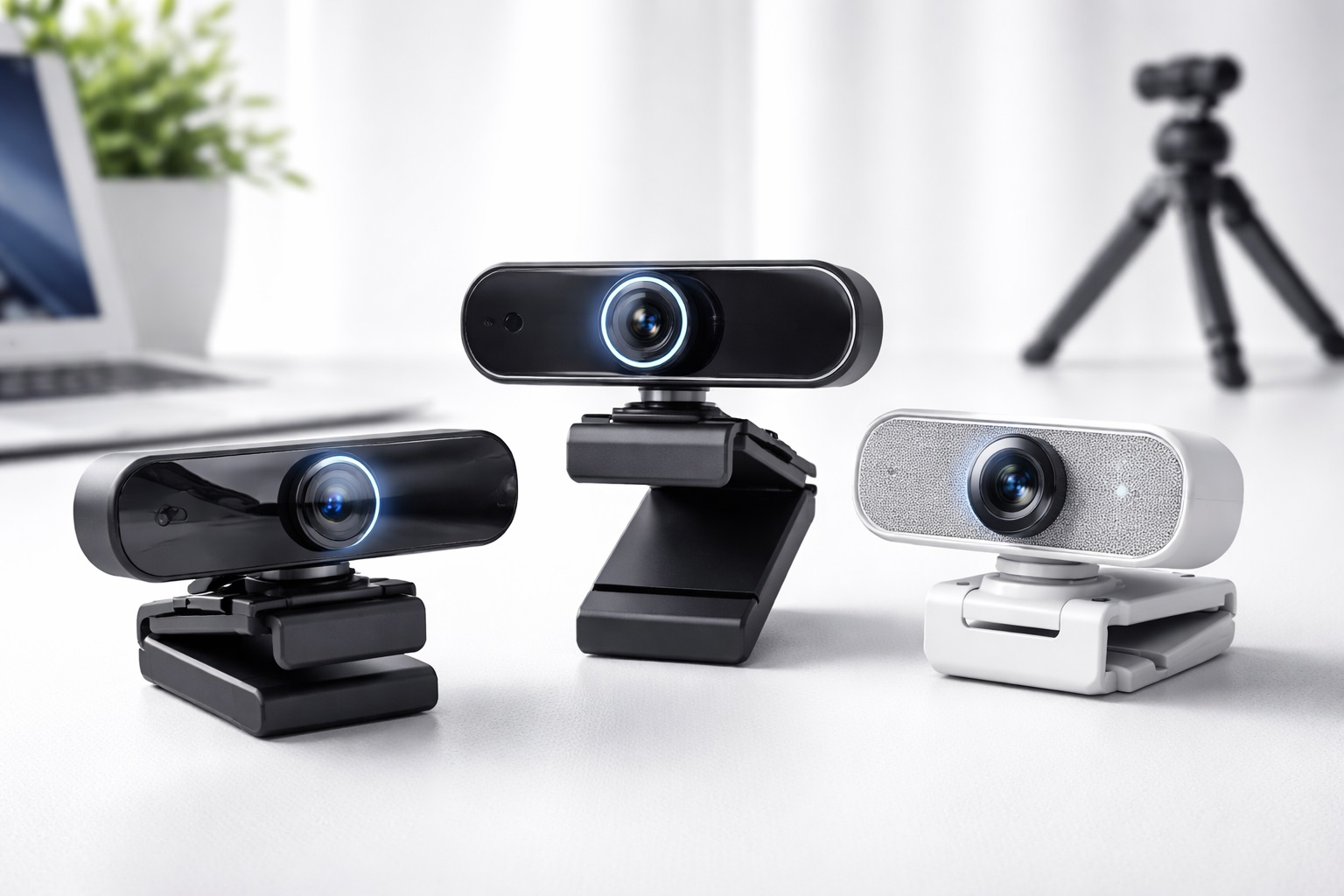
Best Webcams for Video Calls: Look Sharp in Every Meeting
Remote work turned the webcam from an occasional accessory into something closer to daily professional attire. If you're on video calls several times a day, the gap between a laptop's built-in camera and a proper standalone webcam shows up constantly — in how sharp you look during a client presentation, how well your face reads on a manager's screen during a status update, and how much effort a colleague has to put in just to see your expressions clearly during a group call.
Unlike an occasional caller who might tolerate a mediocre picture once in a while, someone taking daily meetings notices the shortcomings of a poor camera quickly and repeatedly. A soft, grainy image, a face lit unevenly by whatever window happens to be nearby, or an angle that looks down at you from a high laptop lid — these small issues compound over dozens of meetings a week into a genuinely worse professional impression than most people realize.
This guide focuses specifically on what matters for frequent, professional video calling rather than casual use. The three categories below were selected because each solves a different recurring problem for daily callers: general sharpness and reliability, inconsistent room lighting, and camera privacy between meetings. None of them is a one-size-fits-all answer, and understanding the trade-offs will help you match a webcam to your actual daily routine rather than to a generic recommendation.
It's also worth being realistic about what a webcam upgrade can and can't do for your on-camera presence. A better camera won't fix a weak internet connection that causes calls to freeze, and it won't compensate for a chaotic background if that's part of what's distracting your audience. What it will do is remove the specific weaknesses that a built-in laptop camera brings to every single call — the same weaknesses you'd otherwise be working around meeting after meeting, week after week.
There's also a cumulative cost to living with a mediocre webcam that's easy to underestimate. A single blurry or poorly lit call barely registers, but multiply that across dozens of meetings a month and it starts to shape how reliably you come across — whether a client reads your setup as considered and professional, or whether a manager notices you're consistently harder to see clearly than colleagues on the same call. None of that is really about vanity; it's about removing friction from communication that's already happening constantly.
Top 3 Webcams for Video Calls (Detailed Reviews)
1080p Webcam with Autofocus – Best Overall for Daily Meetings
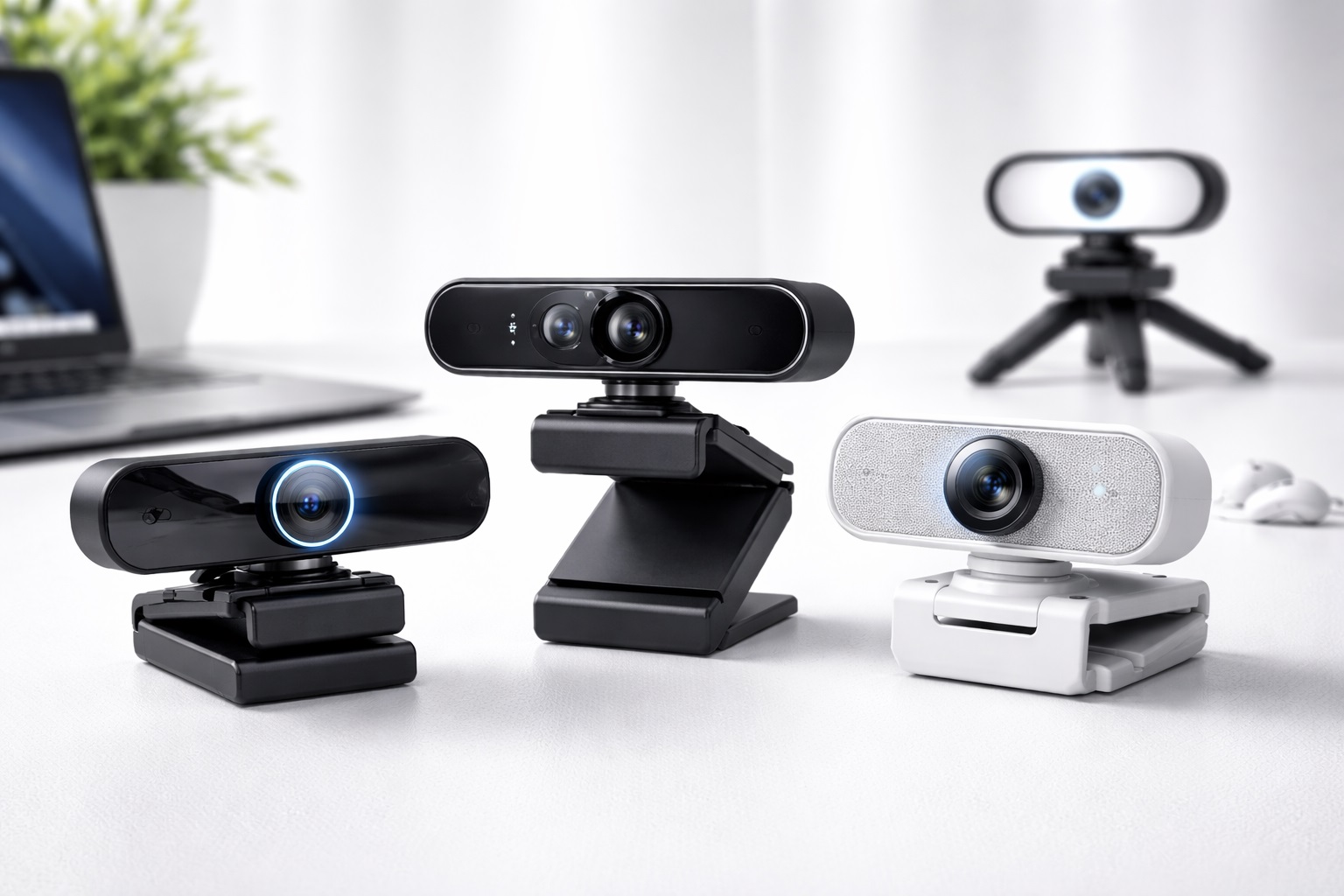
For someone taking multiple calls a day, a dependable 1080p webcam with accurate autofocus and automatic light compensation is the most broadly useful choice available. Full HD resolution is sharp enough for every mainstream calling platform, and because those platforms typically compress incoming video regardless of the camera's native resolution, a 4K sensor rarely produces a visible advantage during an actual meeting. What does show up clearly, meeting after meeting, is whether the autofocus keeps you sharp as you naturally shift position, reach for notes, or lean toward the screen mid-conversation.
Automatic light compensation earns its keep here too. Daily callers deal with a wide range of lighting throughout the day — a bright morning stand-up, a dimmer afternoon client call, an evening meeting after the sun has set — and a camera that adjusts to those shifts on its own means one less thing to think about before joining a call on time. That reliability, more than any single spec, is what makes this category the safest default for frequent professional use.
Most models in this category are plug-and-play across Windows and macOS, which matters when you're switching between a work laptop and a personal machine, or when IT policies restrict installing extra software. A simple clip mount and a direct USB connection mean you can move the camera between setups without any real friction.
- Pros:
- 1080p resolution reads clearly on every major calling platform
- Autofocus keeps you sharp through natural movement during calls
- Automatic light compensation adapts across a full day of varied lighting
- Plug-and-play setup works across different machines with no hassle
- Cons:
- Resolution tops out at 1080p, with no headroom for future 4K needs
- Some models rely on a fixed, non-removable USB cable
Best For: Remote professionals taking several video calls per day who want consistent, dependable sharpness without fussing over settings between meetings.
Why We Recommend It: This category delivers the specific combination — sharpness and light adaptability — that matters most across a genuinely busy meeting schedule, without asking the user to manage anything manually between calls.
It also tends to be the option that ages best as your role or responsibilities change. Someone who starts with a handful of internal check-ins each week often ends up with a heavier external-facing meeting load a year or two later, and a solid 1080p autofocus webcam remains genuinely adequate for that shift rather than becoming a bottleneck you need to immediately replace.
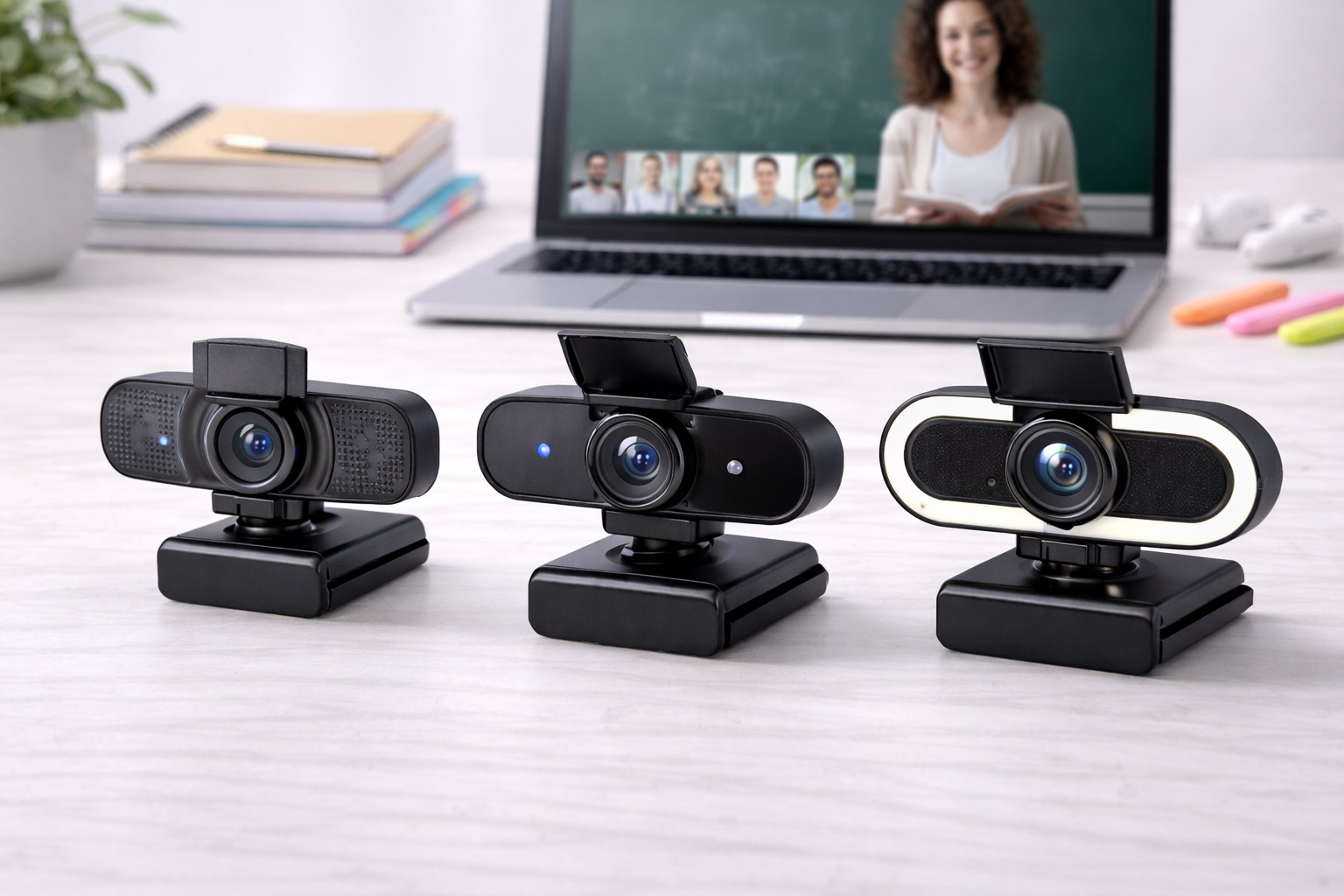
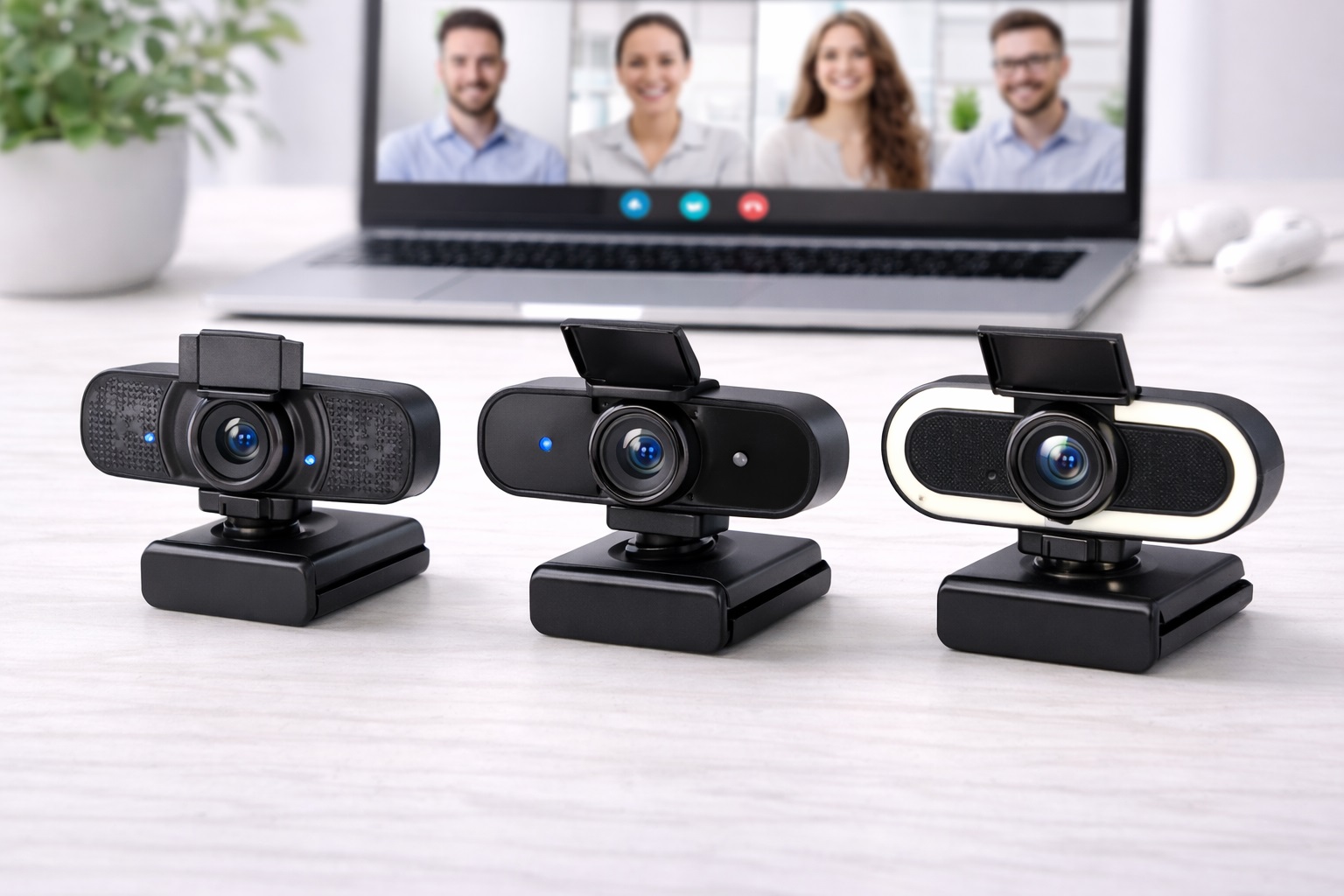
Webcam with Built-In Ring Light – Best for Inconsistent Office Lighting
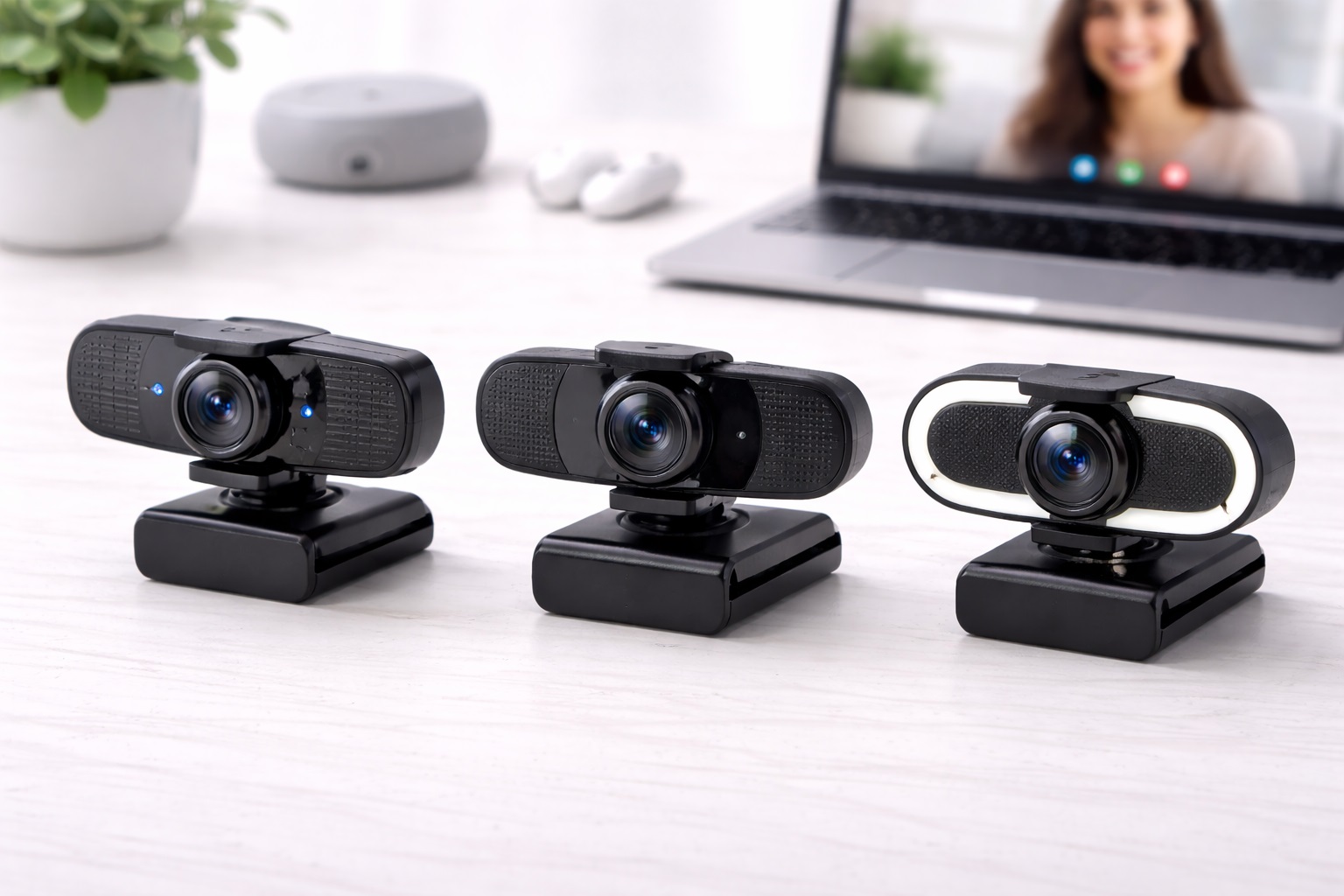
For daily callers working from a home office with unpredictable lighting, a webcam with a built-in, adjustable ring light solves a problem that resurfaces constantly: the same desk looking noticeably different depending on the time of day. A ring light mounted directly at the camera provides consistent, front-facing illumination that doesn't depend on ceiling fixtures, window direction, or the time the sun happens to set that day.
This matters more for frequent callers than for someone who takes the occasional video chat, simply because the exposure to bad lighting adds up. A single dim afternoon call is a minor inconvenience; a full week of dim afternoon calls starts to affect how colleagues and clients perceive your setup and, by extension, your professionalism. A built-in light source removes that variable entirely, call after call, regardless of the hour.
It's a particularly strong fit for anyone whose desk isn't positioned near a window, who works in a room with overhead lighting only, or who regularly takes late-afternoon or evening calls with international colleagues in different time zones. The adjustable brightness dial means you can dial the intensity up or down depending on how much ambient light is already present.
- Pros:
- Consistent front-facing light regardless of time of day
- Removes the need for a separate desk lamp setup
- Adjustable brightness suits varying ambient light levels
- Combines lighting and camera into a single accessory
- Cons:
- Adds noticeably more bulk than a standard webcam
- Can feel warm to the touch after extended use
Best For: Professionals whose desk lacks strong natural light, or anyone who regularly takes calls across different times of day and time zones.
Why We Recommend It: Lighting consistency compounds in value the more calls you take, and a built-in light source removes that variable permanently rather than requiring you to manage it separately every single day.
There's a seasonal angle worth considering too. In much of the world, daylight hours shrink considerably during the winter months, and a desk that looked perfectly bright during a summer afternoon call can turn noticeably dim by the same time a few months later. For someone whose calendar doesn't shift with the seasons, a built-in light source keeps your appearance consistent year-round instead of quietly degrading as the months change.
Webcam with Privacy Shutter – Best for Between-Meeting Privacy
Someone on video calls all day tends to leave their webcam connected and pointed at their desk for hours at a time between meetings, which makes a physical privacy shutter more relevant here than it might be for an occasional user. A mechanical slide that physically blocks the lens offers a guarantee that no software setting can fully replicate, and it takes a fraction of a second to close between calls without needing to unplug anything.
This matters in particular for anyone handling confidential client information, internal company discussions, or simply anyone who prefers not to have an active camera pointed at their desk during the long stretches of a workday spent typing, thinking, or stepping away momentarily. A shutter closed by default and opened only right before a call starts is a simple habit that removes an entire category of privacy concern.
Most webcams in this category still include solid core specifications alongside the shutter — typically 1080p resolution and a built-in microphone — so adding this feature to a daily-use setup doesn't mean compromising on image quality during the calls themselves.
- Pros:
- Physical shutter guarantees the lens is blocked between meetings
- Quick slide mechanism fits naturally into a busy daily schedule
- Paired with solid 1080p resolution and a built-in microphone
- No unplugging required to protect privacy during long desk sessions
- Cons:
- Shutter housing slightly increases the width of the camera body
- A mechanical part introduces a small additional point of wear over time
Best For: Anyone who spends long stretches of the workday with their webcam connected between meetings and wants a fast, reliable way to block the lens.
Why We Recommend It: For a daily caller, privacy isn't a one-time decision — it's something you manage dozens of times a week between meetings, and a physical shutter makes that habit effortless rather than something you have to remember to configure in software.
It's also a feature that tends to matter more, not less, as your responsibilities grow. Someone handling only routine internal updates today may end up managing confidential client accounts or sensitive HR conversations a year from now, and a webcam that already has a physical shutter built in means one less thing to reconsider when that shift happens.
Buying Guide: How to Choose the Best Webcam for Video Calls
The following factors are ranked by how much they actually affect the experience of someone taking frequent, professional video calls, rather than by how prominently a listing advertises them.
1. Resolution and Platform Compression
Most video platforms compress incoming footage to 720p or 1080p regardless of the camera's native resolution, which means a 4K webcam frequently offers no visible improvement during an actual meeting. A solid 1080p sensor is the practical target for daily calling, since it's universally supported and doesn't strain upload bandwidth during back-to-back meetings. Reserve the resolution debate for situations involving recording rather than live calls.
2. Frame Rate for Professional Calls
30 frames per second is the industry standard for video calls and is entirely sufficient for professional meetings, presentations, and client conversations. Higher frame rates mainly benefit fast-moving content, which rarely describes a seated video call. Don't let a 60fps spec push you toward a pricier option unless you have a specific streaming or recording need beyond regular meetings.
3. Autofocus Consistency Across Movement
Daily callers move more than they realize — leaning toward the screen, gesturing while explaining a point, reaching for a document. Fast, reliable autofocus keeps you sharp through all of that natural motion, while a slower or fixed-focus camera can visibly blur at exactly the wrong moment in a client conversation. Look for reviews that specifically test focus performance during movement rather than static image sharpness alone.
4. Lighting Adaptability Across the Workday
A desk that looks fine at 10am can look noticeably worse by 4pm as natural light fades, which matters enormously for someone with a packed daily meeting schedule. Automatic light compensation smooths out much of this variation, and a built-in ring light effectively eliminates it. Prioritize one of these two features over a marginal resolution upgrade if your workspace lighting is inconsistent throughout the day.
5. Field of View for Professional Framing
A 65 to 78 degree field of view keeps framing close and professional for one-on-one and small group calls, which is the framing most daily meetings actually call for. Wider angles show more background, which can look less polished in a professional context unless you specifically want to show off an office setup. Some cameras offer adjustable field of view for flexibility between individual calls and group presentations.
6. Built-In Microphone vs. a Dedicated Mic
Webcam microphones vary enormously in quality, and for someone on calls all day, audio clarity matters just as much as video sharpness. A dual-microphone design with basic noise reduction is a reasonable baseline for daily use. If colleagues or clients regularly ask you to repeat yourself, a dedicated USB microphone paired with your webcam is a more reliable fix than upgrading the camera again.
7. Mount Stability for a Permanent Desk Setup
For someone using the same desk daily, mount stability matters more than it might for occasional use. Check that the clip mount fits securely on your specific monitor, since a loose or wobbly mount can shift the framing slightly over time and require repositioning before every call. A tripod mount option adds flexibility if you ever want to reposition the camera away from the monitor.
8. Privacy Habits for Frequent Callers
A physical privacy shutter is worth prioritizing specifically because daily callers tend to leave their webcam connected for long stretches between meetings. Building the habit of closing the shutter by default and opening it only before a call starts is a simple, low-effort routine that a hardware shutter makes genuinely convenient rather than an extra step you have to remember in software.
9. Companion Software for Fine-Tuning
Some webcams include optional companion apps that let you manually adjust exposure, white balance, or framing beyond the automatic defaults. For daily professional use, these settings are worth exploring once you've identified a specific recurring issue — an unflattering skin tone in your usual lighting, for example — rather than something to configure from day one.
10. USB Connection and Port Availability
Check whether your laptop has enough USB-A ports available, particularly if you also use a docking station, external monitor, or other peripherals during calls. USB-C webcams are increasingly common and worth considering if your machine is newer and has limited USB-A connectivity. A removable cable also means a damaged cable doesn't force a full camera replacement.
11. Portability Between Home and Office Setups
If you split time between a home office and a corporate desk, a webcam that's easy to unclip and move between locations saves real hassle compared to one that requires reinstalling drivers or reconfiguring settings each time. Plug-and-play compatibility matters especially here, since you may be connecting to different machines with different IT restrictions.
12. Warranty and Return Window
Because a webcam used daily accumulates wear faster than one used occasionally, a solid warranty is worth checking before buying. A generous return window of 15 to 30 days also gives you time to test the camera through a full range of your actual meeting conditions — morning light, afternoon light, and evening calls — before committing to it long-term.
A final general note: don't assume every product within a category performs identically just because the underlying feature set is the same. Two 1080p autofocus webcams from different manufacturers can still differ meaningfully in how quickly the autofocus reacts or how naturally the automatic exposure handles a mixed-lighting room. The categories above narrow the decision considerably, but reading a handful of specific listings and recent reviews before settling on one model is still worth the extra few minutes.
Frequently Asked Questions
1. Is 1080p sharp enough for professional video calls?
Yes, for the overwhelming majority of professional calling platforms. Most services cap the transmitted video at 720p or 1080p regardless of the camera's native resolution, so a 1080p webcam already shows the maximum quality most meetings will display. A 4K sensor mainly helps with recording, not live calls.
2. Why does my webcam look sharp in some meetings and blurry in others?
The most common causes are shifting room lighting throughout the day, autofocus struggling when you lean closer to the screen, and internet bandwidth fluctuations causing compression artifacts. Improving your lighting consistency and checking your focal distance usually resolves the issue before assuming the camera itself is faulty.
3. Do I need to pair my webcam with a specific microphone brand?
No. Webcams and microphones are entirely independent devices, and any external microphone will work with any webcam. For daily professional calls, pairing a solid webcam with a dedicated USB microphone typically produces noticeably better audio than relying on the webcam's built-in mic alone.
4. What's the fastest way to improve how I look on daily video calls?
Lighting is the single biggest lever. Face a window or a desk lamp rather than sitting with a light source behind you, and raise the camera to roughly eye level to avoid an unflattering upward angle. A tidy, uncluttered background also reads as more professional across repeated meetings than a visibly messy one.
5. Can the same webcam work well for both quick check-ins and longer client presentations?
Generally yes, provided the camera has reliable autofocus and adequate low-light performance. The main difference between a quick check-in and a longer presentation is usually your framing and background choices rather than a fundamentally different camera requirement.
6. Is the most expensive webcam always the best option for daily use?
Not necessarily. Higher prices often reflect extra features like higher resolution or streaming-specific software that a daily caller may never need. Focus on autofocus reliability and lighting adaptability, which matter far more for repeated professional calls than a marginal resolution bump.
7. How long should a webcam used daily be expected to last?
A well-built webcam from a reputable brand typically lasts several years even with daily use. The USB cable and any mechanical components, such as a privacy shutter, are usually the first parts to show wear, so a model with a replaceable cable has a real practical advantage for frequent use.
8. What if the webcam doesn't perform well once I start using it daily?
Most retailers offer a return window of roughly 15 to 30 days. Use that period to actually test the camera across a normal week of meetings at different times of day, since lighting conditions that look fine in a quick test can behave differently during an actual afternoon call.
9. What's genuinely the best webcam for someone with a packed daily meeting schedule?
It depends on which recurring problem affects you most. Someone in consistently good lighting may only need the straightforward 1080p autofocus option, while someone with unpredictable lighting benefits more from the ring light, and someone handling sensitive calls may prioritize the privacy shutter above all else.
10. Does brand reputation matter more for a webcam used every day?
Somewhat, yes. A webcam used daily experiences more wear than one used occasionally, so established brands with consistent quality control and reliable customer support carry a bit more weight in this decision. That said, newer brands can still be a good fit if verified reviews specifically mention durability under frequent use.
11. Should I worry about frame rate for standard daily meetings?
Not usually. 30fps remains the standard for video calls and comfortably covers the needs of daily professional meetings, presentations, and client conversations. Higher frame rates matter more for streaming or fast-motion content than for a typical seated video call.
12. Is a privacy shutter genuinely useful for someone who only takes internal team calls?
Yes, even for purely internal use. A shutter isn't only about confidential external calls — it's also about not having an active camera pointed at your desk during the long stretches of the day spent working rather than meeting, regardless of who the calls are with.
13. Can I use companion webcam software to save different settings for different rooms?
On many models, yes — some companion apps let you save presets for exposure and framing, which is useful if you regularly move the camera between a home desk and an office setup with different lighting conditions. This isn't universal across every brand, so check the specific model's software features if this matters to you.
14. Will upgrading my webcam actually change how colleagues perceive me on calls?
Often, yes, in a subtle but real way. A sharper, better-lit, well-framed picture reads as more prepared and professional across repeated meetings, even if no one consciously comments on it. It's a small, cumulative impression rather than a single dramatic change.
Final Verdict
- Best Overall for Daily Meetings: 1080p Webcam with Autofocus – dependable sharpness across a packed calling schedule.
- Best for Inconsistent Office Lighting: Webcam with Built-In Ring Light – removes lighting as a variable, call after call.
- Best for Between-Meeting Privacy: Webcam with Privacy Shutter – a fast, reliable habit for a desk that stays connected all day.
There isn't a single best webcam for every remote professional — there's a best webcam for your specific desk, your specific lighting, and your specific meeting habits. Someone in a consistently bright room with no particular privacy concerns may do perfectly well with the straightforward autofocus option, while someone juggling international time zones or handling sensitive client work will get more real value from the ring light or the shutter respectively.
If you're still weighing the options, think about which single problem shows up most often across your actual week of meetings — not a hypothetical worst case, but the thing that genuinely happens most. Match your purchase to that recurring reality, and the upgrade from your laptop's built-in camera will feel obviously worthwhile within the first few calls rather than something you second-guess later.
It's also fine to start with the most general option and adjust later once you understand your own patterns better. A straightforward 1080p autofocus webcam is a reasonable first purchase for almost anyone in this position, and you can always add a dedicated light or a privacy-focused model down the line once you've identified which specific problem actually recurs in your day-to-day schedule. Treating this as an evolving setup rather than a single permanent decision takes the pressure off getting it perfect on the first try.