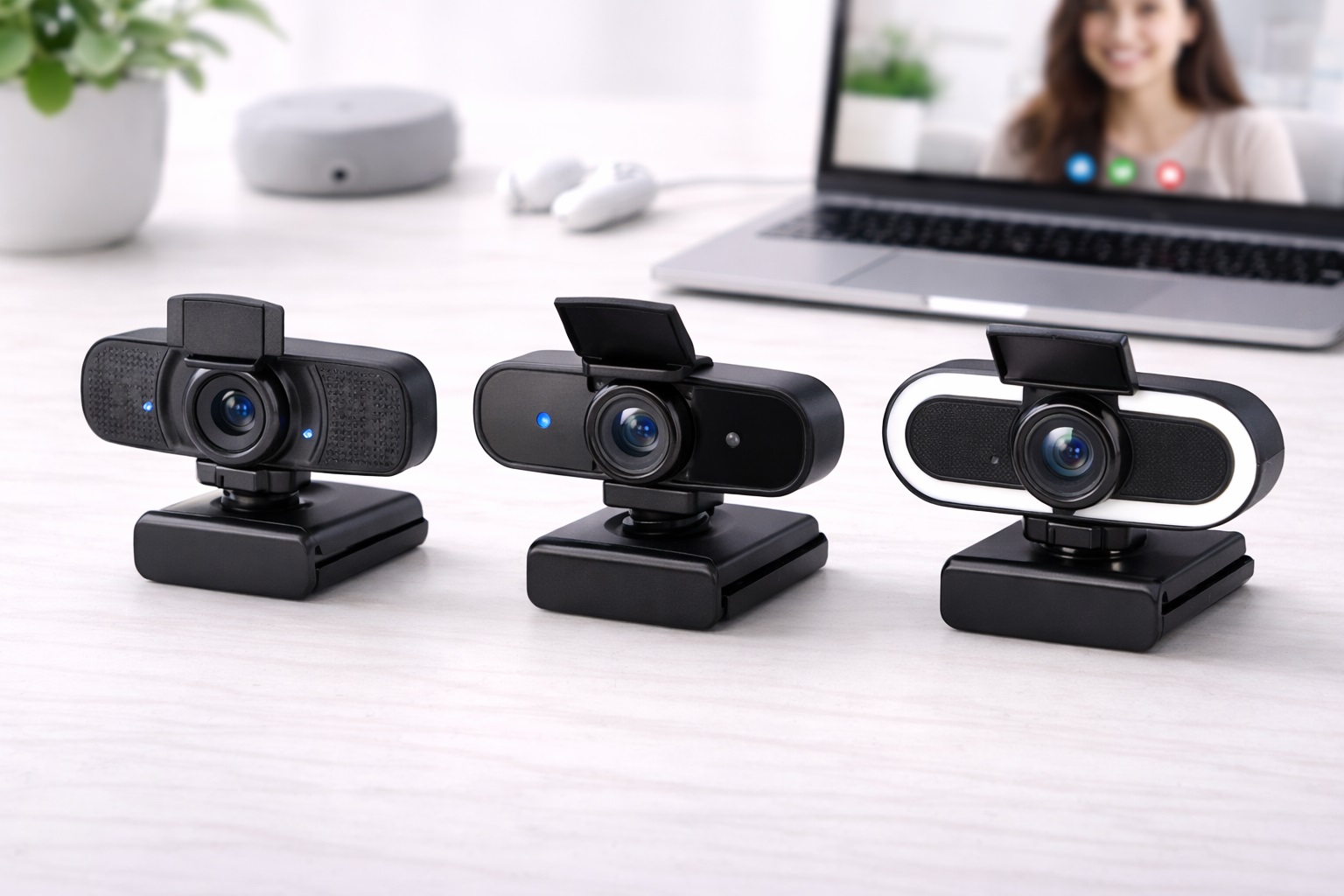
Best Webcams for Beginners: Simple Picks for a Clear First Setup
Most people don't think about their webcam until the moment it embarrasses them — a blurry frame during a job interview, a washed-out picture on a family call, or a laptop camera angle that makes every meeting feel like a hostage video. That moment is usually what sends a first-time buyer looking for a standalone webcam, and it's a reasonable instinct. Built-in laptop cameras are an afterthought in most machines, squeezed into a thin bezel with whatever sensor was cheapest to source that year. A dedicated webcam, even a modest one, is almost always a meaningful step up.
The challenge for a beginner isn't finding a webcam that works. It's filtering out the noise long enough to understand which features actually change how you look and sound on a call, and which ones are marketing filler that won't matter once the box is opened. Resolution numbers, frame rate claims, and vague phrases like "enhanced clarity" get thrown around freely, and it's easy to end up choosing based on whichever listing has the most stock photos rather than the specs that genuinely affect the experience.
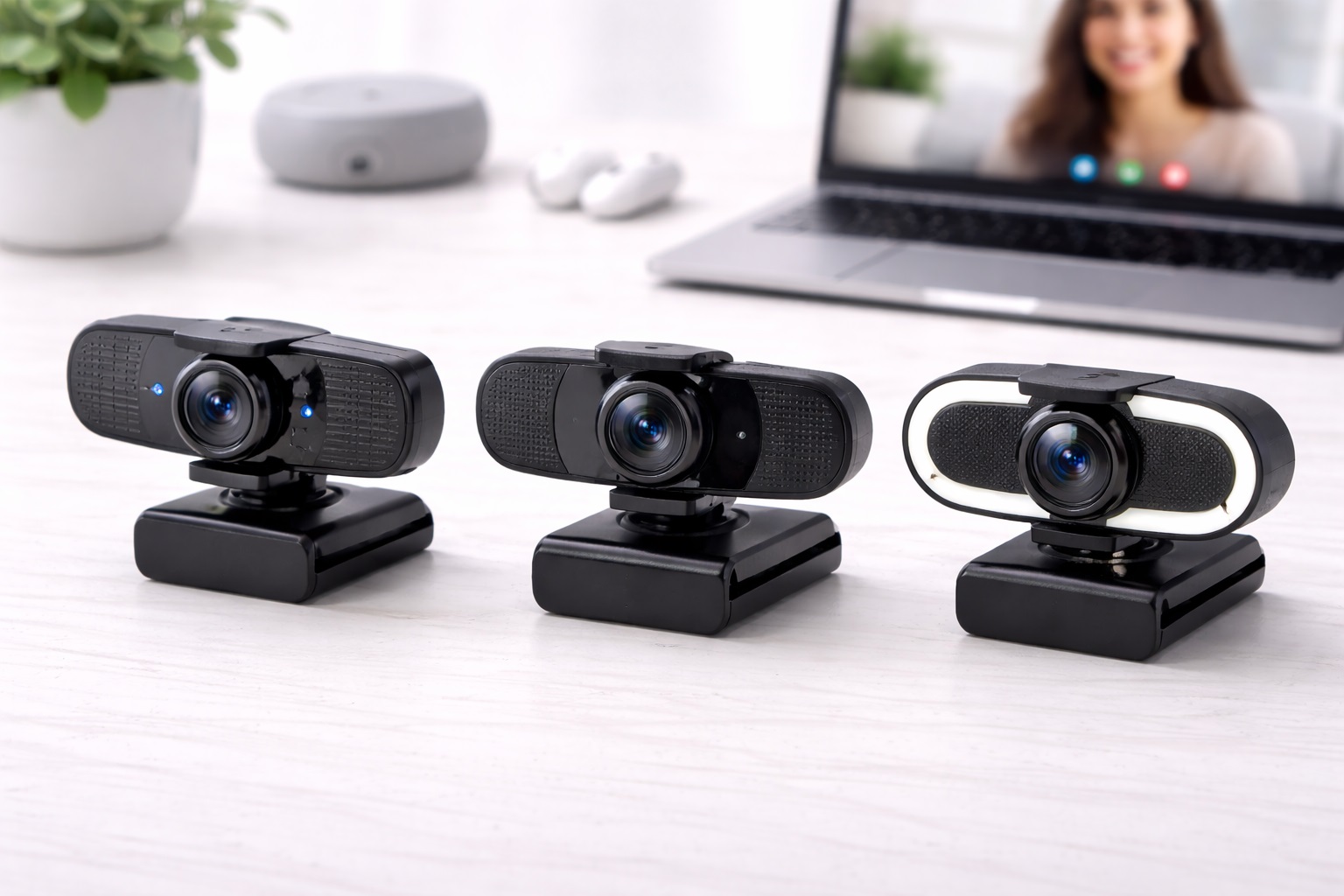
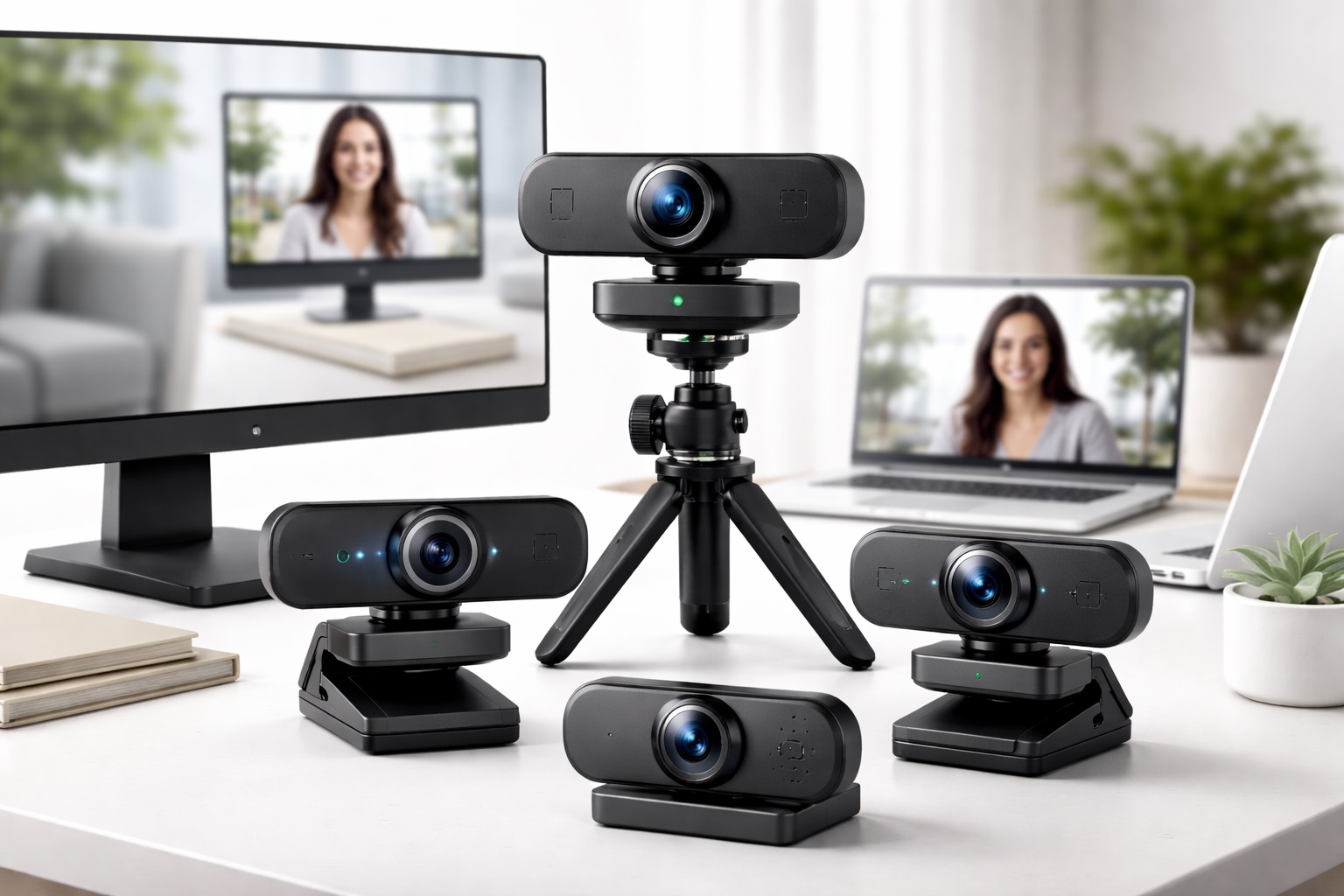
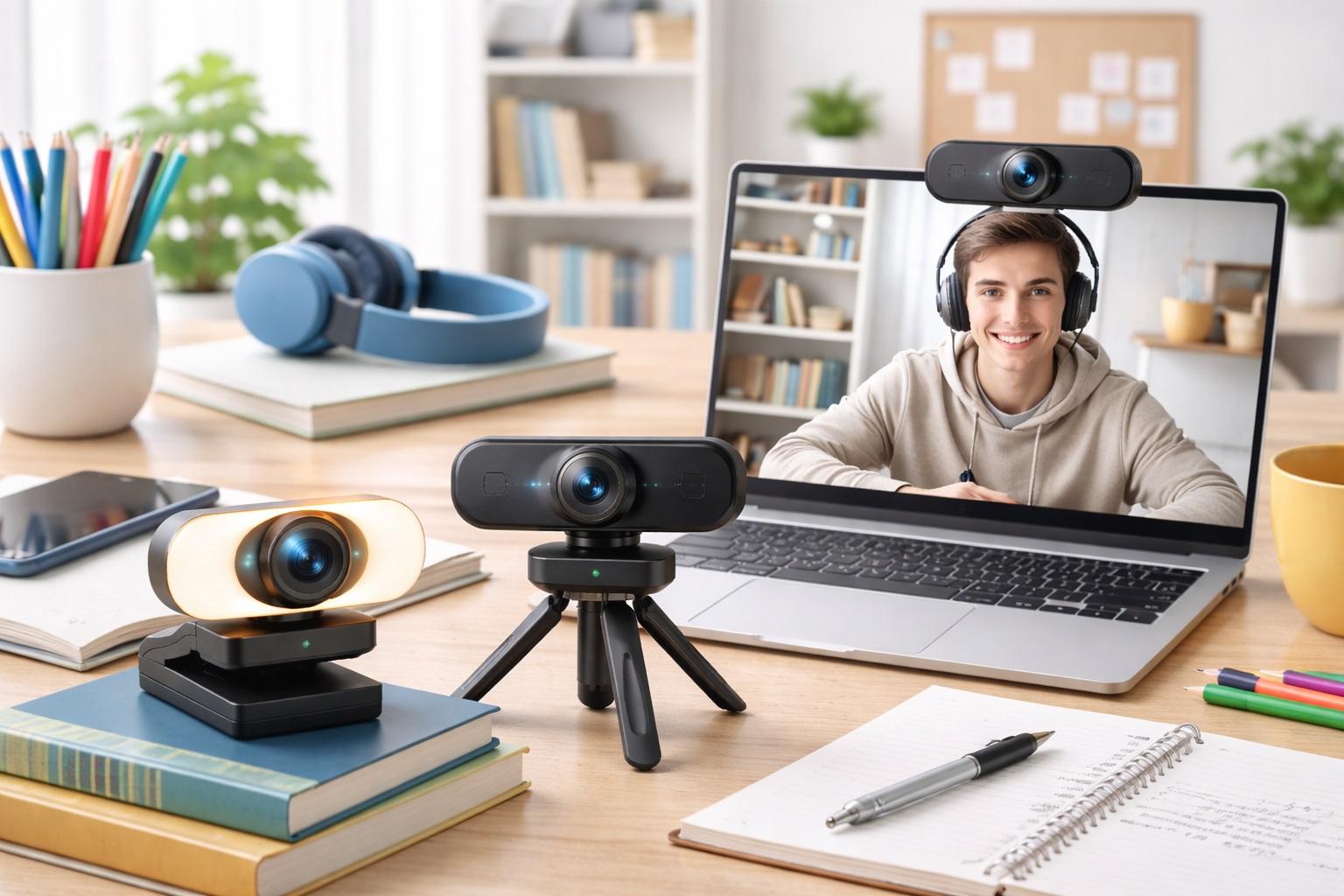
This guide is built specifically for someone buying their first standalone webcam — not a streamer chasing broadcast quality, not an IT department outfitting a hundred conference rooms, just someone who wants to look and sound clearly better than their laptop's built-in camera without spending time becoming an expert in image sensors first. The three categories below were chosen because they solve three different first-time problems: general image quality, poor room lighting, and camera privacy.
It's worth pausing on why these particular three categories, out of the dozens of webcam variations sold online, made the cut for a beginner-focused guide. Many webcam listings differentiate themselves through niche features — swappable lenses, streaming-specific software integrations, multi-camera switching — that assume a level of technical comfort a first-time buyer usually hasn't built up yet. The three styles here were chosen instead because each addresses a problem nearly every beginner actually runs into: an unremarkable picture, a poorly lit room, or a lingering unease about being watched. That's a deliberately narrower lens than a general buying guide would use, and it's the right one for this particular audience.
None of these three is a universal answer. A beginner working from a bright home office has different priorities than one on a dim upstairs desk with a north-facing window, and someone sharing a laptop with roommates cares about different things than someone living alone. Reading through what each style actually does well — and where it falls short — will help you make a first purchase you're not tempted to return two weeks later.
It's also worth setting expectations before you spend anything. A first webcam won't turn a cluttered spare room into a broadcast studio, and it won't fix a genuinely unstable internet connection that causes calls to freeze regardless of camera quality. What it will do is remove the specific weaknesses of a built-in laptop camera — the narrow field of view, the low-effort sensor, the fixed angle that only works if your laptop lid sits at exactly the right height. Keeping that distinction in mind helps you shop for a realistic improvement rather than an unrealistic transformation.
Top 3 Webcams for Beginners (Detailed Reviews)
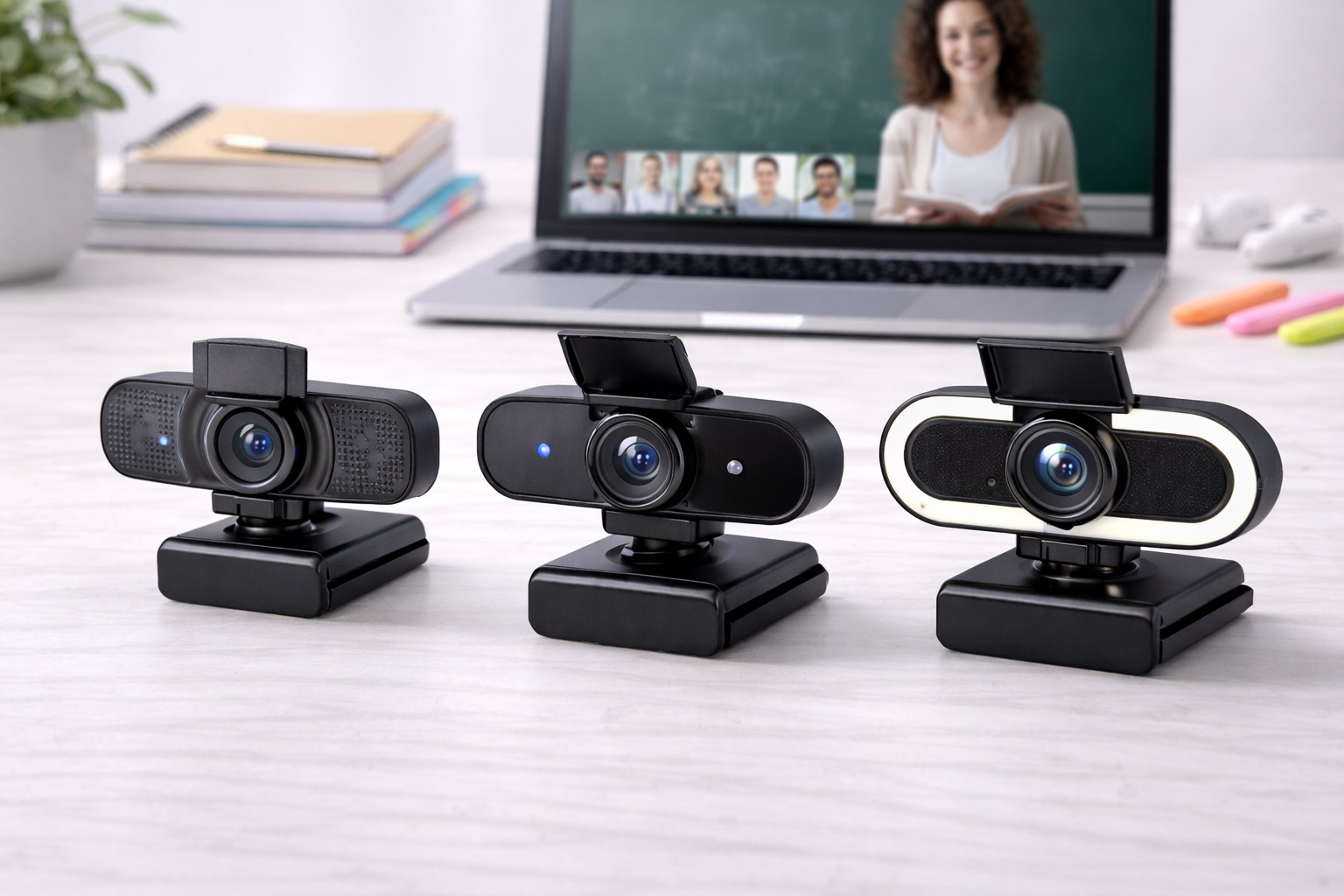
1080p Webcam with Autofocus – Best Overall for a First Upgrade
For someone replacing a laptop camera for the first time, a straightforward 1080p webcam with reliable autofocus and automatic light compensation covers the overwhelming majority of what a beginner actually needs. Full HD resolution is enough for every mainstream video calling platform, and because most of those platforms compress video regardless of the source resolution, jumping straight to 4K rarely buys a first-time buyer anything noticeable. Autofocus matters more than most beginners expect — a fixed-focus camera that looked fine in a still photo can suddenly blur the moment you lean forward to grab a coffee mug.
Automatic light compensation is the other quiet workhorse in this category. It won't fix a genuinely dark room, but it smooths out the everyday variability of a home office where the light changes throughout the day — brighter at noon, dimmer by early evening — without requiring you to fiddle with manual settings before every call. For a first-time buyer, that kind of set-it-and-forget-it behavior is exactly what reduces the learning curve.
Setup is typically plug-and-play on both Windows and macOS, which matters for a beginner who doesn't want to hunt down drivers or install unfamiliar software just to join a meeting on time. Most models in this category clip directly onto a laptop or monitor, requiring no tools and no separate mounting hardware.
- Pros:
- 1080p resolution suitable for every major video platform
- Autofocus keeps the picture sharp even with natural movement
- Automatic light compensation adapts to changing room conditions
- Plug-and-play setup with no driver installation required
- Cons:
- Capped at 1080p, so it won't suit future 4K recording ambitions
- Some models use a permanently attached USB cable
Best For: A first-time buyer who wants a clear, dependable upgrade over a laptop camera without learning new settings or vocabulary.
Why We Recommend It: This category solves the actual problem most beginners have — an unremarkable built-in camera — without asking them to evaluate features they don't yet know how to judge. It's the safest starting point precisely because it doesn't require expertise to use well.
It's also the option most first-time buyers grow into rather than out of. Because the feature set is broadly useful rather than narrowly specialized, this style tends to remain a sensible everyday camera even after a year or two, long after the novelty of a first upgrade has worn off. That makes it a reasonable default when you're not yet sure which of the more specific problems — lighting or privacy — actually applies to your situation.
Webcam with Built-In Ring Light – Best for Dim or Inconsistent Rooms
Lighting is the single biggest variable in how a webcam picture actually looks, and it's the one most first-time buyers underestimate until they see themselves on a call in a dim room. A webcam with a built-in, adjustable ring light solves that problem directly by putting a consistent light source right at the camera, rather than relying on whatever overhead fixture or window happens to be nearby. The difference between a call lit only by ceiling light and one lit by a front-facing ring light is often more noticeable than any difference in sensor resolution.
For a beginner who hasn't yet built out a proper desk setup — no desk lamp positioned correctly, no thought given to which direction a window faces — this style removes an entire category of decision-making. You don't need to learn about three-point lighting or buy a separate lamp; the light travels with the camera and adjusts with a simple dial or touch control built into the housing.
It's a particularly good fit for anyone whose desk sits away from a window, faces a wall, or is used mostly in the evening after natural light has faded. The ring light won't turn a genuinely dark basement into a studio, but it closes most of the gap for typical home lighting conditions.
- Pros:
- Built-in ring light improves the picture regardless of room lighting
- Removes the need to buy or set up a separate lamp
- Brightness is adjustable on most models to suit the room
- Combines lighting and camera into one simple accessory
- Cons:
- Adds noticeable bulk compared to a plain webcam
- The ring light can feel warm to the touch after long sessions
Best For: A first-time buyer working in a dim room, an interior space, or someone who tends to take calls in the evening without strong natural light available.
Why We Recommend It: Lighting affects perceived video quality more than almost any other single factor, and this style addresses it without asking a beginner to learn anything about lighting setup at all.
There's also a practical seasonal argument for this style. Daylight hours shrink considerably during the winter months in much of the world, and a desk that felt reasonably bright in summer can turn noticeably dim by late afternoon a few months later. A built-in ring light keeps your on-camera appearance consistent across those seasonal swings, so you're not left scrambling for an extra lamp once the clocks change.
Webcam with Privacy Shutter – Best for Shared or Sensitive Spaces
A webcam with a physical privacy shutter offers something a software toggle never fully can — a mechanical guarantee that the lens is covered. For a first-time buyer who's slightly uneasy about a camera staring at them from the top of a monitor all day, that physical slide mechanism provides genuine peace of mind rather than trust in an operating system setting that could, in theory, be overridden.
This matters in particular for anyone sharing a computer or a room with roommates, family members, or housemates, where a camera left uncovered by accident is a more realistic everyday risk than any sophisticated hacking scenario. It also matters for people handling sensitive calls — financial conversations, medical appointments, confidential work discussions — where visual privacy between calls is worth having built into the hardware itself.
Most webcams in this category still deliver solid core specifications, typically 1080p resolution and a built-in microphone, so choosing this style as a first webcam isn't really a trade-off against image quality. The shutter is simply an added layer, not a replacement for good resolution or autofocus.
- Pros:
- Physical shutter guarantees the lens is blocked when closed
- No need to unplug the camera between uses
- Typically paired with solid 1080p video and a built-in mic
- Simple slide mechanism that's easy for a beginner to operate
- Cons:
- The shutter housing adds a little extra width to the camera body
- A mechanical part is one more thing that could eventually wear out
Best For: A first-time buyer sharing a household or workspace with others, or anyone who simply prefers a hardware guarantee of privacy over a software setting.
Why We Recommend It: A physical shutter removes any doubt about whether the camera is active, which matters more to a first-time buyer's comfort than most people expect until they actually own one.
It's also a feature that tends to age well as your circumstances change. A first-time buyer living alone today might move into a shared apartment next year, or start handling more sensitive calls for work down the line, and a webcam that already has a physical shutter means one less thing to reconsider when those circumstances shift.
Buying Guide: How to Choose the Best Webcam for Beginners
The factors below are ordered roughly by how much they'll actually affect your day-to-day experience as a first-time buyer, not by how prominently they're advertised on the packaging.
1. Resolution: Why 1080p Is Usually Enough
Most video calling platforms compress incoming video to 720p or 1080p regardless of what resolution the camera captures, which means a 4K webcam often provides no visible benefit during an actual call. 1080p is the practical sweet spot for a first-time buyer: it's supported everywhere, doesn't strain upload bandwidth, and matches what most platforms will display anyway. Save the resolution debate for later, once you know whether you'll ever record video outside of calls.
2. Frame Rate Expectations
30 frames per second is the standard for video calls and is genuinely sufficient for nearly all beginner use cases, including online classes, job interviews, and everyday meetings. 60fps produces smoother motion but mainly benefits fast-moving content like gaming streams, which is unlikely to be a first-time buyer's priority. Don't let a higher frame rate spec push you toward a pricier option unless you have a specific reason to need it.
3. Autofocus Behavior in Real Use
A camera that focuses well in a still product photo can still struggle the moment you lean in or gesture with your hands. Fast, accurate autofocus prevents the soft, blurry look that comes from a fixed-focus lens losing sharpness at close range. If possible, look at reviews or demo footage that shows the camera in motion rather than judging purely from a static screenshot.
4. How Much Lighting Really Matters
Lighting is the most underestimated factor for a first-time buyer. A mediocre camera in good light will often look better than an excellent camera in bad light. If your workspace lacks strong natural light, prioritize either automatic light compensation or a built-in ring light over chasing a marginally higher resolution number.
5. Field of View for Everyday Calls
A field of view in the 65 to 78 degree range suits individual video calls well, keeping the framing close and flattering. Wider angles above 90 degrees show more of the surrounding room, which can be useful for presentations but tends to look less personal for a one-on-one conversation. Some models allow adjustment, which is a nice bonus but not essential for a first webcam.
6. Built-In Microphone Realities
Webcam microphones range from genuinely usable to barely tolerable, and the listed specification rarely predicts which you'll get. For everyday calls, a dual-microphone design with basic noise reduction is a reasonable starting point. If audio quality becomes a recurring complaint from people you talk to, a separate USB microphone is a more effective fix than chasing a better webcam mic.
7. Mount Compatibility with Your Setup
Most beginner webcams use a spring-loaded clip designed to sit on top of a monitor or laptop lid. Before buying, check the clip's depth range against your own screen, since ultra-thin monitors and curved displays occasionally cause a loose or unstable fit. Some models include a separate tripod adapter, which is worth having if you ever want to reposition the camera away from the screen.
8. Privacy Features Worth Considering
A physical privacy shutter is the most dependable privacy feature available, since it works independent of any software or operating system setting. If you share your space with others or simply prefer not to think about whether the camera might be active, this is worth prioritizing even as a first-time buyer rather than treating it as an advanced feature for later.
9. Plug-and-Play vs. Companion Software
A webcam that works immediately without installing anything is generally the easier and more reliable choice for a first-time buyer. Some webcams offer optional companion apps for extra control over exposure or framing, which can be worth exploring later, but shouldn't be a requirement just to get the camera working out of the box.
10. USB Connection Type
Most webcams still use USB-A, though USB-C is becoming more common and is worth checking against your laptop's available ports, particularly if you own a newer machine with limited USB-A connectivity. A removable cable is a small but genuinely useful feature, since it means a damaged cable doesn't force you to replace the whole camera.
11. Cable Length and Desk Layout
A cable that's too short can force an awkward camera position, especially on a desktop tower placed on the floor rather than the desk. Check the included cable length against your actual setup before buying, since a webcam that can't physically reach your USB port defeats its own purpose regardless of image quality.
12. Return Policy for a First Purchase
As a first-time buyer, you may not know exactly what you need until you've used the camera for a week or two in your actual room and lighting. A generous return window — typically 15 to 30 days — gives you room to test the camera in real conditions before committing, which matters more for a first purchase than for a replacement of something you already understand well.
One last piece of general advice worth keeping in mind: read a handful of specific product listings rather than assuming every webcam within a category performs identically. Two 1080p autofocus webcams from different brands can behave noticeably differently in the same room, and the same is true for ring light brightness levels and shutter mechanisms. The categories above tell you what to look for; the specific listing you choose still deserves a few minutes of individual attention before you buy.
Frequently Asked Questions
1. Is 1080p good enough for a beginner's first webcam?
Yes, for almost every video calling use case. Most platforms cap the transmitted video at 720p or 1080p regardless of the camera's native resolution, so a 1080p webcam already displays the maximum quality most calls will show. Save the jump to 4K for later, if you ever need it for recording rather than live calls.
2. Why does my new webcam still look blurry sometimes?
The most common causes are poor lighting, autofocus struggling at close range, internet bandwidth limiting video quality through compression, or simply a dusty lens. Start by improving the lighting in front of you and wiping the lens before assuming the camera itself is faulty.
3. Do I need to buy a matching microphone with my webcam?
No. Webcams and microphones are independent devices, and you can pair any webcam with any external microphone. If audio quality matters to you, a separate USB microphone will almost always outperform a webcam's built-in mic.
4. What's the easiest way to make my webcam picture look better right away?
Lighting makes the biggest difference. Face a window or a lamp rather than sitting with it behind you, and raise the camera to roughly eye level so you're not shot from below. A plain, uncluttered background behind you also reads as more polished on camera than a busy one.
5. Can a beginner webcam be used with a smart TV instead of a computer?
Sometimes, if the television has a USB port and supports webcam input through its own apps. This varies significantly between TV models, so check your specific television's documentation before assuming it will work the same way a laptop does.
6. Is the most expensive webcam always the best choice for a first-time buyer?
Not necessarily. Higher prices often reflect extra features like higher resolution or streaming-specific controls that a first-time buyer may not need yet. Focus on the handful of features that solve your actual problem rather than assuming price alone indicates quality.
7. How long should a first webcam realistically last?
A reasonably well-built webcam from an established brand typically lasts several years of regular use. The USB cable and any mechanical parts, like a privacy shutter, tend to be the first components to show wear, so a webcam with a replaceable cable has a practical durability advantage.
8. What if the webcam I buy doesn't suit my room after all?
Most retailers offer a return window of roughly 15 to 30 days. Keep the original packaging during that period and test the camera in your actual room and typical lighting before the window closes, since a webcam that looks fine in a store display can behave differently at home.
9. What's genuinely the best webcam for someone buying their very first one?
It depends on your specific situation more than any single universal answer. Someone with a bright, well-lit desk may only need the straightforward 1080p option, while someone in a dim room benefits more from the ring light style, and someone sharing a space may value the privacy shutter most.
10. Does the brand of a beginner webcam actually matter?
Established brands tend to offer more consistent quality control and more reliable customer support if something goes wrong. That said, newer brands can still offer good value, so reading verified reviews from other first-time buyers is worth the extra few minutes before deciding.
11. Should a beginner worry about frame rate at all?
Generally not. 30fps is the standard for video calls and covers nearly every situation a first-time buyer will encounter. Frame rate becomes more relevant only if you plan to stream fast-moving content, which is a different use case than typical calls or classes.
12. Is a webcam with a privacy shutter overkill for a casual first-time buyer?
Not really — it adds meaningful peace of mind without sacrificing core image quality, since most models in this category still include solid 1080p resolution and a built-in microphone. It's a reasonable choice even for someone without a specific privacy concern, simply as a habit worth having.
13. Do I need special software to adjust my webcam's settings?
Not for basic use — most beginner webcams work fine using your operating system's default camera controls or the settings built into whatever calling app you're using. Manufacturer companion software is usually optional and mainly adds finer control over brightness, color, and framing for people who want to fine-tune the image further down the line.
14. Will a beginner webcam work with a video calling app that isn't Zoom or Teams?
Yes, in almost all cases. Standard USB webcams follow a universal driver protocol that most operating systems recognize automatically, which means they work across virtually any calling app, browser-based meeting tool, or recording software without needing app-specific compatibility. It's worth a quick check only if you're using a very niche or older piece of software.
Final Verdict
- Best Overall for a First Upgrade: 1080p Webcam with Autofocus – a dependable, no-fuss step up from a laptop camera.
- Best for Dim or Inconsistent Rooms: Webcam with Built-In Ring Light – solves the lighting problem before it starts.
- Best for Shared or Sensitive Spaces: Webcam with Privacy Shutter – a hardware guarantee of privacy, not just a software setting.
None of these three options is objectively the best webcam on the market — they're simply the three that solve the most common first-time problems in genuinely different ways. Think honestly about your room, your lighting, and how you use your computer day to day, and let that guide which of the three fits you rather than chasing whichever one has the flashiest spec sheet.
If you're still unsure after reading through the reviews and buying guide, start with the straightforward 1080p autofocus option. It's the closest thing to a neutral, low-risk first purchase, and it will still represent a clear improvement over a laptop camera no matter which room you end up using it in. You can always add a dedicated lamp or a privacy accessory later once you understand your own habits better — the reverse, downgrading from a camera with features you don't need, is rarely worth the hassle of a return.