Best Webcams for Video Calls in 2026: Top Picks Compared
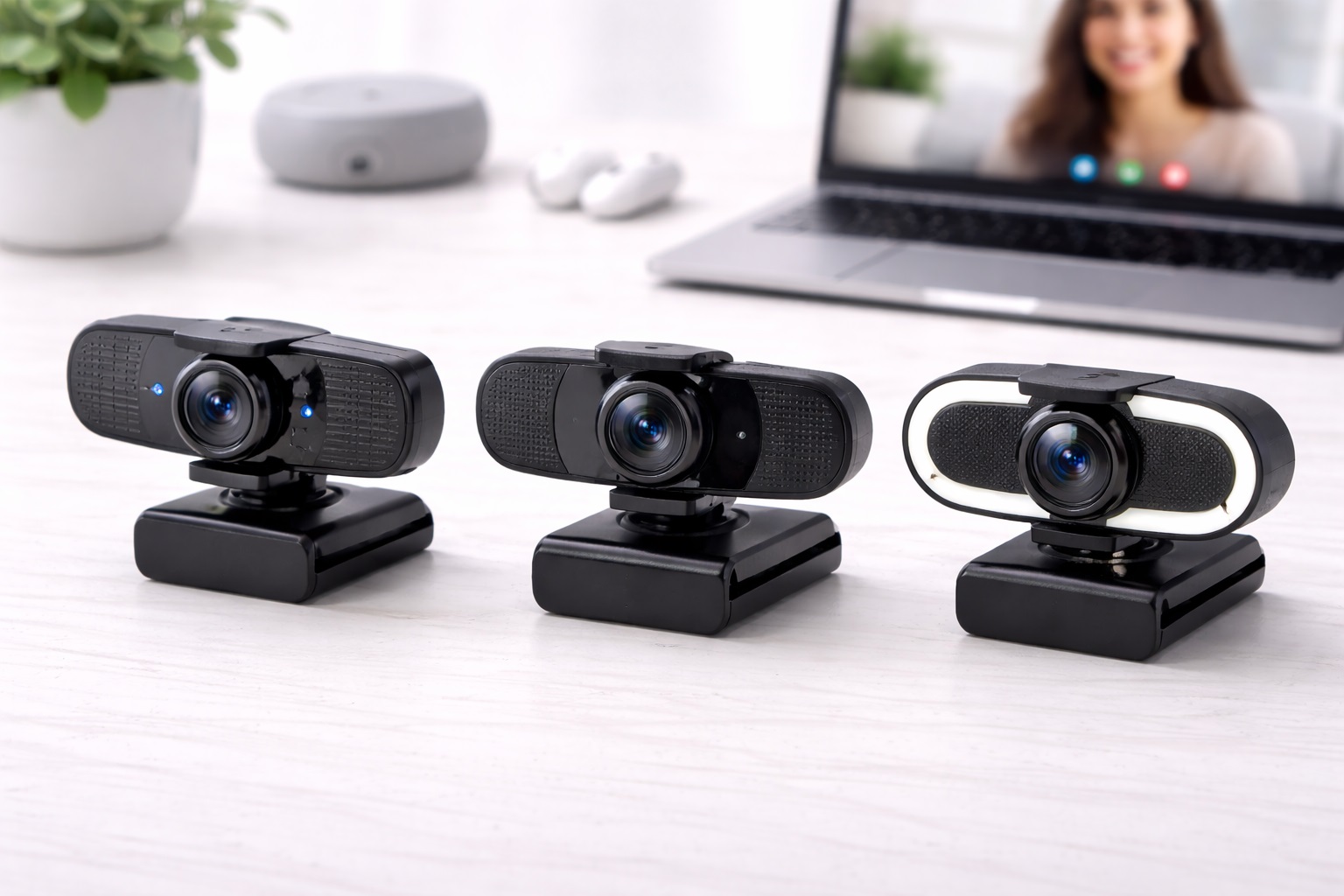
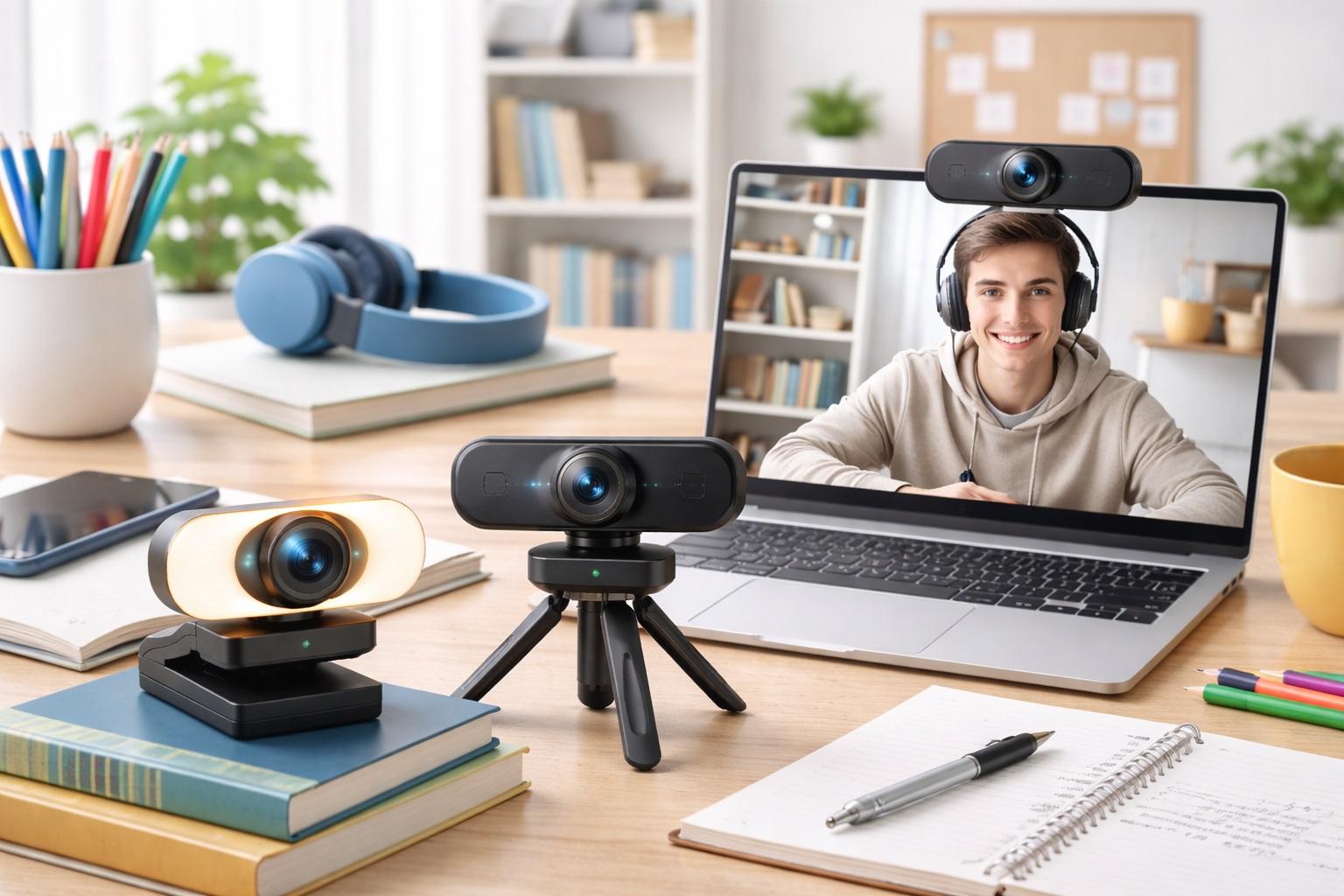
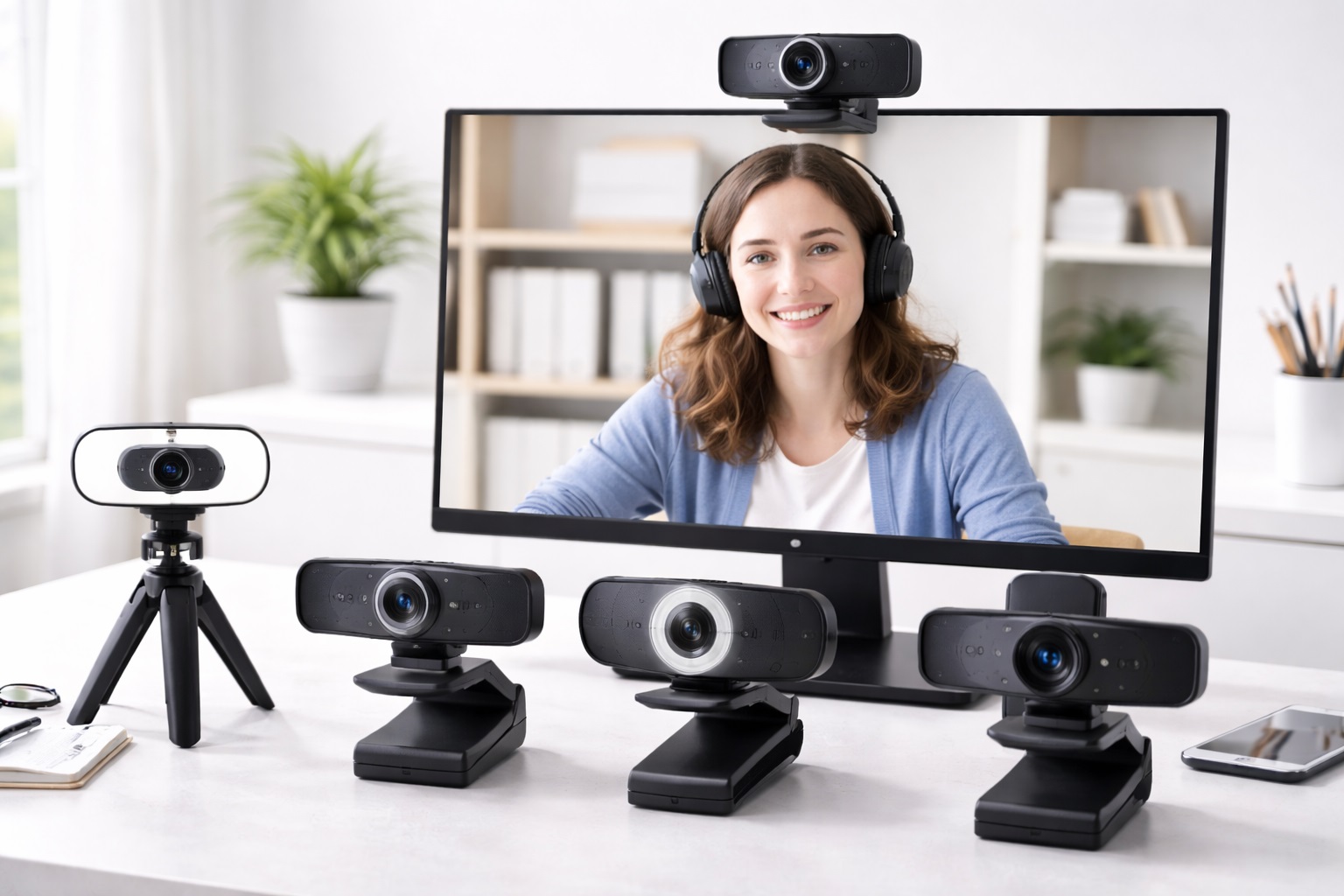
A laptop's built-in camera is rarely good enough once video calls become a daily part of your work. Most integrated cameras are capped at 720p, struggle badly in anything but bright, even lighting, and sit at an unflattering low angle that looks up your nose instead of meeting you at eye level. A dedicated webcam fixes all three problems at once, and the jump in perceived professionalism is immediate and obvious to everyone else on the call. Once you've made the switch, it's genuinely hard to go back to a built-in camera for anything beyond a quick, informal check-in.
The challenge is that "webcam" now covers a wide spread of products, from twenty-dollar plug-and-play cameras to premium 4K units with mechanical gimbals and AI subject tracking. Resolution numbers on the box tell only part of the story — autofocus speed, sensor size, low-light handling, and microphone quality usually matter more day to day than the megapixel count. Two webcams can share the same 1080p spec sheet and produce noticeably different results once you're sitting under office fluorescents or a dim home-office lamp. The processing chip behind the sensor, the lens quality, and how well the manufacturer tunes autofocus and exposure algorithms all shape the final picture just as much as the raw sensor specification does.
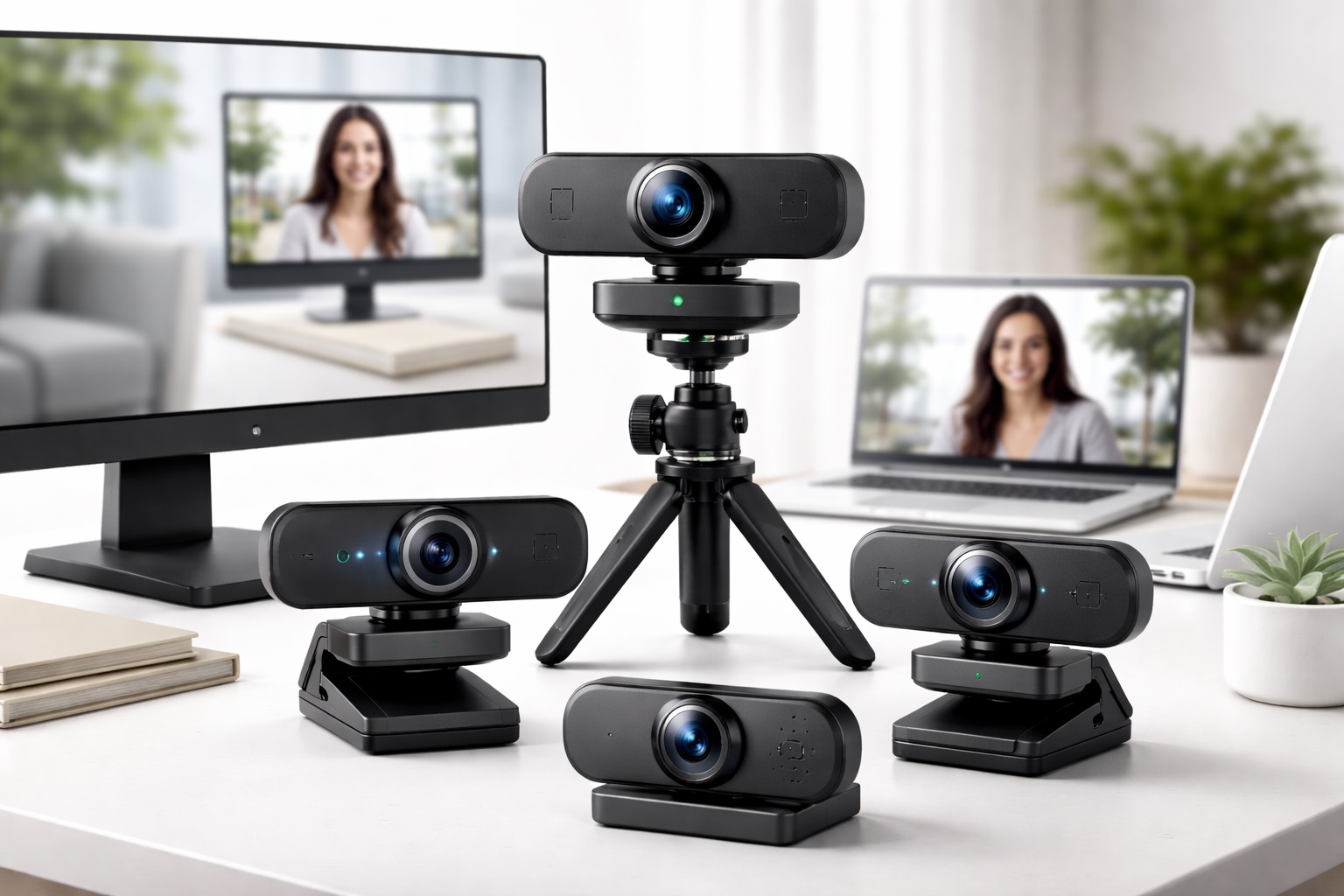
This guide walks through the webcam types that consistently perform well for remote workers, teachers, consultants, and anyone else whose job now runs through a camera lens. It covers what separates a genuinely good option from a merely adequate one, then breaks down the buying factors that matter most so you can match a camera to how you actually work rather than to whichever model happens to be trending.
It's also worth recognizing that a webcam upgrade rarely happens in isolation. Lighting, camera angle, and background all interact with whatever camera you choose, and a mid-range webcam positioned well in decent light will often beat a premium camera propped up badly under a harsh overhead bulb. Keep that context in mind as you read through the picks below — the goal is to find a camera whose strengths line up with your setup and your daily habits, not to chase the single highest spec on paper. Positioning the camera at or slightly above eye level, rather than looking up from a low laptop screen, also does more for how you're perceived on a call than most people expect from such a small adjustment.
Top 4 Webcams for Video Calls (Detailed Reviews)
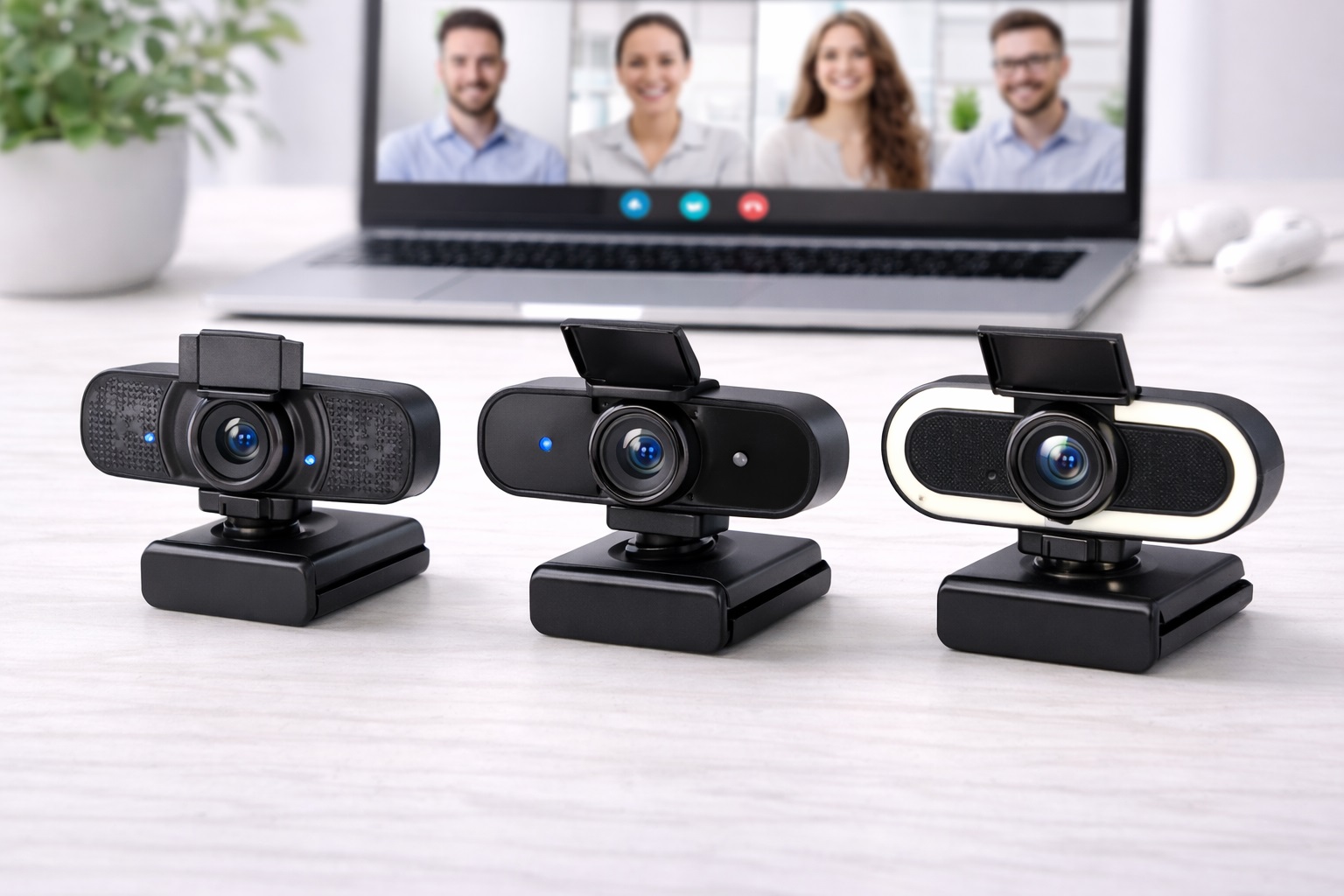
Each of the four categories below solves a slightly different problem, and none of them is universally "better" than the others — they simply serve different call habits and budgets. Read through the pros, cons, and best-for notes for each before checking the comparison table, since the right choice often comes down to one or two factors that matter more to your specific routine than the rest of the spec sheet. The reviews are ordered roughly from the most broadly useful option to the more specialized ones, so start with the first if you're unsure which category fits you best.
1. 1080p Webcam with Superior Autofocus – Best Overall for Daily Calls
A 1080p webcam built around fast, accurate autofocus is the safest default choice for anyone taking multiple calls a day. Rather than chasing headline resolution, these models focus their engineering budget on keeping the image sharp as you lean toward the screen, turn to grab a notebook, or shift back in your chair. Most units in this class also include HDR processing to prevent a bright window behind you from turning your face into a silhouette, along with dual-array microphones that pick up your voice clearly without amplifying keyboard clatter or a running air conditioner. Setup is typically a single USB connection with no drivers to install, which matters for anyone who needs the camera working correctly before a meeting starts rather than mid-call.
- Pros:
- Fast, reliable autofocus keeps you sharp through normal movement
- HDR balances bright backgrounds with your face
- Dual-array microphones cut down on background noise
- Plug-and-play setup across Windows, macOS, and most call platforms
- Strikes a practical balance between price and everyday image quality
- Cons:
- Low-light results still improve noticeably with a small desk light
- Some models use a fixed, non-detachable cable
- Lacks the standout premium features of pricier categories
Best For: Remote professionals and hybrid workers who spend several hours a day on video calls and want dependable image quality without fiddling with manual focus or exposure settings, and who would rather set the camera up once and forget about it than keep adjusting settings before every meeting.
Why We Recommend It: Autofocus consistency is the single biggest factor in how sharp you look on a call, and it matters far more than chasing a higher resolution number. A camera that hunts for focus or blurs when you move creates a distracting, unpolished impression that no amount of extra resolution can fix. Because this category doesn't rely on extra software processing or AI tracking to look good, it also tends to be the most consistent performer across different laptops, operating systems, and call platforms — a real advantage for anyone who can't spend time troubleshooting camera settings before a meeting.
2. 4K Webcam for Ultra-Sharp Presence – Best for Maximum Image Quality
A 4K webcam captures far more visual data than a 1080p sensor, and that extra information pays off even on platforms that cap the outgoing stream at 1080p. The larger sensor gathers more light per pixel and gives the camera's internal processor more detail to work with when producing the final downscaled image, which shows up as crisper text when you share a document, more natural skin tones, and finer detail in hair and clothing texture. Many 4K models also bundle AI-based auto-framing that keeps you centered as you shift position, which is a useful pairing with the resolution boost. The tradeoff is size and cost — 4K units tend to be physically larger, with bigger lenses and more substantial mounts, and they draw more from the sensor and processor even when the output is downscaled for the call.
- Pros:
- Larger 4K sensor produces sharper, cleaner 1080p output
- AI auto-framing keeps the subject centered automatically
- Excellent fine detail for screen-sharing heavy calls
- Positions well for platforms that eventually support higher call resolutions
- Larger sensor generally means better dynamic range overall
- Cons:
- Costs more than comparable 1080p-only models
- Streaming at full 4K uses more bandwidth and CPU than most calls require
- Bulkier housing than compact 1080p alternatives
Best For: Executives, consultants, and content creators who appear on camera as a core part of their professional presentation and want the best achievable image quality, and who are comfortable paying more for a visible improvement in how they come across in every meeting.
Why We Recommend It: The value of a 4K sensor on a video call isn't really about resolution for its own sake — it's about what a bigger sensor does for light gathering and detail before the image is compressed down to 1080p for the call. For people whose on-screen presence matters daily, that difference is visible to everyone in the meeting. It's the category worth stretching your budget for if video calls are a recurring, visible part of how clients or colleagues perceive you professionally, rather than an occasional necessity.
3. Webcam with AI Auto-Framing – Best for Active Presenters
Webcams with AI auto-framing use onboard image processing to detect a person in the frame and adjust the crop in real time as they move, standing up, leaning toward a whiteboard, or gesturing broadly. This class of camera removes the need to stay carefully positioned in a fixed spot, which makes it especially valuable for teachers running live lessons, coaches demonstrating movements, and presenters who like to gesture and move rather than sit still in front of the lens. Many models pair the tracking with a wider base field of view, so the software has room to crop and follow without the camera needing to physically pan.
- Pros:
- Keeps the presenter framed through natural movement
- Removes the need for careful pre-call positioning
- Tracks a wide range of motion, not just small shifts
- Now available at mid-range prices rather than only premium ones
- Frees up attention that would otherwise go toward staying in frame
- Cons:
- Framing can lag slightly behind very fast movement
- Some presenters find the automatic recentering distracting at first
- Requires a wider base field of view to work well
Best For: Online teachers, fitness instructors, coaches, and presenters who move around during calls instead of staying seated in one place, and anyone who regularly steps away from their desk mid-session to demonstrate something on a whiteboard or in a wider space.
Why We Recommend It: Auto-framing turns the camera into a tool you don't have to think about instead of a constraint you have to work around. For anyone whose job involves demonstrating, teaching, or presenting on camera, that freedom of movement is worth more than a small bump in raw resolution. It also reduces the setup time before each session, since you no longer need to carefully test your position before every single call or lesson.
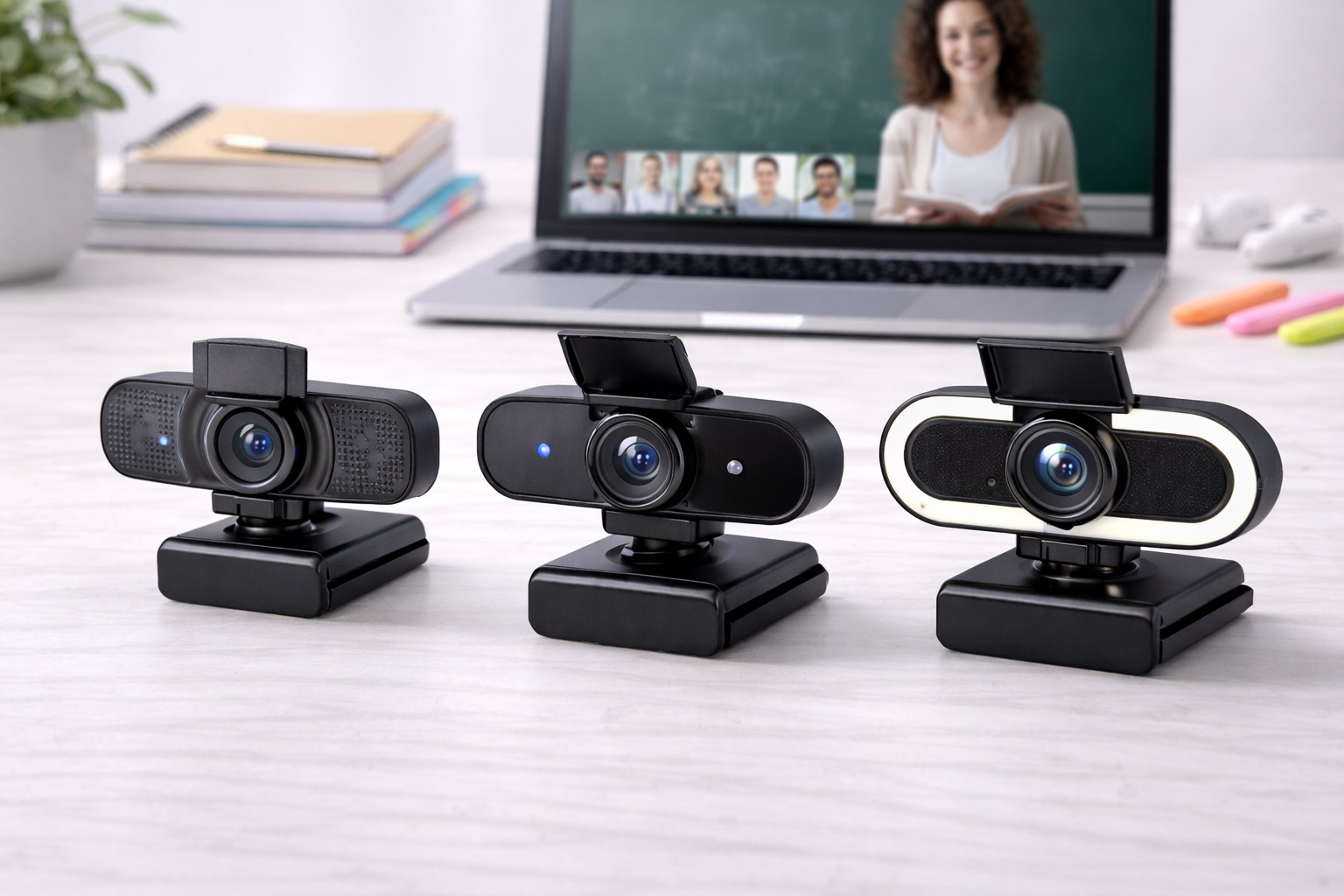
4. Compact 1080p Webcam with Privacy Shutter – Best Value for Everyday Use
Not every video call setup needs auto-framing or a 4K sensor. For casual daily meetings, team check-ins, and general video calling, a well-reviewed compact 1080p webcam with a physical privacy shutter covers the essentials at a lower price point. These models typically skip the extra processing hardware found in premium units but still deliver clear, well-exposed 1080p video and adequate built-in audio for straightforward conversations. They're also a sensible pick for a shared family computer or a secondary work laptop where spending more doesn't make sense.
- Pros:
- Solid 1080p image quality for everyday video calls
- Physical privacy shutter for peace of mind between calls
- Compact size that mounts easily on any laptop or monitor
- Noticeably lower price than autofocus or 4K models
- Simple enough setup for non-technical users
- Cons:
- Autofocus is slower and less precise than premium models
- Struggles more in dim or mixed lighting
- Fewer software extras than higher-tier options
Best For: Budget-conscious buyers, students, and occasional remote workers who need a clear upgrade over a built-in laptop camera without paying for features they won't use, and anyone setting up a second workstation or a shared family computer.
Why We Recommend It: Most people don't need every feature on the market — they need a webcam that is visibly better than their laptop's built-in camera and easy to set up. This category delivers that improvement reliably while keeping the privacy shutter that many buyers specifically look for. It's the sensible starting point for anyone unsure whether they need more advanced features at all, and it's easy to upgrade from later once your actual call habits become clear.
Buying Guide: How to Choose the Best Webcam for Video Calls
Use these factors to match a webcam to how you actually work rather than defaulting to whichever model has the highest star rating or the biggest resolution number on the box. Going through them in order, roughly from most to least impactful for everyday call quality, will help you weigh tradeoffs sensibly instead of treating every spec as equally important.
1. Autofocus Speed and Accuracy
Autofocus quality has the biggest day-to-day impact on how sharp you look. Test any webcam by moving closer and farther from the lens during a trial call — slow or "hunting" autofocus is more noticeable and more distracting on a live call than most other shortcomings. If you can, watch the camera's own preview window while you move, since a lag between your movement and the refocus is the clearest sign of a weaker autofocus system.
2. Low-Light Performance
Very few home offices or conference rooms have studio-quality lighting. Prioritize webcams with HDR processing or a larger aperture lens, and weigh real-world reviews taken in ordinary indoor lighting more heavily than marketing photos shot under ideal conditions. A cheap desk lamp aimed at your face from the front will improve almost any webcam's output more than upgrading the camera alone.
3. Sensor Resolution and Size
A 1080p sensor is sufficient for the vast majority of calls, since most platforms cap resolution there regardless of camera. A 4K sensor's real benefit is the extra detail and light-gathering it brings to the final downscaled image, which matters most for people who appear on camera professionally and often. Beyond that group, the resolution jump is easy to overpay for relative to what you'll actually notice on a typical call.
4. Microphone Quality for Calls
Check reviews specifically for microphone performance rather than assuming video quality and audio quality track together. Dual-array or beamforming microphone designs handle background noise meaningfully better than basic single-capsule microphones. If clear audio matters more to your work than video sharpness, weight this factor above resolution when comparing models.
5. Field of View
A 65–78 degree field of view suits most solo video calls and produces flattering, professional framing. Wider angles above 90 degrees work better for showing a full desk setup or multiple people in frame, while narrower angles create a tighter, more formal headshot look. Some webcams let you digitally adjust the field of view in software, which adds flexibility without buying multiple cameras.
6. Auto-Framing and AI Features
Face tracking, auto-exposure, and automatic framing are increasingly common even outside premium price tiers. Judge these features by how they perform in verified user reviews rather than by the feature list alone, since implementation quality varies widely between brands. A feature that looks impressive in a product demo video doesn't always hold up under normal home lighting and background clutter.
7. Privacy Shutter
A physical privacy shutter provides a hardware guarantee that the lens is covered when you're not on a call, which is a meaningful reassurance for anyone handling sensitive information or working from a shared space. It also removes any reliance on software settings, which can occasionally be reset or overridden by an update.
8. Connection Type and Cable
Most webcams connect over USB-A, though USB-C models are increasingly common and better suited to modern laptops with limited legacy ports. A detachable cable is generally preferable to a fixed one since it's easier to replace if the cable itself ever fails. Cable length also matters more than it seems if your monitor or laptop sits farther from your computer's USB ports than expected.
9. Platform and Software Compatibility
Confirm the webcam works natively with your video call platform and operating system before buying. Most modern webcams are plug-and-play on Windows and macOS, but companion apps for advanced features sometimes have narrower compatibility, so check specifically whether the app you rely on for framing or effects supports your operating system version.
10. Mounting and Positioning
A standard clip mount fits most monitors and laptop lids without any adjustment. If you need to mount the camera on a tripod, arm, or off to the side rather than directly above your screen, confirm a compatible mount or tripod thread is included, since not every model ships with one by default.
11. Build Quality and Durability
Because a webcam is repeatedly clipped, unclipped, and repositioned, hinge and clip durability matters more than it might appear on a spec sheet. Reviews that mention long-term daily use are more informative here than short first-impression reviews, particularly for anyone who travels with a laptop and packs the webcam along with it.
12. Warranty and Support
For a device used daily in professional settings, a one-year manufacturer warranty is a reasonable baseline, and a two-year warranty is a good sign of confidence in long-term durability, particularly around the USB connector and internal cabling. Responsive customer support also matters more than it seems once a driver update or platform change causes an unexpected compatibility issue.
Frequently Asked Questions
These are the questions that come up most often from readers comparing webcam options for daily calls, teaching, and professional presentations.
1. Does a better webcam actually make a noticeable difference on video calls?
Yes. Autofocus consistency and low-light handling are both immediately visible to everyone else on the call, and a sharp, well-lit picture reads as more professional than the soft, grainy output typical of a built-in laptop camera. The difference is usually most obvious in the first few seconds of a call, before anyone has consciously registered why one person's video looks better than another's.
2. Is a 4K webcam worth the extra cost for video calls?
For most everyday use, a quality 1080p webcam with good autofocus is enough. The 4K advantage shows up mainly in sharper fine detail and better light handling in the final image, which matters most for executives, consultants, and creators who are on camera constantly. If your calls are occasional rather than a daily fixture, that extra cost is harder to justify.
3. Should I pair my webcam with a separate microphone?
If audio quality is important to your work, a dedicated USB microphone paired with any decent webcam will outperform even a premium webcam's built-in microphone. Separating video and audio capture is the better setup for anyone recording presentations or podcasts alongside regular calls, since a standalone microphone can be positioned closer to your mouth than a camera mounted on top of a monitor.
4. Is the most expensive webcam always the best choice?
Not necessarily. Higher price often buys extra features like auto-framing or a mechanical privacy shutter, but many mid-range webcams deliver excellent day-to-day image quality. Match the purchase to your actual use case instead of assuming price tracks with suitability, and be honest with yourself about which extra features you'll actually use regularly.
5. How long does a good webcam typically last?
A well-built webcam from an established brand commonly lasts several years of regular daily use. Warranty length is a reasonable proxy for how confident the manufacturer is in the product's long-term durability, and the USB connector and clip hinge are usually the first points to show wear.
6. What resolution do most video call platforms actually support?
Most mainstream video call platforms cap outgoing video at 1080p regardless of the camera's native resolution, which is why a well-tuned 1080p webcam performs so close to a 4K one in practice. This is also why autofocus and low-light handling end up mattering more than raw resolution for the vast majority of calls.
7. Do I need a webcam with a privacy shutter?
It isn't strictly necessary, but a physical shutter offers a simple, tamper-proof way to guarantee the camera is covered between calls, which many buyers in shared workspaces or handling sensitive material specifically look for. It's a small feature, but one that's easy to appreciate once you have it and hard to miss once you don't.
8. Can I return a webcam if it doesn't fit my setup?
Most retailers offer a 15–30 day return window. Keep the original packaging until you've tested the webcam under your normal lighting and call conditions in case a return becomes necessary, since a quick unboxing test rarely reveals how a camera performs during an actual hour-long meeting.
9. Does field of view matter for group calls?
Yes. A wider field of view captures more of a room and more people in frame, which matters if several people share one workstation, while a narrower field of view produces a tighter, more flattering solo framing. If your calls regularly involve more than one person on camera, weigh field of view more heavily than you otherwise would.
10. Are auto-framing features reliable for fast movement?
Auto-framing generally performs well for normal presenting movement, though very fast or erratic motion can cause a brief lag before the frame catches up. Reviews focused on teaching or fitness use cases are a good way to judge real-world reliability, since those use cases tend to push auto-framing harder than a typical seated meeting.
11. Does brand reputation matter when choosing a webcam?
Established brands typically provide more consistent driver support and warranty service, which matters for a device you rely on daily. Newer brands can offer good value, but it's worth reading verified, recent purchase reviews carefully before choosing an unfamiliar name, particularly for anything you plan to keep using for several years.
12. What is the biggest mistake people make when buying a webcam?
The most common mistake is prioritizing the resolution number over autofocus quality and low-light performance, which have a far bigger impact on how you actually look during a real call under ordinary indoor lighting. A close second is buying based on specifications alone without checking how the camera performs in verified reviews from people using it the same way you plan to.
Final Verdict
- Best Overall for Daily Calls: 1080p Webcam with Superior Autofocus — dependable, sharp video for anyone on frequent calls.
- Best for Maximum Image Quality: 4K Webcam for Ultra-Sharp Presence — the strongest image quality for professional on-camera presence.
- Best for Active Presenters: Webcam with AI Auto-Framing — ideal for teachers, coaches, and anyone who moves during calls.
- Best Value for Everyday Use: Compact 1080p Webcam with Privacy Shutter — a clear upgrade over a laptop camera at a lower price.
There isn't a single best webcam for every situation — the right pick depends on how often you're on camera, how much movement your job involves, and how much of your professional impression rides on video quality. Someone who takes one call a week has very different needs from someone who teaches live classes eight hours a day, and the honest answer for most buyers is that the mid-range autofocus category covers the vast majority of use cases well, with the 4K and auto-framing options reserved for people whose specific work genuinely benefits from those extra capabilities. Use the comparisons and buying factors above to match a camera to your actual routine rather than to whichever model happens to be topping a bestseller list this month, and remember that a small investment in lighting will improve almost any webcam's results more than an upgrade to the next price tier alone.