Best Webcams for Students: Sharp Video for Online Classes
Between online lectures, group project calls, and the occasional recorded presentation, a lot of student life now happens on camera. A laptop's built-in camera can carry you through an early semester, but the seams show quickly — grainy video in a dim dorm room, a microphone that picks up every hallway conversation, and a low, unflattering angle that makes group discussions harder to follow. A dedicated webcam solves most of these problems for a modest cost, and unlike a lot of student purchases, it's one that keeps paying off every single week of the term. It also tends to hold its usefulness across majors and course types, from lecture-heavy programs to seminar and project-based coursework that leans more heavily on discussion and presentation. It's also one of the few upgrades that benefits every class you take, rather than a single course or a single semester's worth of assignments.
What makes shopping for a student webcam different from a general office purchase is the constraint set: a real budget, a room that isn't always quiet or well lit, and a computer that might move between a dorm desk, a library table, and a kitchen counter over the course of a week. None of these constraints are unusual on their own, but together they mean the ideal student webcam often looks quite different from the one a corporate office would choose. The good news is that the webcam market has a deep, well-reviewed selection in the affordable range, so students don't need to pay premium prices to get a meaningful upgrade over a built-in camera. Even a modest investment early in a semester tends to pay for itself many times over across the number of classes, group projects, and office hours a typical student attends throughout a full academic year.
This guide breaks down the webcam categories that consistently serve students well, from the simplest budget upgrade to options built around noisy shared housing and shared-computer privacy. Each one is reviewed on its actual strengths and limitations, followed by a buying guide built specifically around student living situations and a set of frequently asked questions students commonly have before buying their first dedicated camera.
It's worth thinking about your webcam purchase alongside the rest of your study setup rather than in isolation. A camera that looks great on paper won't compensate for a dim room or a noisy hallway outside your door, and conversely, a modest webcam positioned thoughtfully in decent light can outperform a pricier model used carelessly. Keep your actual room, schedule, and coursework in mind as you read through the categories below, since the right pick is the one that solves the specific problem your current setup has rather than the one with the longest feature list. It's also worth checking your own laptop or desktop's available USB ports before ordering, since some newer, thinner laptops rely entirely on USB-C and may need an adapter for a webcam that uses a traditional USB-A connector.
Top 4 Webcams for Students (Detailed Reviews)
The four categories below cover the situations students run into most often — a tight budget, a noisy living space, a shared computer, and the occasional need to record a polished assignment. Few students need every feature across all four; most will find one category that clearly matches their actual routine, and it's entirely reasonable to start with the most basic option and add a second device later if a specific need comes up mid-semester.
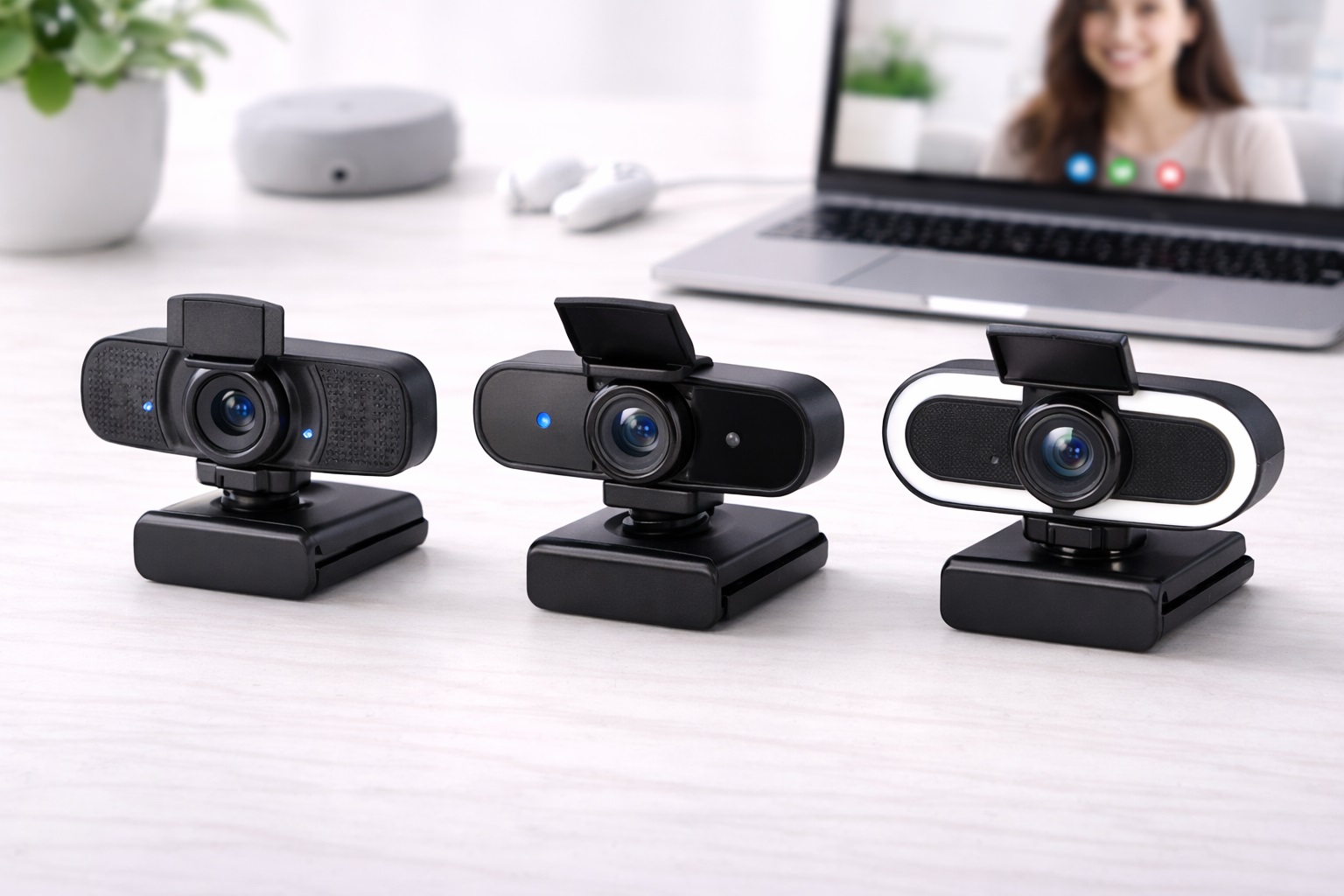
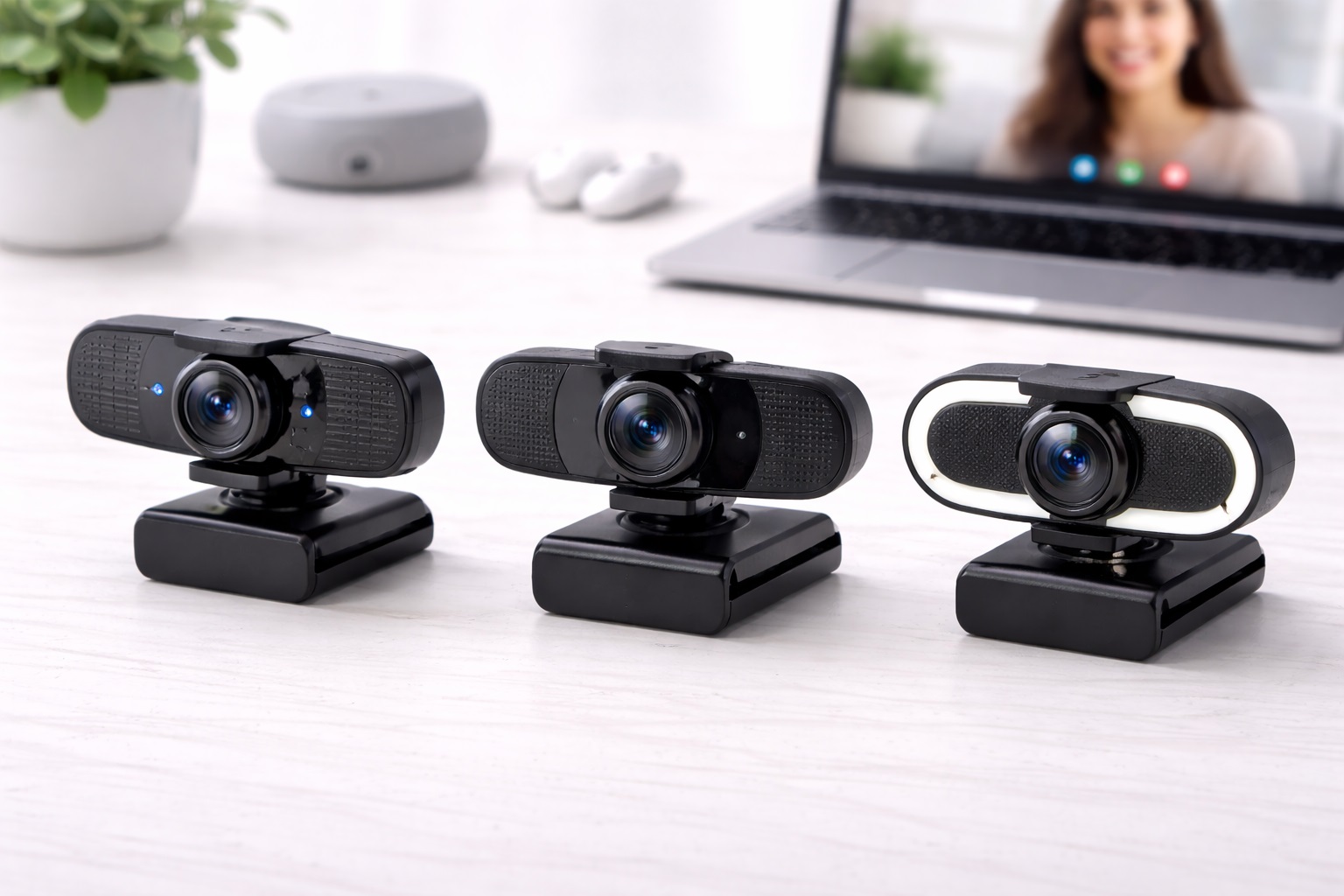
1. 1080p Student Webcam Under $50 – Best Value for Everyday Student Use
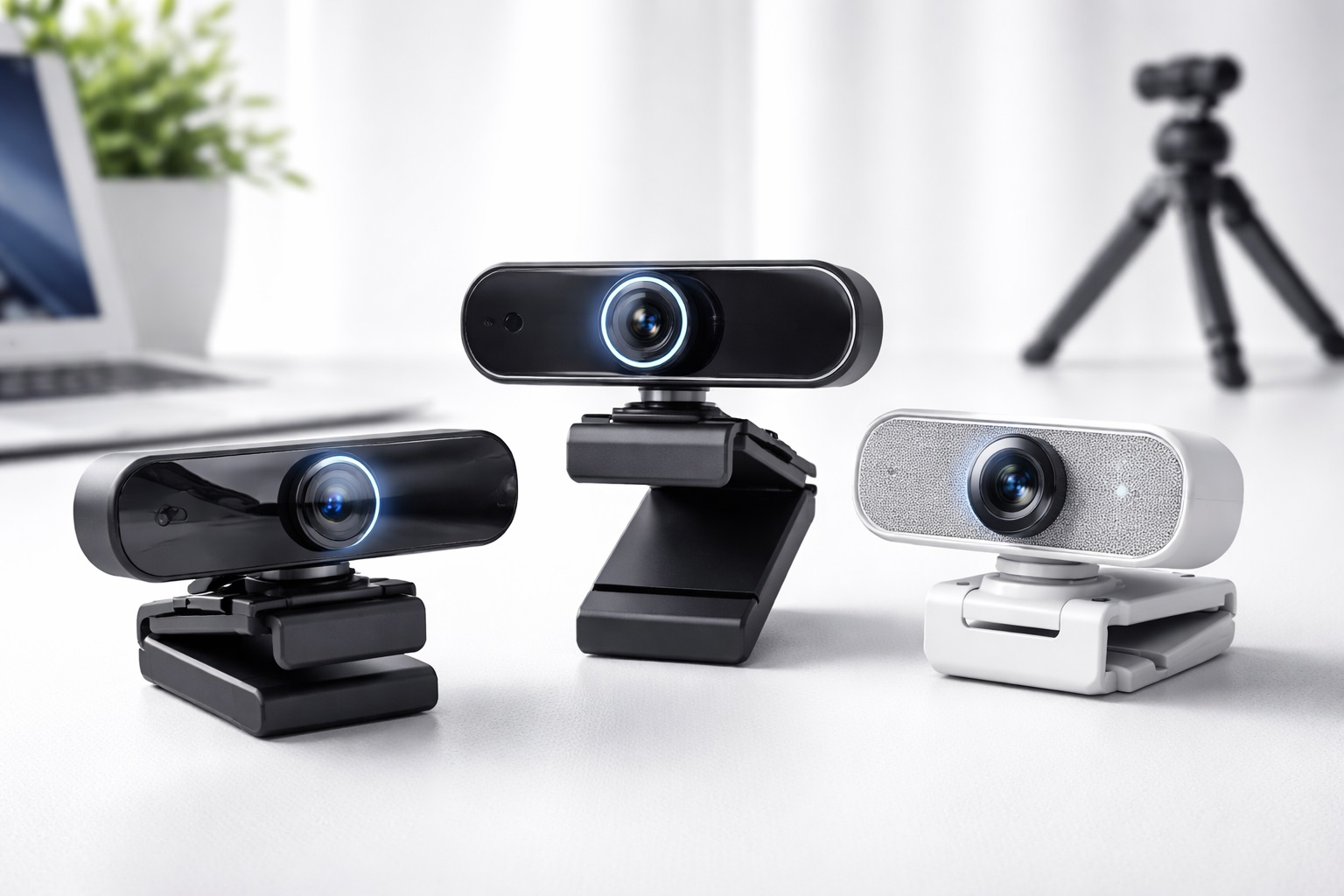
A 1080p webcam in the twenty-five to fifty dollar range covers the core need for nearly every student: a noticeably sharper, better-exposed picture than a laptop's built-in camera, at a price that doesn't strain a student budget. This category represents the largest share of webcams sold specifically for home office and study use, which means there's a wide selection to compare and a large body of reviews to draw on. The better options in this range include basic autofocus, a functional built-in microphone, and a plug-and-play USB connection that needs no drivers or setup software. Mounting is just a spring clip that fits over a laptop lid or monitor edge, so there's no installation step beyond plugging it in before your first class. Because this category is so widely available, it's also the easiest to compare across brands using verified reviews from other students describing exactly the kind of everyday classroom use you're likely to put it through. A quick scan of recent reviews mentioning specific classes or platforms is often more useful than the manufacturer's own marketing copy.
- Pros:
- 1080p resolution suitable for every major class platform
- Basic autofocus keeps you in focus during normal movement
- Plug-and-play — no drivers or setup software required
- Priced comfortably within a student budget
- Widely available with plenty of verified student reviews
- Cons:
- Low-light performance is limited without added desk lighting
- Built-in microphone is usable but basic
- Fewer extra features than pricier specialized categories
Best For: Students attending regular online classes and group calls who want a clear upgrade over a laptop camera without a significant purchase, who don't need specialized features beyond reliable everyday video, and who are shopping on a tight, fixed semester budget.
Why We Recommend It: The jump from a built-in laptop camera to any decent dedicated webcam is the single most noticeable video upgrade available, and it happens to be one of the cheapest changes a student can make to their study setup. For most coursework, this category alone covers everything a student actually needs, and it's a sensible default starting point if you're not yet sure whether you'll need any of the more specialized features covered below.
2. Webcam with Noise-Reducing Microphone – Best for Noisy Student Environments
Dorms, shared apartments, and busy family homes rarely offer a quiet, controlled space for class calls, and background noise is often the single biggest source of frustration for both the student on camera and everyone else trying to follow the discussion. Webcams built around dual-array microphones and digital noise reduction are designed specifically for this problem, filtering out hallway chatter, roommate conversations, and ambient household noise far better than the single-capsule microphone found in most laptops or budget webcams. The processing usually works in real time, so classmates and professors hear a cleaner voice signal without any manual adjustment on your end during the call itself. Because the microphone and camera share one device, there's nothing extra to plug in or position separately. This matters in practice for students who move their setup between a desk, a bed, and a common area within the same day, since a combined device is one less thing to pack, unpack, and reposition each time. It's a practical simplification that adds up over a full semester of daily setup and teardown.
- Pros:
- Dual-array microphone meaningfully reduces background noise
- Clearer call audio in shared or noisy living spaces
- Combines an audio and video upgrade in a single device
- No separate microphone purchase or setup needed
- Solves both an audio and a video problem in one purchase
- Cons:
- Still doesn't match a dedicated standalone USB microphone
- Tends to cost somewhat more than basic 1080p models
- Noise reduction quality varies noticeably between brands
Best For: Students living in dorms, shared apartments, or busy family homes who need noticeably better call audio without buying and positioning a separate microphone, and anyone whose classes or calls happen at times when the household is at its loudest.
Why We Recommend It: Audio problems are often more disruptive on a class call than video problems, since background noise interrupts everyone else's ability to hear a discussion or presentation clearly. For students without a quiet, dedicated study room, this category solves the more urgent of the two problems, and it does so without requiring a second device to plug in, position, and remember to bring along.
3. Webcam with Physical Privacy Shutter – Best for Shared or Portable Computers
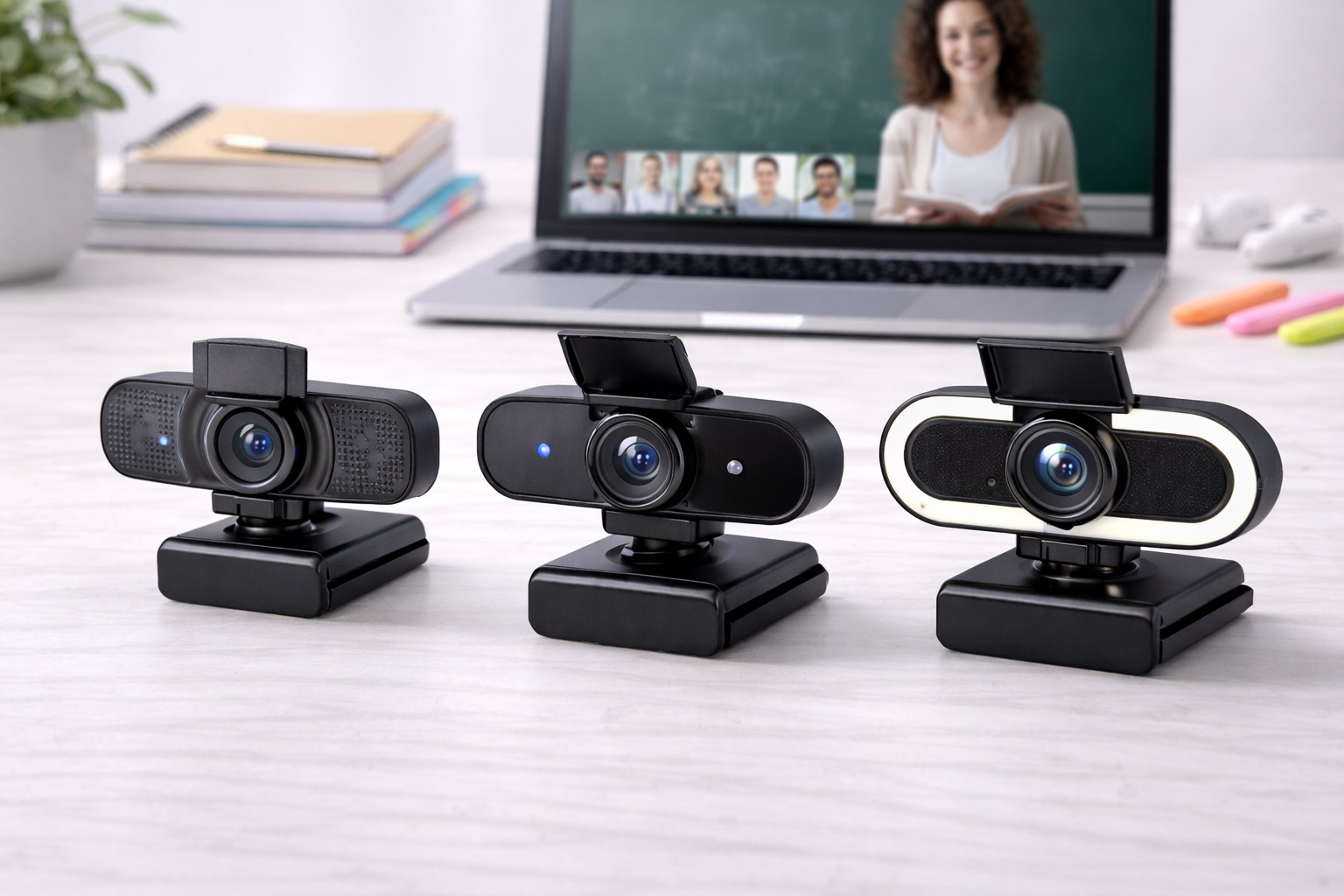
A physical privacy shutter matters more for students than for most other buyers, since student computers are more likely to be shared with a roommate or family member, carried into public spaces like libraries and coffee shops, or left open on a common desk between classes. Any of these situations creates a reasonable reason to want a simple, visible guarantee that the camera isn't recording. A mechanical shutter guarantees the lens is blocked regardless of any software setting, which is a simpler and more dependable form of privacy than relying on an app-level camera toggle. It's a small design detail, but one that removes any doubt about whether the camera is actually off, which matters when a computer is used by more than one person or left unattended in a common area between classes.
- Pros:
- Physical shutter guarantees the camera is blocked between classes
- Works independently of software or operating system settings
- Well suited to shared computers and public study spaces
- Available at prices comparable to basic webcams
- Provides a guarantee that doesn't depend on remembering a software setting
- Cons:
- Shutter housing adds a small amount of bulk to the camera
- Shutter must be opened and closed manually each time
- Not necessary for students with a fully private setup
Best For: Students who share a computer with a roommate or family member, work frequently in libraries or other public spaces, or simply want a dependable, hardware-level guarantee of camera privacy without relying on remembering to check a software setting.
Why We Recommend It: For students specifically, the physical shutter addresses a real and common situation — a shared device or a public workspace — with a simple mechanical solution rather than a software setting someone else could change. It's a small feature that solves a genuine daily concern, and it costs little relative to the peace of mind it provides for anyone who regularly works around other people.
4. Compact Webcam with Built-In Ring Light – Best for Presentations and Recorded Assignments
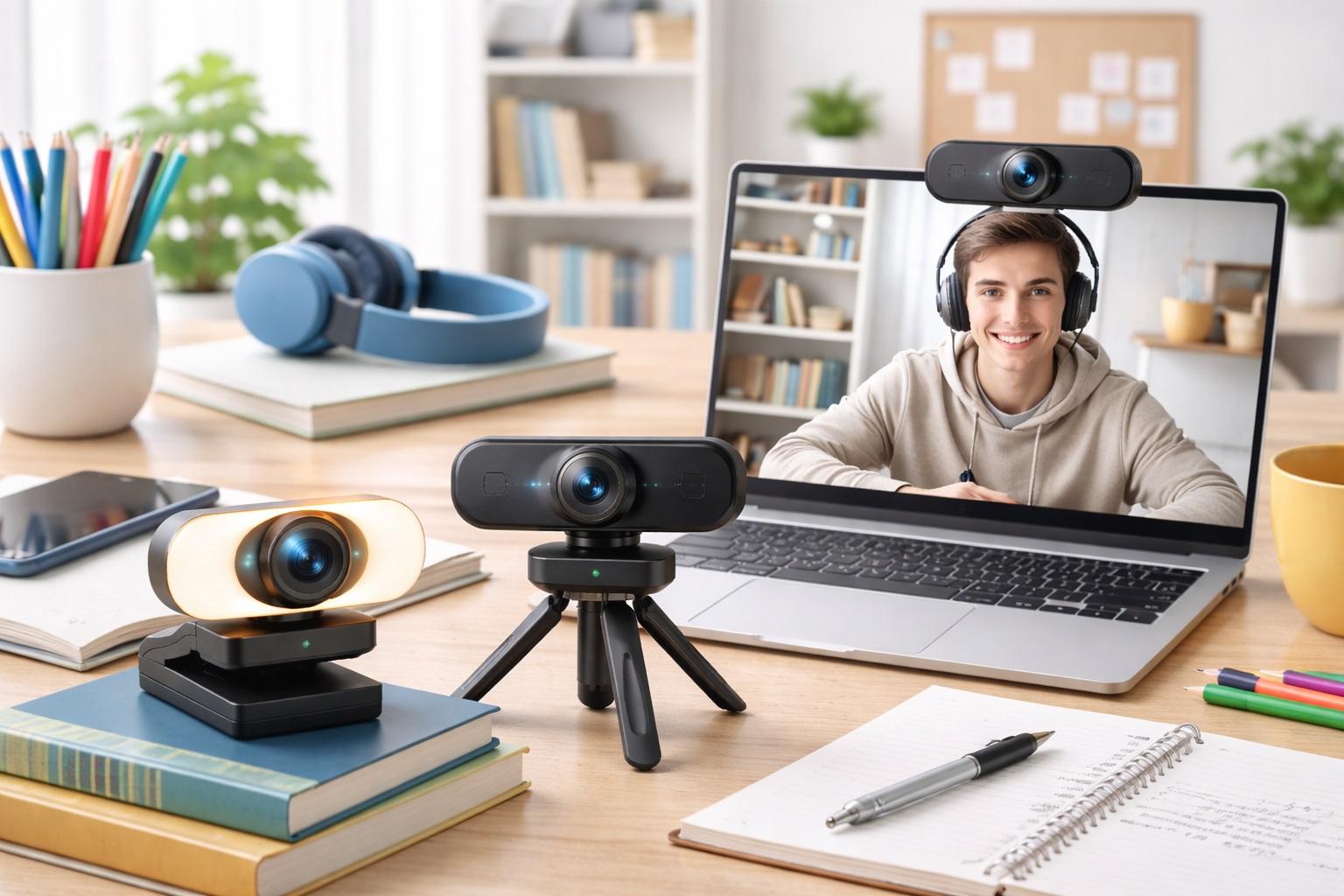
Group presentations, recorded assignments, and portfolio-style project submissions all benefit from more deliberate lighting than a typical class call requires, since these are often watched and evaluated after the fact rather than experienced live, giving small visual details more time to register with the viewer. Webcams that include a built-in ring light solve the most common problem with dorm and bedroom lighting — dim, uneven illumination — by providing an adjustable light source mounted directly around the lens, so your face is lit evenly regardless of the room's overhead lighting. This is especially useful in dorm rooms, where a single ceiling fixture often leaves one side of the room brighter than the other and casts unflattering shadows across the face during evening recording sessions, which is exactly when many students find time to record assignments between other coursework.
- Pros:
- Built-in ring light corrects for dim or uneven room lighting
- Adjustable brightness suits different rooms and times of day
- Improves the polish of recorded assignments and presentations
- No separate lighting purchase or setup required
- Gives recorded work a noticeably more polished appearance
- Cons:
- Adds bulk and a power draw beyond a standard webcam
- Ring light benefit is minor for casual, quick class check-ins
- Costs more than webcams without an integrated light
Best For: Students who regularly record presentations, video assignments, or portfolio projects and want visibly better lighting without buying and setting up a separate light, especially those working in rooms with limited natural daylight.
Why We Recommend It: For assignments where visual polish is part of the grade or the impression you're making, the built-in ring light removes the single biggest limiting factor in most student rooms — inconsistent, dim lighting — without adding a second piece of equipment to set up. It's a targeted upgrade for students who record content regularly rather than a general everyday necessity.
Buying Guide: How to Choose the Best Webcam for Students
Use these factors to match a webcam to your actual study situation — your room, your budget, and how you use video calls — rather than to whichever model has the most features listed on the box. Going through them roughly in order of impact will help you decide where to spend and where it's safe to save.
1. Matching Resolution to Platform Requirements
Most academic video platforms, including Zoom, Teams, Google Meet, and Webex, support 1080p video without issue. A 1080p webcam is the right resolution target for virtually all coursework, since a 4K sensor adds cost without a visible benefit on platforms that don't use the extra resolution. Save the extra budget for a feature you'll actually notice, such as better low-light handling or a stronger microphone.
2. Microphone Sufficiency vs. a Dedicated Option
A webcam's built-in microphone is generally adequate for casual classes and group calls. For graded presentations, recorded assignments, or any situation where audio clarity is specifically assessed, a separate USB microphone produces a noticeably better result than any webcam microphone alone. If your program includes regular recorded speaking assignments, a modest microphone purchase is often a better investment than a pricier webcam.
3. Lighting in Your Study Space
Lighting has a bigger impact on how you look than the webcam itself in most cases. Position your desk to face a window or lamp so light falls on your face rather than behind you, and favor webcams with auto-light correction if your room's lighting is inconsistent throughout the day. Even a small, inexpensive desk lamp aimed at your face can noticeably improve how you look on camera.
4. Dorm and Rental Compatibility
No decent webcam requires drilling into a desk or any permanent installation. Standard clip-on webcams attach to nearly any monitor or laptop lid without leaving marks, which matters for anyone in a dorm or rental with restrictions on modifications. Check the clip's opening width against your monitor's thickness before buying if your setup is unusually thick or thin.
5. Portability Between Locations
If your routine moves between a dorm room, library, and campus building over the course of a week, favor a compact webcam with a simple, quick-release clip that can be moved between devices in seconds rather than one requiring a fixed mount. A smaller, lighter camera is also easier to toss in a backpack without worrying about damage.
6. Plug-and-Play for Academic Platforms
Confirm plug-and-play compatibility with whatever video platform your institution requires. Nearly all USB webcams work without additional drivers on current versions of Windows and macOS, but it's worth checking for any specific requirements listed by your school's IT department, especially if your institution issues a managed laptop with restricted software installation.
7. Privacy in Shared and Public Spaces
In libraries, coworking spaces, or shared dorm rooms, a webcam with a privacy shutter or clip-on cover offers real reassurance between sessions. This factor matters more for students than for most other buyers, given how often student devices are used in shared or semi-public settings, and it's a low-cost feature relative to how often it gets used.
8. Budget Allocation
For most students, thirty to fifty dollars buys adequate webcam quality for regular classes and group calls. Spending significantly more rarely makes sense unless recorded assignments or professional-style project presentations are a frequent, graded part of your coursework, in which case a moderate step up in price is easier to justify.
9. Long-Term Durability
A webcam bought in your first year should reasonably last through graduation with normal use. Read reviews specifically for durability comments, since the clip mechanism and USB connector are the two components most likely to wear out on a webcam that's moved and reattached often across different rooms and devices.
10. Compatibility with Recording Software
If your coursework involves recording lectures, presentations, or project demonstrations, confirm the webcam works cleanly with whatever recording software you use, such as OBS, QuickTime, or Loom, in addition to your class video platform. Most standard USB webcams handle this without issue, but it's worth a quick check before an assignment deadline rather than after.
11. Field of View for Group Study Calls
If you regularly join group project calls from a shared room with roommates or study partners, a webcam with a wider field of view captures more of the space than a standard angle, which can be genuinely useful for collaborative sessions where more than one person needs to be visible.
12. Warranty for a Multi-Year Purchase
Since a student webcam is often expected to last through several years of school, a one-year manufacturer warranty is a reasonable minimum, and a longer warranty is a useful signal that the manufacturer expects the product to hold up over time, which is worth the modest extra cost for a device you'll depend on every week.
Frequently Asked Questions
These are the questions students most often ask before buying their first dedicated webcam for classes and coursework.
1. Do I need a webcam if my laptop already has a built-in camera?
A built-in camera is functional for occasional, casual use, but for online classes where your professor and classmates see you regularly, a dedicated 1080p webcam produces noticeably sharper video, better low-light performance, and a more attentive-looking camera angle than most laptop cameras can manage. The improvement is usually obvious within the first call.
2. Can I use a student webcam for recording assignments?
Yes. A 1080p webcam paired with recording software such as OBS, QuickTime, or Loom produces adequate quality for most academic video assignments. For higher-production submissions, pairing the webcam with a dedicated microphone or a ring light noticeably improves the finished result without requiring specialized video equipment.
3. Is a gaming webcam better than a regular one for students?
Gaming-branded webcams are often high quality but are designed and priced around streaming features that most students don't need. A standard home-office style webcam typically provides equivalent or better video call performance for coursework at a lower price point, making it the more sensible choice for academic use specifically.
4. Is the most expensive webcam always the best choice for students?
Not necessarily. Higher price often buys extra features like a ring light or premium materials, but many mid-range webcams handle everyday classes and calls just as well. Match the purchase to your actual coursework and living situation rather than assuming a higher price guarantees a better fit for your specific needs.
5. How long should a good student webcam last?
A well-built webcam from an established brand commonly lasts several years of regular use, which is enough to carry most students from their first year through graduation. Warranty length is a reasonable indicator of how confident the manufacturer is in that durability, and it's worth checking before buying.
6. Can I return a webcam if it doesn't fit my needs?
Most retailers offer a fifteen to thirty day return window. Keep the original packaging until you've tested the webcam in your actual dorm room or study space, since lighting and noise conditions there can differ noticeably from a quick unboxing test done under different circumstances.
7. What should I prioritize first when choosing a student webcam?
Start with your actual situation — whether your space is noisy, shared, or poorly lit — rather than shopping by resolution alone. Matching the webcam's strengths to your specific living and study conditions produces a better result than chasing the highest specification available on the shelf.
8. Does brand name matter when buying a webcam for school?
Established brands typically offer more consistent quality control and better warranty support, which is useful for a device you'll rely on for years. Newer or lesser-known brands can still offer good value, but it's worth reading recent, verified purchase reviews before choosing an unfamiliar name for a multi-year purchase.
9. Will a webcam work the same across different class platforms?
Most webcams work identically across Zoom, Teams, Google Meet, and similar platforms, since they all rely on the same standard camera and microphone access built into Windows and macOS. Issues are rare and usually resolved by selecting the correct device in the platform's settings menu.
10. Is a built-in ring light necessary for online classes?
It isn't necessary for typical classes, but it becomes genuinely useful for recorded assignments or presentations where lighting quality affects how the finished video looks, particularly in dorm rooms that rely on a single overhead light with no natural daylight nearby.
11. How much bandwidth does a student webcam use during a class call?
A 1080p webcam uses a modest amount of bandwidth on most platforms, since class call software typically compresses and adjusts the outgoing video based on your connection quality automatically, so a decent home or dorm internet connection is generally sufficient without any special configuration.
12. Should I buy a webcam before classes start or wait until I know I need one?
Since most coursework now includes at least occasional video components, buying a basic webcam before the term starts avoids a rushed purchase later and gives you time to test it under your actual room's lighting and noise conditions before it matters for a graded call or presentation.
Final Verdict
- Best Value for Everyday Student Use: 1080p Student Webcam Under $50 — the practical, affordable upgrade that suits nearly every student setup.
- Best for Noisy Student Environments: Webcam with Noise-Reducing Microphone — clearer calls for dorms, shared apartments, and busy homes.
- Best for Shared or Portable Computers: Webcam with Physical Privacy Shutter — dependable privacy for shared and public-space use.
- Best for Presentations and Recorded Assignments: Compact Webcam with Built-In Ring Light — visibly better lighting for graded video work.
Most students don't need every feature on this list — they need whichever one solves the specific problem their current setup has, whether that's a noisy hallway outside a dorm room, a computer shared with a roommate, or lighting that makes recorded assignments look worse than the work deserves. Match the pick to your actual room and routine, and a modest webcam purchase will keep paying off through every semester it's used. If you're still unsure which category fits, start with a well-reviewed 1080p option and add a microphone, shutter, or light later once you know exactly what your setup is missing.