Best Budget Webcams for Sharp Video Without Overspending
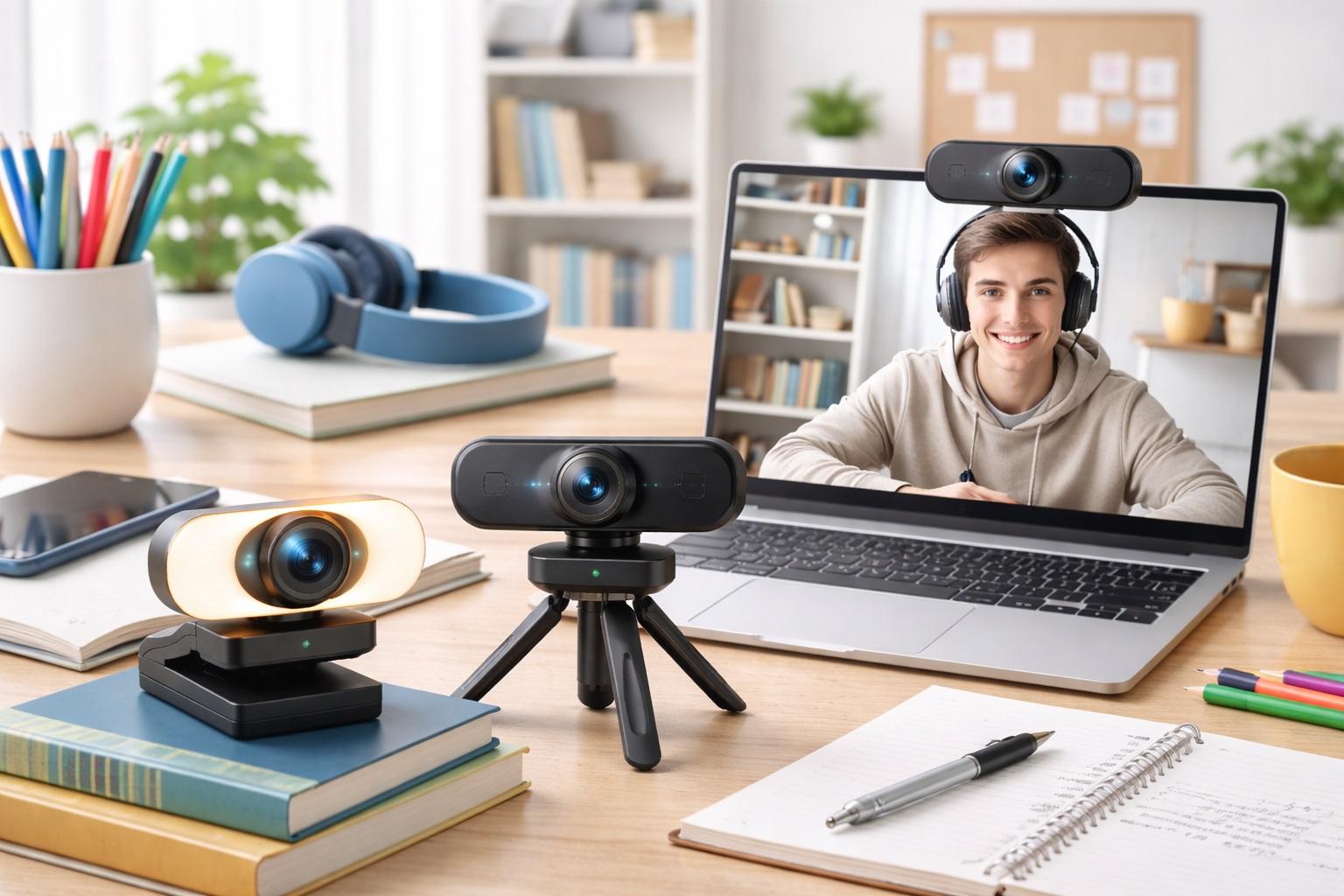
A laptop's built-in camera is rarely the weak link people assume it is until they sit through a video call next to someone using a dedicated webcam. The difference in sharpness, color, and low-light handling is immediate, and it doesn't take a premium purchase to close that gap. What it does take is knowing which features actually change your experience on a call versus which ones are marketing filler that won't matter for how you actually work day to day. Most people never compare the two side by side until a coworker or classmate happens to show up on a call with noticeably better video, and by then the gap is obvious enough to act on.
Home office workers and students share a similar set of priorities: video that looks clean on Zoom, Teams, or Meet, a setup that doesn't require fiddling with drivers every morning, and a price that doesn't rival a phone bill. Meeting those priorities doesn't require the most expensive camera on the shelf. It requires matching a small number of practical features to how and where you'll actually be using the camera, rather than chasing every spec printed on the box. A webcam that excels on a spec sheet but ignores your actual room, desk setup, or privacy habits will disappoint regardless of its price tag.
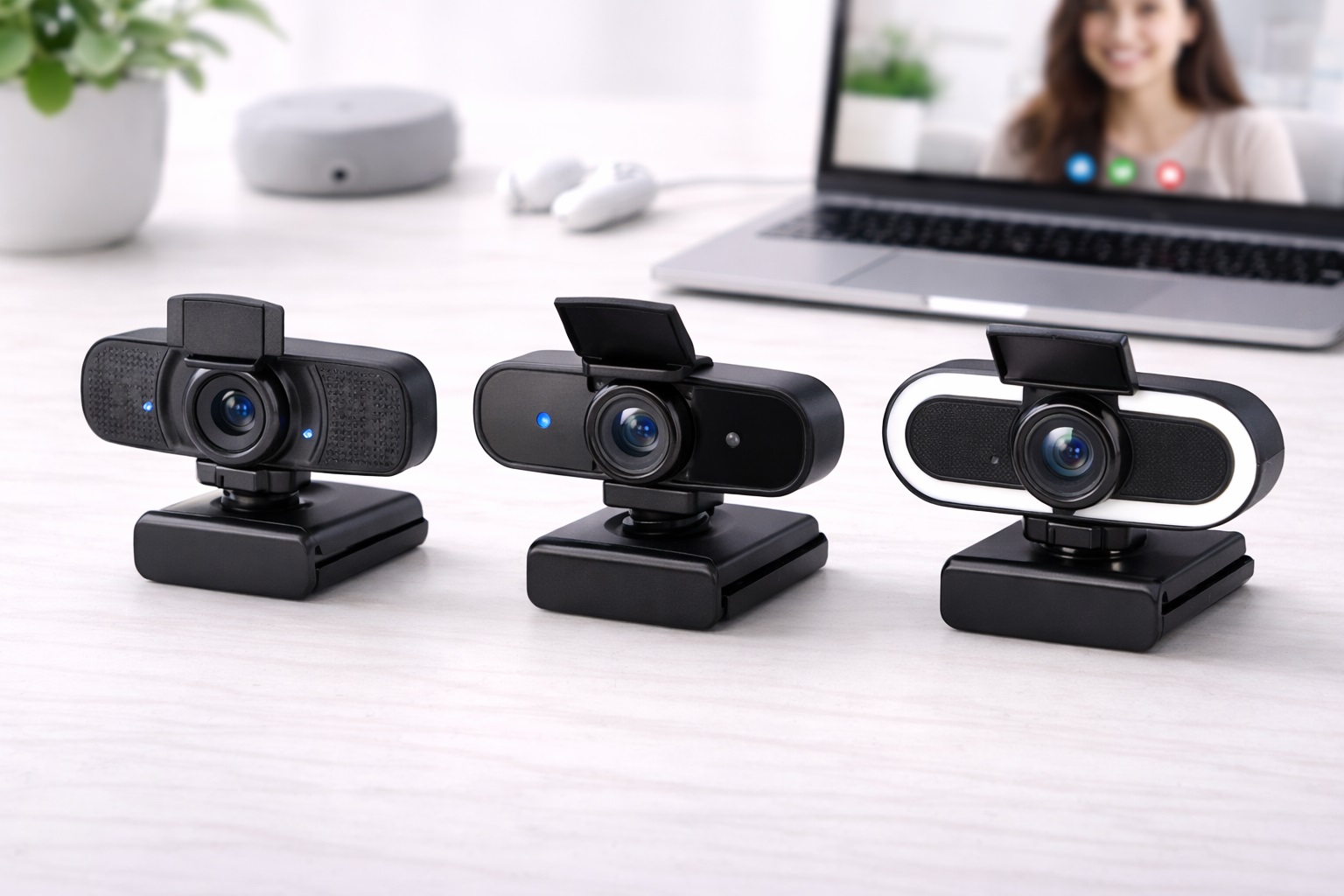
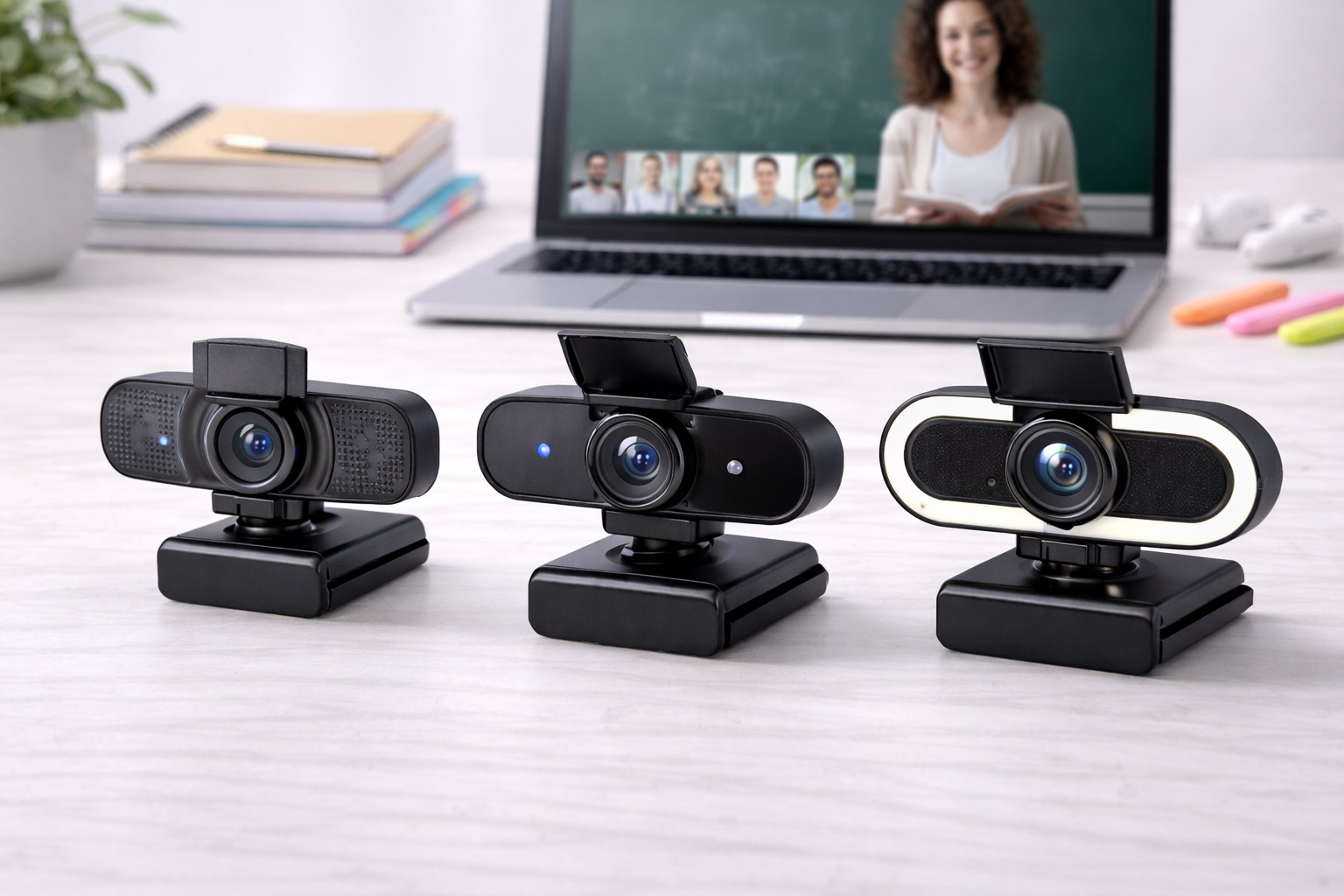
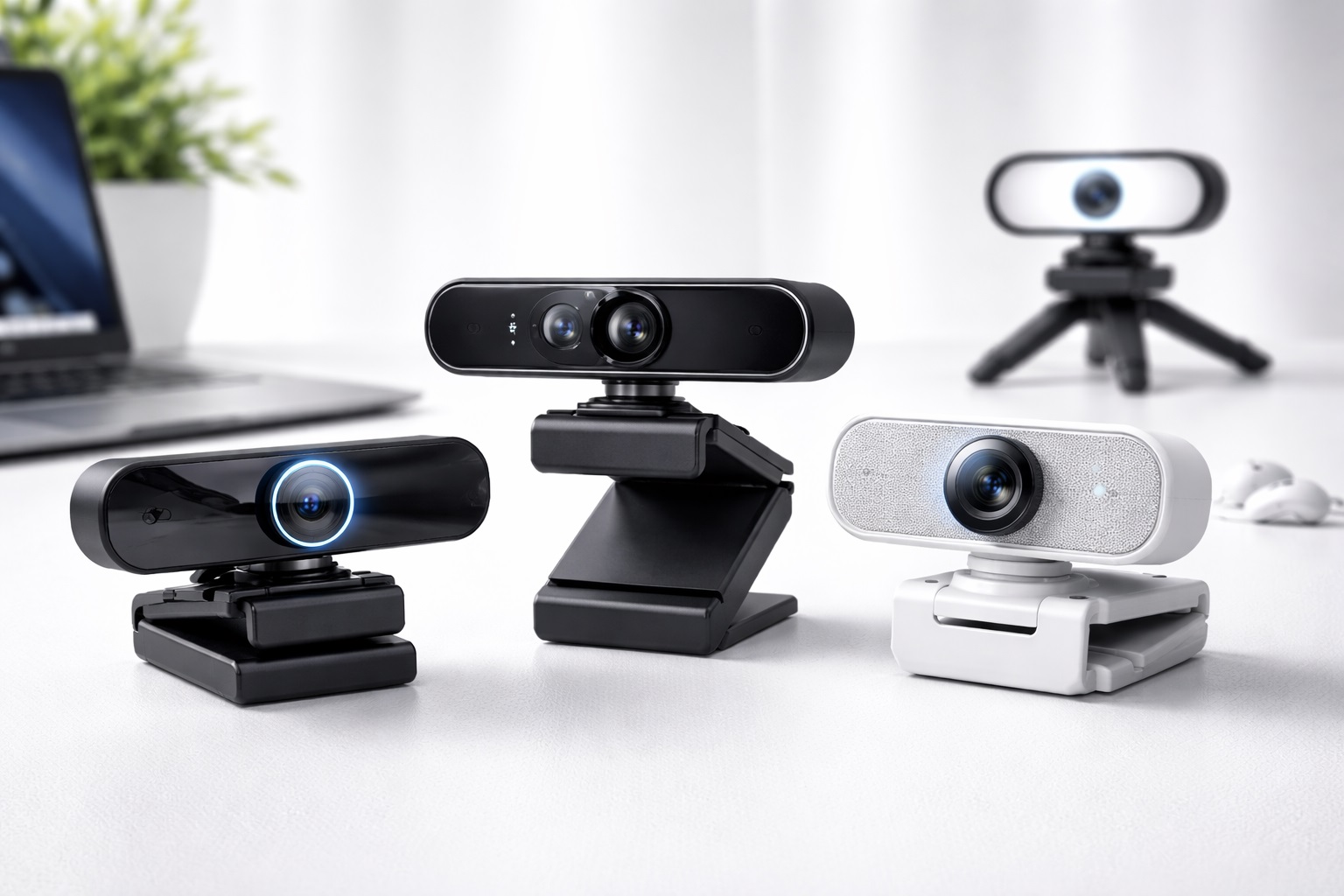
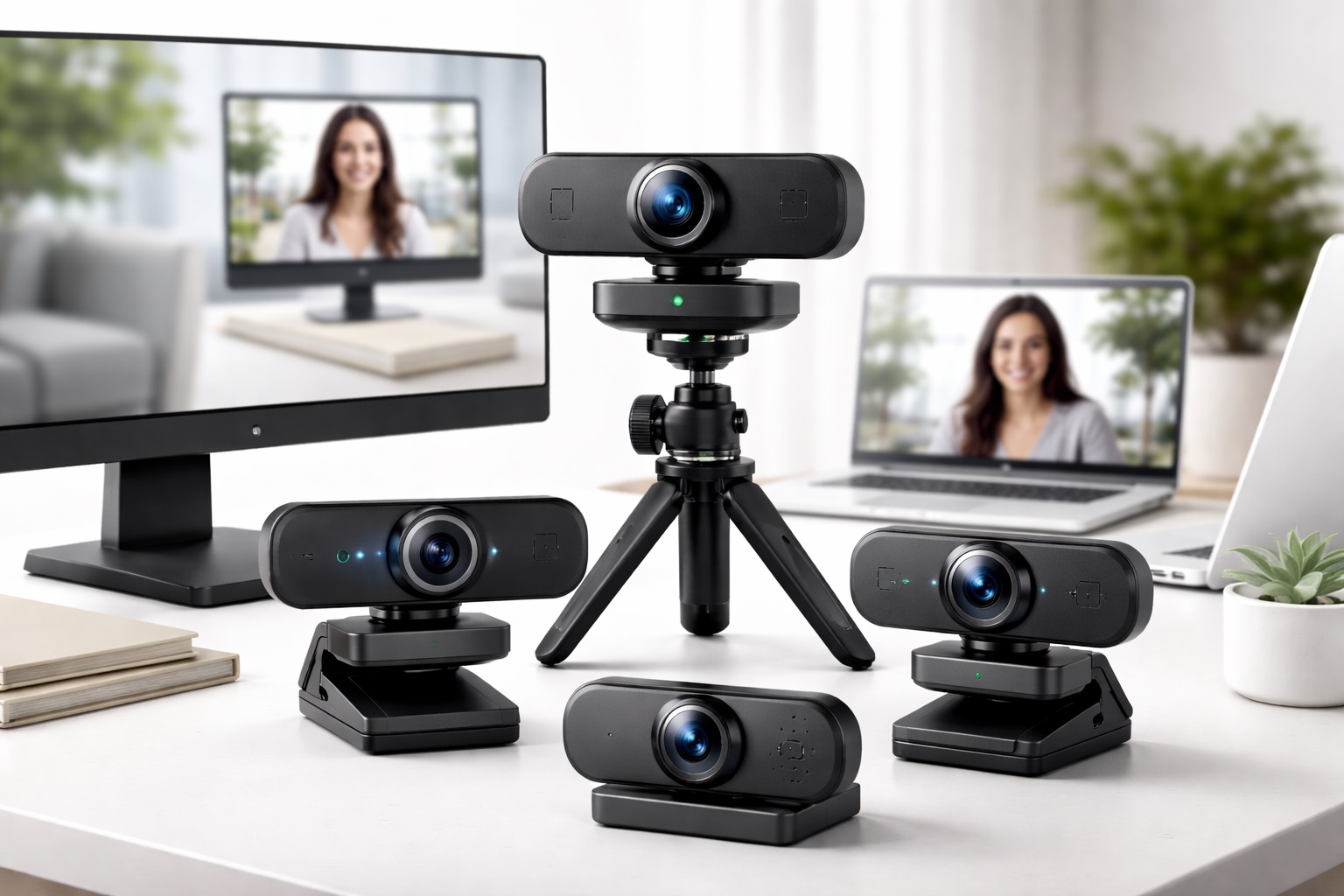
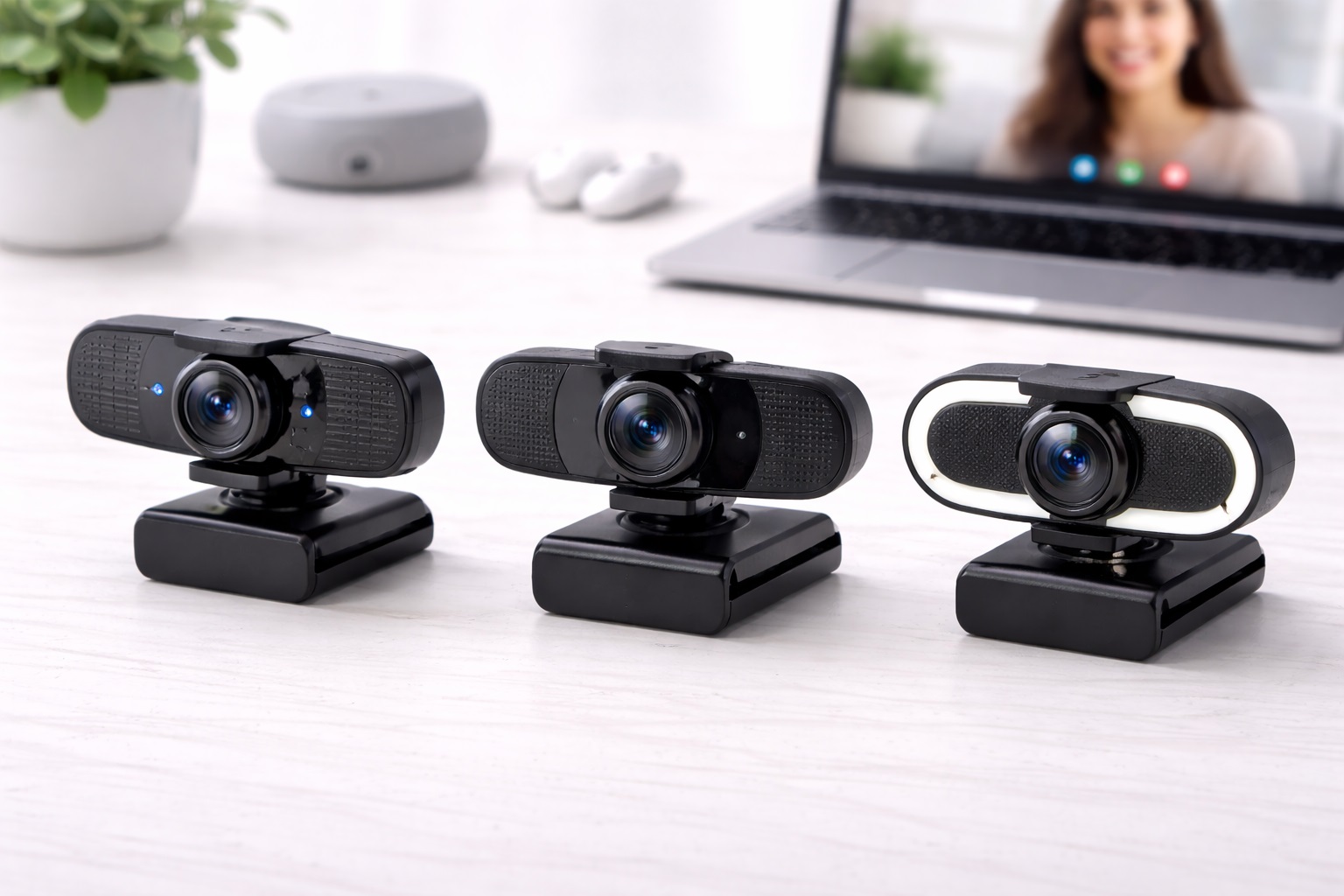
The following comparison breaks down three distinct approaches to budget webcams, each solving a different problem well. One focuses on overall image quality for daily use, one solves the lighting problem directly, and one addresses privacy concerns that software settings can't fully cover. Each of these represents a different starting priority, and understanding which priority matches your own routine will save you from buying a camera that looks impressive on paper but doesn't fix the actual issue you were trying to solve. None of the three is a universal winner; each earns its place by solving one problem particularly well rather than trying to do everything at once.
After the reviews, a buying guide walks through twelve factors worth checking before you commit to a purchase, followed by answers to the questions buyers ask most often once they start comparing listings side by side. Reading through both sections before ordering tends to prevent the most common regret with budget webcams: discovering after the fact that a feature you assumed was included, like a physical shutter or a detachable cable, simply wasn't part of the package. A few minutes spent reading a spec list carefully now is far cheaper than a return shipment later.
Top Picks (Detailed Reviews)
1080p Webcam with Autofocus – Best For Everyday Video Calls
A 1080p webcam with reliable autofocus and automatic light compensation is built to cover the routine, day-to-day video call rather than any specialized use case. Full HD resolution gives enough clarity for meetings, lectures, and general content creation without pushing bandwidth demands the way 4K does, and the autofocus keeps the picture from drifting soft every time you lean forward or shift position mid-call. That combination — dependable sharpness plus a picture that doesn't visibly react to your movement — is what most people actually mean when they say they want a webcam that simply works without constant fiddling. It's the category most buyers should start their search in before considering anything more specialized. Because it doesn't lean on a single standout feature the way a ring light or a shutter does, this style also tends to age well as your needs shift, since dependable sharpness and steady autofocus stay useful regardless of whether your next call happens in a bright office or a dim bedroom.
- Pros:
- 1080p resolution suitable for most video platforms
- Autofocus keeps subjects sharp during calls
- Automatic light compensation handles varied room conditions
- Plug-and-play compatibility with major operating systems
- Cons:
- Limited to 1080p maximum resolution
- Permanent USB cable on some models limits flexibility
Best For: Remote workers, students, and everyday users who want substantially better video quality than a built-in laptop camera.
Why We Recommend It: The 1080p autofocus combination covers what the overwhelming majority of buyers actually need from a webcam, and it does so without introducing complications like bulky hardware or a companion app you have to keep updated. For most people comparing options in this category, this is the whole decision, and further upgrades beyond it deliver diminishing returns relative to their added cost. It's the safest default recommendation for anyone who hasn't identified a more specific problem to solve.
Webcam with Built-In Ring Light – Best For Low-Light Rooms
Lighting, not resolution, is the single biggest reason webcam video looks bad, and a built-in adjustable ring light addresses that problem at the source instead of asking software to compensate for it after the fact. The ring provides consistent front illumination regardless of what the room is doing, which removes the harsh shadows and washed-out backgrounds that come from relying on whatever ceiling light or window happens to be nearby. Anyone who has joined a call from a dim apartment or a windowless office knows how quickly that inconsistency becomes distracting to everyone else on the call. Once the lighting problem is solved, even a modest sensor tends to look noticeably more polished on screen.
- Pros:
- Built-in ring light improves appearance in any lighting
- Eliminates need for a separate lighting setup
- Adjustable brightness on most models
- Compact single-unit solution for lighting and video
- Cons:
- Ring light adds bulk compared to standard webcams
- Ring light can become warm during extended sessions
Best For: Streamers, online teachers, and remote workers who frequently appear on camera in rooms with inadequate natural or artificial lighting.
Why We Recommend It: No amount of camera sharpness fixes bad lighting, and a built-in ring light removes that variable without asking you to buy, position, and power a separate light. If your workspace doesn't get good natural light and never will, this is the single feature worth prioritizing over every other spec on the list, including resolution. It's also one of the few upgrades that visibly improves how you look on camera within seconds of turning it on.
Webcam with Privacy Shutter – Best For Shared or Sensitive Spaces
A physical privacy shutter blocks the lens completely without requiring you to unplug the camera between calls, adding a layer of certainty that no software toggle can match. Models built around this feature typically pair it with other useful basics — 1080p resolution and a built-in microphone — so you aren't sacrificing everyday performance to gain the privacy control. It's a small mechanical addition, but it changes the entire relationship you have with a device that sits pointed at your desk all day. For households where several people share one computer, that certainty removes an entire category of low-level worry.
- Pros:
- Physical shutter provides absolute camera privacy
- Peace of mind without unplugging
- Available alongside HD video and microphone
- Simple slide mechanism on most designs
- Cons:
- Shutter housing slightly increases camera width
- Mechanical shutter adds minimal but nonzero failure point over time
Best For: Privacy-conscious users, anyone sharing a computer in a household, and professionals handling sensitive video calls.
Why We Recommend It: Software indicator lights and privacy settings are only as trustworthy as the code running them. A physical shutter sidesteps that question entirely, and for anyone who has ever wondered whether their camera is truly off, that certainty is worth the marginal size increase and the small mechanical trade-off involved. It's a feature that costs almost nothing in day-to-day convenience but pays off the moment it actually matters.
Buying Guide: How to Choose the Best Budget Webcam
Use these factors to match your purchase to how you'll actually use the camera, rather than defaulting to whichever listing has the most reviews or the flashiest headline spec. Each factor below addresses a different, specific complaint that shows up repeatedly in webcam feedback, so working through them in order tends to surface the trade-offs that matter most for your own setup.
1. Resolution: 1080p vs. 2K vs. 4K
1080p is sufficient for every major video calling platform, since most of them compress video down to 720p or lower before it ever reaches the other participant regardless of what your camera captures. 2K adds useful detail if you're recording or sharing your screen in high detail for tutorials or presentations. 4K is genuinely overkill for calls, though it has some value for recorded content that will be edited or archived later. Buy for your actual use, not for the highest number printed on the box, since call compression will erase most of that advantage anyway.
2. Frame Rate
30fps is the accepted standard for video calls and handles the overwhelming majority of use cases without any visible compromise in smoothness. 60fps produces noticeably smoother motion, which matters more for streaming fast-moving content than for a static meeting where you're mostly sitting still. Higher frame rates also demand more from your system's processor and from your internet upload bandwidth. Unless you're streaming movement-heavy content regularly, 30fps is the sensible default and rarely feels limiting in practice, even for fairly active presentations.
3. Autofocus Quality
Fast, accurate autofocus keeps the picture sharp as you move naturally during a call, and it prevents the soft, blurry look that fixed-focus cameras produce once you lean in closer than their focal range allows. When comparing options, look specifically for feedback on autofocus performance during movement rather than reviews that only judge a static, seated shot, since the two scenarios can produce very different real-world results. A camera that looks sharp in a still product photo can still hunt for focus awkwardly the moment you gesture with your hands.
4. Low-Light Performance
Nearly every webcam in this price range struggles once the room dims. Automatic light correction, HDR processing, or a built-in ring light all help, but manufacturer claims about low-light performance are frequently optimistic compared to what you'll actually see in a dim home office. Some auto-exposure algorithms brighten the image at the cost of natural-looking skin tones, so a real test in your own room, at the time of day you'll typically be on calls, tells you more than any spec sheet. Evening callers in particular should weigh this factor heavily.
5. Field of View
A 65–78 degree field of view suits a single person on a call comfortably, keeping the framing tight without cutting anything important out of the shot. Wider angles above 90 degrees show more background, which helps for presentations or demonstrations but can feel unflattering for a straightforward one-on-one conversation where a closer, more personal frame usually reads better. A few models offer adjustable field of view, giving you flexibility between the two situations without buying two separate cameras for different occasions.
6. Built-In Microphone Quality
Webcam microphones range from barely functional to genuinely decent, and the listed specifications rarely reflect how they perform with real background noise like a fan, traffic, or a housemate in the next room. Dual-microphone arrays with noise reduction outperform single mics consistently in these conditions. If audio quality matters for your work — client calls, recorded lectures, podcasting — pairing the webcam with a separate USB microphone remains the more reliable long-term path, since even a good built-in mic rarely matches a dedicated one.
7. Mount Type and Compatibility
Most webcams clip onto the top of a monitor, and it's worth double-checking that the clip actually fits your monitor's depth before buying — ultra-thin and curved monitors are the most common source of fit problems, sometimes leaving the camera loose or angled incorrectly. Some webcams include a tripod mount adapter as well, which is useful if you want more flexibility in positioning than the monitor top allows, such as placing the camera at a slightly different height or angle to flatter your face more naturally.
8. Privacy Shutter
A physical privacy shutter covers the lens mechanically, giving you a form of camera deactivation that no software setting can fully replicate. If privacy is a real concern for you — shared living spaces, sensitive work calls, or simple peace of mind when the laptop is closed but not fully shut down — it's worth specifically checking for this feature rather than assuming a software indicator light is enough protection on its own.
9. Plug-and-Play vs. Software Dependency
Plug-and-play webcams work the moment you connect them, on both Windows and macOS, with no driver installation required and no account sign-up standing between you and your first call. Some offer an optional companion app for extra control over exposure or framing, which is a bonus rather than a requirement. Webcams that demand software installation to function at all are less reliable across different operating systems and less convenient day to day, especially on a shared or work-managed computer where installing new software may be restricted.
10. USB Connection Type
Most budget webcams still use USB-A, though USB-C models are becoming more common and more convenient for newer laptops with limited USB-A ports. Some cameras have a fixed, non-removable cable; others use a detachable cable, which is preferable because it means a damaged cord doesn't force you to replace the whole camera. Confirm which port type your laptop actually has, and whether you'll need an adapter, before ordering, since the wrong connector turns a simple setup into an extra errand.
11. Warranty and Return Window
A webcam is a small, relatively low-cost purchase, but that doesn't make warranty coverage irrelevant. Look for at least a one-year warranty from the manufacturer, and check the retailer's own return policy separately — the two aren't always the same length or covered by the same terms. A generous return window is particularly useful for a webcam, since image and lighting quality are hard to judge from a listing photo alone and only become clear once you've tested it in your own space over a few real calls.
12. Software Extras and Firmware Updates
Some budget webcams ship with a companion app that unlocks manual exposure control, background blur, or framing adjustments beyond the plug-and-play defaults. These extras are genuinely useful if you'll take the time to configure them, but they're not a substitute for solid out-of-the-box image quality straight from the box. Treat companion software as a bonus layer worth exploring after purchase, not the deciding factor that should drive your initial buying decision, since not every buyer will bother installing it at all.
13. Cable Length and Desk Setup Flexibility
Most budget webcams ship with a cable somewhere between three and six feet, which is fine for a laptop sitting directly on the desk but can feel restrictive for a desktop tower positioned on the floor or off to one side. Checking the listed cable length against your actual desk layout before ordering avoids the minor hassle of needing a USB extension cable just to reach a comfortable monitor-top position. A slightly longer cable also gives more flexibility to route the cord neatly rather than leaving it stretched awkwardly across the desk.
14. Multi-Camera Setups for Streaming or Recording
Some users eventually want a second camera angle — a side view of a whiteboard, a top-down shot for demonstrations, or a wider establishing shot alongside a close-up. Most operating systems and video software allow more than one webcam to be connected simultaneously, though only one is typically active in a call at a time unless the software specifically supports switching between multiple sources. If this kind of setup is something you can see yourself wanting later, buying a plug-and-play model that doesn't require dedicated software now makes it easier to add a second camera down the line without configuration conflicts.
Frequently Asked Questions
1. Is 1080p good enough for a budget webcam?
Yes, for virtually all video call applications. Most platforms — Zoom, Teams, Meet — cap video at 720p or 1080p regardless of the camera's native resolution, so a 1080p webcam already displays the maximum quality your platform will transmit to the other participants. 4K webcams are primarily useful for recording rather than live calling, since call compression erases most of the resolution advantage anyway once the video reaches the other side of the call.
2. Why does my budget webcam look blurry?
Common causes include poor lighting, which degrades any webcam's output regardless of price; autofocus struggling at close range; bandwidth limitations introducing compression artifacts on the receiving end; or simply a dirty lens that's collected dust or fingerprints over time. Start by improving room lighting and confirming the camera is positioned at the right focal distance before assuming the hardware itself is faulty.
3. Does my budget webcam need to match my headphones or microphone?
No. Webcams and audio devices are entirely independent, and you can pair any webcam with any headset or microphone without compatibility concerns. For the best results, use the webcam purely for video and rely on a dedicated external microphone for audio, since built-in webcam mics are typically the weaker link in the setup even on otherwise strong cameras with excellent video quality.
4. How do I make my budget webcam look better without buying anything new?
Lighting is the single most impactful variable you control for free. Position a light source in front of your face — a window or a desk lamp facing you — rather than behind you, which silhouettes your face and forces the camera to underexpose everything. Raise the webcam to eye level to avoid an unflattering upward angle, and use a simple, uncluttered background to make the whole picture look more intentional and professional without spending anything extra.
5. Can I use my budget webcam on a television?
Yes, provided your television has a USB port and supports USB webcam input for video calling apps built into its smart TV platform. Not every smart TV supports this, and those that do may only work with a limited list of compatible camera models, so it's worth checking your TV's documentation before assuming a webcam purchase will work with it out of the box.
6. Is the most expensive budget webcam always the best?
Not necessarily. Higher price often adds features like extra resolution or a companion app, but a large share of mid-range options already cover what daily video calling actually requires. Focus on matching features to your specific use rather than assuming price alone indicates quality or reliability, since two similarly priced cameras can perform very differently in practice.
7. How long should a quality budget webcam last?
A well-built webcam from a reputable brand typically lasts several years of regular use, with the USB cable and any moving shutter mechanism being the most likely points of eventual wear before the sensor itself degrades. Checking the manufacturer's warranty length is a reasonably reliable proxy for how confident the maker is in its own build quality and long-term durability.
8. Can I return a budget webcam if it doesn't suit my setup?
Most retailers offer a return window somewhere between 15 and 30 days. It's worth keeping the original packaging during that period specifically so returning the camera stays an option if the image quality or fit doesn't work out once you've tested it in your actual room and lighting conditions over several days.
9. Do I need a webcam if my laptop already has a built-in camera?
If your laptop camera is limited to 720p, sits at an awkward low angle, or performs poorly in typical room lighting, a dedicated budget webcam is a meaningful upgrade for a relatively small cost. The improvement is usually most noticeable in exactly the situations that matter most — client calls, interviews, and recorded presentations where image quality reflects on you professionally in front of an audience that matters.
10. Does brand name matter when choosing a budget webcam?
Established brands generally offer more consistent quality control, more responsive customer support, and clearer warranty terms. That said, newer or less familiar brands sometimes deliver strong value at a lower price point, so it's worth reading verified, detailed reviews rather than dismissing a listing purely on brand recognition or unfamiliarity with the manufacturer.
11. Should I prioritize resolution or lighting features when choosing between two budget webcams?
Lighting features generally matter more for perceived video quality than an incremental resolution bump, because poor lighting degrades even a genuinely sharp sensor beyond recognition. If you have to choose between a higher-resolution camera in a poorly lit room and a lower-resolution camera with a ring light or strong auto-exposure, the lighting-focused option usually looks better on an actual call with real participants judging the result on their own screens.
12. Is it worth buying a webcam with a privacy shutter if I already cover my camera with tape?
A built-in shutter is more convenient and leaves no adhesive residue, but tape accomplishes the same basic privacy goal at zero cost. If you already have a reliable habit of covering the lens, the shutter mainly buys convenience and a cleaner appearance rather than a fundamentally different level of privacy. For anyone who forgets to reapply tape consistently, though, a built-in shutter removes that human error entirely and requires no ongoing maintenance.
13. Can I connect two webcams to the same computer at once?
Yes, most computers support multiple webcams connected simultaneously, though most video calling software only lets you select one active source at a time. Switching between them usually requires selecting the correct camera from a dropdown menu within the call, which is straightforward but worth practicing before an important call rather than during one.
14. Will a USB webcam work with a Chromebook?
Most plug-and-play USB webcams work with Chromebooks for basic video calling through browser-based platforms like Google Meet, since Chrome OS generally recognizes standard USB video class devices without needing dedicated drivers. Webcams that require a full companion app for basic functionality are less likely to work well on Chrome OS, so favor listings that confirm plug-and-play operation if a Chromebook is part of your setup.
Final Verdict
- Best For Everyday Video Calls: 1080p Webcam with Autofocus – the practical, no-fuss upgrade for the vast majority of remote workers and students.
- Best For Low-Light Rooms: Webcam with Built-In Ring Light – solves the biggest source of poor video quality directly, with no separate lighting setup required.
- Best For Shared or Sensitive Spaces: Webcam with Privacy Shutter – the only truly reliable way to guarantee the camera is off between calls.
None of these three options is universally correct — the right pick depends on whether your priority is everyday clarity, fixing a dim room, or having hardware-level control over when the camera can see you. Match the choice to the problem you're actually trying to solve, and a budget webcam will outperform a laptop camera by a wide margin regardless of which one you land on. Take a few minutes to reread the buying guide section that speaks most directly to your own workspace before making a final decision.