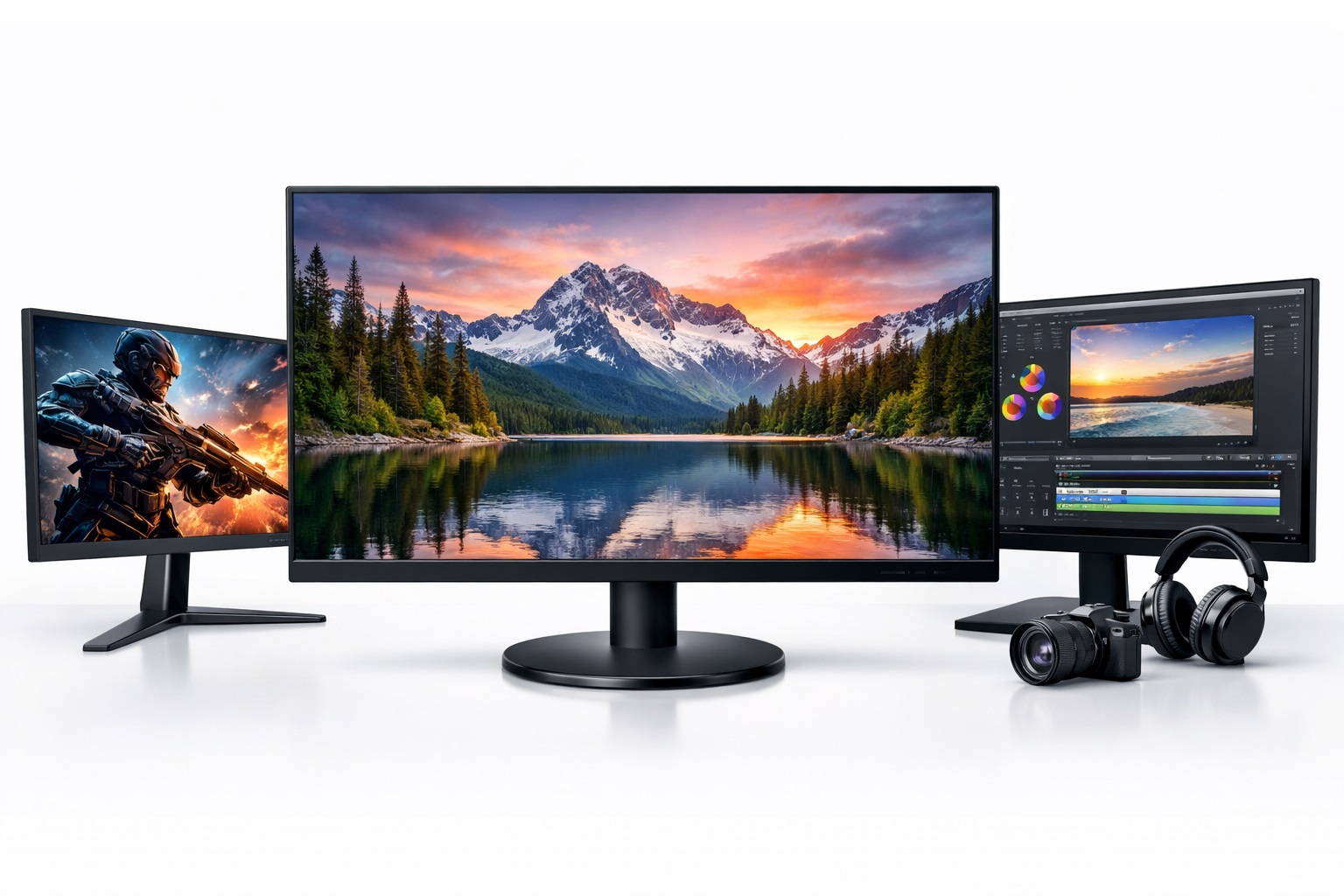
Best Monitors Under $100: Solid Display Performance at a Budget Price
A tight budget doesn't have to mean a disappointing screen. The monitor market under $100 has matured enough that shoppers can get a genuinely usable display for everyday computing without the compromises that used to define budget electronics — washed-out colors, flickering backlights, or stands that wobble under normal use. The challenge now isn't finding something cheap; it's finding the right cheap option for how you'll actually use it.
Budget-conscious buyers in this category usually fall into a few groups: students setting up a first desk, home office workers adding a second screen without a big spend, and anyone replacing an aging monitor who doesn't want to overpay for features they won't use. Each of these situations calls for a slightly different balance of resolution, size, and screen real estate, even within a shared price ceiling. A student cramming a monitor onto a dorm desk has different priorities than a home office worker adding a second screen next to an existing setup, even though both shoppers are working within the same rough budget.
This guide compares three practical display categories that consistently deliver solid value at a budget price point, followed by a detailed buying guide and answers to the questions we hear most often from people shopping under $100. The goal isn't to find the single "best" monitor — it's to match the display type to your actual daily use so the value holds up well after the return window closes.
It's also worth setting expectations early: a sub-$100 monitor won't compete with a premium creative-grade display on color volume or HDR performance, and that's fine. The categories below focus on the traits that matter most at this price — panel technology, resolution, and connectivity — rather than chasing specs that only matter at a much higher price tier.
Timing your purchase can also stretch a tight budget further. Monitor pricing fluctuates around major sales periods, and older generation panels frequently drop into this price range once manufacturers release newer models, without any real difference in day-to-day performance for standard office and study use. Watching for these price dips is often a more effective strategy than searching for a permanently underpriced listing, and setting a price alert on a specific model is a simple way to catch a good deal without checking listings manually every day.
Top Monitors Under $100 (Detailed Reviews)
1. IPS 1080p 24-Inch Monitor – Best Overall Under $100
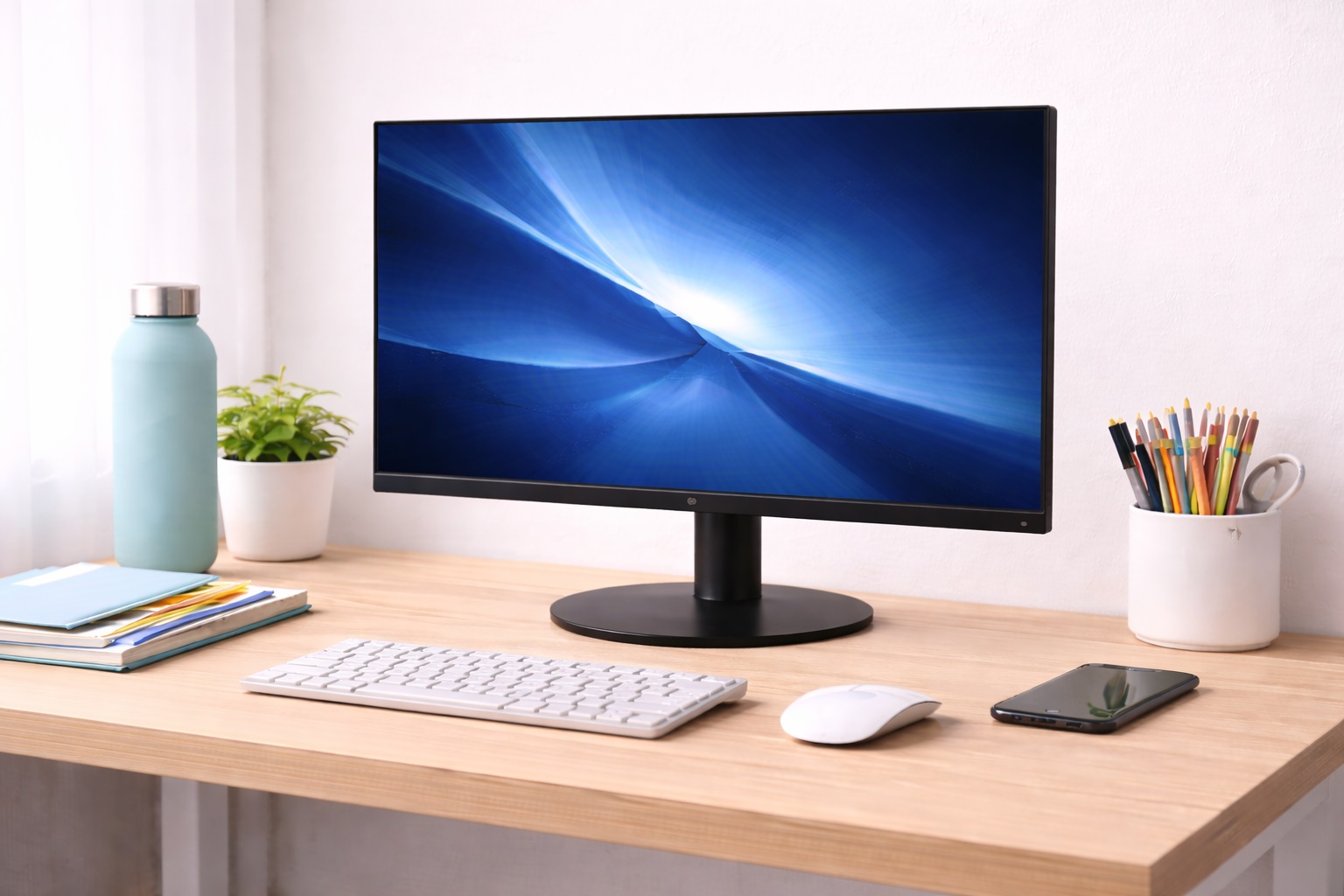
A 24-inch IPS monitor running at 1080p resolution is the most versatile starting point for home office and student use, and it's also the category where budget pricing stretches furthest. IPS panel technology delivers accurate color reproduction and wide viewing angles — genuinely useful when a roommate, classmate, or coworker is viewing the screen from the side rather than dead center. At 24 inches and 1080p, pixel density stays comfortable for extended reading and browsing without requiring GPU-intensive rendering, which matters if the rest of your setup is also budget-conscious.
Because this combination of size and resolution is so common across the market, competition keeps prices low while overall build quality has improved steadily over the past several years. Most 24-inch IPS monitors in this price range include a basic tilt-adjustable stand and standard HDMI/VGA connectivity, which covers the vast majority of desktop and laptop setups without needing an adapter. For anyone unsure exactly what they need from a first or backup monitor, this category rarely feels like a compromise even months after purchase. It's also the category with the deepest selection at this price, which means more room to compare specific brightness, contrast, and warranty details across near-identical listings before settling on one.
- Pros:
- Accurate color from IPS panel technology
- Wide viewing angles for shared viewing
- 1080p at 24 inches offers comfortable pixel density
- Widely available across nearly every budget retailer
- Runs smoothly without a discrete graphics card
- Cons:
- 1080p shows individual pixels on displays larger than 27 inches
- IPS panels can have slightly slower response than TN alternatives
Best For: Home office workers, students, and general users who want a reliable, color-accurate daily display for productivity and media consumption without overspending.
Why We Recommend It: The 24-inch IPS 1080p combination has been the go-to recommendation for everyday computing for years, and it remains the most reliable way to spend under $100 on a monitor. It delivers what most users actually need without demanding expensive GPU support or premium pricing.
2. 27-Inch 1440p Monitor – Best for Demanding Use on a Budget
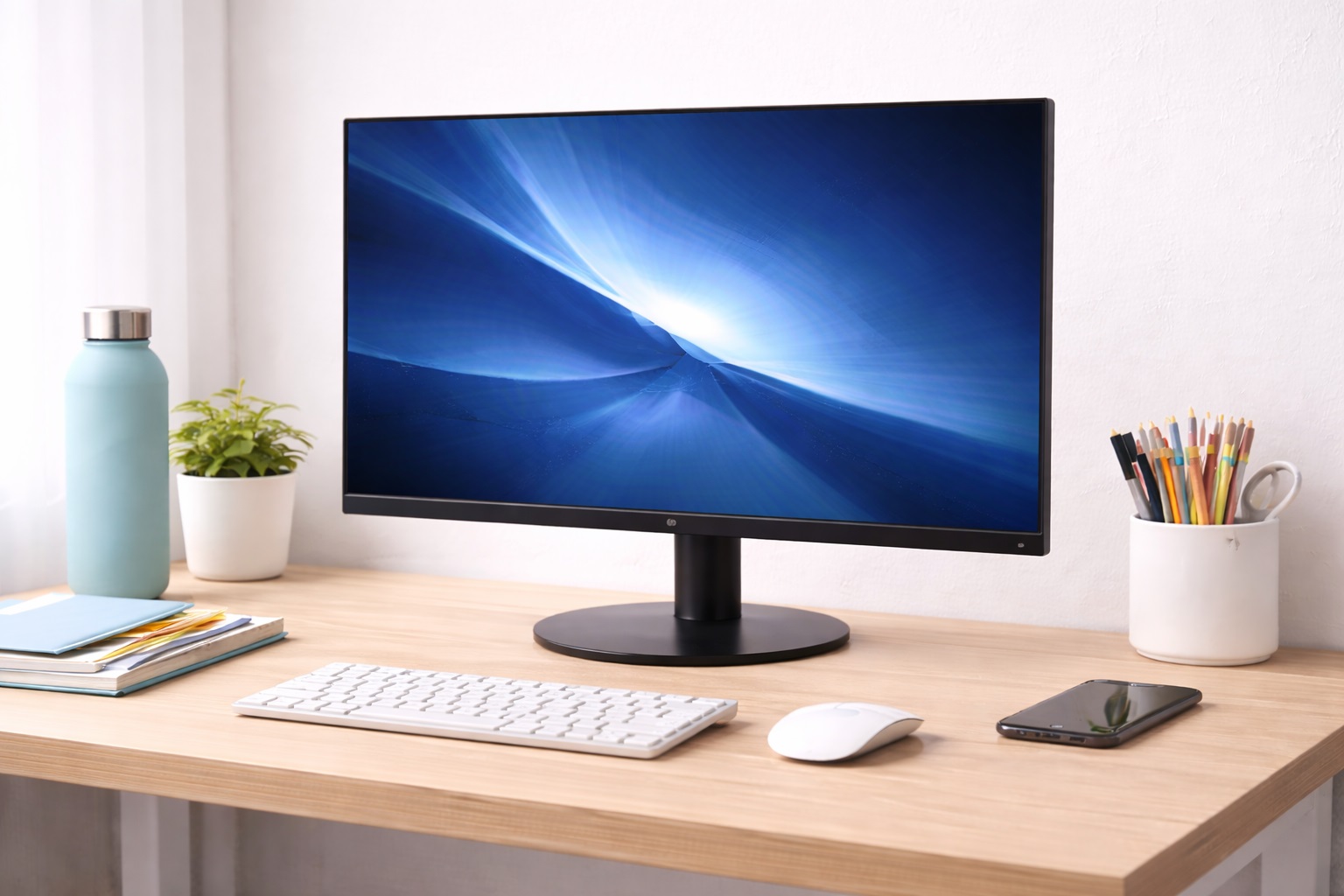
A 27-inch 1440p (QHD) display offers noticeably sharper text and image clarity than 1080p at the same size, making it better suited to users who work with detailed images, code, or multiple document windows simultaneously. The larger screen area reduces how often you need window-management shortcuts, since there's simply more legible space to spread work across. Finding this resolution and size combination under $100 usually means shopping sales or open-box listings, but it's increasingly reachable as panel manufacturing costs have come down.
The tradeoff is that a 1440p panel asks a bit more of your graphics hardware than a 1080p screen does, so it's worth checking that your laptop or desktop can drive the extra resolution smoothly before committing. For anyone doing detail-heavy work on a tight budget, this is usually the single upgrade that makes the most noticeable difference, more so than chasing a faster refresh rate or extra ports. Shoppers who spend most of their time reading dense text or zooming into images will typically get more day-to-day value from the resolution bump than from any other single spec on the sheet.
- Pros:
- Sharper 1440p resolution for detail work
- 27 inches suits multi-window workflows naturally
- IPS variants offer excellent color accuracy
- Good choice for creative and coding work on a budget
- Meaningful upgrade over 1080p without jumping to premium pricing
- Cons:
- Costs more than 1080p alternatives, even at the budget end
- Requires a more capable GPU for smooth performance
Best For: Students, freelancers, and productivity users who work with multiple windows or detailed visual content but still need to watch their budget.
Why We Recommend It: The step from 1080p to 1440p at 27 inches is one of the most noticeable display quality improvements available, and finding it near the $100 mark is genuinely good value. For anyone who works with text or detailed visuals all day, the sharpness difference is immediately apparent.
3. Ultrawide Curved Monitor – Best for Immersive Work Under $100
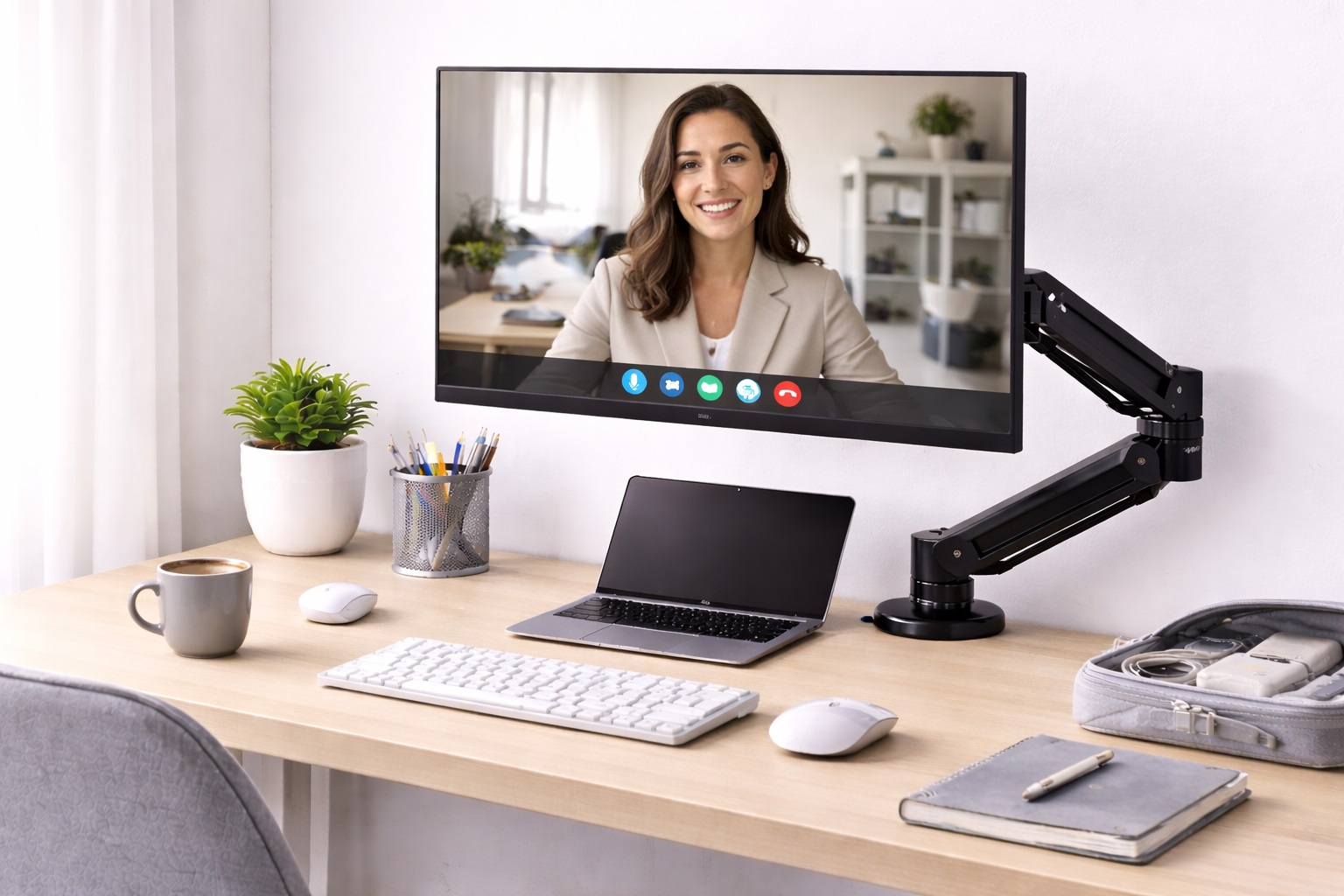
Ultrawide monitors use a 21:9 aspect ratio that provides roughly 33% more horizontal screen space than a standard 16:9 display of similar height. The curved screen wraps the image slightly toward the viewer, reducing head movement when working across the full width. Ultrawides effectively replace a dual-monitor setup with a single, bezel-free display, which can actually be more budget-friendly than buying two separate monitors and a dual-mount stand.
Entry-level ultrawides that fall near this price point tend to use a lower refresh rate and a smaller curve radius than premium models, but the core benefit — extra horizontal workspace without a bezel gap — still holds. Buyers considering this option should weigh the format's genuine productivity benefit against the fact that it demands more from a graphics card than a standard monitor of similar price, and should double-check that older laptops or budget desktops can actually drive the wider resolution without noticeable lag.
- Pros:
- More horizontal space than standard 16:9 displays
- Replaces a dual-monitor setup with one seamless screen
- Curved design reduces head and neck movement across the screen
- Immersive for video content and creative applications
- Can be more economical than buying two separate monitors
- Cons:
- Higher cost than standard-width alternatives at this budget tier
- Requires a more powerful GPU to run at full resolution effectively
Best For: Budget-conscious multitaskers and creative users who want maximum screen real estate in a single display rather than juggling two monitors.
Why We Recommend It: The ultrawide format genuinely changes how you work with a computer. The removed bezels and expanded horizontal canvas make multi-window management more natural, and for buyers comparing the cost of two budget monitors against one ultrawide, the math often favors the single screen.
Buying Guide: How to Choose the Best Monitor Under $100
Use these key factors to match your purchase to your actual needs rather than defaulting to whichever option has the lowest sticker price.
1. Panel Technology (IPS vs. VA vs. TN)
IPS panels offer the best color accuracy and widest viewing angles — ideal for color-sensitive work and shared viewing. VA panels deliver excellent contrast ratios and good color performance, suiting media consumption. TN panels have the fastest response times but the narrowest viewing angles, and they're still common at the very bottom of the price range. For office work and general use, IPS remains the most recommended starting point even on a tight budget.
2. Resolution and Pixel Density
1080p at 24 inches delivers comfortable sharpness for most users and is the most common resolution under $100. 1440p (QHD) at 27 inches noticeably sharpens text and detail but is less common at this price. Match resolution to screen size for optimal pixel density — a 1080p 24-inch screen looks sharp, while a 1080p panel stretched to 32 inches will look noticeably soft.
3. Refresh Rate
For office work and general productivity, 60Hz is adequate and is what most budget monitors ship with. For gaming or video content, 75Hz or higher reduces motion blur noticeably, and some budget monitors now include this as a low-cost bonus feature. Don't pay a premium for refresh rate beyond your actual use case.
4. Response Time
Response time, typically 1ms to 8ms, describes how quickly pixels change. For office and productivity use, 5ms or below prevents motion blur while scrolling. For gaming, 1ms GTG is the target, though this is less common at budget price points. For static document work, response time is essentially irrelevant.
5. Eye Care Features
Flicker-free backlighting and blue light reduction modes reduce eye strain during extended use, and both are increasingly common even in budget monitors. These are worth specifically checking for if you work at a monitor for six or more hours daily. Low blue light modes shift color temperature warmer, which some find uncomfortable for color-accurate work, so verify the feature is adjustable rather than permanently on.
6. Connectivity Ports
Check that the monitor includes the ports your devices actually use before buying. HDMI is standard across nearly all budget monitors, while VGA remains common for compatibility with older desktops. DisplayPort appears occasionally at this price tier and is worth prioritizing if your graphics card supports it, since it typically offers better bandwidth than HDMI on entry-level monitors.
7. Stand Adjustability
A monitor at the wrong height causes neck strain as consistently as a chair at the wrong height. Budget monitors often include only basic tilt adjustment, so check listings carefully if height or swivel adjustment matters to you. VESA mount compatibility is common even on budget models and allows upgrading to a monitor arm later if the included stand doesn't meet your needs.
8. Screen Coating
Matte coatings diffuse reflections and suit bright rooms with windows behind the user. Glossy coatings produce more vibrant colors but create distracting reflections in lit environments. Most budget office monitors use matte coatings for their practical anti-glare benefit, which is a sensible default for most home and dorm setups.
9. Size for Your Desk Depth
Monitor size recommendations assume a viewing distance of 50 to 70 centimeters. On a shallow desk, a 27-inch monitor may feel too large and require uncomfortable focus adjustment. A 24-inch monitor at around 55 centimeters provides a comfortable field of view that suits most budget desk setups, including dorm rooms and compact home offices.
10. HDR Specification Quality
Monitor HDR certifications vary enormously, and budget monitors that advertise HDR support rarely carry a meaningful certification. DisplayHDR 400, the most common tier, provides only a minimal true HDR benefit. For office use, HDR is largely irrelevant, so it shouldn't be a deciding factor when comparing budget options.
11. Warranty Coverage at This Price Point
Budget monitors vary widely in warranty length, from as little as one year to three years from more established brands. A longer warranty is a reasonable signal of manufacturer confidence, and it's worth checking before assuming that all monitors in this price range carry the same coverage.
12. Total Cost Including Cables and Mounts
Some budget monitors don't include the cable you need, particularly if your setup requires DisplayPort or USB-C rather than the bundled HDMI or VGA cable. Factor in the cost of any missing cable or mount hardware when comparing two monitors that look identically priced on the surface, since a five or ten dollar cable purchase can meaningfully change which option is actually cheaper once everything you need is accounted for.
13. Brightness and Contrast Ratings
Brightness in the 250 to 300 nits range is typical for budget monitors and is enough for most indoor use, though it can feel dim in a very bright room with sunlight hitting the screen. Contrast ratio figures on spec sheets are often marketing shorthand rather than a precise measurement, so treat them as a rough indicator rather than a decisive factor when comparing two similarly priced monitors.
14. Speaker Quality on Budget Monitors
Many budget monitors include built-in speakers as a convenience feature, but the audio quality is typically thin and lacks bass compared to even modest external speakers or headphones. If sound quality matters for your use case, plan on pairing the monitor with a separate audio setup rather than relying on the built-in speakers for anything beyond basic notification sounds.
15. Bezel Size and Multi-Monitor Setups
Budget monitors sometimes have thicker bezels than premium models, which is a minor cosmetic tradeoff for most single-monitor setups but becomes more noticeable if you're placing two monitors side by side. If a seamless dual-monitor look matters to you, check bezel width specifically rather than assuming all monitors in this price range look similar side by side.
Frequently Asked Questions
1. How far should I sit from a budget monitor under $100?
Approximately 50 to 70 centimeters from the screen is the recommended viewing distance, corresponding to roughly an arm's length from a seated position. Sitting too close causes eye strain from excessive focusing effort, while sitting too far requires squinting to read text clearly. Adjust your operating system's text size rather than moving closer if reading feels uncomfortable.
2. Should I get a curved monitor under $100?
Curved monitors reduce head and eye movement when viewing the full screen width, and this benefit is most noticeable on ultrawide formats. On standard 24 to 27-inch monitors, the curvature effect is much less dramatic. Curved displays are worth considering for immersive use at ultrawide sizes but less impactful at standard monitor widths.
3. Does a more expensive monitor under $100 have better colors?
Panel quality affects color accuracy more than price alone within this budget tier. An IPS panel near the top of this price range typically has better color accuracy than a TN panel at the bottom of it. sRGB coverage and factory calibration are more reliable indicators of color quality than price alone.
4. Is it worth paying extra for a 4K monitor near $100?
True 4K monitors are rare below $100, and the ones that do appear at this price often cut corners elsewhere to hit the number. For general productivity on a budget, 1080p or 1440p typically offers a better balance of sharpness and reliability than a bargain 4K panel.
5. Can I use two budget monitors on one laptop?
Dual external monitor support depends on your laptop's graphics hardware and port configuration rather than the monitors themselves. Many laptops support two external displays through USB-C or HDMI plus DisplayPort simultaneously. Check your laptop's technical specifications for its supported display output count before planning a dual budget monitor setup.
6. Is the most expensive monitor under $100 always the best?
Not necessarily. Higher price within this range often means more features, but many mid-range budget options offer excellent performance for everyday use. Focus on the features that matter for your specific needs rather than assuming price alone predicts quality.
7. How long should a quality budget monitor last?
A well-built monitor from a reputable brand typically lasts two to five years or longer with reasonable care, even at the budget end of the market. Always check warranty terms as a useful quality indicator when comparing similarly priced options.
8. Can I return a budget monitor if it doesn't suit me?
Most retailers offer a 15 to 30 day return window. Keep the original packaging during your evaluation period to ensure you have the option to return the monitor if it doesn't meet your needs once it's set up on your desk.
9. What is the best monitor under $100 for everyday computing and study?
The best choice depends on your specific priorities. Review the buying guide factors above and match each option to your most important requirements, whether that's screen size, resolution, or available ports.
10. Does brand name matter when choosing a budget monitor?
Established brands generally offer better quality control, customer support, and warranty reliability. However, newer or lesser-known brands sometimes offer excellent value at this price point, so it's worth reading verified reviews carefully before purchasing, especially since a strong warranty from a smaller brand can sometimes outweigh the marginal brand recognition of a larger, more established name.
11. Are budget monitors reliable for daily, long-term use?
Many budget monitors from established brands hold up well for years of daily use, provided basic care is taken with cabling and desk placement. The main risk with unfamiliar brands is inconsistent quality control rather than the price tier itself, so checking verified reviews matters more than the price alone.
12. Do budget monitors work well for video calls and streaming?
A standard 1080p budget monitor handles video calls and streaming without issue, since neither task demands high refresh rates or wide color gamuts. The webcam and microphone quality in a video call setup typically matter far more to call quality than the monitor itself.
13. Should I prioritize size or resolution on a tight budget?
If you have to choose, matching resolution to size matters more than maximizing either one alone. A smaller, sharper 1080p 24-inch screen will generally look better day to day than a larger monitor at the same resolution, where pixels become more visible as the screen grows.
14. Is it worth buying a used or refurbished monitor under $100?
Refurbished monitors from reputable sellers can offer better specifications for the price than new budget models, provided they come with some warranty or return coverage. It's worth checking the seller's return policy carefully, since refurbished electronics carry more uncertainty than new units.
15. Do budget monitors support wall mounting?
Most budget monitors include standard VESA mounting points, even when the included stand itself is fairly basic. This makes it straightforward to switch to a wall mount or monitor arm later without needing to replace the display itself.
16. Can a budget monitor handle basic photo or video editing?
A budget IPS monitor can handle casual photo editing reasonably well, since IPS panels offer decent color accuracy even without factory calibration. For color-critical professional work, though, a dedicated color-accurate monitor with verified sRGB or Adobe RGB coverage will outperform a general budget panel, so treat a sub-$100 monitor as suitable for casual editing rather than professional-grade color work.
17. Do budget monitors support adjustable stands out of the box?
Most budget monitors ship with a basic stand offering tilt adjustment only, with height and swivel adjustment less common at this price point. If ergonomic adjustability matters to you, check the specific listing rather than assuming a full range of motion, and remember that VESA mount compatibility offers a workaround if the included stand falls short.
18. Is it better to buy locally or online for a budget monitor?
Buying online generally gives access to a wider selection and more competitive pricing, while buying locally allows you to inspect the screen for dead pixels or backlight bleed before committing, which can matter more at the budget end of the market where quality control is sometimes less consistent. Both approaches work well as long as the return policy is clear, so the choice usually comes down to convenience and how quickly you need the monitor set up.
Final Verdict
- Best Overall Under $100: IPS 1080p 24-Inch Monitor – the reliable all-rounder for home office and student use.
- Best for Demanding Use on a Budget: 27-Inch 1440p Monitor – the noticeable quality upgrade for detail-oriented work.
- Best for Immersive Work Under $100: Ultrawide Curved Monitor – maximum workspace for multitaskers and creative users.
The right monitor under $100 depends entirely on how you'll use it and what you need most. A 24-inch IPS panel remains the safest all-purpose choice for most budgets, a 27-inch 1440p display rewards detail-heavy work if you can find one near this price point, and an ultrawide is worth considering if you're weighing it against the cost of two separate monitors. Use the buying guide factors and individual product summaries above to make a confident, well-matched decision rather than a generic one.
Whichever category you land on, remember that a budget price doesn't have to mean a short-lived purchase. Checking warranty terms, confirming the ports you actually need are included, and reading a handful of verified reviews before buying will do more to protect your investment than chasing the absolute lowest price in the category. A well-chosen sub-$100 monitor can comfortably serve years of daily study, work, and downtime without ever feeling like the budget option it technically is.
It's also worth resisting the urge to over-optimize a purchase at this price point. Spending hours comparing marginal differences in contrast ratio or bezel width between two similarly reviewed monitors rarely changes the day-to-day experience as much as simply matching screen size and resolution to your desk and eyesight. Once those two basics are right, the remaining differences between well-reviewed budget monitors tend to be small enough that any reasonable pick from the categories above will serve you well, leaving the rest of your budget free for the things that actually improve your daily setup, like a proper keyboard, a comfortable chair, or better desk lighting.