Best Monitor Arms for Video Calls: Eye-Level Presence in Every Meeting
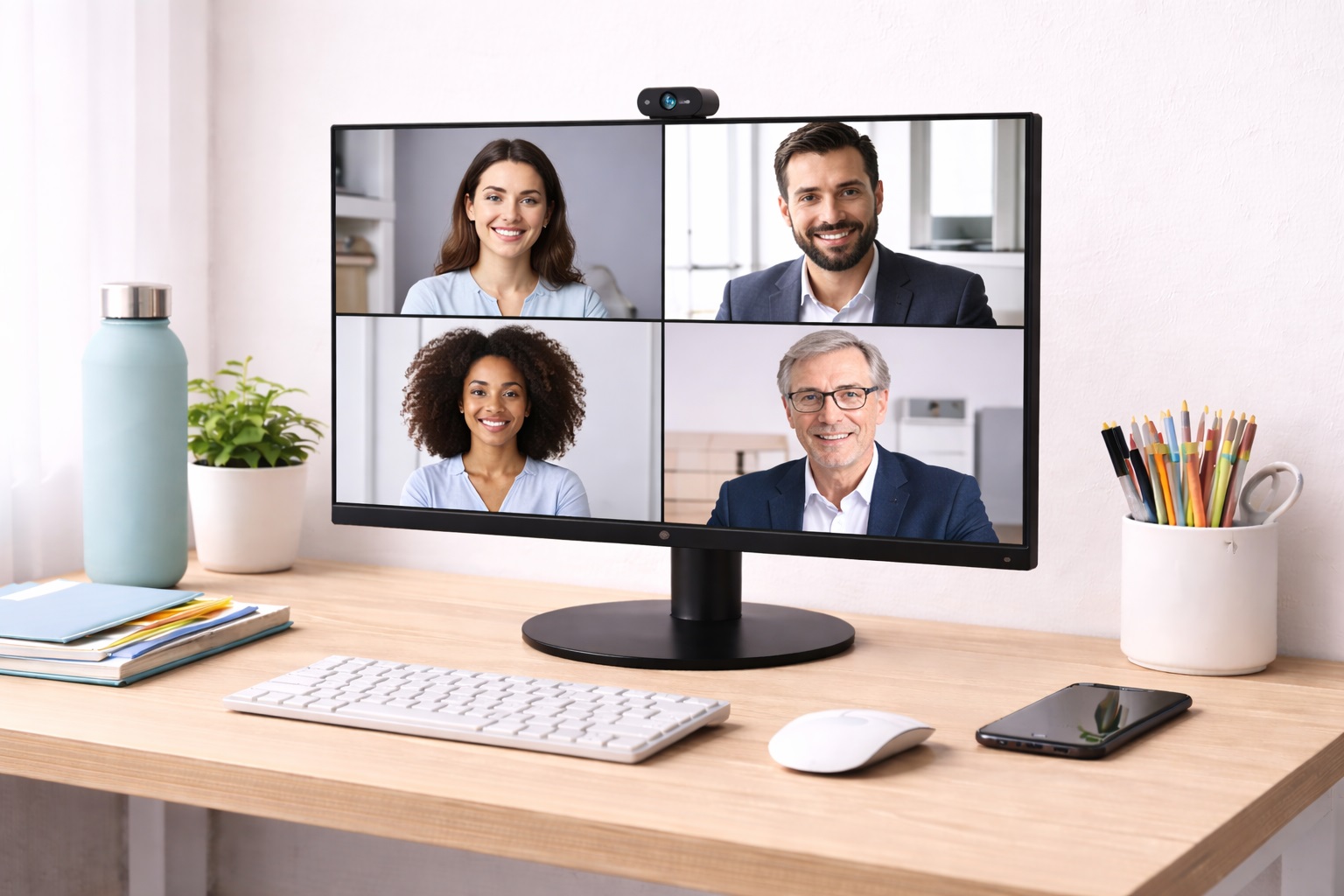
Camera angle does more for on-screen presence than lighting, background, or microphone quality combined. A webcam positioned below eye level creates an unflattering upward angle and makes eye contact feel off no matter how the rest of the setup looks, while a camera sitting at or slightly above eye level produces the natural, engaged appearance that most people associate with a polished video call. The fastest way to fix a poorly positioned camera permanently, rather than propping up a laptop with books before every meeting, is a monitor arm. It's a one-time fix rather than a repeated pre-meeting ritual.
What makes a monitor arm well suited to video calls specifically isn't dramatically different from what makes a good monitor arm in general, but a few factors matter more here than they would for someone using a monitor purely for document work. Precise height control matters more, since camera angle is far less forgiving than general viewing comfort. Reach and depth adjustment matter more too, since the ideal distance for reading text on screen isn't always the same as the ideal framing distance for a webcam. Cable routing also carries more weight, since a cluttered arm structure or hanging cords can end up visible in the video background.
Choosing the right arm for this specific use case also means thinking about how the arm behaves over an entire day of meetings rather than during a single call. A setup that looks fine for one call but requires constant readjustment across five or six meetings in a row quickly becomes more of a distraction than a convenience, which is why stability and repeatable positioning matter as much as the initial camera angle itself, particularly on days packed with back-to-back meetings.
This guide walks through the monitor arm styles that serve video call use cases particularly well, compares what each one solves, and covers the buying factors that make the biggest difference to how a setup actually looks and feels on a daily call. None of the picks below require an elaborate studio setup — each one works with a single external monitor and a modest desk, the kind of arrangement most remote workers already have in place.
It's worth separating the general ergonomic benefits of a monitor arm from the specific video call benefits, since the two overlap but aren't identical. A monitor arm improves posture and desk space regardless of how it's used, but the camera-angle benefit only materializes if the height is actually set correctly relative to eye level, which takes a small amount of deliberate adjustment rather than happening automatically just because an arm is installed. Buying the right arm is only half the equation — setting it up correctly for a specific desk, chair, and camera is what actually delivers the improvement.
Anyone spending several hours a day on video calls also tends to notice small positioning issues more than someone who calls occasionally, simply because the exposure accumulates. A slightly-too-low camera angle that goes unnoticed on an occasional call becomes a repeated, visible pattern across dozens of meetings a week, which is part of why getting the setup right once is worth the small amount of upfront effort. Colleagues and clients notice these small consistency details even when they can't quite articulate why a particular setup looks more polished than another.
Top 4 Monitor Arms for Video Calls (Detailed Reviews)
Each of these four styles addresses a different part of the video call setup problem — quick repositioning between call mode and work mode, a fixed and reliably correct camera height, a second screen for reference material, and a tidier on-camera background. Considering which of these actually matters most for a specific daily routine narrows the choice quickly, and it's entirely reasonable for a single setup to combine more than one of these traits if the daily workload calls for it.
1. Fully Articulating Gas Spring Arm – Best for Dynamic Repositioning
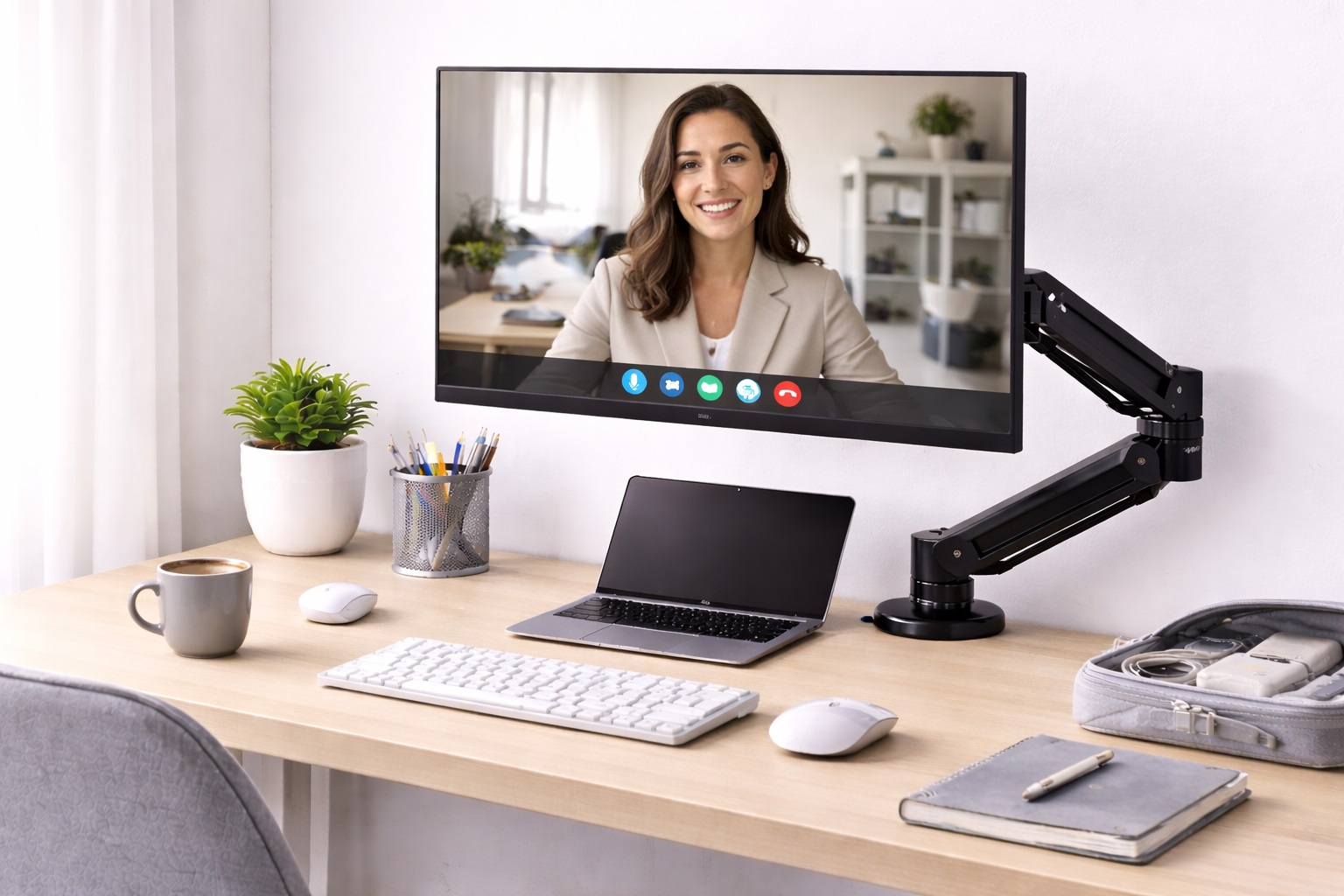
A fully articulating gas spring arm allows the monitor to be pulled close during a call for clear, well-framed video and pushed back afterward for comfortable document work, all with a single light push rather than any tool. The gas spring holds each position precisely, so switching between call mode and work mode throughout the day happens in seconds rather than requiring a manual readjustment each time it's needed.
This matters most for anyone whose schedule alternates frequently between video meetings and focused solo work, since a fixed-position mount would force a compromise between the two use cases. The articulating design also allows fine-tuning the exact framing distance for a call, which can vary slightly depending on lighting, camera field of view, or how the meeting itself is being conducted.
Because the arm holds each position precisely, it's also possible to save a mental note of the ideal call position — pulled forward a specific amount, tilted at a specific angle — and return to nearly the same framing every time without needing to eyeball it freshly before each meeting. That repeatability adds up over a week of back-to-back calls, saving small amounts of setup time that would otherwise be spent readjusting before every single meeting.
- Pros:
- Effortless one-finger adjustment between call and work positions
- Holds position precisely without tightening bolts
- Wide articulation range covers both close framing and comfortable work distance
- Clean cable routing supports a tidy on-camera background
- Cons:
- Higher cost than a fixed-height alternative
- Some models need occasional tension recalibration over time
Best For: Remote professionals who alternate frequently between video calls requiring close, well-framed positioning and separate focused desk work throughout the day.
Why We Recommend It: The ability to pull the monitor to exactly the right position for a call and push it back to a comfortable working distance afterward is the single most practical feature for anyone spending a meaningful part of the day on video calls between other tasks.
2. Height-Adjustable Single Arm – Best for Consistent Camera Angle
A height-adjustable single monitor arm lets the monitor be set once at the precise height that positions the webcam at or slightly above eye level — the most flattering and natural camera angle for video calls. Once configured correctly, this height stays consistent for every call without needing to be readjusted, which matters for anyone who wants a reliably professional appearance without thinking about setup before each individual meeting.
Because the position doesn't need to change throughout the day, this style typically uses a simpler adjustment mechanism than a full gas spring arm, which keeps the cost more moderate while still solving the core video call problem completely. The one-time setup process is straightforward: raise or lower the arm until the webcam sits at the correct height relative to seated eye level, then leave it there.
A useful way to verify the height is correct is to join a test call, or record a short clip, and check the framing before relying on it for an actual meeting. Small height differences that feel negligible while adjusting the arm can look more noticeable on camera than expected, so a quick verification step is worth the extra few minutes during setup, especially before an important first impression with a new client or team.
- Pros:
- Delivers a consistently correct camera height for every call
- Stable at the set position with no drift
- Available across a wide range of price points
- Noticeably improves on-camera appearance immediately after setup
- Cons:
- Less repositioning flexibility than a fully articulating arm
- Not ideal for anyone who frequently changes monitor position for other tasks
Best For: Remote workers who want a consistent, professional camera angle for daily calls without needing to reposition the monitor throughout the day for other tasks.
Why We Recommend It: Correct camera height is the single most impactful improvement to on-camera appearance, and an arm that delivers it precisely and consistently, without ongoing adjustment, solves the problem permanently rather than requiring daily attention before every meeting.
3. Dual Monitor Arm for Video Calls – Best for Multi-Screen Call Setups
A dual monitor arm allows one screen to be positioned optimally for video calls — camera at eye level, facing forward — while the second screen holds reference documents, notes, or supporting materials just off to the side. This setup removes the need to look away from the camera and down at a phone or a separate notepad to check information during a meeting, since the reference material sits in easy peripheral view on the second screen.
For roles that involve presenting data, walking through documents, or referencing detailed notes during calls, this arrangement makes a noticeable difference to how natural the conversation feels, since eye contact with the camera can be maintained far more consistently than when reference material lives somewhere off-screen entirely, such as a separate notepad or phone screen.
Positioning the reference screen matters as much as having it at all. Placing it directly beside the call monitor, angled slightly inward, keeps the eye movement needed to glance at it minimal and far less noticeable to other participants than reaching for a phone or looking sharply off to one side would be. Even a small angle adjustment on the reference screen can make the difference between a glance that reads as natural and one that looks distracted on camera.
- Pros:
- One screen optimized for the call, one for reference material
- Reduces visible note-checking and looking away from the camera
- Clears desk space from two separate monitor stands
- Independent height and angle adjustment for each screen
- Cons:
- Higher cost and a more involved installation than a single arm
- Heavier overall assembly requires a solid desk edge or grommet mounting point
Best For: Remote professionals who regularly reference materials during calls and want to maintain natural eye contact with the camera while doing so.
Why We Recommend It: Letting one monitor face the camera correctly while the other holds reference material in easy peripheral view is the most functional desk configuration for anyone whose calls involve more than simple conversation, and it noticeably reduces how often eye contact breaks during a meeting.
4. Monitor Arm With Internal Cable Routing – Best for a Clean On-Camera Background
Some monitor arms are specifically designed with fully enclosed internal cable channels that route power and video cables through the pole structure itself, rather than leaving them exposed along the desk or hanging visibly behind the setup. For anyone whose desk or the wall behind it appears in the video call background, this detail directly affects how tidy the visible environment looks on every call, sometimes more than the rest of the room combined.
Beyond the visual benefit, internal routing also protects cables from being caught or tugged during the kind of frequent monitor repositioning that video call setups often involve, since pulling the monitor forward or pushing it back doesn't drag exposed cords across the desk in the process.
This style pairs particularly well with a fully articulating arm, since frequent repositioning is exactly the situation where exposed, dangling cables become both a visual and a practical nuisance. Combining internal routing with an arm that moves often keeps the benefit consistent across every adjustment rather than only when the monitor happens to sit still. For anyone building a home office setup from scratch, this combination is worth considering even if the immediate need seems to be solved by a simpler arm alone.
- Pros:
- Fully enclosed cable channels keep the visible background tidy
- Protects cables from wear during frequent repositioning
- Improves the overall polished appearance of a home office setup
- Available in both fixed and articulating adjustment styles
- Cons:
- Threading cables through internal channels takes longer during initial setup
- Adding or changing a cable later requires more effort than an external clip system
Best For: Anyone whose desk setup is visible on camera and who wants a consistently tidy background without rearranging cables before every single call.
Why We Recommend It: A cluttered arm structure is one of the more overlooked details in a video call background, and enclosed cable routing solves it permanently rather than requiring cable management effort before each individual meeting.
Buying Guide: How to Choose the Best Monitor Arm for Video Calls
Beyond the general factors that matter for any monitor arm, a handful of considerations matter specifically for video call use, where camera angle and on-screen appearance carry more weight than general viewing comfort alone. Working through them in order tends to surface the details that matter most before getting lost comparing individual product listings.
1. Camera Height Alignment
The webcam should sit at or slightly above eye level for the most natural, professional on-camera appearance. Use the monitor arm's height adjustment to position the screen so the built-in or attached camera meets this requirement, regardless of desk or chair height, and recheck it after switching chairs or desks.
2. Monitor Distance for Calls
For video calls specifically, the monitor should sit close enough to clearly see participant faces and expressions without leaning forward, which is often a slightly closer distance than what's comfortable for general document reading. An arm with good horizontal reach makes it easy to fine-tune this distance for calls specifically without compromising comfort for other tasks.
3. Stability During Typing
A monitor that visibly wobbles while typing notes during a call is distracting both to the user and, in some camera angles, to other participants. Testing an arm's stability specifically during typing is worth doing before relying on it for daily meetings, since joint quality varies between models more than most buyers expect.
4. VESA Compatibility
Confirm the monitor has a 75x75mm or 100x100mm VESA mounting pattern before purchasing an arm. Most standard monitors support this, though some all-in-one computers and ultra-thin displays do not, which would rule out a standard monitor arm entirely regardless of how well it otherwise fits the need.
5. Cable Management for Call Backgrounds
Visible cable clutter can appear in the video background during calls, particularly for anyone positioned with the desk setup behind them. An arm with internal cable routing channels keeps cords contained within the structure itself, producing a noticeably cleaner background than exposed cable clips ever manage to achieve.
6. Mounting Method for the Desk
C-clamp mounts work on most desks without any permanent modification, while grommet mounts offer somewhat more stability at the cost of drilling a hole. Choosing based on desk type and how long the arm is expected to stay in place makes more sense than defaulting to one method automatically without considering the trade-offs.
7. Rotation and Orientation for Screen Sharing
Anyone who regularly shares their screen during calls should check that the arm supports the preferred landscape orientation and angle without requiring adjustment mid-call. Some roles also benefit from portrait rotation for document review, which not every arm supports at every price point.
8. Reach From the Desk Edge
Verify the arm's horizontal reach can position the monitor at a comfortable distance from the actual seating position, particularly on deeper desks. An arm with limited reach may not extend far enough to bring the screen to an ideal call-framing distance, undermining the whole point of the upgrade.
9. Weight Capacity for the Monitor
Check the monitor's listed weight against the arm's rated capacity. An arm pushed beyond its weight limit can cause the gas spring to bottom out or drift, meaning the carefully set camera height won't hold reliably from call to call, undoing the entire benefit of the setup.
10. Installation and Desk Compatibility
Most monitor arms install in twenty to thirty minutes. Verifying desk edge thickness compatibility before ordering avoids the frustration of an arm that doesn't clamp securely, since unusually thick or rounded desk edges aren't always compatible with standard C-clamp designs available at most price points.
11. Consistency Across Multiple Work Locations
Anyone splitting time between a home office and a secondary workspace should consider whether a similar arm, or a portable version of the same setup, is worth using in both locations to keep camera positioning consistent regardless of where a call happens to take place that day.
12. Lighting Position Relative to Arm Placement
The monitor arm's final position affects how existing room lighting falls on the face during a call. Testing the arm's set height and distance against the actual lighting setup, rather than adjusting lighting separately afterward, tends to produce a better final result with less trial and error involved.
Frequently Asked Questions
1. How should I position my monitor for video calls?
The webcam should sit at or slightly above eye level when seated normally. The face should appear roughly centered in the frame, and the monitor should be close enough to see expressions clearly without leaning forward, which for most people falls somewhere in a comfortable arm's-length range from the screen.
2. Does a monitor arm actually improve video call quality?
Indirectly, yes. A monitor arm allows the screen to be positioned at the exact height and distance that produces the best camera angle and the most comfortable viewing position during a call, which improves on-screen appearance and reduces physical strain during long meeting days at the desk.
3. Should I get a single or dual monitor arm for video calls?
Anyone who regularly references documents or takes notes during calls benefits noticeably from a dual arm, with one screen dedicated to the call and the other to reference material. For simpler single-screen setups, a well-positioned single arm is entirely sufficient for most daily needs.
4. Is the most expensive monitor arm for video calls always the best choice?
Not necessarily. A higher price often reflects a gas spring mechanism, wider articulation range, or premium cable routing, but a simpler, more affordable arm delivers the same core camera-height benefit for anyone with modest daily call requirements and a single screen.
5. How long should a quality monitor arm for video calls last?
A well-built arm from a reputable manufacturer typically lasts several years of regular daily adjustment. Checking the warranty length at purchase is a reasonable way to gauge the manufacturer's confidence in the arm's long-term durability under daily use.
6. Can I return a monitor arm if it doesn't suit my video call setup?
Most retailers offer a standard return window, commonly two to four weeks. Keeping the original packaging during the evaluation period preserves that option if the arm doesn't deliver the expected camera positioning once tested on actual calls with real participants.
7. What should I prioritize when choosing a monitor arm for video calls specifically?
Starting with the actual daily routine — how many calls happen per day, whether reference material is needed during them, and how visible the background is — helps match the arm's features to real requirements rather than general specifications alone that may not apply.
8. Does brand name matter when buying a monitor arm for video calls?
Established brands typically offer more consistent build quality and more reliable warranty support, which matters for anyone relying on the arm daily for professional meetings. Newer brands can still offer good value, so reading verified reviews carefully is worthwhile before deciding.
9. Can a monitor arm help if my webcam is built into the laptop rather than the monitor?
A monitor arm primarily addresses the external monitor's position rather than a laptop's built-in camera. For a laptop-based setup, a separate laptop stand or an external webcam mounted to the monitor arm itself is usually needed to achieve the same camera height benefit as a monitor-mounted camera.
10. How do I stop my monitor from drifting out of the correct camera position?
Persistent drift usually means the arm is being used near or beyond its rated weight capacity, or that a tension adjustment screw needs tightening. Checking the monitor's weight against the arm's specifications is the first step in diagnosing this issue before assuming a defect.
11. Is cable management really worth prioritizing for video calls?
For anyone whose desk setup is visible in the call background, yes — visible cable clutter is one of the more common distracting details viewers notice. For setups where the background is a wall or a blurred virtual background, cable routing matters less functionally, though it can still simplify daily use.
12. Can the same monitor arm work for both video calls and general productivity work?
Yes, and for most users this is the more practical approach rather than maintaining separate setups. A fully articulating arm in particular handles both use cases well, since it can be repositioned quickly between an ideal call framing distance and a comfortable general work distance.
Final Verdict
- Best for Dynamic Repositioning: Fully Articulating Gas Spring Arm – the most practical daily-use pick for professionals who alternate between calls and focused work.
- Best for Consistent Camera Angle: Height-Adjustable Single Arm – the reliable, set-and-forget choice for a consistently professional camera angle.
- Best for Multi-Screen Call Setups: Dual Monitor Arm for Video Calls – the right pick for anyone referencing materials during meetings.
- Best for a Clean On-Camera Background: Monitor Arm With Internal Cable Routing – the detail-focused choice for a consistently tidy, visible background on every call.
Camera angle is one of the few details in a video call setup that costs nothing to get right once the monitor is positioned correctly, yet it makes a bigger visible difference than most people expect. Choosing between these four styles comes down to how often the monitor's position actually needs to change throughout the day, whether reference material is a regular part of daily calls, and how visible the surrounding desk setup is to other participants. Getting that combination right turns a monitor arm from a minor desk upgrade into a genuine improvement in how professional every call looks.
None of these four styles is the universally correct choice, since each one addresses a different combination of daily call frequency, reference material needs, and background visibility. Working through the actual routine against the picks above, rather than defaulting to whichever arm has the most features listed, leads to a setup that quietly improves every call without requiring ongoing thought once it's in place.