Best Monitors for Video Calls: Clear Every Meeting
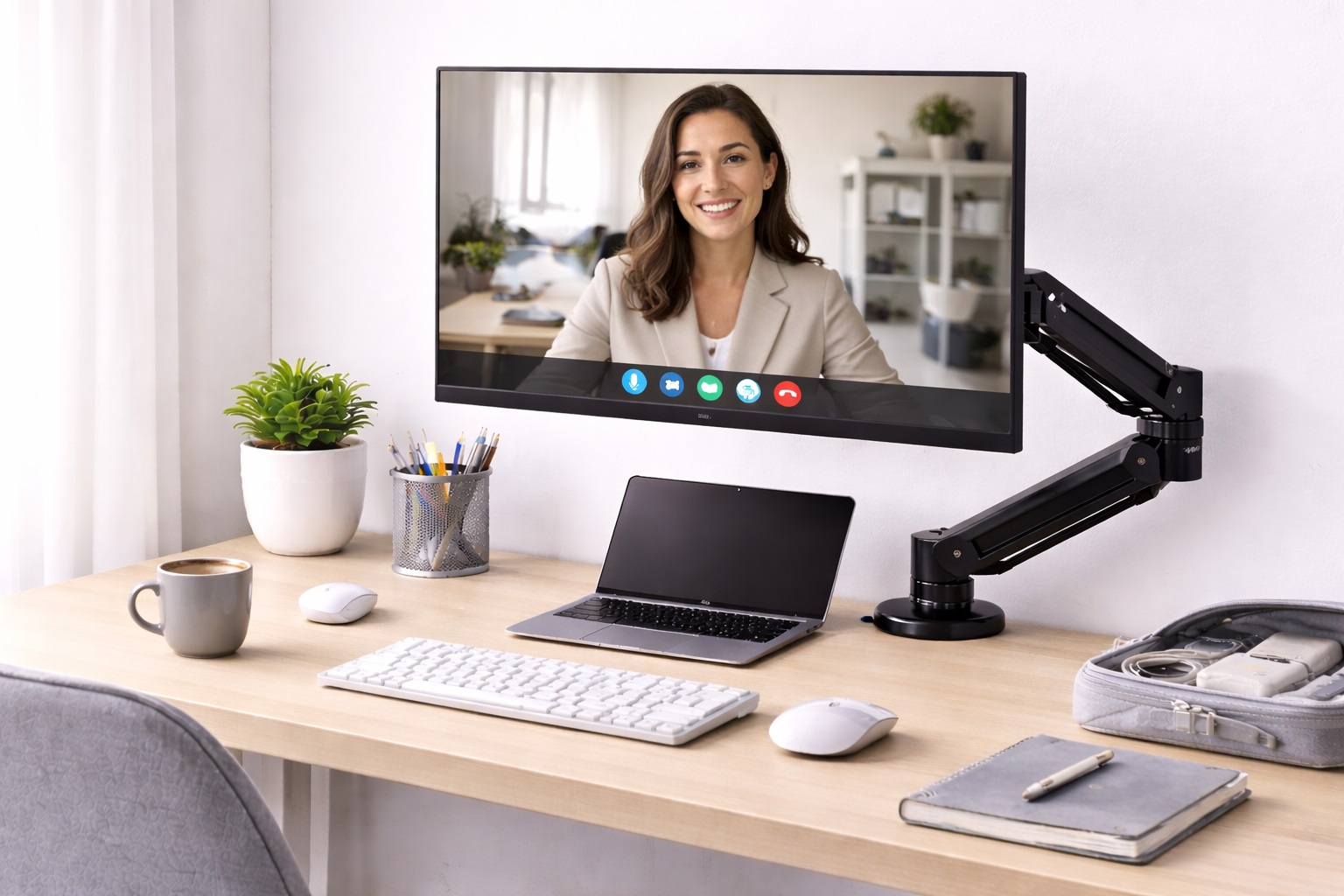
For anyone spending several hours a week in video meetings, a monitor stops being a general-purpose accessory and becomes part of how you're perceived professionally. Poor lighting, an awkward camera angle, and a cramped view of shared documents all trace back to the same underlying issue more often than people expect: a display that wasn't chosen with video calls specifically in mind. A monitor built primarily for gaming or media consumption can still work fine for calls, but the details that actually matter for video conferencing — color accuracy for how you look on camera, screen space for viewing shared content alongside a call window, and comfortable brightness for long sessions — aren't always the same priorities a general buying guide emphasizes.
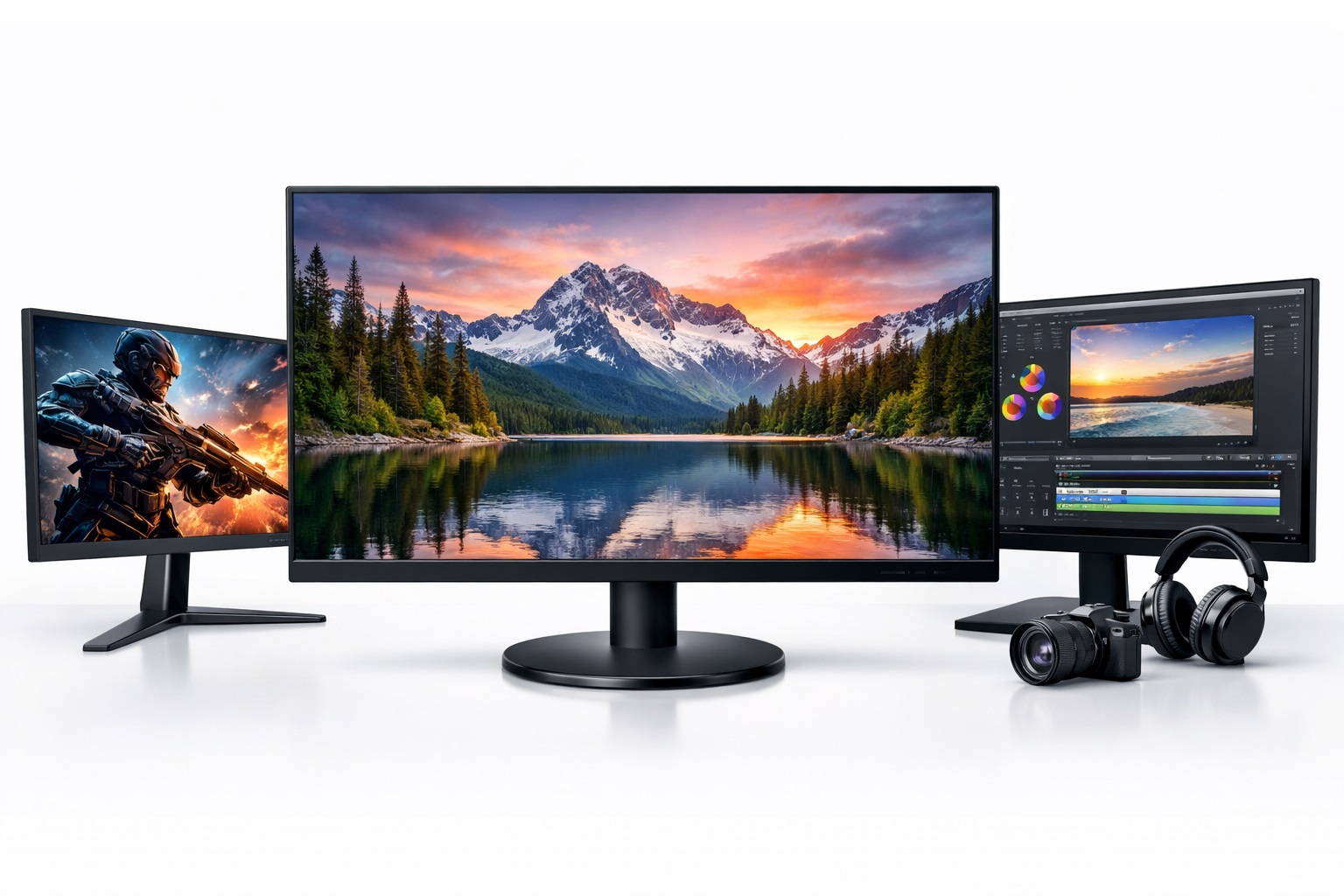
This guide compares three monitors that each handle video call demands differently. One is the reliable, accurate-color option that suits the widest range of remote workers without asking for a large budget or desk footprint. One offers sharper detail and more working space, useful for anyone regularly screen-sharing documents or presentations during calls. One provides enough width to keep a video call window, shared content, and notes all visible simultaneously without constant window-switching mid-meeting.
Throughout the reviews, we focus on what actually affects the video call experience specifically — color accuracy that renders skin tones naturally, screen space for managing a call alongside other windows, and comfortable viewing during long meeting days. We also walk through buying factors that matter for this exact use case, including webcam positioning, connectivity for multi-monitor call setups, and brightness consistency under typical home office lighting.
If your work involves back-to-back video meetings, regular screen-sharing, or hybrid days split between calls and independent work, the recommendations below are built around making that specific routine more comfortable rather than optimizing for gaming or media use you may rarely need.
One point worth addressing directly: none of these monitors include a built-in webcam, and for video calls specifically, that's actually the better setup. A monitor-mounted external webcam gives you control over camera angle and positioning independent of the display itself, and it's generally easier to upgrade the camera separately down the line without needing to replace the entire monitor.
It's also worth thinking about how your monitor choice interacts with lighting, since even the most color-accurate panel can't fully compensate for poor room lighting during a call. A monitor positioned facing a window, for instance, often means you're backlit from the camera's perspective regardless of how good the display itself is. Pairing the right monitor with some basic attention to where light falls on your face makes a bigger overall difference to how you appear on calls than upgrading the monitor alone ever will.
One more practical consideration: if your calls involve frequent screen-sharing, test your actual video conferencing software's screen-share quality settings before assuming a sharper monitor automatically means a sharper shared view. Many platforms compress shared screens more aggressively than the local display, so the resolution benefit of a sharper monitor is sometimes more valuable to you personally than to whoever's viewing your shared screen on the other end.
Top 3 (Detailed Reviews)
1. IPS 1080p Monitor 24-inch – Best For Everyday Video Calls
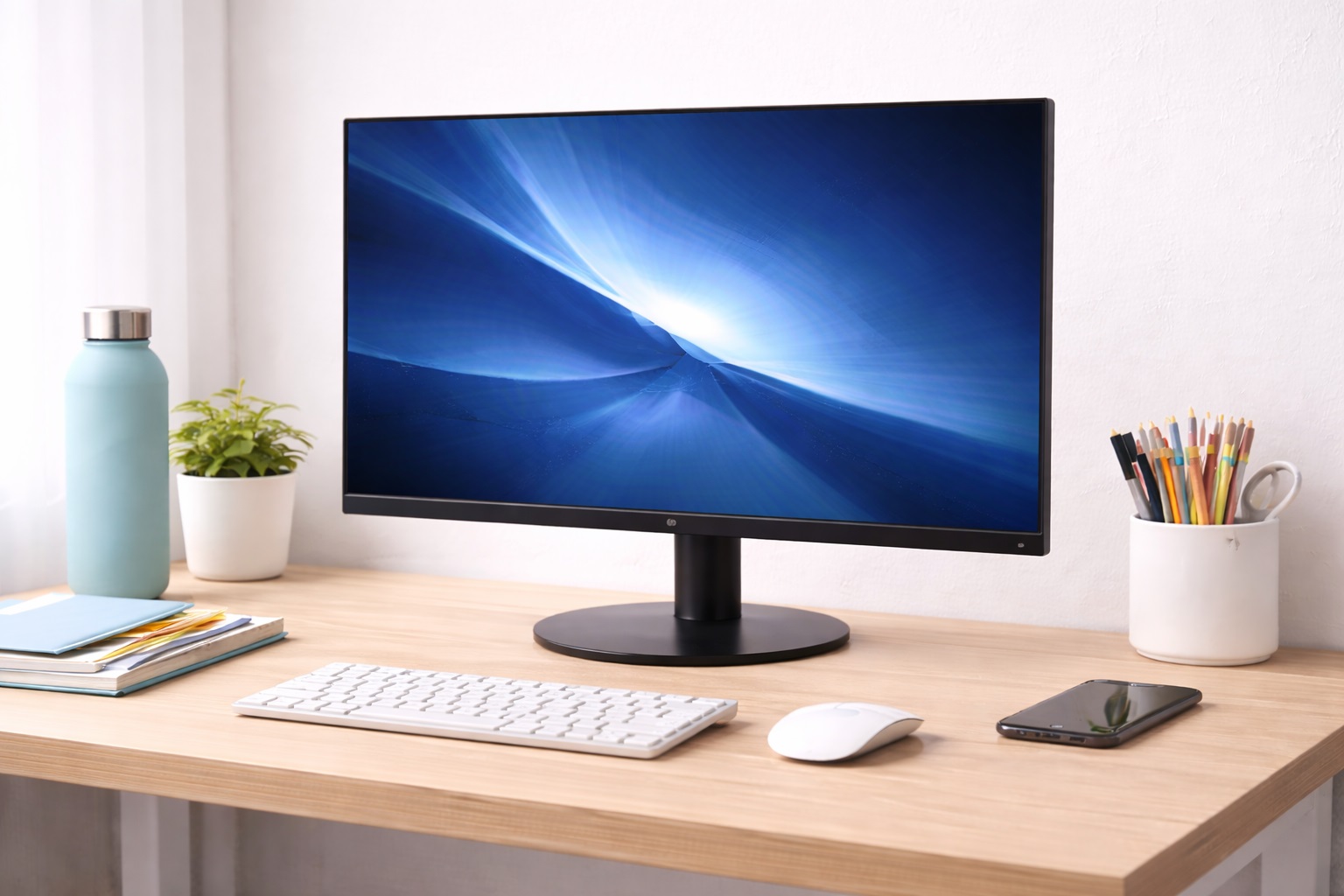
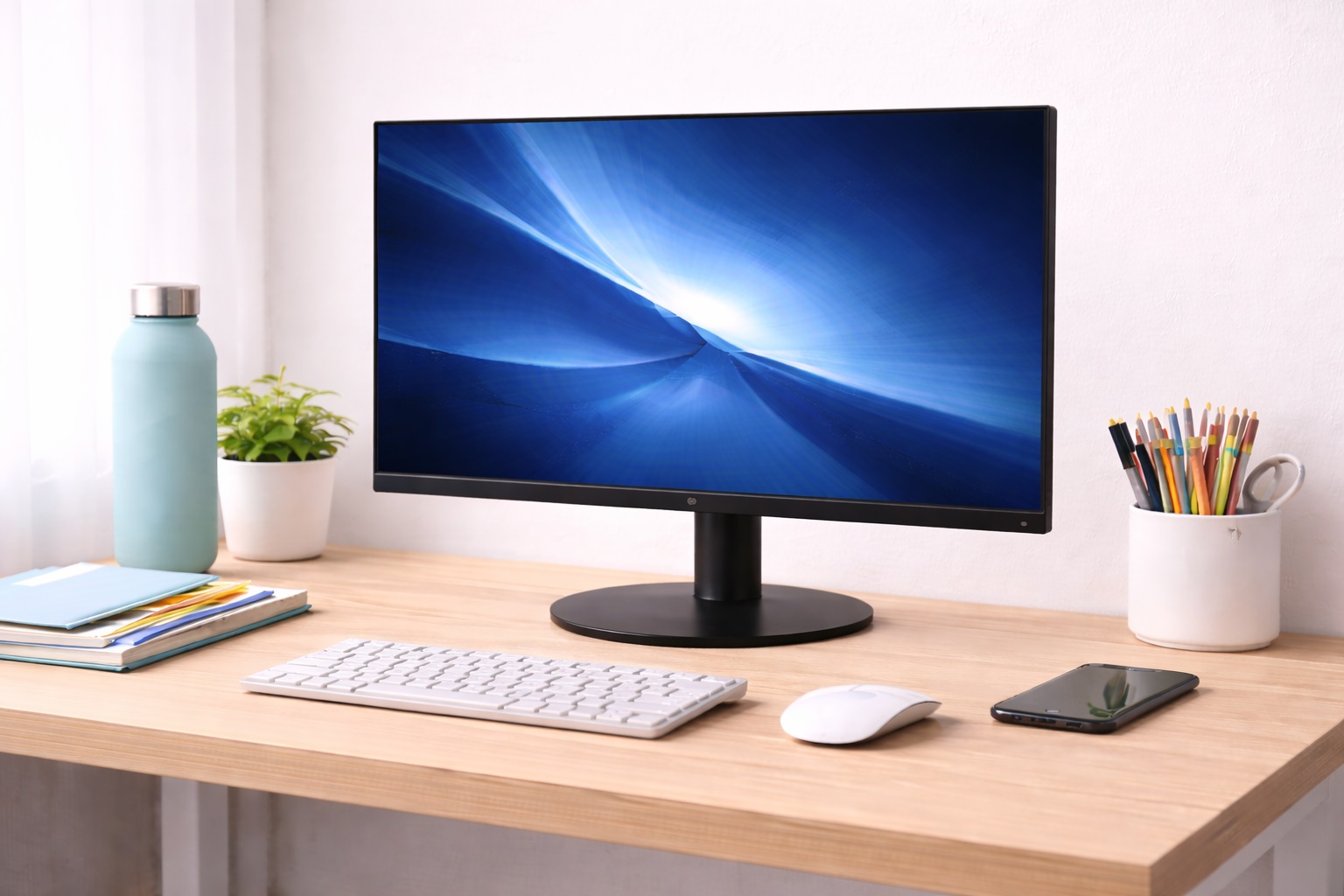
A 24-inch IPS monitor at 1080p resolution suits the majority of video call routines without asking for a premium budget or a deep desk. IPS panel technology renders skin tones and colors accurately and consistently, which matters more for video calls than people often realize — a poorly calibrated panel can make everyone on a call, including yourself if you're checking your own preview, look slightly off in ways that are hard to pin down but noticeable. The wide viewing angles also help if you occasionally lean back or shift position during a longer meeting, since the picture stays consistent rather than shifting in color or brightness as you move. At 24 inches, there's enough room to keep a call window at a comfortable size alongside a document or notes app without either feeling cramped. Setup for calls is straightforward, with most external webcams clipping easily onto the top bezel at a natural eye-level height for this monitor size. Because the panel and stand are both compact, this size also fits comfortably on shared desks or smaller home office corners, which matters if your video call setup needs to coexist with other equipment or a second person's workspace nearby.
- Pros:
- Accurate color rendering for natural-looking video on calls
- Wide viewing angles stay consistent through natural movement
- Comfortable size for a call window plus notes or documents
- Webcam clips mount naturally at a good eye-level height
- Cons:
- Less multitasking space than a larger display for complex screen-sharing
- Standard 60Hz refresh rate, though this makes no difference for calls
Best For: Remote workers with a standard mix of video calls and independent work who want reliable color accuracy without a large footprint or premium price.
Why We Recommend It: Color accuracy and consistent viewing angles matter more for video calls than most people expect, and this combination delivers both dependably at a price that doesn't require justifying a specialized purchase for work meetings alone.
2. 27-inch 1440p Monitor – Best For Screen-Sharing and Presentations
A 27-inch 1440p display gives noticeably more usable space for anyone who regularly shares documents, slides, or spreadsheets during calls while still keeping the call window visible. The sharper resolution makes shared text and fine detail easier to read both for you and for anyone viewing your shared screen, which reduces the back-and-forth of "can you zoom in" that happens on lower-resolution setups during a presentation. The extra screen real estate also makes it easier to reference notes, a second document, or a call agenda without needing to minimize the video window entirely. For anyone presenting regularly, this level of clarity reflects well on the professionalism of the call itself, not just your own comfort using it. The extra vertical space at this resolution also means less scrolling through long documents mid-conversation, which keeps the flow of a meeting from stalling while you hunt for the right section of a shared file.
- Pros:
- Sharper resolution improves clarity of shared screens and documents
- More usable space for notes alongside an active call
- Reduces the need to zoom in during screen-sharing
- Suits frequent presenters and screen-sharing use well
- Cons:
- Costs more than the standard 1080p option
- Requires a moderately capable graphics setup for smooth performance
Best For: Remote workers and managers who regularly present, screen-share documents, or lead calls that require reference material to stay visible alongside the meeting itself.
Why We Recommend It: For anyone whose calls involve more than just talking — sharing spreadsheets, reviewing documents together, presenting slides — the extra clarity and space directly improve how effectively those calls function, not just how the screen looks.
3. Ultrawide Curved Monitor – Best For Managing Multiple Windows During Calls
An ultrawide monitor's 21:9 aspect ratio provides enough horizontal space to keep a video call, a shared document, and a notes window all visible at once without constant switching. For anyone in back-to-back meetings who needs to reference material or take notes without disappearing from camera view to check another screen, this layout genuinely changes the meeting experience. The curved shape keeps the far edges of that wide layout within a comfortable glance rather than requiring head turns to see content at the periphery. This is a bigger investment in both price and desk space than the other two options, but for someone whose entire workday is structured around video meetings, the daily convenience adds up quickly. Over a week of back-to-back calls, the cumulative time saved by not constantly minimizing and restoring windows can genuinely add up to a meaningful amount, even if any single instance feels minor on its own.
- Pros:
- Enough width for a call, document, and notes simultaneously
- Eliminates the need to alt-tab away from camera view during meetings
- Curved design keeps wide layouts within comfortable view
- Replaces a dual-monitor setup for call-heavy workdays
- Cons:
- Higher cost and larger desk footprint than standard options
- Requires a genuinely deep desk for comfortable viewing distance
Best For: Professionals whose schedule is dominated by video meetings and who need to reference multiple sources of information without losing camera presence during a call.
Why We Recommend It: For a workday built around video calls specifically, the ability to keep everything visible without stepping away from the camera has a real, cumulative effect on how meetings run and how present you appear throughout the day.
Buying Guide: How to Choose the Best Monitor for Video Calls
Use these factors to match your purchase to a video-call-heavy routine specifically, rather than general display shopping advice.
1. Color Accuracy
IPS panels reproduce skin tones and colors more naturally than TN alternatives, which directly affects how you and others appear on camera. This matters more for video calls than for most other computer use, since color inaccuracy is far more noticeable on a face than on a spreadsheet. It's worth checking a monitor's sRGB coverage percentage specifically if color accuracy on calls is a genuine priority, since this figure gives a more reliable indication than general marketing language about "vivid" or "true-to-life" color.
2. Webcam Compatibility and Positioning
Check that the monitor's top bezel comfortably accommodates a clip-on external webcam at an eye-level height. A monitor that's too thin at the bezel or has an awkward top edge can make webcam mounting less stable, which shows up as a shaky or oddly angled camera view during calls. If the monitor's bezel design seems uncertain from photos alone, a small adhesive webcam mount is a reliable backup that works regardless of bezel thickness.
3. Screen Size for Multi-Window Call Layouts
Consider how many windows you typically need visible during a call — just the meeting, or the meeting plus shared documents and notes. Matching screen size to your actual multi-window habits avoids either cramming too much onto a small screen or paying for space you won't use. Try sketching out your typical call layout on paper — call window, shared document, notes — before shopping, since this simple exercise tends to make the size decision far more obvious.
4. Brightness and Consistency
Consistent brightness across the panel matters for comfortable extended viewing during a full day of calls. Uneven backlighting, more common on cheaper panels, can create visible bright or dim patches that become distracting over long sessions. This is a detail that rarely shows up in a quick showroom glance but becomes apparent after a few hours of genuine daily use, so it's worth checking reviews specifically for mentions of backlight bleed or uneven brightness.
5. Blue Light and Eye Comfort Features
Back-to-back video calls often mean longer continuous screen time than typical mixed office work. Flicker-free backlighting and an adjustable blue light filter meaningfully reduce eye strain on days with a heavy meeting load. On days with six or more hours of calls, this single feature can be the difference between finishing the day comfortably and dealing with genuine eye fatigue by the evening.
6. Connectivity for Multi-Monitor Call Setups
If you use a laptop plus an external monitor for calls, verify the monitor supports the connection type your laptop offers, ideally with USB-C power delivery for a single-cable setup. This simplifies daily setup and teardown if you move your laptop between locations. A single-cable USB-C connection that also charges the laptop removes an entire extra cable from a call setup, which matters more than it sounds once you're managing a webcam, microphone, and monitor cables all at once.
7. Stand Height and Neck Position
Camera angle depends heavily on monitor height, since most webcams clip to the top of the display. A stand with height adjustment lets you position the camera at genuine eye level rather than an upward angle that looks unflattering and strains your neck over a full day of calls. A quick way to test this before committing to a permanent setup is stacking a book or two under the monitor's base temporarily to see whether the resulting camera angle actually looks better on a test call.
8. Refresh Rate Relevance
Refresh rate has essentially no impact on video call quality, since call video is limited by your camera and internet connection, not your monitor's refresh rate. It's not worth paying extra for a high refresh rate panel specifically for video calls. This is one of the clearer cases where a spec that matters enormously for gaming has effectively zero relevance to the actual use case at hand.
9. Screen Coating for Reduced Glare
A matte anti-glare coating reduces distracting reflections from windows or overhead lighting behind you, which can otherwise appear in your shared screen during presentations. This is a small detail that becomes noticeable specifically when screen-sharing in a well-lit room. A quick test is standing behind the monitor's typical position and checking for reflections of windows or ceiling lights on the screen surface before committing to a specific desk placement.
10. Built-In Speakers and Microphones
Some monitors include basic speakers, though dedicated headphones or a separate speaker setup generally sound better for call clarity. Built-in monitor microphones are rarely good enough for professional calls and are worth avoiding in favor of a dedicated headset or external microphone. Audio quality tends to affect how professional a call sounds even more than video quality does, so it's worth treating this as a separate purchase decision rather than something to solve through the monitor alone.
11. Desk Space for a Full Call Setup
Account for the monitor plus any additional call equipment — webcam, ring light, microphone arm — when measuring available desk space. A monitor that fits fine on its own can feel cramped once the full video call setup is arranged around it.
12. Warranty and Reliability for Daily Professional Use
For a monitor used daily for professional video calls, a longer warranty and a brand with responsive support matter more than they might for occasional use. A display failure on a heavy meeting day is more disruptive professionally than the same failure would be for casual home use. Keeping a spare cable or a backup connection method in mind ahead of time, rather than only after a failure occurs, is a small precaution that pays off the one time it actually matters.
13. Camera Framing and What Sits Behind You
Monitor placement affects more than your own comfort — it determines what's visible in the background of your camera frame during a call. Positioning the monitor so your webcam faces a tidy wall or bookshelf rather than a cluttered doorway or hallway takes only a moment to check but makes a noticeable difference in how a call comes across on the other end. It's worth doing a quick test call to review your own background before settling on a permanent desk arrangement.
14. Bezel Management for a Second Call Monitor
If you're pairing this display with a second monitor for calls, thin bezels on both screens make the transition between them feel less disjointed when your eyes move from the call window to shared content and back. This matters more for call-heavy setups than for general computing, since your attention shifts between screens far more frequently during an active meeting than during typical solo work.
Frequently Asked Questions
1. What monitor height is best for video call camera positioning?
The webcam should sit at roughly your eye level when seated normally, which usually means the top of a 24 to 27 inch monitor at a comfortable seated height. If the camera ends up noticeably below eye level, a stand riser or monitor arm can correct the angle. Testing the actual angle on a practice call, rather than just eyeballing it while setting up, is the most reliable way to confirm the positioning genuinely works for you.
2. Do I need a monitor with a built-in webcam for video calls?
Not necessarily, and many professionals prefer a separate clip-on webcam for more flexible positioning and easier upgrades. A built-in webcam does simplify cable management, but it ties the camera quality to the monitor rather than allowing an independent upgrade later. If you already own a webcam you're satisfied with, a monitor without a built-in camera is usually the more flexible and cost-effective choice.
3. Does screen size actually matter for video call quality?
Not for the call video itself, but it matters significantly for how comfortably you can manage shared documents, notes, and the call window together. A larger or wider screen reduces the friction of switching between what you're viewing and who you're talking to. If your calls are mostly one-on-one conversations without much shared content, screen size matters far less than it would for someone regularly presenting to a group.
4. Is a curved monitor better for video calls?
Only really at ultrawide sizes, where the curve helps keep a wide multi-window layout within comfortable view. On standard 24 to 27 inch monitors, curvature makes little practical difference for a typical call setup.
5. Can I use two monitors for video calls from one laptop?
Yes, provided your laptop supports dual external displays through its available ports, commonly Thunderbolt or USB-C alongside HDMI or DisplayPort. This setup is popular among people who dedicate one screen to the call itself and another to shared content or notes. Confirming your laptop's exact display output capabilities ahead of time avoids the disappointment of buying two monitors only to discover your laptop can only comfortably drive one external display well.
6. Is the most expensive monitor for video calls always the best choice?
Not necessarily. A higher price often buys more screen space or sharper resolution, but a straightforward 24-inch IPS option handles most video call routines perfectly well. Match the choice to how much screen-sharing and multi-window work your calls actually involve. Overbuying screen space you rarely use on calls just adds unnecessary desk footprint without a corresponding day-to-day benefit.
7. How long should a monitor used daily for video calls last?
A well-built monitor from a reputable brand typically lasts two to five years or longer with reasonable care, even under daily professional use. Checking warranty terms before buying is a sensible way to gauge expected reliability. Given how central a monitor becomes to daily professional communication, it's worth treating this purchase with slightly more care than a purely personal-use display might warrant.
8. Can I return a monitor if it doesn't suit my video call setup?
Most retailers offer a 15 to 30 day return window. It's worth testing the monitor with your actual webcam and call software during that period to confirm the whole setup works comfortably together. Running a genuine test call with a colleague rather than just checking your own camera preview gives a more honest sense of how the full setup actually performs from the other side.
9. What's the best monitor for someone who leads client-facing video calls regularly?
The 27-inch 1440p option is generally the strongest fit, since the sharper resolution improves how shared documents and presentations appear to clients, which reflects on professionalism beyond just your own comfort. It's a worthwhile upgrade even if you're currently using a smaller monitor and haven't noticed sharpness as an issue, since the improvement tends to become obvious only after comparing the two side by side.
10. Does monitor brightness affect how I look on video calls?
Indirectly, yes — a brighter monitor can cast light on your face in a dim room, though this effect is subtle compared to actual room lighting. A dedicated ring light or well-positioned lamp affects your on-camera appearance far more than monitor brightness settings alone. If lighting on calls has been a recurring concern, addressing the room's actual light sources will deliver a bigger improvement than adjusting monitor brightness settings ever could.
11. Should I prioritize monitor specs or webcam quality for better video calls?
Webcam and microphone quality generally matter more for how you appear and sound on calls than monitor specs, which primarily affect your own viewing comfort and multitasking ability. A modest monitor paired with a good webcam beats a premium monitor with a poor camera for actual call quality.
12. Can an ultrawide monitor actually improve meeting participation?
Indirectly, yes. Being able to keep notes, shared documents, and the call window all visible without looking away from the camera tends to keep people more visually present and engaged during a call, compared to constantly glancing at a separate screen or window. Colleagues and clients tend to notice, even if only subconsciously, when someone appears distracted by off-screen material during a conversation, and reducing that friction genuinely helps.
13. Should I use my monitor's built-in speakers during calls?
Generally no, if you have any alternative available. Built-in monitor speakers sit close to your microphone, which increases the risk of feedback or echo on the call, and dedicated headphones or a headset almost always sound clearer for both you and other participants. Reserve built-in speakers for casual, low-stakes calls where audio quality isn't a real priority.
15. Does monitor resolution affect video call bandwidth usage?
No, not directly. Your video call's bandwidth is determined by your camera's output settings and your conferencing software, not by your monitor's resolution. A sharper monitor simply displays whatever the call software sends more clearly — it doesn't change how much data is being transmitted during the call itself.
16. Is a monitor light bar worth adding for video calls?
For many home offices, yes. A monitor-mounted light bar sits above the screen and lights your face evenly without adding glare to the display itself, which is a genuine improvement over relying on overhead room lighting alone. It's a relatively small, inexpensive addition that often makes a bigger visible difference on calls than upgrading the monitor or webcam further.
Final Verdict
- Best Overall: IPS 1080p Monitor 24-inch – accurate, reliable color for everyday video calls.
- Best for Presenting: 27-inch 1440p Monitor – sharper clarity for screen-sharing and presentations.
- Best for Heavy Meeting Schedules: Ultrawide Curved Monitor – keep everything visible without losing camera presence.
The right monitor for video calls depends on how your actual meetings run rather than which display looks most impressive on paper. Someone with a standard mix of calls and independent work gets the most value from the dependable 24-inch IPS option, while a frequent presenter benefits from the extra clarity of the 1440p panel, and someone whose day is dominated by back-to-back meetings gets genuine daily value from the ultrawide's ability to keep everything visible at once. Pair whichever display you choose with a properly positioned external webcam and decent audio, since those two factors affect how you come across on calls more than the monitor itself ever will. Take the time to run an actual test call after setting everything up, checking both your own view and, ideally, a colleague's impression of how you appear and sound, before considering the setup finished.