Best Wireless Mouse for Students: Quiet, Portable, and Built for Daily Study
Quick Summary Box
- Editor's Choice: Logitech Pebble 2 M350s
- Best Budget: Rapoo M100 Silent
- Best Premium: Logitech MX Anywhere 3S
- Best Ergonomic: Kensington Pro Fit Ergo
A laptop trackpad works fine for scrolling through email, but it starts to show its limits the moment you're editing a long research paper, navigating a dense spreadsheet, or working through a 300-slide lecture deck at 11pm. A dedicated wireless mouse gives you faster, more precise control, and for students specifically it needs to check a few extra boxes: it has to survive being tossed in a backpack between classes, run for weeks without needing a charge, and click quietly enough that it doesn't draw looks in a silent section of the library.
This guide focuses on mice that make sense for actual student budgets and routines rather than gaming peripherals or office-only designs. Some of the picks below prioritize silence and portability for library work, others focus on multi-device pairing for students who split time between a laptop and a tablet, and a couple are built specifically for comfort during long study sessions or for the more demanding precision that design and engineering coursework requires.
Below you'll find a comparison table, in-depth reviews of eight strong options across different budgets and priorities, a buying guide covering the features that actually matter for student use, and a set of frequently asked questions.
It's worth noting that the "best" mouse for a business major taking notes in a lecture hall looks very different from the "best" mouse for an engineering student running CAD software or a design student working in Illustrator. Budget, major, and daily routine all shape which features actually matter, which is why this guide covers eight distinct picks rather than a single universal recommendation. A mouse that's perfect for a philosophy student who mostly reads and annotates PDFs could be entirely wrong for a computer science student who spends hours coding and occasionally gaming between assignments. Reading through the categories below with your own routine in mind will get you to the right pick faster than comparing every spec across every model.
It's also worth thinking about how a mouse fits into the total tech budget for a semester rather than evaluating it purely on its own sticker price. A quality mouse bought once early on, chosen with enough care to comfortably last through several years of school, is nearly always cheaper over time than replacing a bargain mouse annually as buttons wear out or the battery stops holding a charge. Treating this as a multi-year purchase rather than a one-off convenience item changes which features are genuinely worth paying extra for.
Quick Comparison Table
| Product | Best For | Action |
|---|---|---|
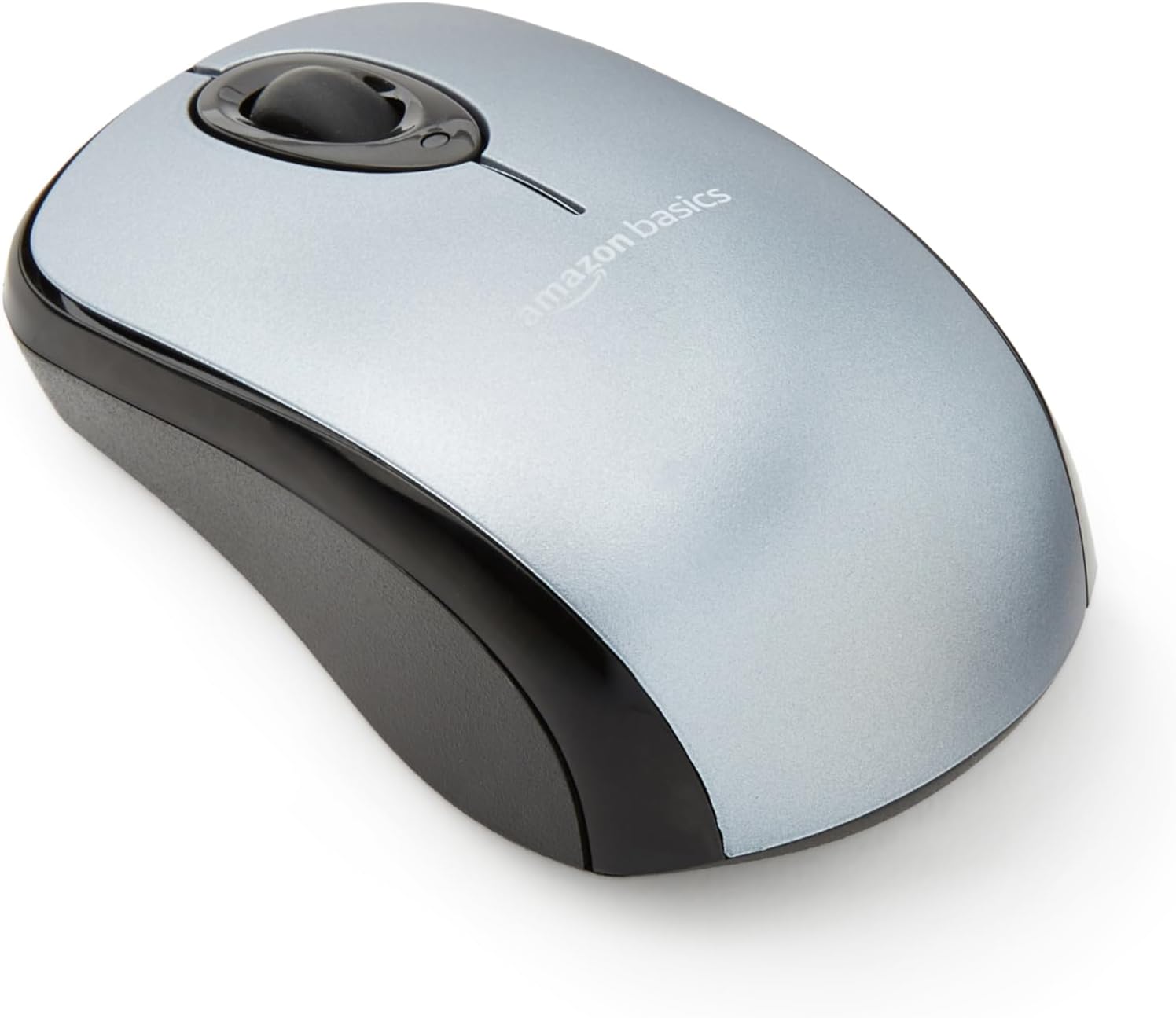
Amazon Basics Wireless Optical Mouse, Silver
Amazon Basics
|
Budget-friendly office use
|
|
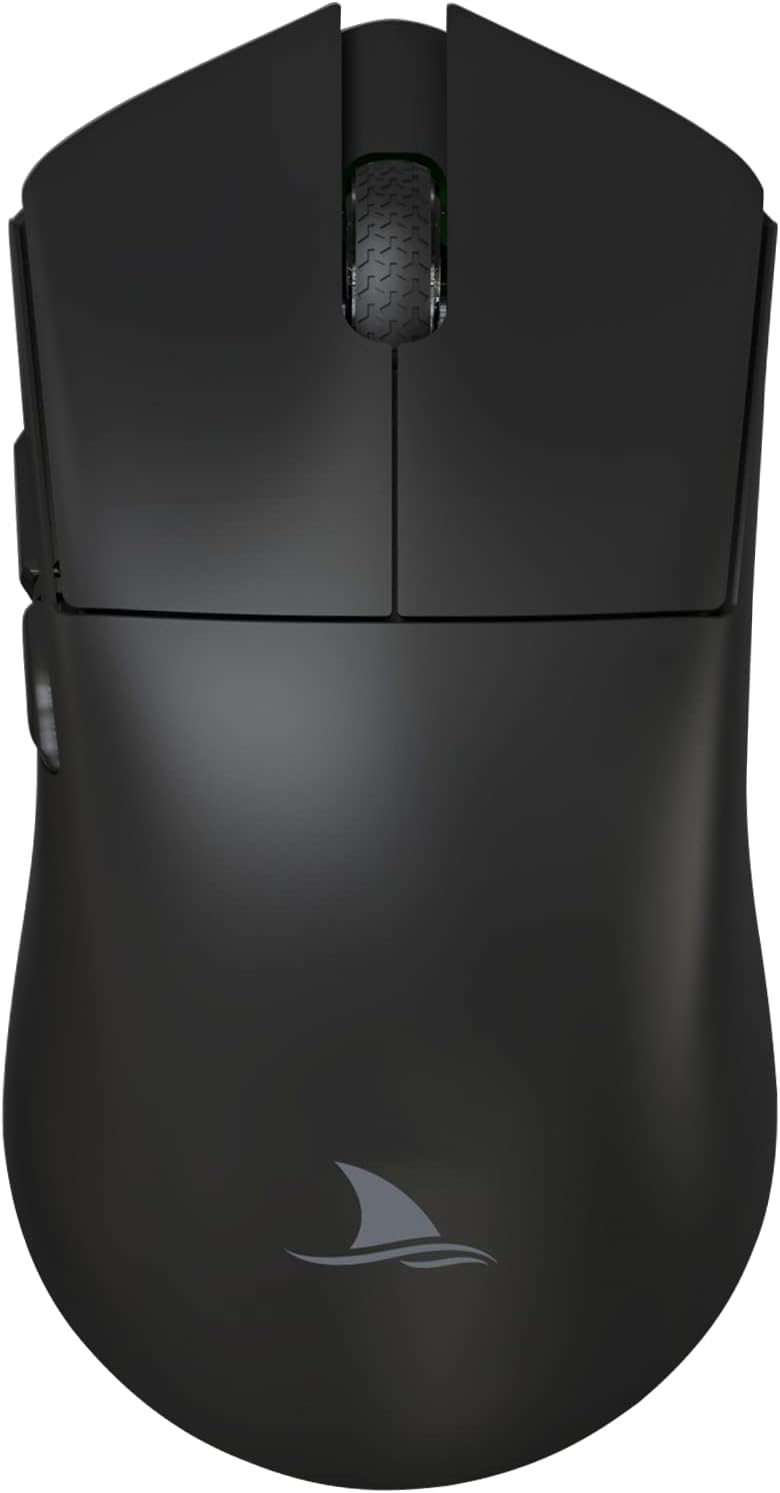
Darmoshark M3 Tri-Mode Wireless Gaming Mouse
Darmoshark
|
Competitive gaming and multi-device productivity
|
|
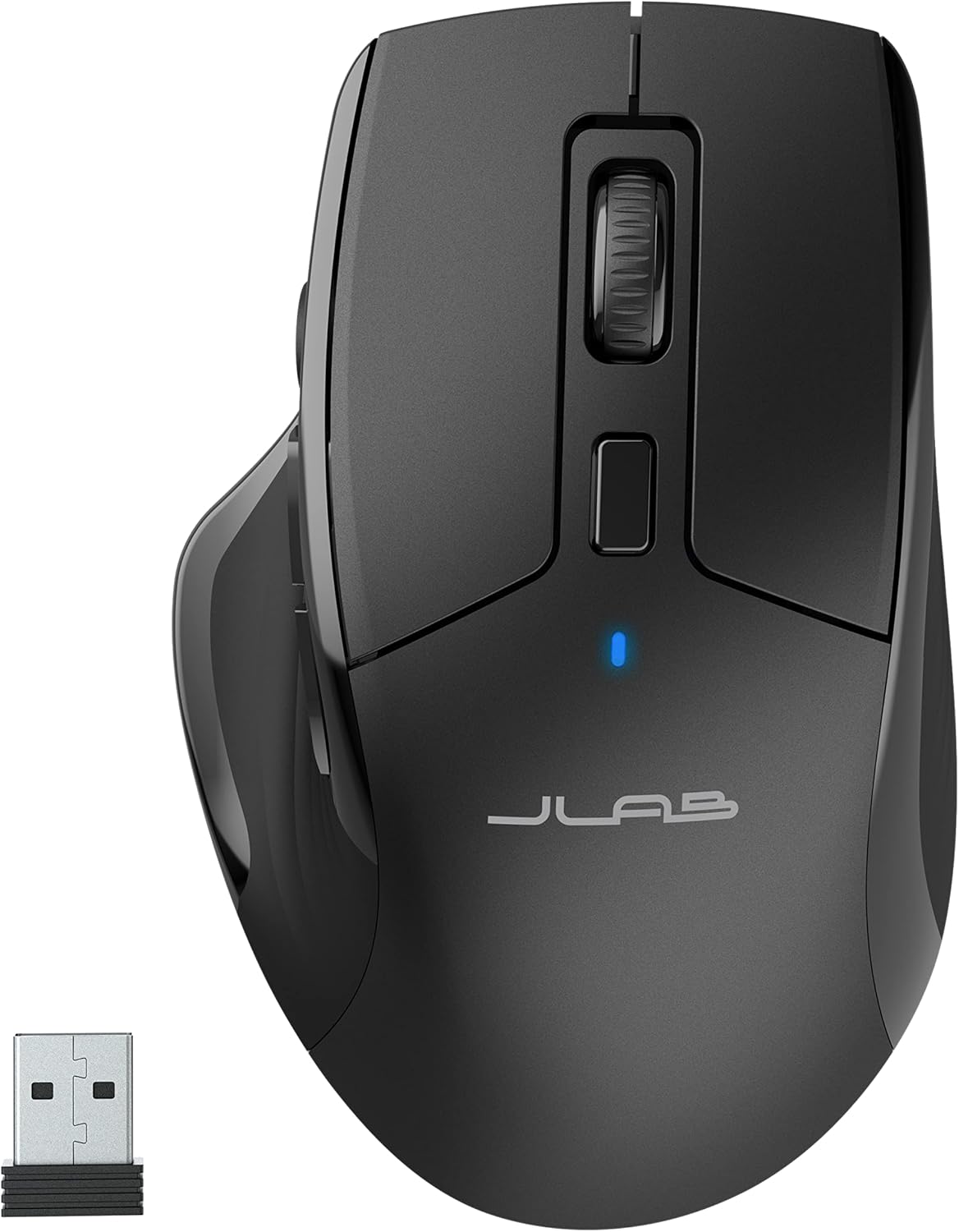
JLab Rechargeable Full-Size Wireless Mouse
JLab
|
Office productivity, multi-device switching, and quiet shared workspaces
|
|
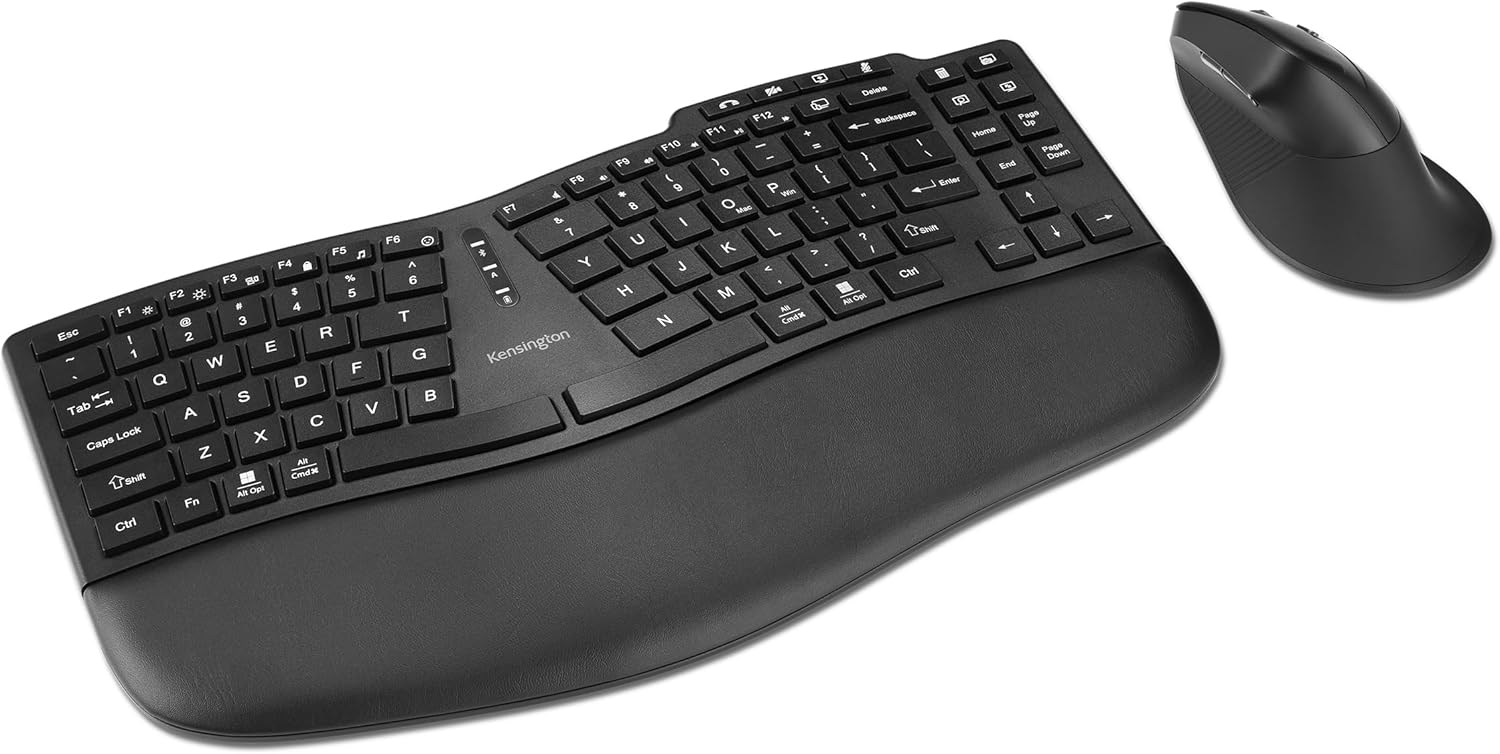
Kensington Ergonomic Wireless Keyboard and Vertical Mouse Combo
Kensington
|
All-day ergonomic office productivity and wrist strain relief
|
|
Logitech MX Anywhere 3S Wireless Mouse
Logitech
|
Students, Productivity & Multi-Device Work
|
|

Logitech Pebble 2 Combo Wireless Keyboard & Mouse
Logitech
|
Students, Study & Everyday Productivity
|
|
Microsoft Arc Bluetooth Mouse
Microsoft
|
Ultra Slim & Ergonomic for PC, Laptop, and Desktop
|
|
Rapoo M300G Silent Wireless Mouse
Rapoo
|
Office work, studying, and multi-tasking
|
Top 8 Best Student Wireless Mice (Detailed Reviews)
1. Logitech Pebble 2 M350s – Best for Quiet Study Sessions
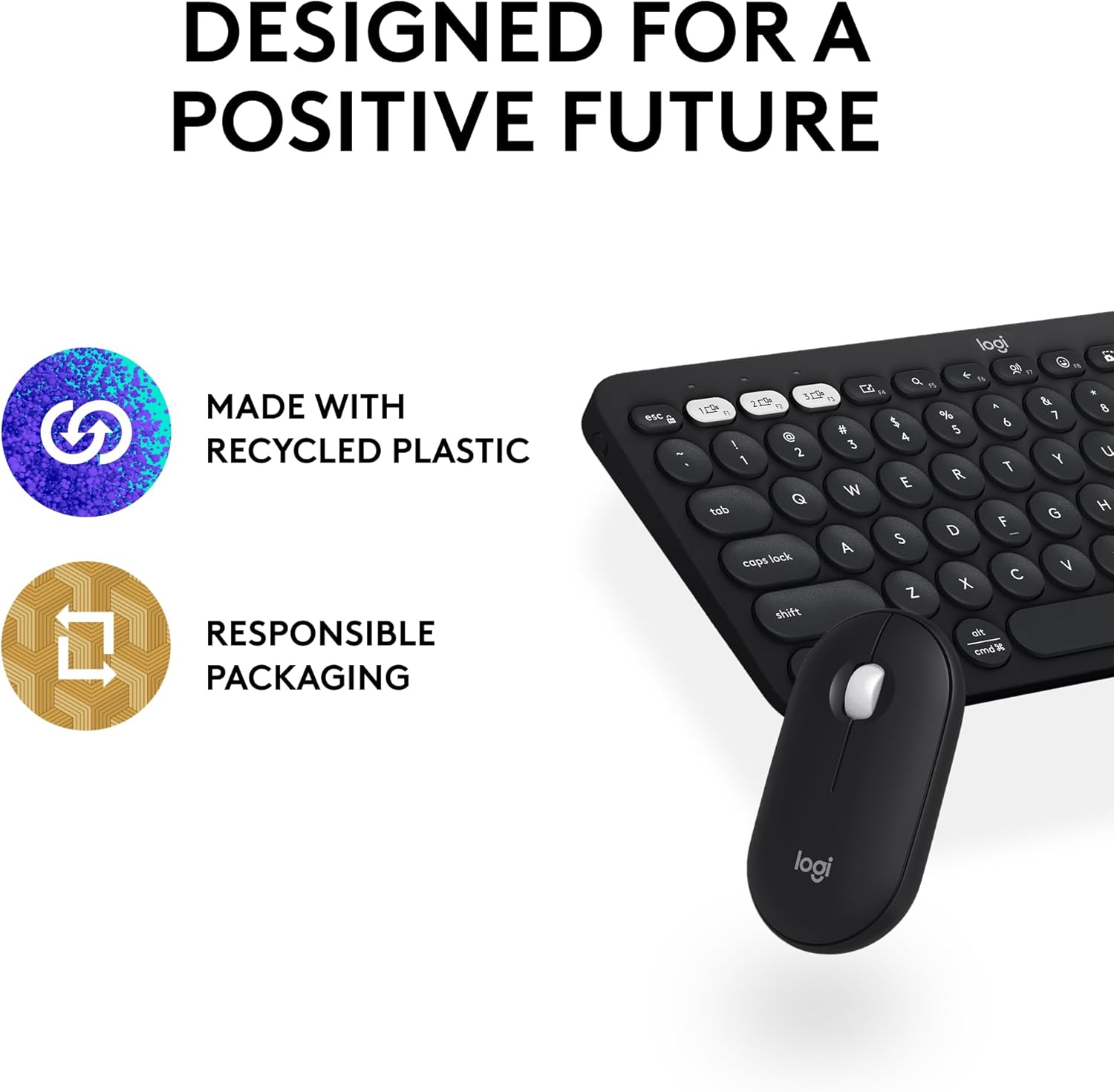
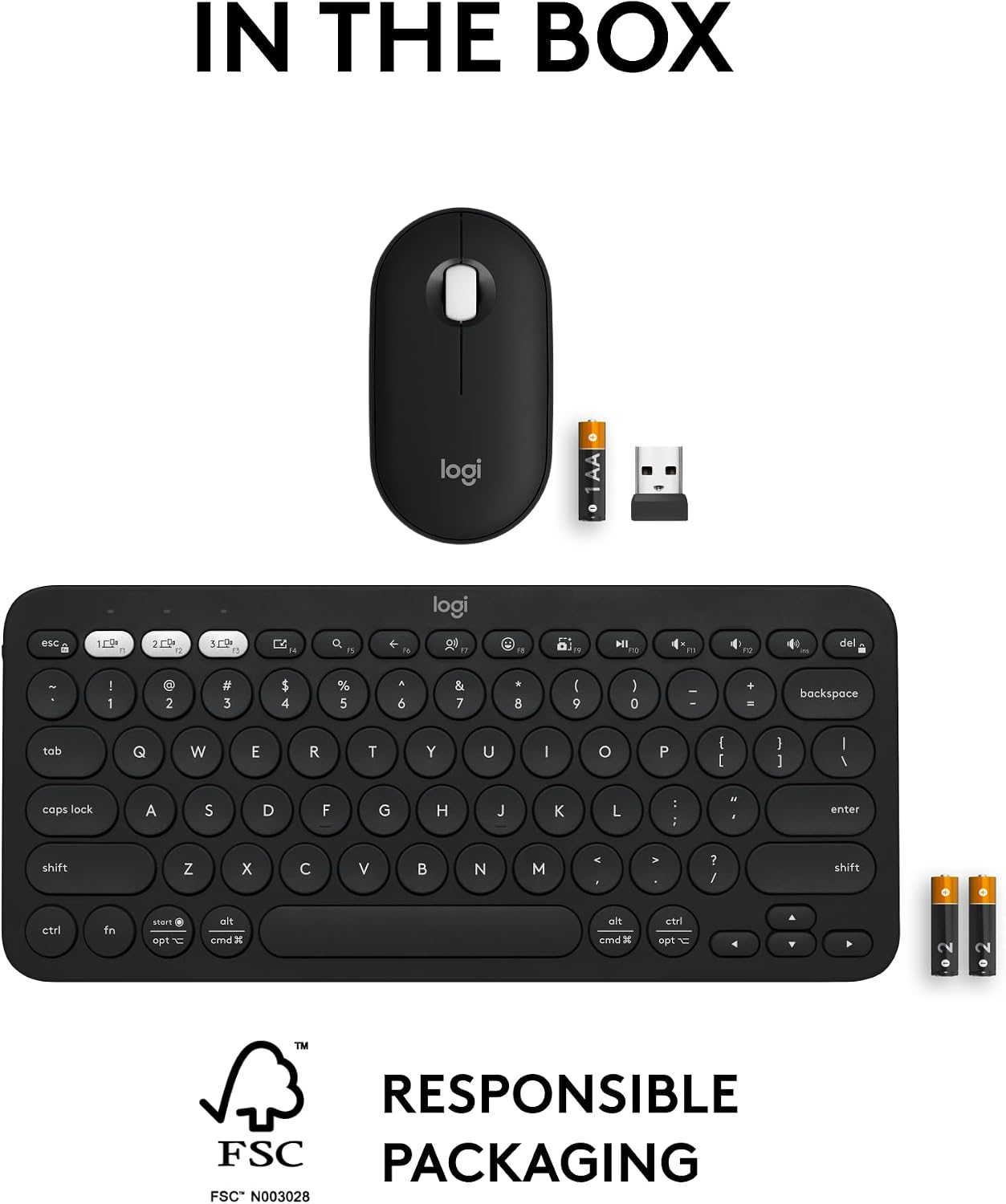
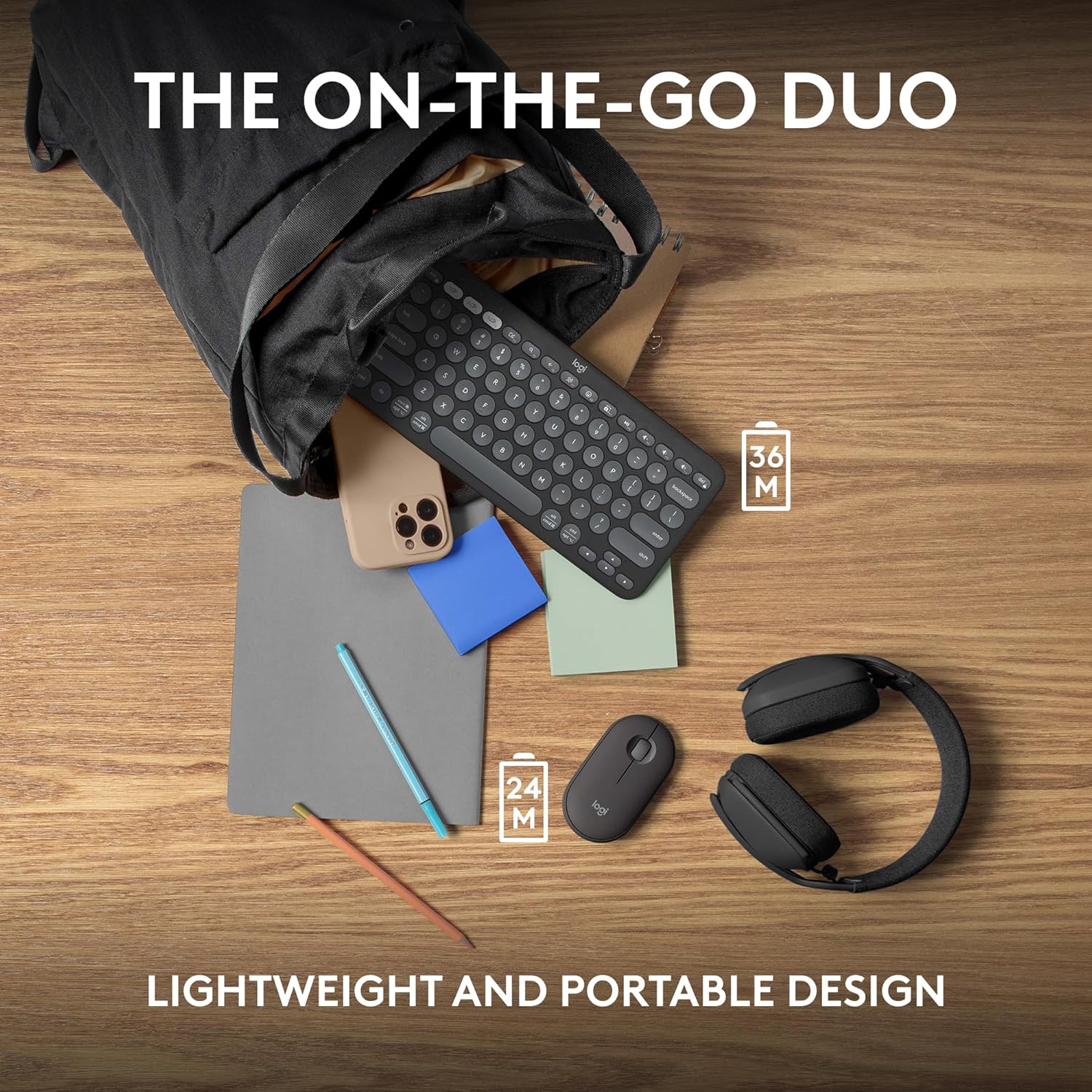
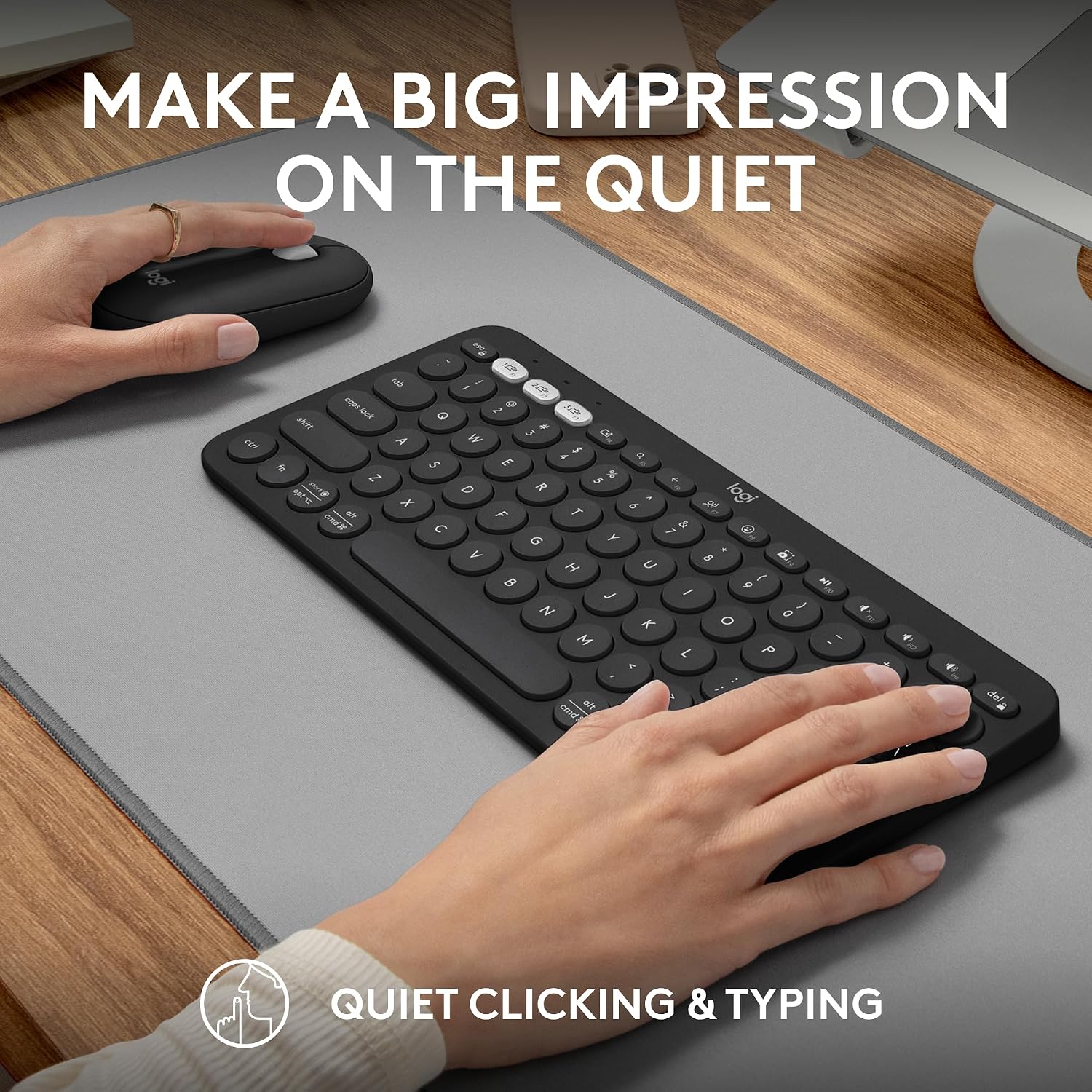
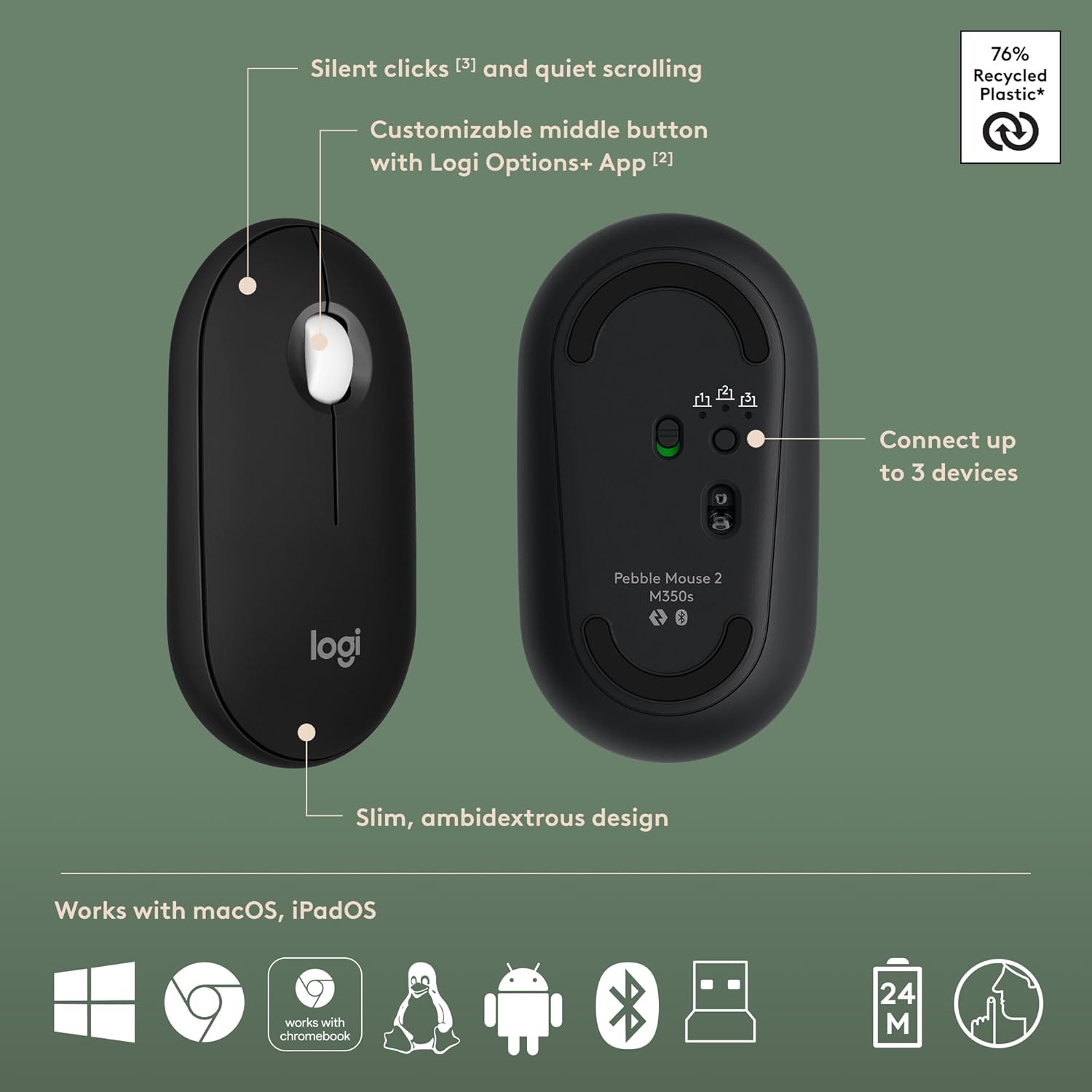
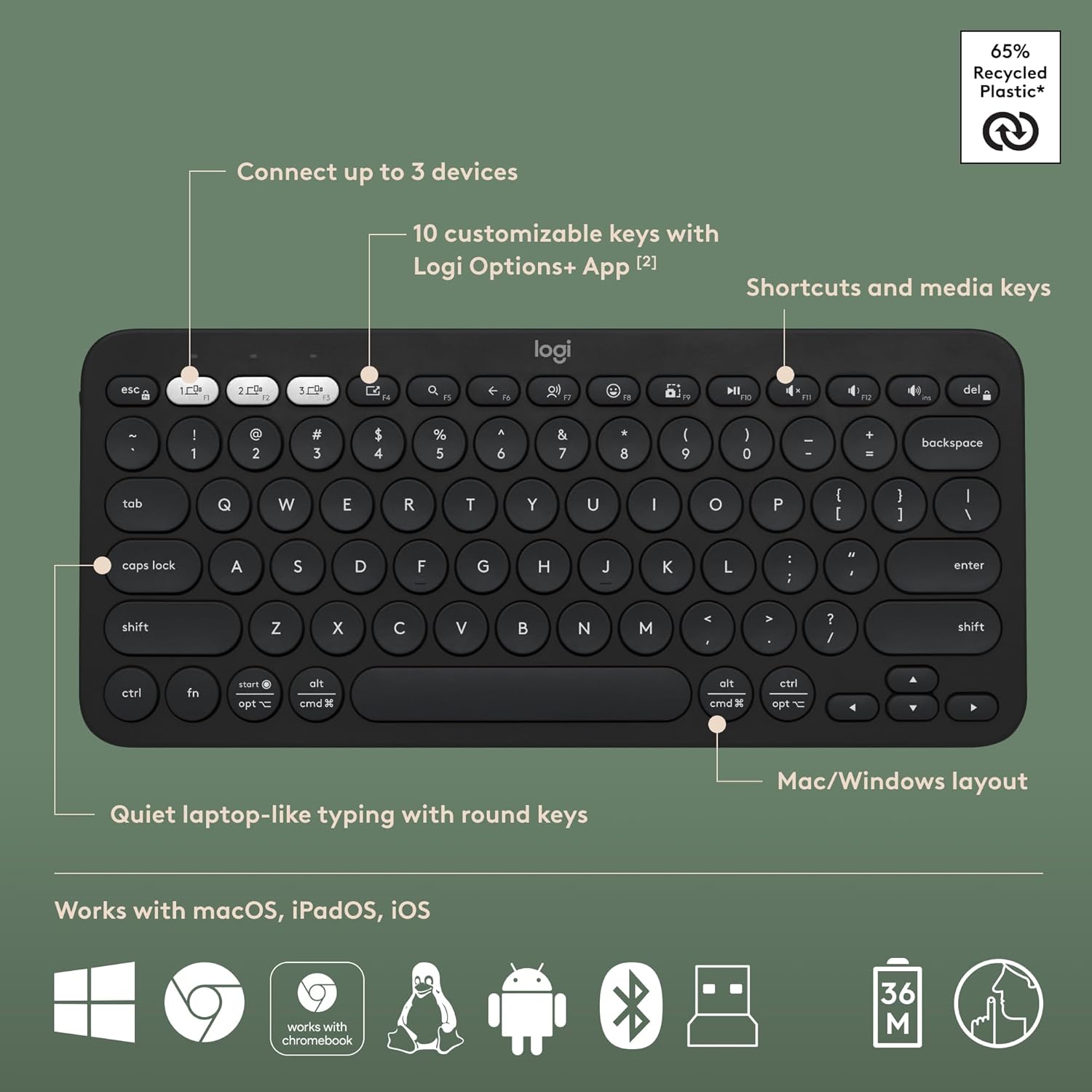
The Pebble 2 M350s is built around a simple premise: a mouse that a student can carry all day and use anywhere without drawing attention. Its low-profile shape slides easily into a laptop sleeve or the front pocket of a backpack, and Logitech's Silent Touch buttons keep click noise down to a level that won't bother anyone at the next table over in a quiet study room. It also pairs with multiple devices through Logi Options+, so switching between a laptop and a tablet mid-session doesn't require re-pairing. The quiet clicks matter more than they might sound like they would on paper — students who've been shushed or gotten annoyed looks over a loud click in a silent study room tend to notice the difference within the first day of ownership, and it's the kind of small daily friction that's easy to underestimate until it's actually gone.
- Pros:
- Quiet clicks suited to libraries and shared study spaces
- Slim, lightweight design that travels well
- Long battery life between charges
- Multi-device Bluetooth pairing
- Available in several colors
- Cons:
- Flat shape isn't ideal for students who prefer a fuller, ergonomic grip
- Sensor struggles on glass or glossy surfaces
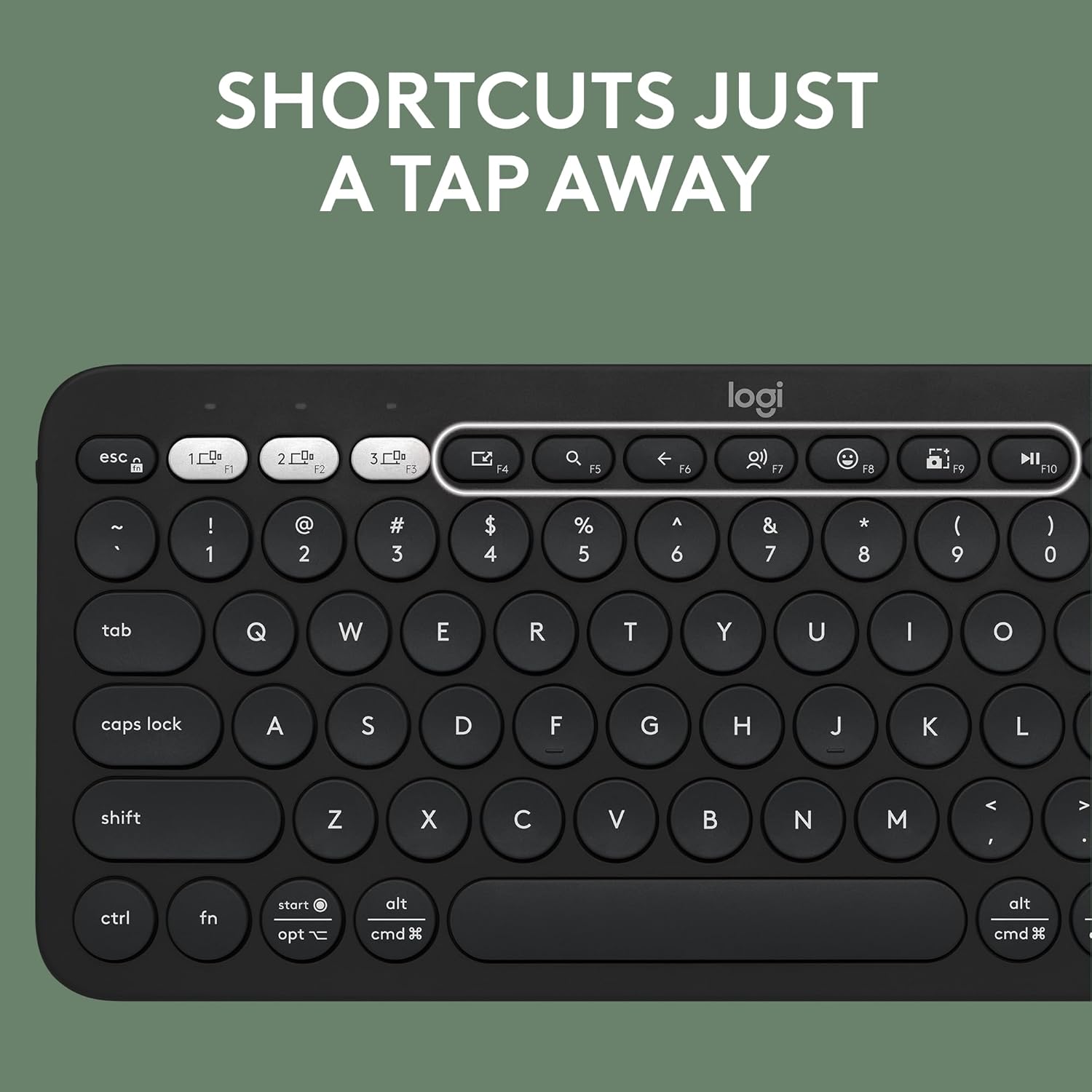


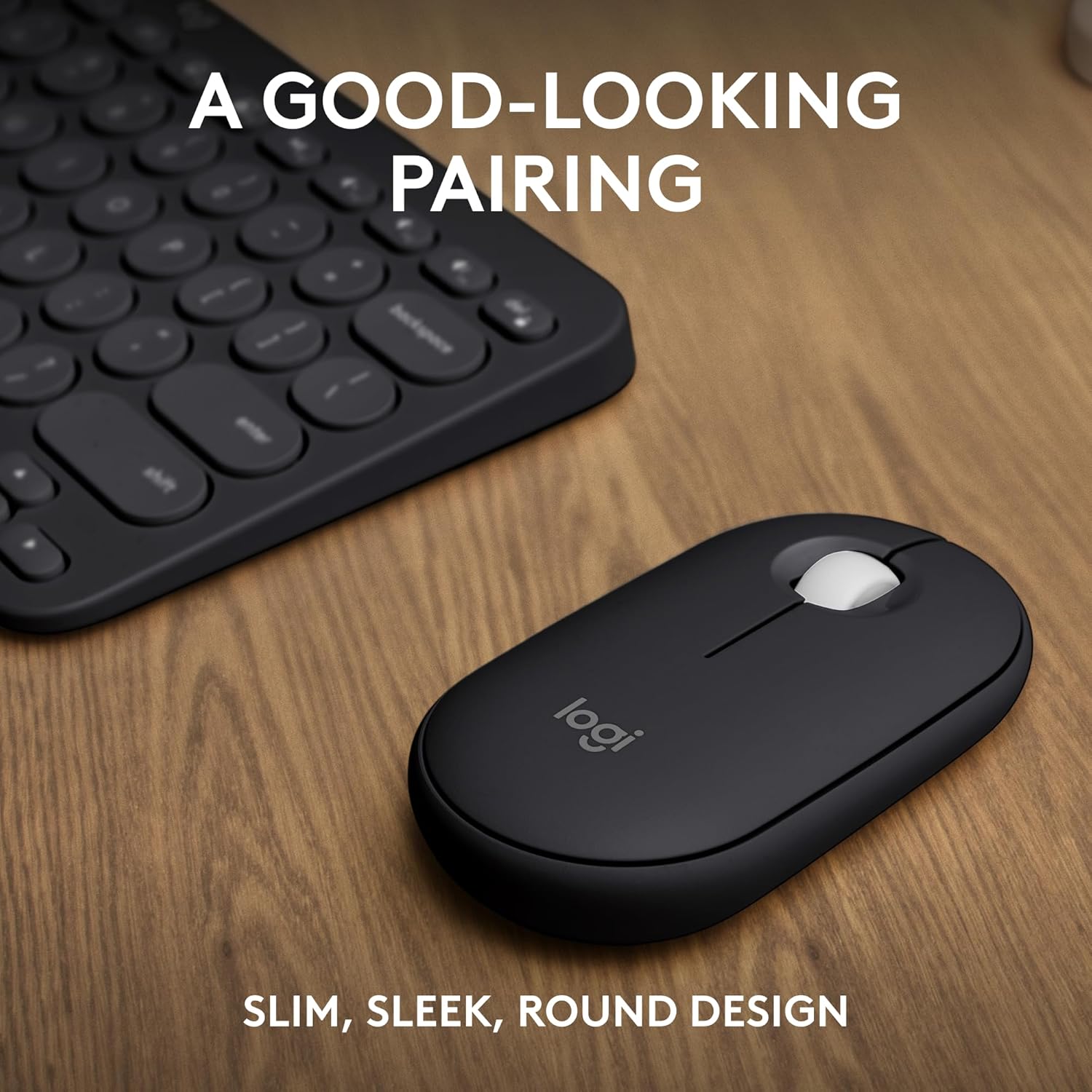
| Feature | Detail |
|---|---|
| Brand | Logitech |
| Compatible Devices | Laptop |
| Connectivity Technology | Battery Powered, Linux, Mac, Optical, PC |
| Keyboard Description | Indoor |
| Recommended Uses For Product | Personal |
| Special Feature | Lightweight, Portable, Wireless |
| Color | Black |
| Material | Plastic |
| Included Components | Keyboard, Mouse |
Best For: Students who need something lightweight, quiet, and easy to carry between classes, the library, and home.
Why We Recommend It: It hits the exact combination most students are actually looking for — low noise, low weight, and dependable battery life — without asking you to pay for features you won't use during a typical semester.
2. Logitech MX Anywhere 3S – Best Premium Pick for Multi-Device Work
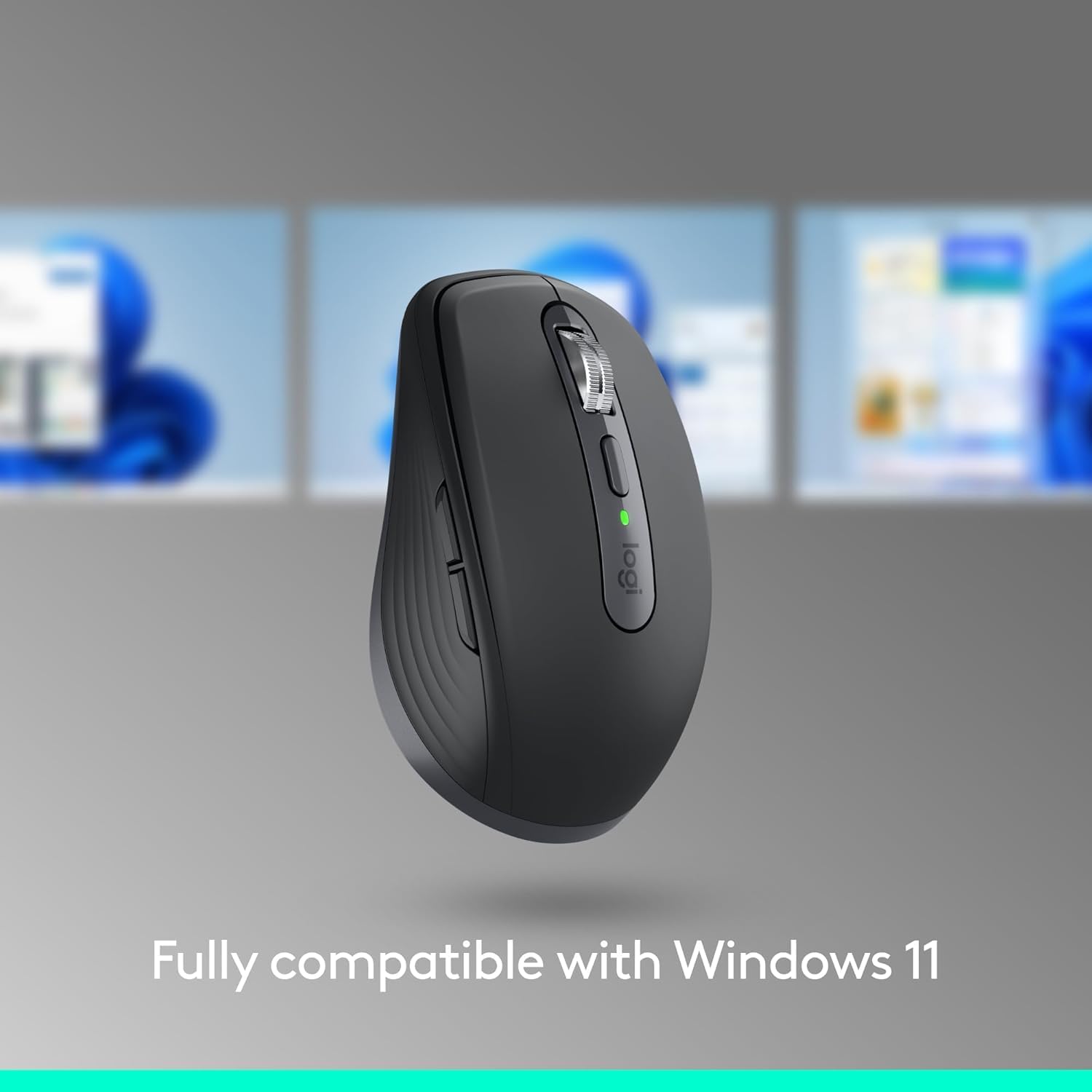
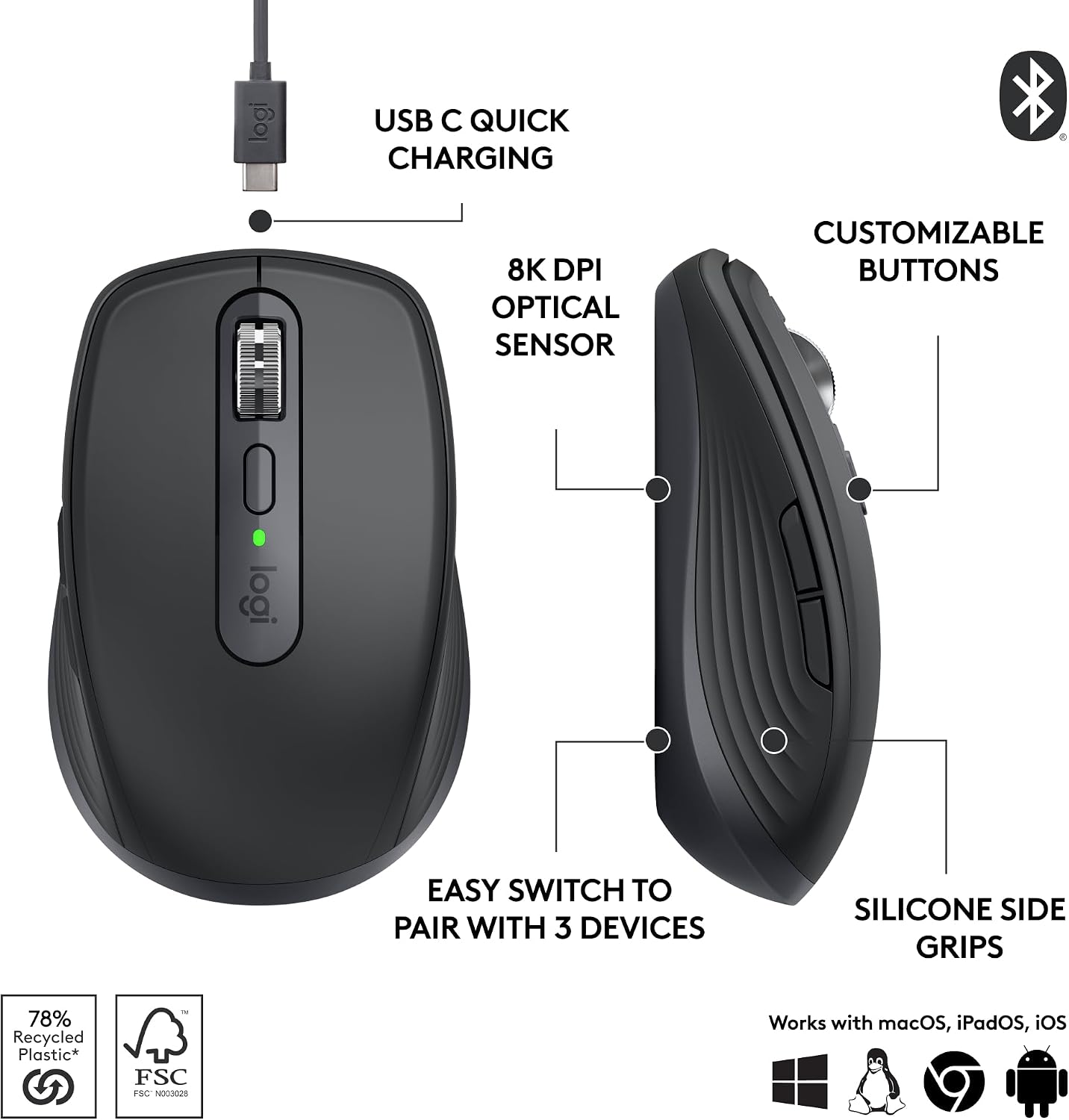
The MX Anywhere 3S is aimed at students who treat their mouse as a real productivity tool rather than an afterthought. Its 8,000 DPI Darkfield sensor tracks reliably even on glass and other glossy desks, which matters more than it sounds like it would once you've tried using a budget mouse on a library table. The MagSpeed scroll wheel makes scrolling through long PDFs, research papers, and spreadsheets noticeably faster, and it can pair with up to three devices, switching between them with one button press.
- Pros:
- Accurate tracking on nearly any surface, including glass
- Fast, precise MagSpeed scrolling for long documents
- Pairs with up to three devices
- Quiet clicks suitable for shared spaces
- Solid, premium build quality
- Cons:
- Costs more than most student-oriented mice
- Compact shape may feel small for students with larger hands
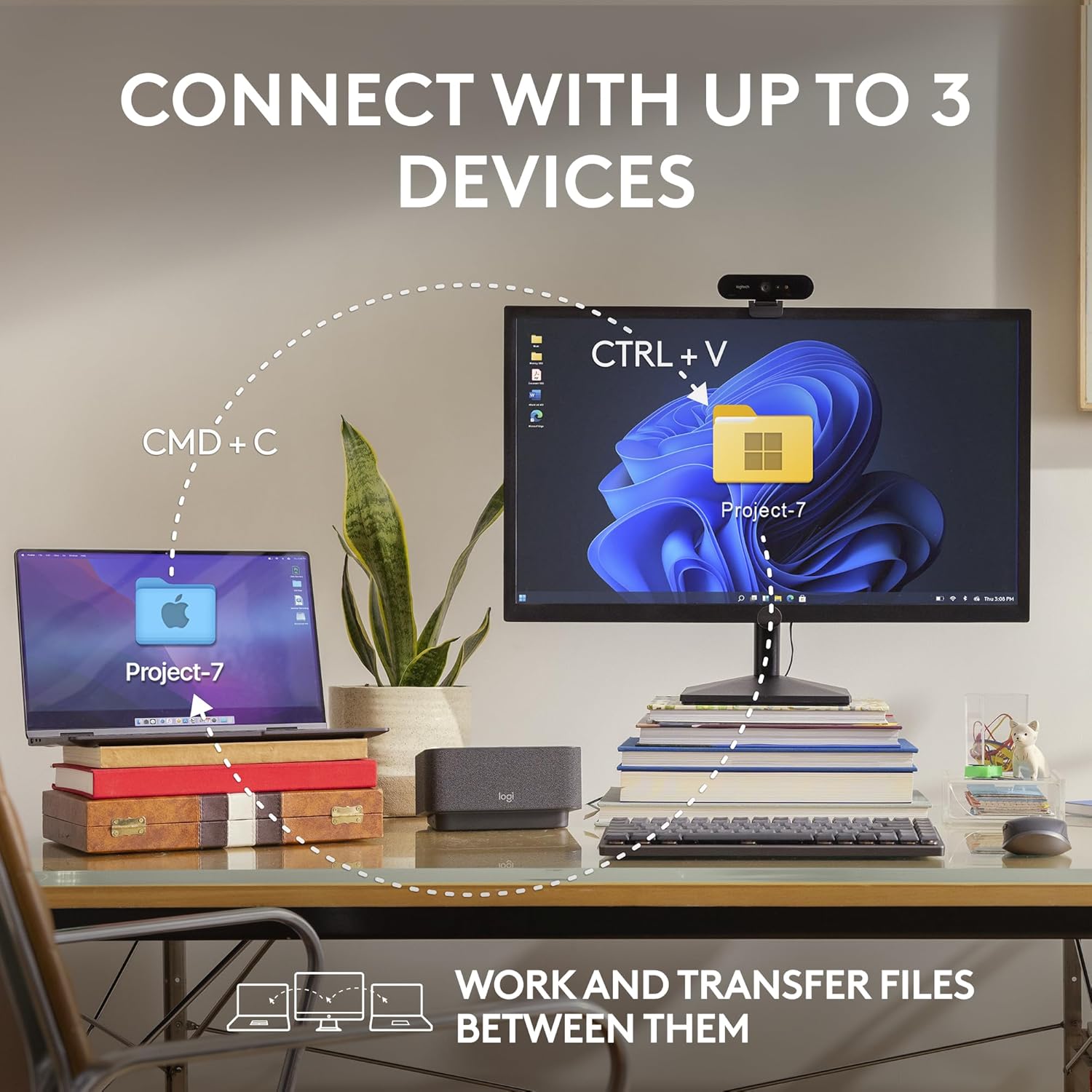


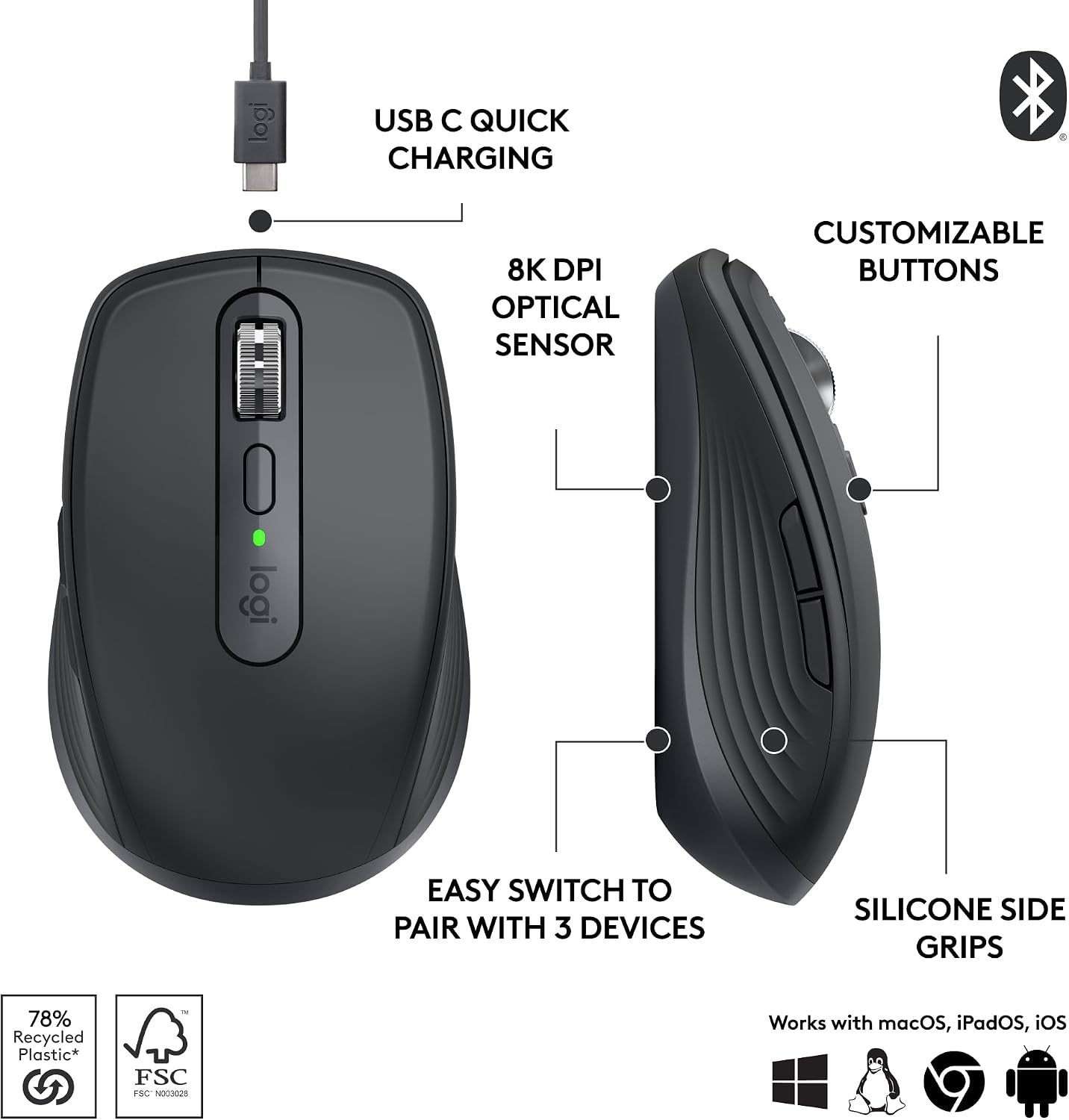


| Feature | Detail |
|---|---|
| Connectivity Technology | Bluetooth |
| Special Feature | Wireless |
| Movement Detection Technology | Optical |
| Model Name | MX Anywhere 3S |
| Antenna Location | Office |
| Model Number | 910-006925 |
| Built-In Media | Logitech MX Anywhere 3 Compact Performance Mouse, USB Receiver, Cable For Recharging (USB-C to USB-A), User Documentation, Limited 1-Year Hardware Warranty |
| Manufacturer | Logitech |
| Warranty Description | 1 Year Limited Hardware Warranty |
Best For: Students and multitaskers who regularly move between a laptop, tablet, and desktop and want premium tracking performance.
Why We Recommend It: The extra cost buys real functionality — better tracking, faster scrolling, and smoother multi-device switching — which pays off for students who spend long stretches of the day working across more than one screen.
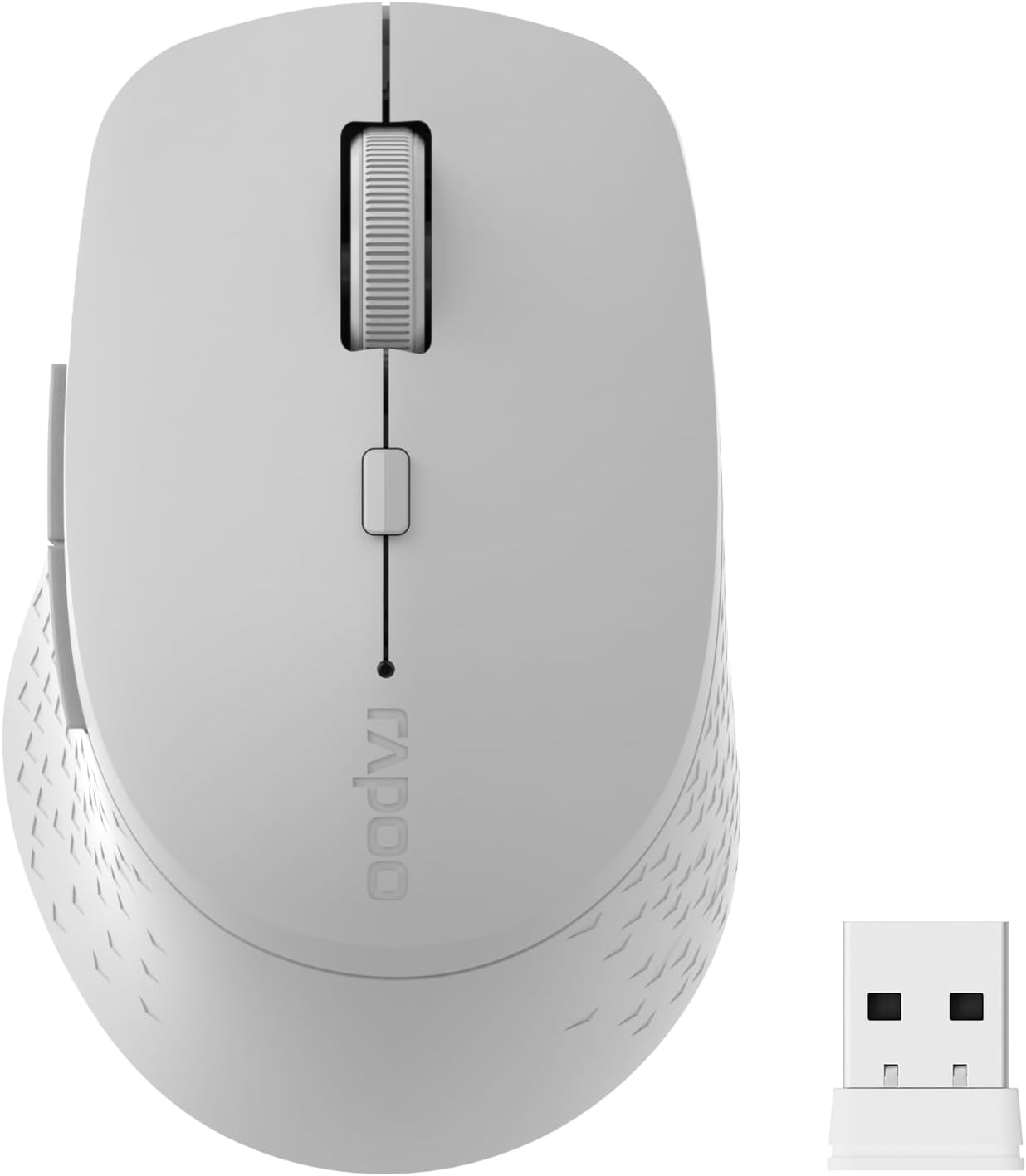
3. Rapoo M100 Silent – Best Budget Wireless Mouse
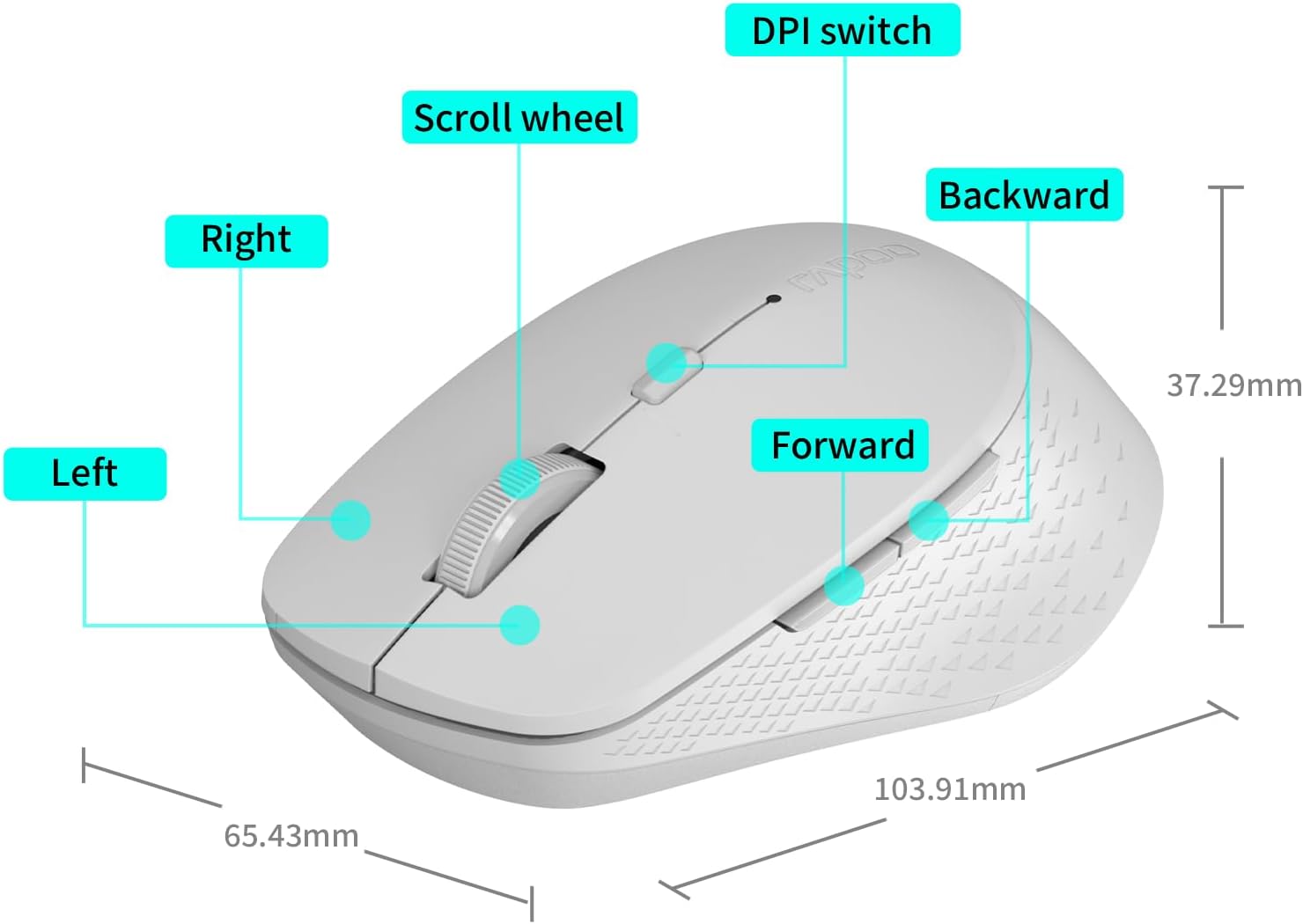
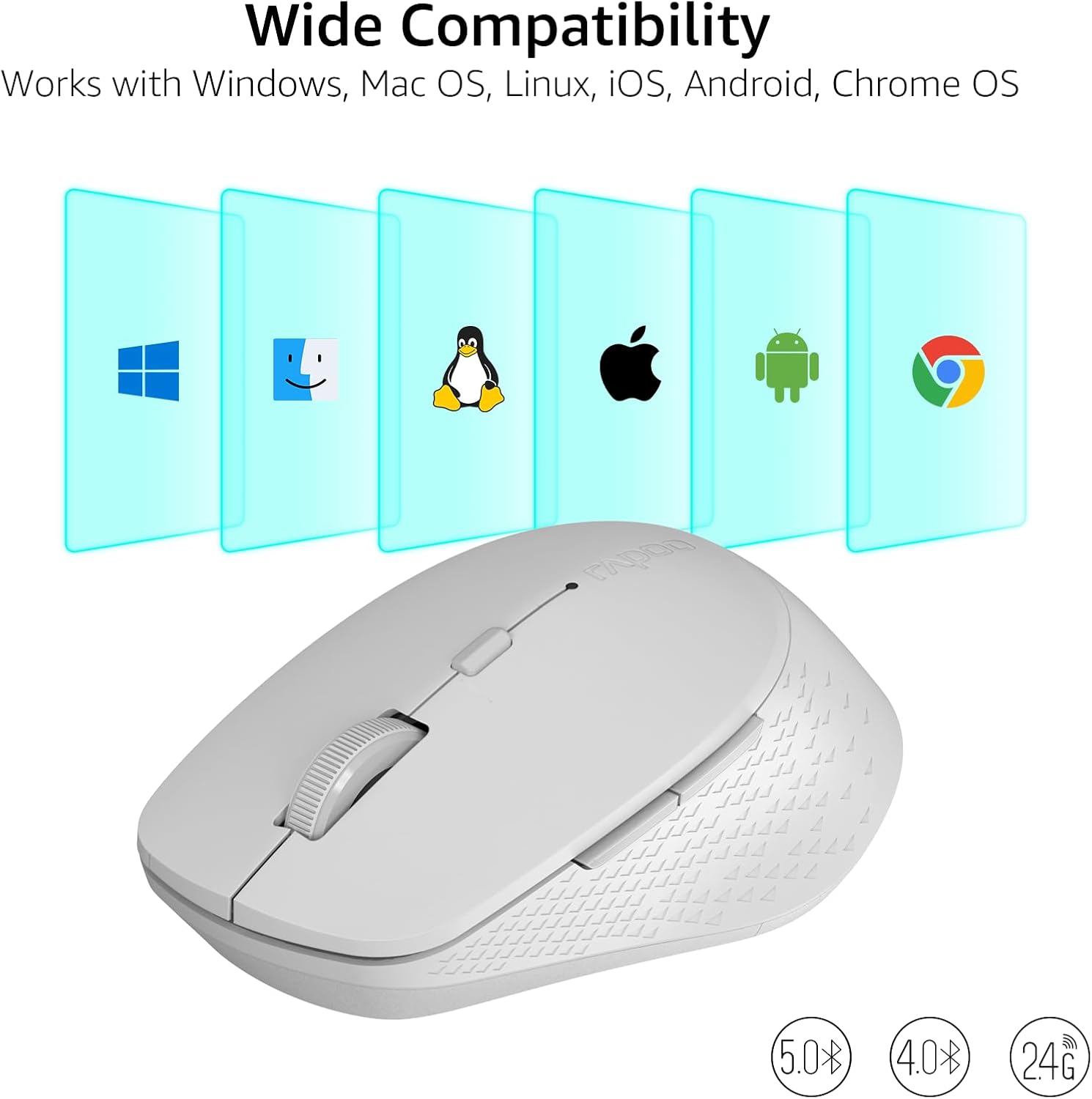
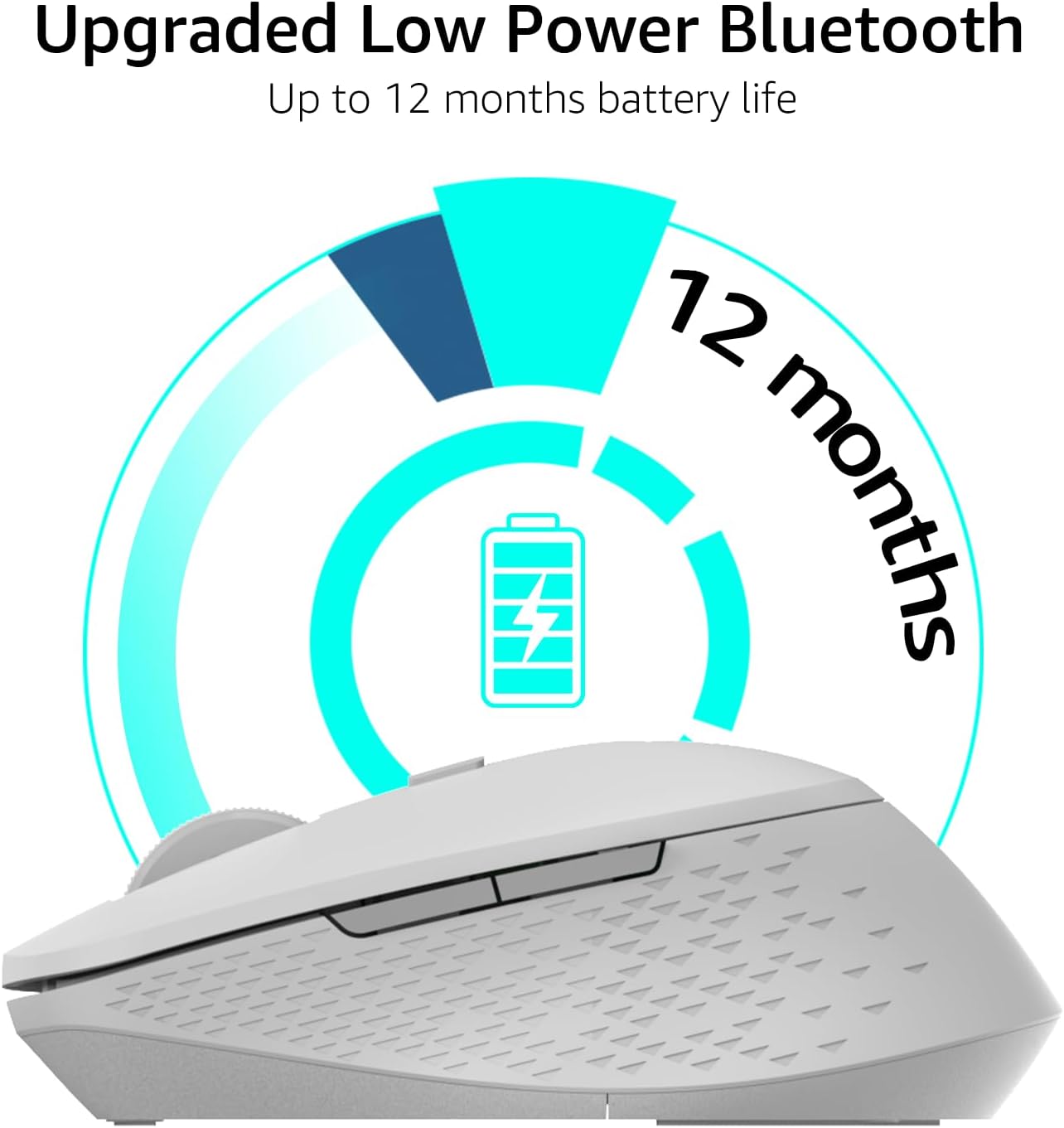
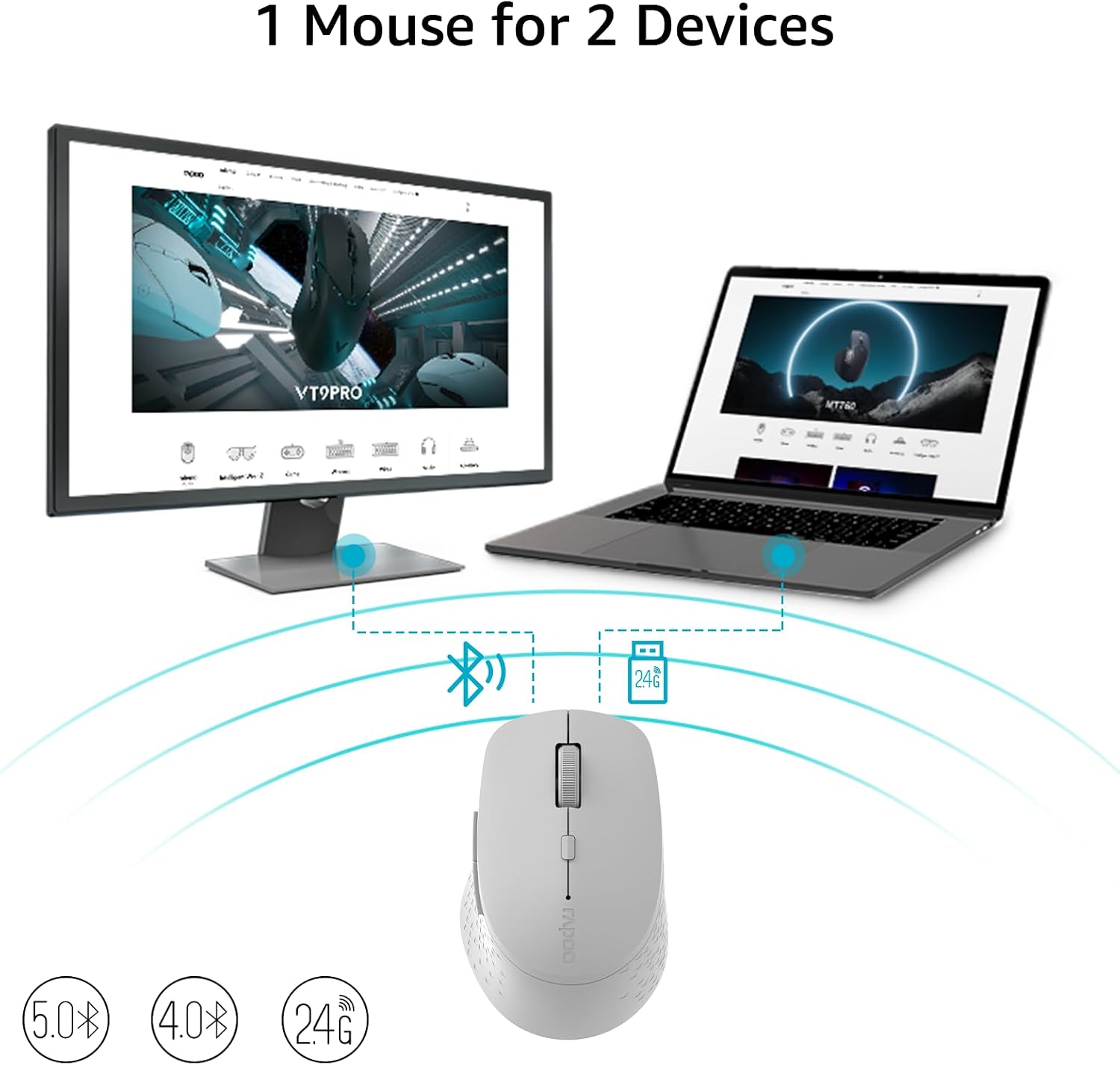
The M100 Silent is proof that a genuinely usable wireless mouse doesn't have to cost much. It connects over Bluetooth or 2.4GHz through the included USB receiver, so it works with almost any laptop regardless of which ports are free. The compact shape fits easily into a backpack pocket, and the quiet-click buttons make it a reasonable choice for lecture halls and shared dorm spaces where noise is a consideration.
- Pros:
- Dual-mode connectivity: Bluetooth plus 2.4GHz receiver
- Quiet click buttons
- Compact, lightweight build
- Low price point
- Simple setup across multiple devices
- Cons:
- Plastic build feels noticeably less premium than higher-end options
- Few customization options compared to pricier mice



| Feature | Detail |
|---|---|
| Brand | Rapoo |
| Color | Light Grey |
| Connectivity Technology | Bluetooth, USB |
| Special Feature | Lightweight, Portable, Soundless, Touch Scroll, Wireless |
| Movement Detection Technology | Optical |
| Model Name | M300G |
| Built-In Media | AA Bettery*1, Product Manual*1, USB Reciever*1, Wireless Mouse*1 |
| Manufacturer | Shenzhen Rapoo Technology Co., Ltd. |
| Warranty Description | 1 year warranty |
Best For: Budget-conscious students who want dependable everyday performance for classes and general studying.
Why We Recommend It: For students who just need a mouse that works reliably every day without a premium price tag, the M100 Silent covers the essentials — connectivity, quiet clicks, and portability — without unnecessary extras.
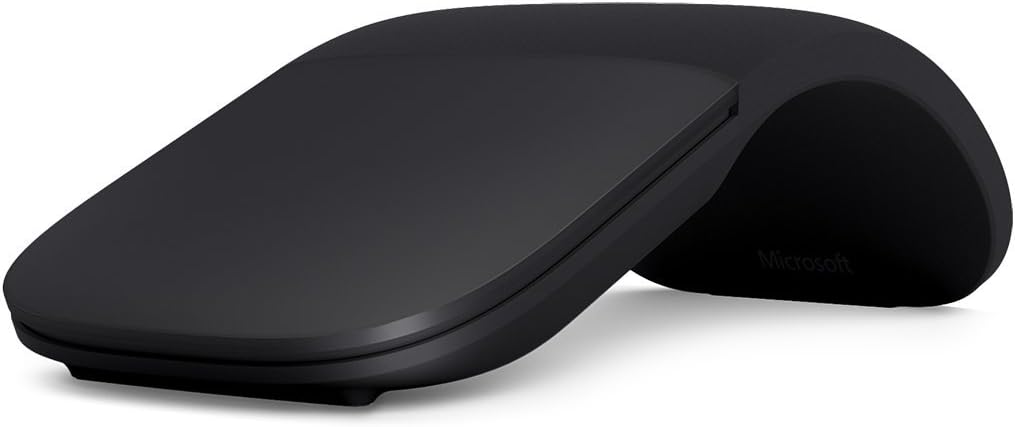
4. Microsoft Surface Arc Mouse – Best for Travel and Portability
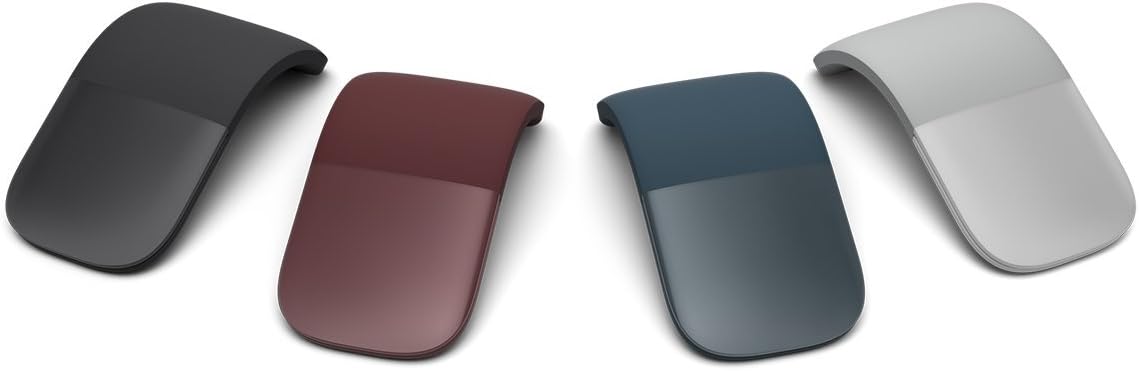
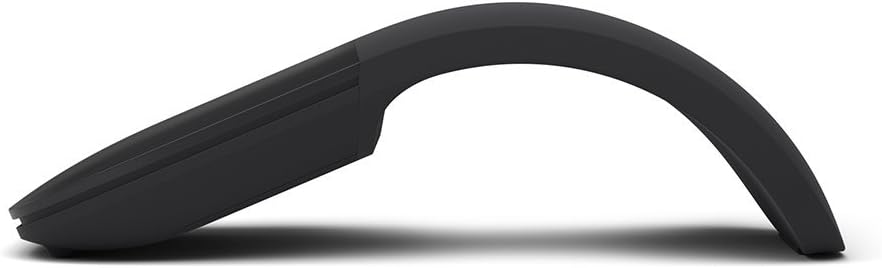
The Surface Arc Mouse solves a specific problem: fitting a usable mouse into an already-full backpack. Its fold-flat design collapses down to a slim shape that slides into a laptop sleeve, and bending it into its curved shape both turns it on and gives it an ergonomic curve to use. Bluetooth pairing means there's no USB receiver to lose track of, which matters more than it sounds for students who move between multiple bags and backpacks throughout the week.
- Pros:
- Unique fold-flat shape for compact storage
- Lightweight and genuinely travel-friendly
- Bluetooth connection, no USB receiver required
- Powers on and off automatically by bending flat or curved
- Sleek, minimal design
- Cons:
- Less comfortable than dedicated ergonomic mice over long sessions
- Priced higher than standard wireless mice
- Uses replaceable AAA batteries instead of USB-C charging

| Feature | Detail |
|---|---|
| Manufacturer | Microsoft Surface Accessories - PC |
| Built-In Media | 2 AAA alkaline batteries |
| Model Number | ELG-00001 |
| Model Name | Arc Mouse |
| Movement Detection Technology | Optical |
| Special Feature | Lightweight, Wireless |
| Connectivity Technology | Bluetooth |
| Color | Black |
| Brand | Microsoft |
| UPC | 889842178470 |
| Mfr Part Number | ELG-00001 |
| Warranty Description | 1-year |
Best For: Students who move between locations frequently and want the smallest possible footprint in a bag.
Why We Recommend It: Few mice pack down this flat, which makes it a strong option for students whose day involves multiple stops between classes, libraries, and off-campus housing.
5. Keychron M3 Wireless – Best for Coding, Design, and Casual Gaming
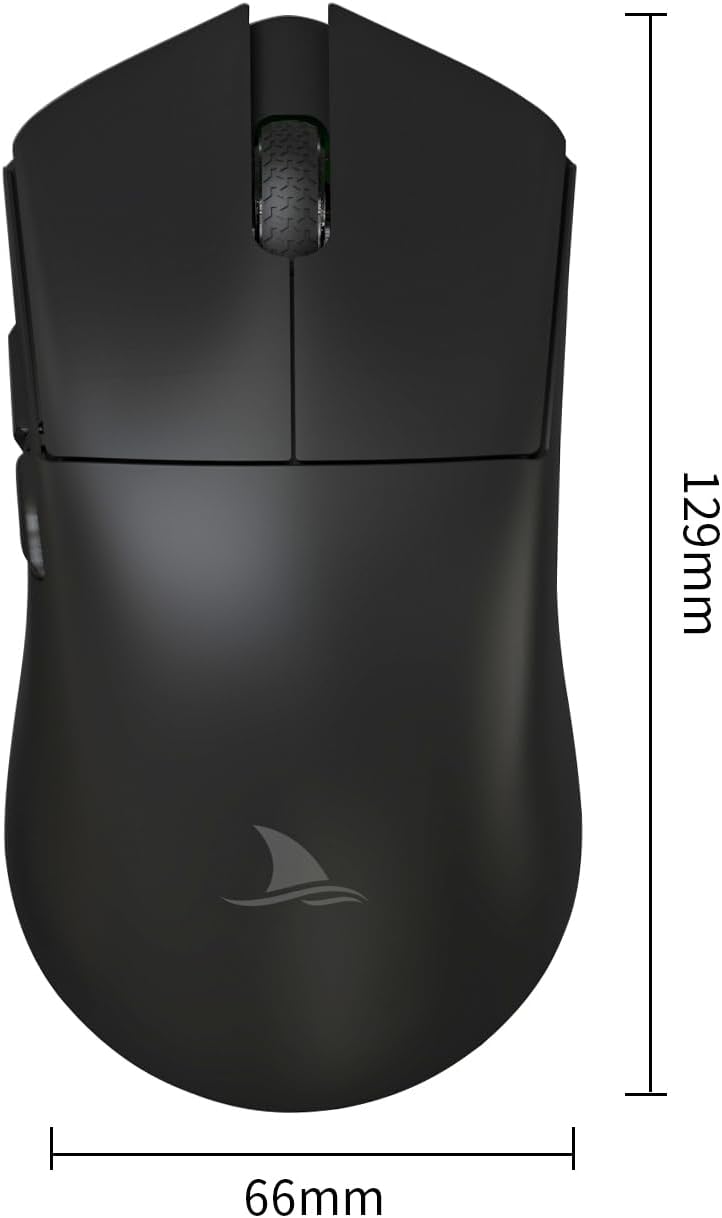
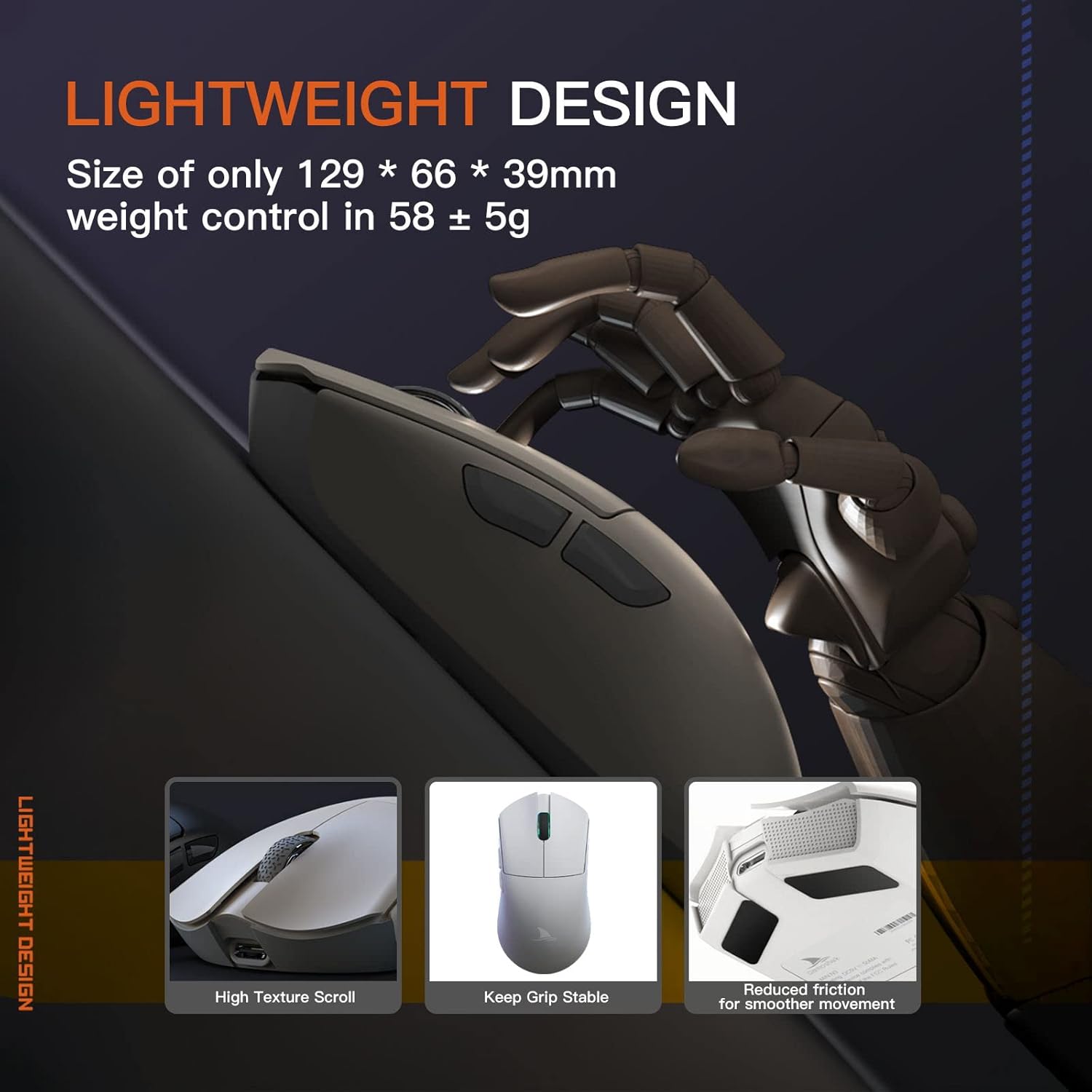
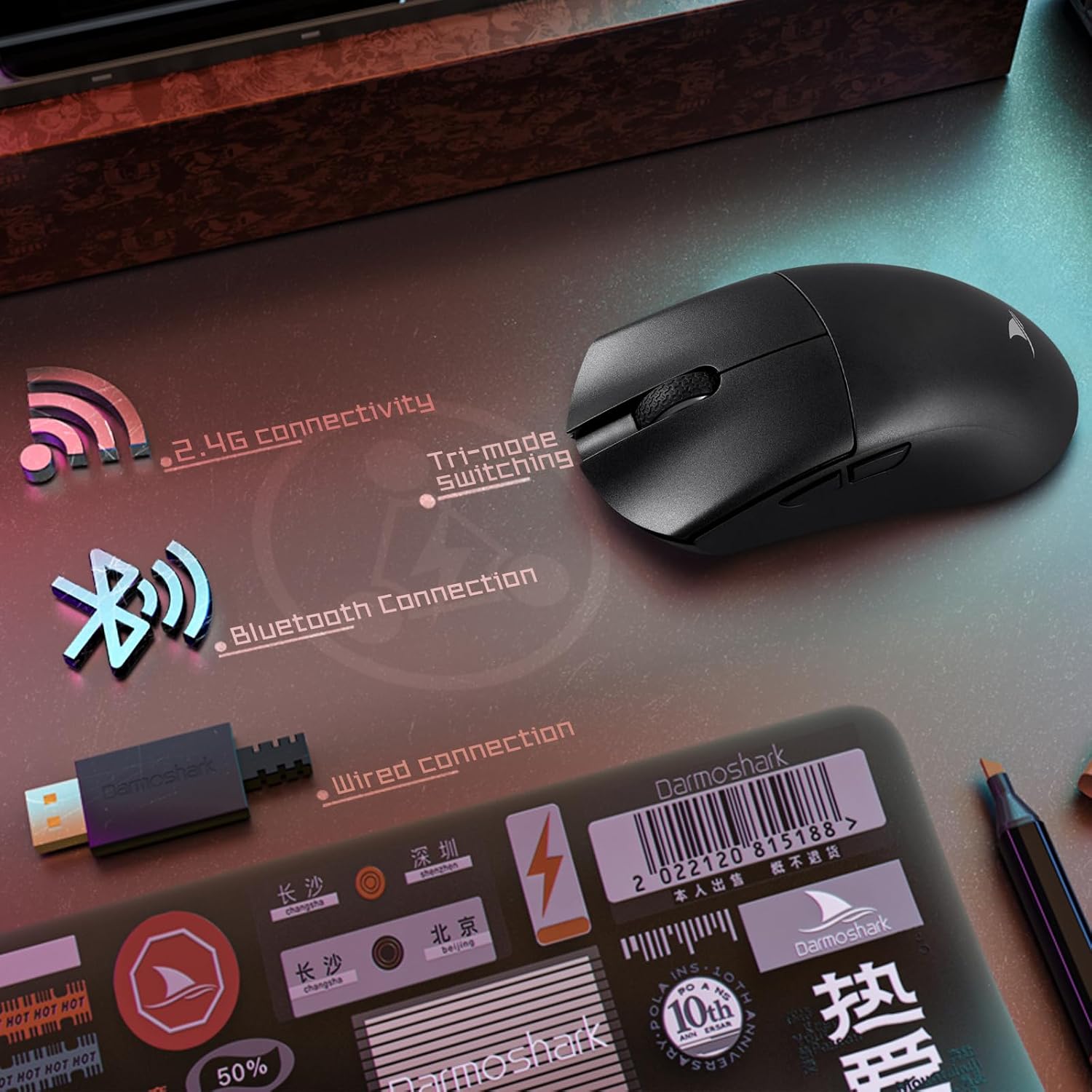
The M3 Wireless targets students whose coursework leans technical — engineering, computer science, and design programs where precision tracking matters more than it does for basic note-taking. Its sensor supports up to 19,000 DPI, giving it more than enough headroom for detailed design work, and at roughly 79 grams it stays comfortable through long sessions. It ships with both USB-C and USB-A wireless receivers, so it works with newer and older laptops without needing an adapter.
- Pros:
- High-precision, adjustable-DPI sensor
- Lightweight, comfortable shape
- Includes both USB-C and USB-A receivers
- Responsive enough for both work and casual gaming
- Rechargeable battery
- Cons:
- Customization software is less full-featured than some competitors
- Larger than the most compact travel mice



| Feature | Detail |
|---|---|
| Built-In Media | USB-C data cable |
| Model Number | M3 |
| Antenna Location | Gaming |
| Movement Detection Technology | Optical |
| Special Feature | Wireless |
| Connectivity Technology | Bluetooth |
| Color | Black |
| Brand | Darmoshark |
| Manufacturer | Darmoshark |
| Warranty Description | 1 year |
| Enclosure Material | Shark |
Best For: Engineering, computer science, and design students who want a precise mouse for coursework and occasional gaming.
Why We Recommend It: It's one of the few mice on this list that genuinely serves double duty — precise enough for technical work during the week, responsive enough for gaming on weekends.
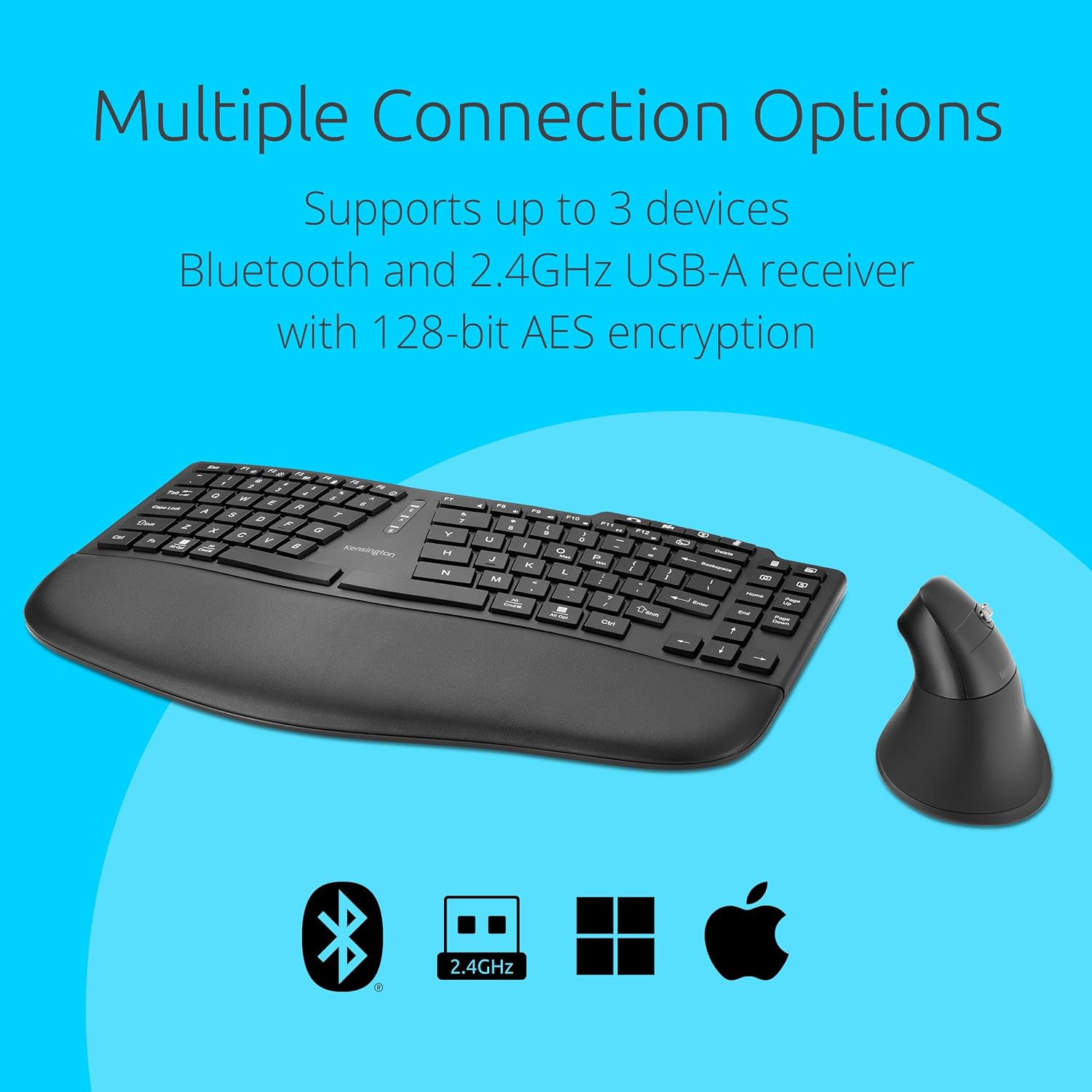
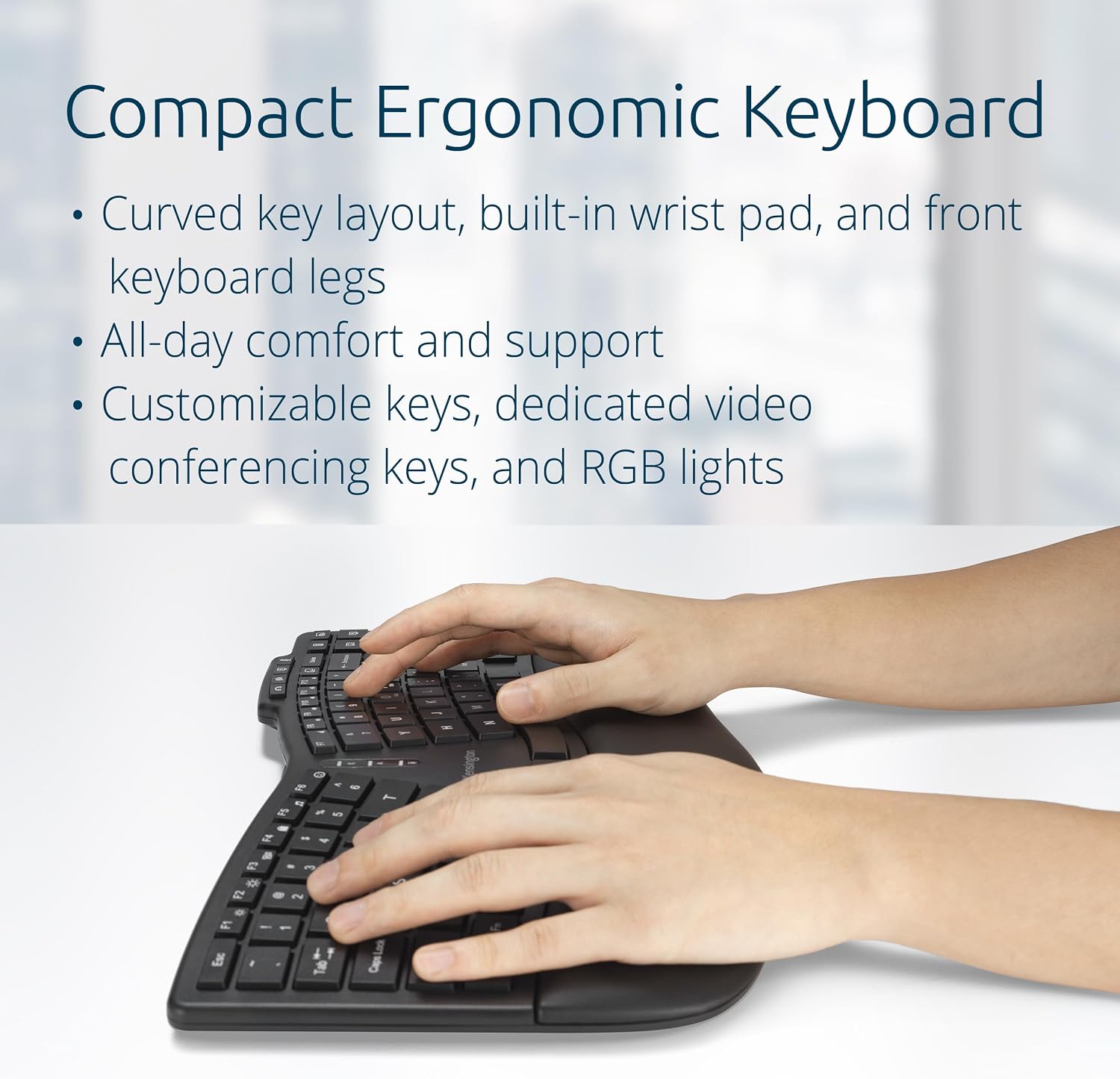
6. Kensington Pro Fit Ergo Wireless – Best for Ergonomic Comfort
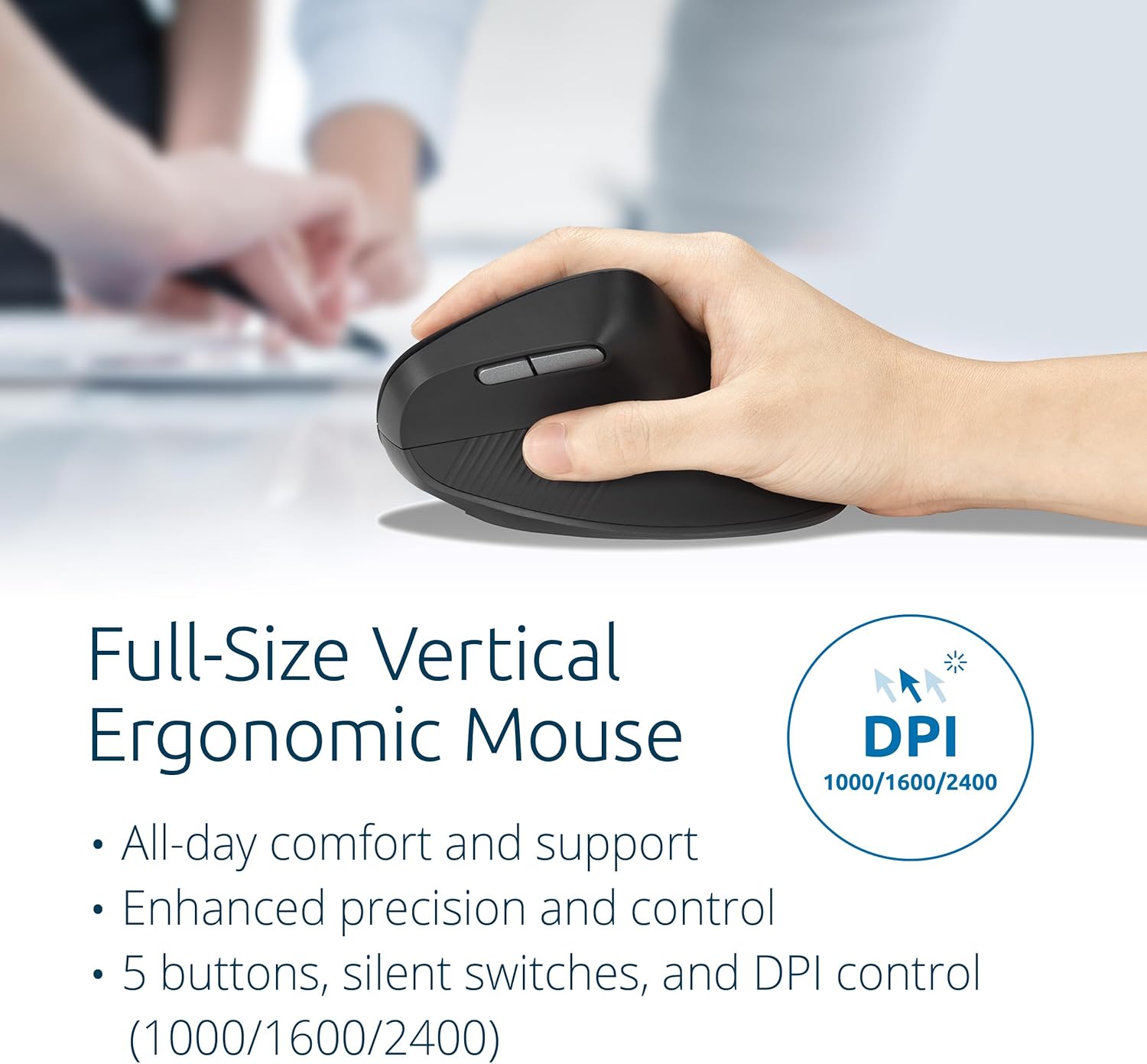
Long study sessions add up, and the Pro Fit Ergo is built for students who feel that fatigue in their wrist before anything else. Its shape encourages a more natural hand position than a standard flat mouse, which can make a real difference across a multi-hour writing or research session. It also includes quiet-click buttons and adjustable DPI, so comfort doesn't come at the expense of everyday usability.
- Pros:
- Ergonomic shape for improved wrist comfort
- Quiet click buttons
- Adjustable DPI settings
- Stable wireless connection
- Comfortable during extended use
- Cons:
- Larger shape is less convenient for frequent travel
- Plastic build feels functional rather than premium


| Feature | Detail |
|---|---|
| Brand | Kensington |
| Compatible Devices | Laptop, PC, Tablet |
| Connectivity Technology | Bluetooth, Usb |
| Keyboard Description | Membrane |
| Keyboard Description | Membrane |
| Antenna Location | Business, Everyday Use |
| Built-In Media | KB675 TKL Keyboard, MY630 Mouse, USB-C to USB-A Cable, 2.4GHz Wireless Receiver, Compliance Sheet |
| Model Number | K75492US |
| Manufacturer | Kensington |
| Item Weight | 0.7 kg |
| Mfr Part Number | K75492US |
Best For: Students who spend long hours writing, researching, or coding and prioritize comfort over portability.
Why We Recommend It: For students whose wrists start to ache during long sessions, the ergonomic shape here is worth the tradeoff in portability, particularly for a mouse that mostly stays at a home desk.
7. JLab Go Wireless Mouse – Best for Everyday Convenience
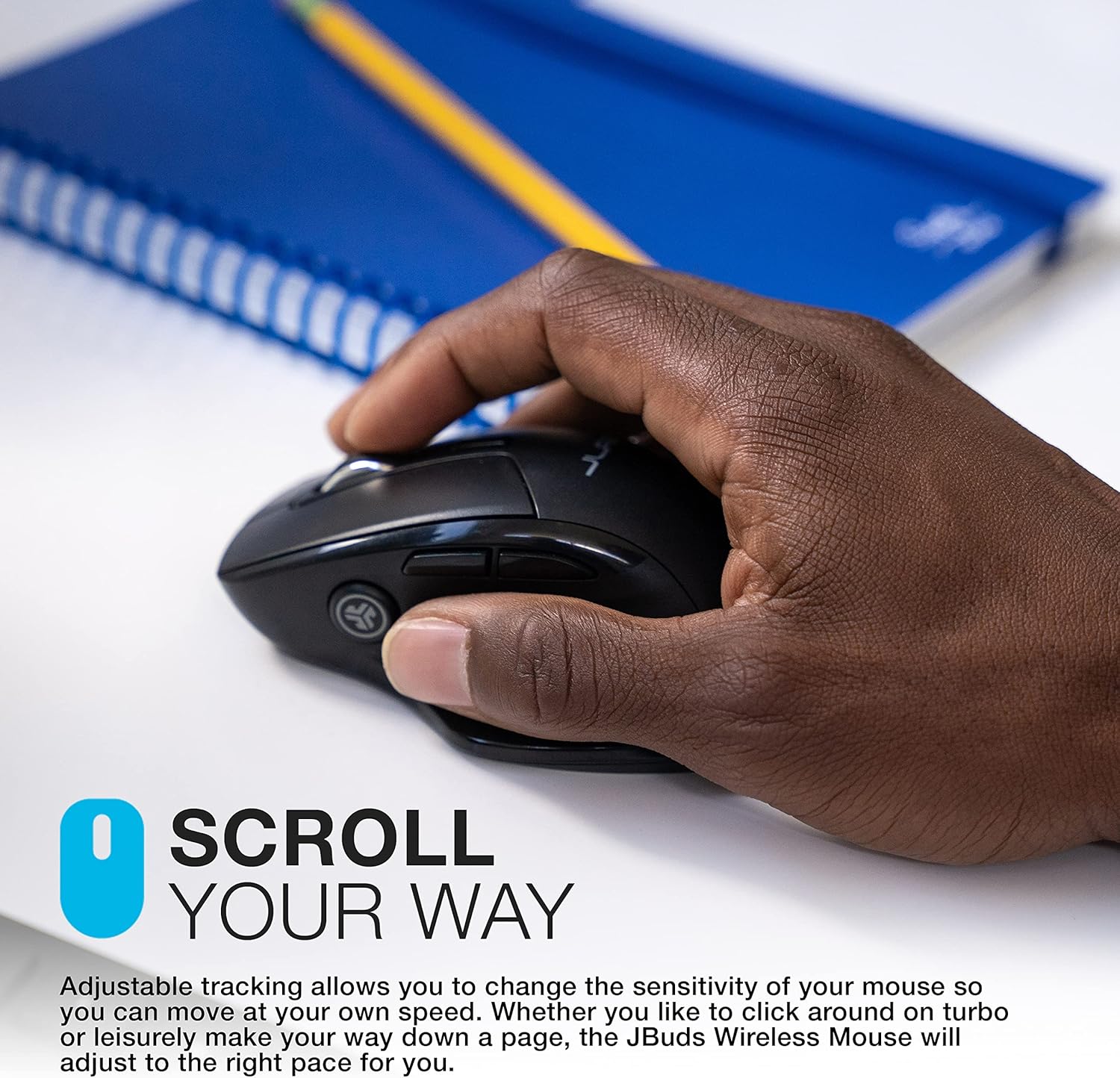
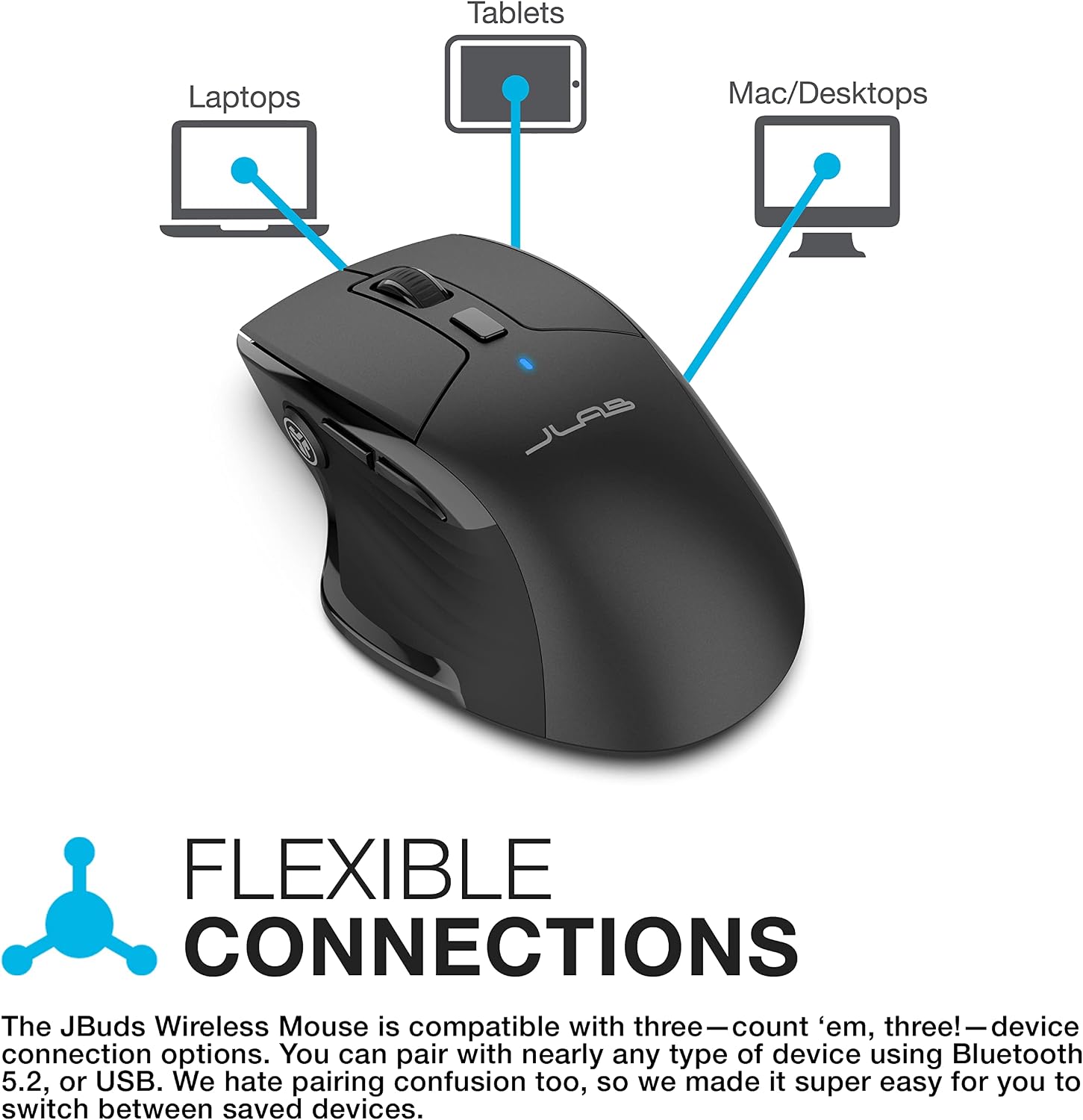
The Go Wireless Mouse's standout feature is small but genuinely useful: a USB charging cable built into the mouse itself, so there's nothing extra to remember to pack. Beyond that convenience, it offers quiet-click buttons, adjustable DPI, and a lightweight shape suited to daily use across classes, library sessions, and remote learning.
- Pros:
- Built-in USB charging cable, nothing extra to carry
- Quiet click buttons
- Rechargeable battery
- Compact, lightweight design
- 2-year limited warranty included
- Cons:
- Plastic build feels less premium than pricier options
- Built for everyday use rather than precision tasks




| Feature | Detail |
|---|---|
| Item Type Name | Wireless Mouse |
| Built-In Media | USB Dongle, Charging Cord, User Manual, Warranty Information |
| Model Number | IFCMJBMOUSERBLK124 |
| Antenna Location | Office |
| Movement Detection Technology | Optical |
| Model Name | JBuds Mouse |
| Special Feature | Wireless |
| Manufacturer | JLab |
| Connectivity Technology | Radio Frequency |
| Color | Black |
| Brand | JLab |
| Warranty Description | JLab Two Year Warranty |
Best For: Students who want a rechargeable, portable mouse for daily studying and classes without extra accessories to track.
Why We Recommend It: The built-in charging cable is a small detail that solves a real, common annoyance — forgetting a charging cable — making it a genuinely convenient everyday option.
8. Amazon Basics Wireless Mouse – Best for Basic Everyday Use
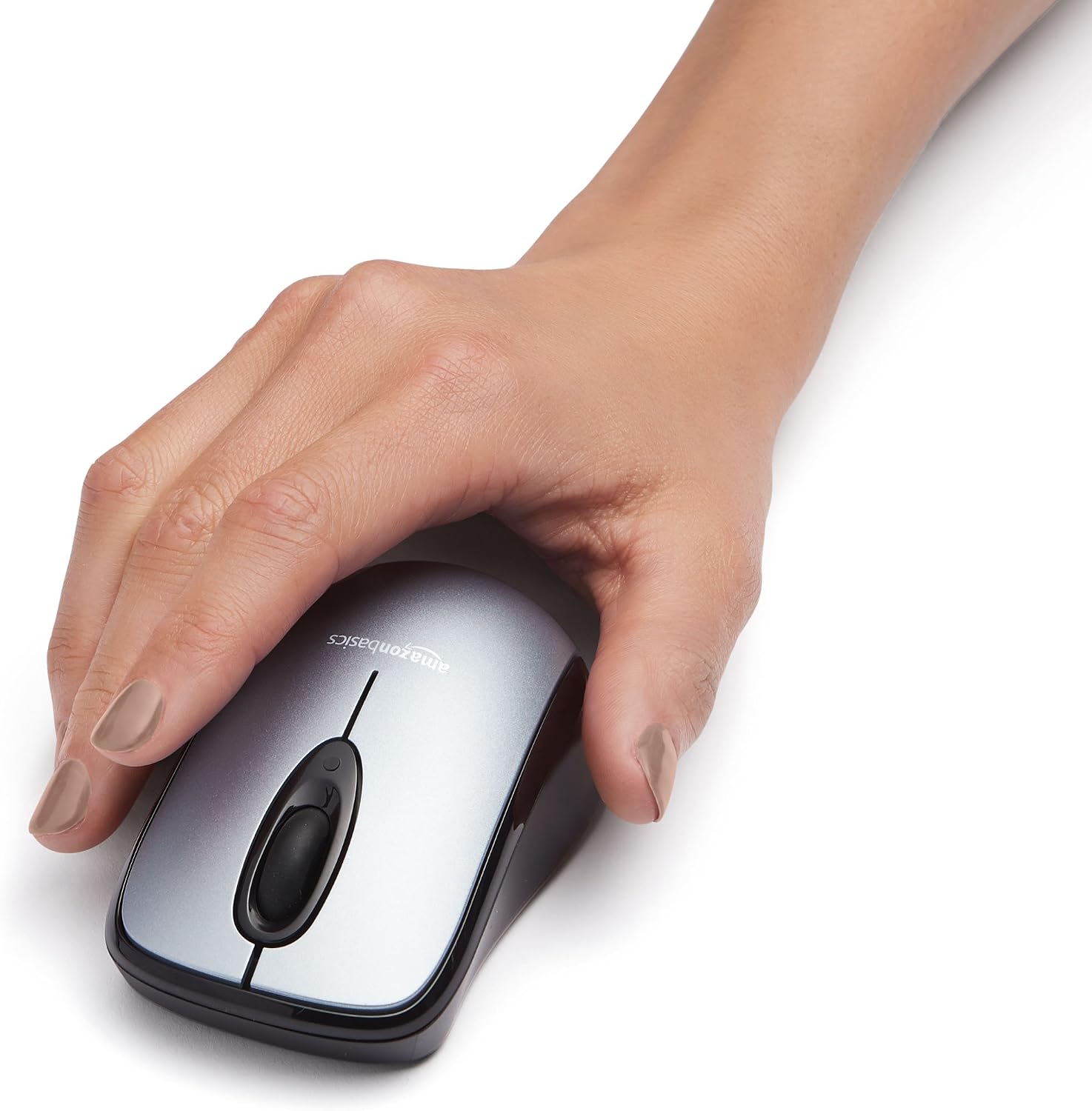
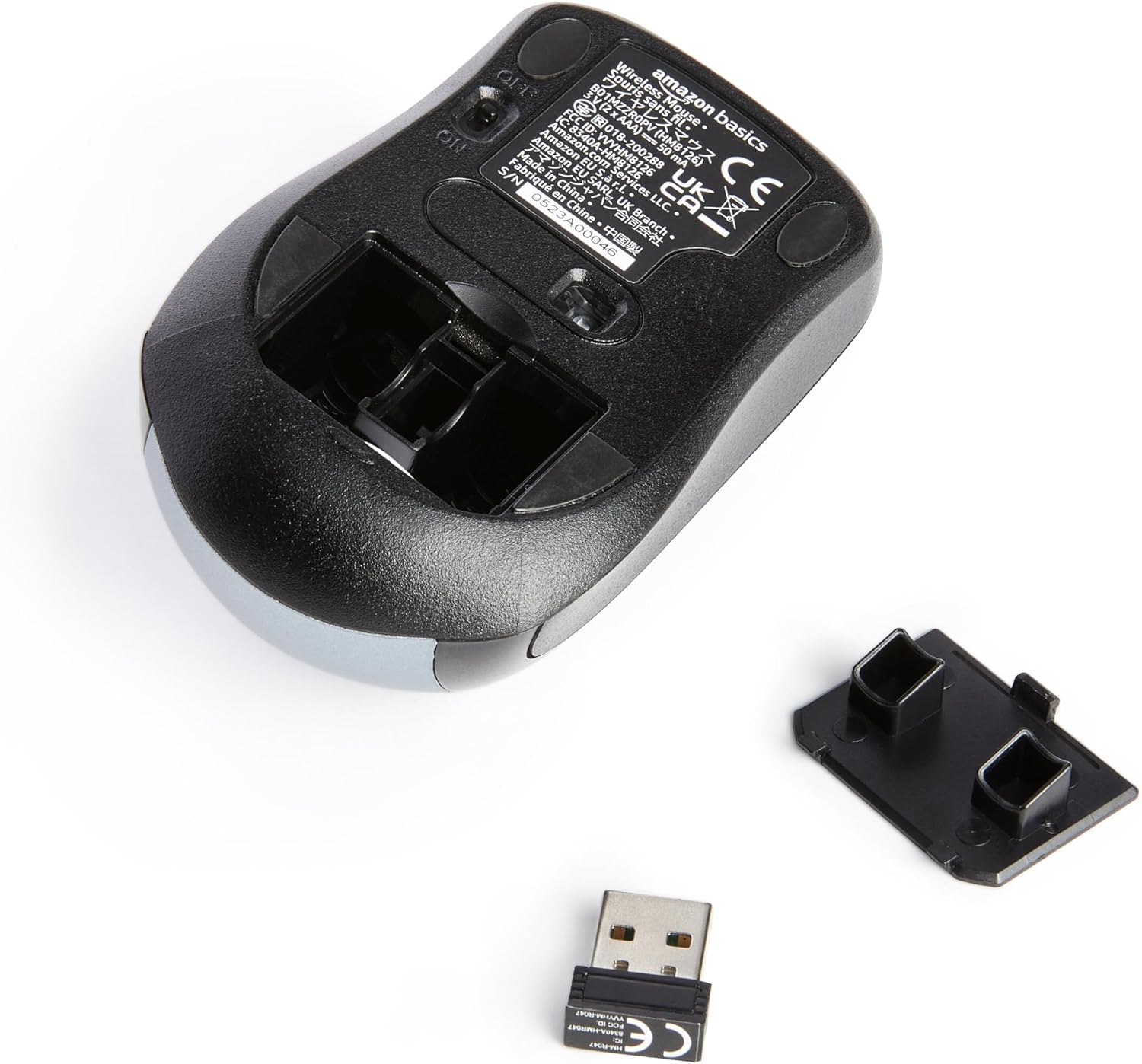
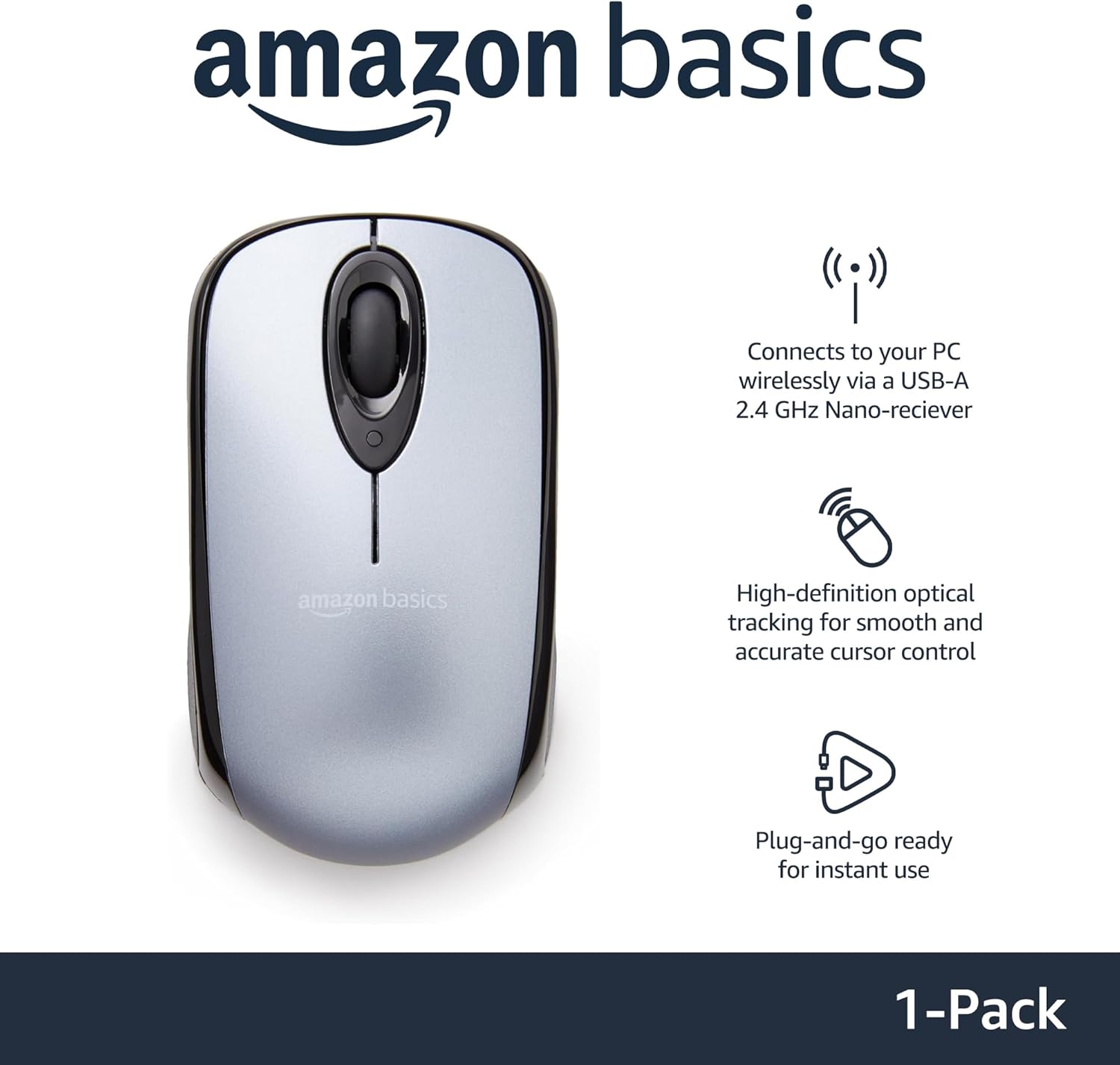
Not every student needs extra features, and the Amazon Basics Wireless Mouse is built for exactly that group. It's a plug-and-play 2.4GHz mouse with no setup beyond plugging in the receiver, and the compact shape fits into most bags without a second thought. It skips Bluetooth and customizable buttons, but for web browsing, note-taking, and document editing, it does the job without complication. This is the pick that makes the most sense for a first-year student who isn't yet sure how much they'll even use a mouse day to day, since it lets them cover the basics without committing real money to a category they might end up barely touching outside of exam season.
- Pros:
- Affordable and simple to use
- Plug-and-play setup, no software required
- Comfortable for everyday tasks
- Compact, lightweight design
- Reliable wireless connection
- Cons:
- No Bluetooth connectivity
- Basic sensor with limited advanced features
- Requires an available USB-A port

| Feature | Detail |
|---|---|
| Brand | Amazon Basics |
| Color | Silver |
| Connectivity Technology | USB |
| Special Feature | Wireless |
| Movement Detection Technology | Optical |
| Model Name | Amazon Basics Wireless Mouse |
| Antenna Location | Laptop |
| Built-In Media | batteries |
| Manufacturer | Amazon |
Best For: Students who want an affordable, no-frills wireless mouse for everyday coursework and general computer use.
Why We Recommend It: When budget is the primary concern and Bluetooth isn't a requirement, this covers the essentials at the lowest price point in this guide.
Buying Guide: How to Choose the Best Wireless Mouse for Students
The right mouse depends less on brand recognition and more on how and where you actually study. Before buying, weigh these factors against your own routine.
1. Quiet Clicks
If your studying regularly happens in libraries, lecture halls, or shared dorm spaces, silent-click switches make a real difference for both you and everyone nearby. Most modern quiet mice manage this without sacrificing how responsive the clicks feel.
2. Multi-Device Connectivity
Many students split work between a laptop, a tablet, and occasionally a desktop. A mouse that pairs with multiple devices and switches between them with a button press saves you from constantly re-pairing throughout the day.
3. Connectivity Options
Check what your devices actually support before buying. Bluetooth suits laptops and tablets without spare USB ports; a 2.4GHz USB receiver offers simple, reliable plug-and-play; some mice support both, which gives you the most flexibility across different devices and situations.
4. Battery Type
Rechargeable batteries are convenient day to day and remove the need to buy replacements, while replaceable AA or AAA batteries often last longer between changes and let you swap in a fresh one instantly if you're caught without a charge. Neither is objectively better — it comes down to whether you'd rather charge occasionally or carry spare batteries.
5. Portability
If your day involves moving between classrooms, the library, and home, a compact, lightweight mouse takes up less space and adds less weight to an already loaded backpack.
6. Comfort and Ergonomics
For students spending several hours a day at a keyboard, a mouse shaped for your hand size and grip style can meaningfully reduce fatigue over a semester. This matters more if the mouse mostly stays at one desk rather than traveling with you.
7. Battery Life
Longer battery life means fewer interruptions for charging or battery swaps. Many wireless mice run for months on a single charge or battery set, though actual runtime varies by usage and model.
8. DPI and Tracking Performance
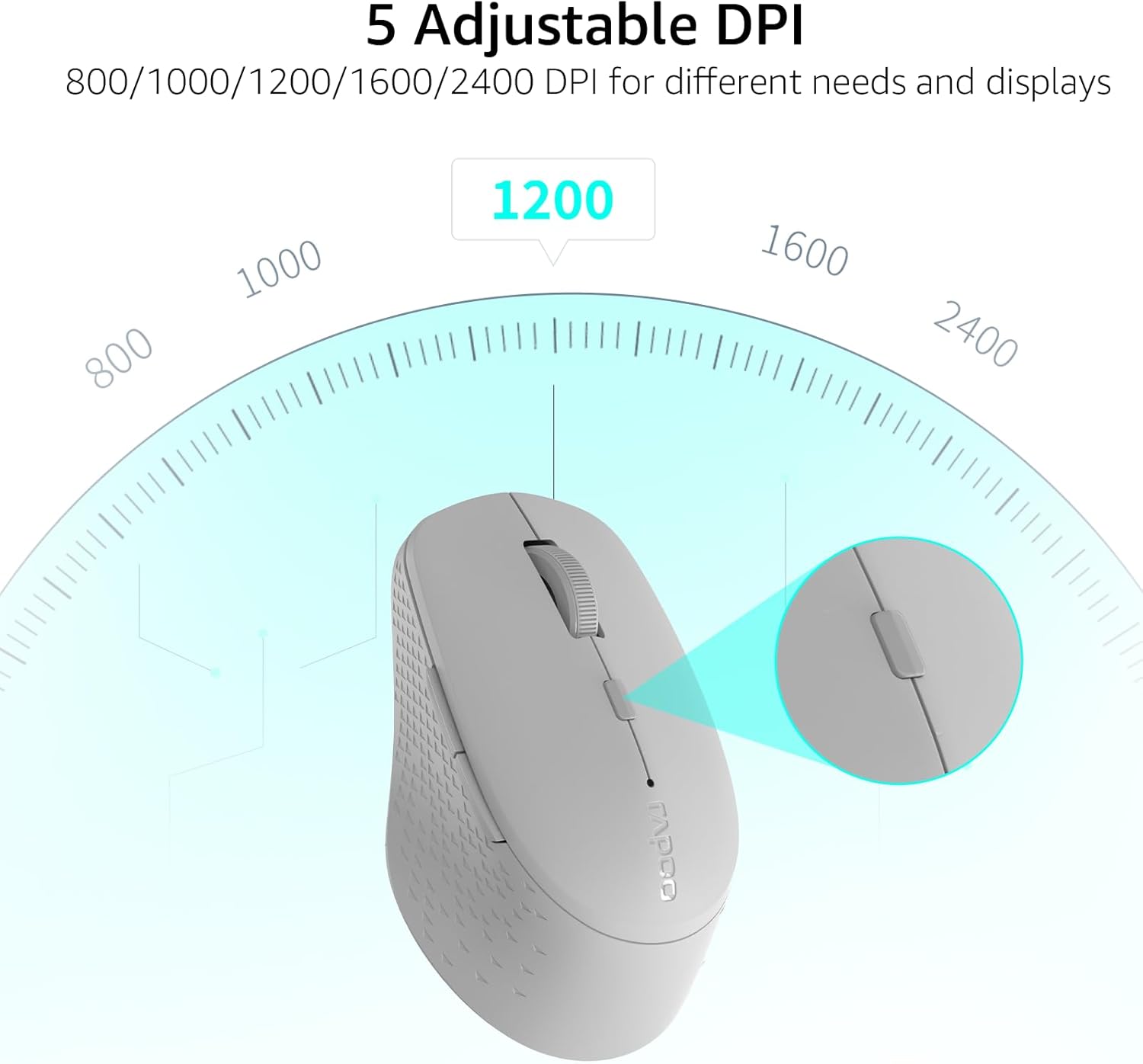
Higher DPI allows faster cursor movement, and adjustable DPI gives you flexibility across different tasks. For most students, a range of 800–2400 DPI comfortably covers browsing, note-taking, and research, while design or engineering students may want the extra precision higher-DPI sensors offer.
9. Build Quality
A mouse that's going to survive being dropped into a backpack every day for four years needs solid construction and buttons that hold up to repeated daily use, not just first-impression polish.
10. Value for Money
The priciest mouse isn't automatically the right one. Compare connectivity, battery life, comfort, and build quality against what you'll actually use, and let that comparison — not the price tag — guide the decision.
11. Warranty Coverage
A mouse with a longer warranty period is a reasonable sign the manufacturer expects it to hold up to years of student use, which is worth factoring in when comparing two otherwise similar options. This matters more for a mouse you expect to use across multiple years of school than for a short-term or secondary device.
12. Weight
Lighter mice reduce fatigue during long sessions and add less bulk to a backpack, though very light designs sometimes trade off battery capacity or build material to hit that weight, so it's worth checking both figures together rather than weight alone. If you already know you prefer a heavier, more substantial-feeling mouse, don't assume lighter is automatically better for you specifically.
13. Software and Customization
Many wireless mice pair with companion software that lets you remap buttons, adjust DPI stages, and save different profiles for different devices. This isn't essential for basic use, but students who switch frequently between tasks like writing, research, and light design work may find custom button assignments genuinely save time over a semester.
14. Left- and Right-Hand Compatibility
Most wireless mice on the market are designed with a symmetrical or right-hand-biased shape. Left-handed students should double check a model's shape and button layout before buying, since ergonomic designs in particular are often optimized for one hand orientation only.
15. Pay Attention to Scroll Wheel Feel
Scroll wheels generally come in two styles: a notched, ratcheted wheel that clicks through discrete steps, and a free-spinning wheel that scrolls smoothly and can coast through long documents with a single flick. The ratcheted style gives more precise control useful for line-by-line editing in a spreadsheet, while free-spin wheels are noticeably faster for scrolling through long PDFs or lecture slides. Neither is strictly better for every student, but it's a detail worth paying attention to if you spend a lot of time in long documents specifically.
16. Check How the Mouse Handles Power Saving
Many wireless mice automatically enter a low-power sleep mode after a period of inactivity to extend battery life between charges, waking again with a click or slight movement. A mouse that wakes instantly is a minor convenience most days, but a mouse with a noticeable lag coming out of sleep can be a genuine annoyance in the middle of a timed exam or a fast-moving lecture. It's a small detail that rarely shows up in a spec sheet but is worth checking in reviews from actual owners before buying.
Frequently Asked Questions
Can I use a wireless mouse with a tablet?
Yes. Most modern wireless mice support Bluetooth, which makes them compatible with iPads, Android tablets, and other Bluetooth-enabled devices. Confirm operating system compatibility before buying if you plan to use it primarily with a tablet.
Why is my wireless mouse lagging or skipping?
This usually comes down to Bluetooth interference, a low battery, or an unsuitable tracking surface. A good mouse pad, a fresh charge, and reducing nearby wireless interference typically resolve most tracking issues.
What should I do if I lose my USB receiver?
Many mice include a small storage slot inside the body for the receiver when it's not in use, which helps prevent this in the first place. If your mouse also supports Bluetooth, you can usually connect without the receiver at all; otherwise, you may need a compatible replacement from the manufacturer.
Are ergonomic wireless mice comfortable right away?
Most users adapt within a few days. Ergonomic shapes support a more natural hand position, but switching from a flat mouse can feel unfamiliar at first before it becomes the more comfortable option.
How can I extend my mouse's battery life?
Turn the mouse off when it's not in use, take advantage of power-saving features where available, and keep the battery charged or replaced proactively rather than waiting for it to die mid-session.
Is Bluetooth or a USB receiver better for students?
Both have advantages. Bluetooth frees up USB ports, which matters on laptops with limited connectivity; a 2.4GHz receiver tends to offer a more consistently stable connection. Mice that support both give you the flexibility to choose per situation.
What DPI is best for students?
For everyday coursework — note-taking, browsing, document editing — 800 to 2400 DPI is more than sufficient. Design, video editing, or CAD work can benefit from the extra precision that higher DPI settings provide.
Are rechargeable mice better than battery-powered ones?
Rechargeable models remove the ongoing cost and hassle of replacing batteries, which suits daily users. Battery-powered mice often run longer between changes and let you swap in a spare instantly, which some users prefer for reliability.
Can one wireless mouse work with multiple devices?
Yes, many mid-range and premium wireless mice support pairing with two or three devices, letting you switch between them with a button or through companion software.
How do I choose the best wireless mouse for my situation?
Weigh comfort, portability, battery life, connectivity, noise level, and build quality against how and where you actually study, then let your budget narrow the final decision rather than lead it.
Do I need a mouse pad with a wireless mouse?
Not always, but a mouse pad improves tracking consistency on glossy, textured, or uneven surfaces like some library desks, and it protects the sensor from picking up dust and debris over time. A small, foldable mouse pad is easy to carry alongside a compact mouse if you frequently work from different locations.
How do I clean a wireless mouse that's been carried in a backpack every day?
A soft, slightly damp cloth on the outer shell, along with a can of compressed air around the sensor and scroll wheel, handles most dust and grime buildup. Avoid submerging the mouse or spraying liquid directly onto it, particularly near the battery compartment or charging port.
Is it worth buying two mice, one for home and one for campus?
For most students, a single well-chosen mouse that's genuinely portable makes more sense than maintaining two devices. The exception is students who keep a larger ergonomic mouse permanently at a home desk while carrying a smaller, ultra-portable model for campus use.
Will a wireless mouse work well on a dorm room desk?
In most cases, yes, though very glossy or reflective desk surfaces can cause tracking issues with some optical sensors. A mouse with a Darkfield or laser sensor, or a simple mouse pad, resolves this in nearly every case.
How much should a student expect to spend on a good wireless mouse?
Solid budget options exist well under 30 dollars, while premium multi-device mice with advanced sensors typically run higher. Most students can get everything they actually need — quiet clicks, decent battery life, and reliable tracking — without reaching for the most expensive option on the shelf.
Do I need a gaming mouse if I play games occasionally between studying?
Not necessarily. A handful of productivity-focused mice, including some covered in this guide, offer high enough DPI and responsiveness for casual gaming without the extra cost, RGB lighting, or bulk of a dedicated gaming mouse.
Can a wireless mouse help reduce hand or wrist strain during long study sessions?
Yes, particularly an ergonomic model shaped to support a more natural hand position. Combined with reasonable breaks and a comfortable desk setup, an ergonomic mouse can meaningfully reduce the fatigue that builds up over multi-hour study sessions.
Do I really need a mouse if my laptop already has a trackpad?
For quick browsing or occasional use, a trackpad is often enough. Once your work involves detailed editing, spreadsheet navigation, design software, or long research sessions, a mouse typically offers faster, more precise control and puts noticeably less strain on your wrist and fingers than repeated trackpad gestures over several hours.
Do I need to install software to use a wireless mouse?
No. Nearly every wireless mouse works immediately with basic point-and-click and scroll functionality the moment it's paired or plugged in, no software required. Companion apps are only necessary if you want to customize button assignments, adjust DPI stages, or set up multi-device profiles, and skipping them entirely won't stop the mouse from working normally.
Final Verdict
Choosing the right wireless mouse ultimately comes down to your budget, study habits, and daily routine. Each option covered here targets a different priority, which makes it easier to match a specific model to your actual needs rather than picking the most popular option by default.
- Best Overall: Logitech Pebble 2 M350s – A strong balance of portability, quiet operation, and everyday productivity.
- Best Premium: Logitech MX Anywhere 3S – Ideal for students who need advanced tracking, multi-device pairing, and premium build quality.
- Best Budget: Rapoo M100 Silent – An affordable option with dual-mode connectivity and dependable everyday performance.
- Best Ergonomic: Kensington Pro Fit Ergo Wireless – Built for students who spend long hours writing, researching, or coding.
- Best for Travel: Microsoft Surface Arc Mouse – A fold-flat design that's genuinely easy to carry between classes.
- Best for Creative Work and Coding: Keychron M3 Wireless – High-precision tracking suited to design, programming, and casual gaming.
- Best Rechargeable: JLab Go Wireless Mouse – A convenient option with a built-in charging cable.
- Best Basic Option: Amazon Basics Wireless Mouse – A simple, budget-friendly choice for everyday computing.
Whether you're taking notes in a lecture hall, editing a thesis draft, or working through a design assignment, a mouse that fits your actual routine — not just your budget — pays off in comfort and efficiency across the semester. Compare the features that matter most to you and choose accordingly.